


PERMISSIONS REQUIRED: You must have Administrator Permissions or higher.
Time Zone is an Organization wide setting and applies to all timed activity, including the Calendar, Appointment times, and Timestamps on Notes.
This system defaults to U.S. Central Time Zone. If you do not live or see Clients in this time zone you must manually change it. Clients see their Time Zone in the client portal by default location for their appointments.
IMPORTANT: All existing Appointments will automatically shift to reflect the updated Time Zone and show on all signed documentation time stamps.
Staff members have the ability to set a default time zone that is different from organization & location time zones. For the associated staff, their agenda, calendar & appointment windows will then display in the time zone set by the staff member. Appointment times will display in the location time zone linked to an appointment on the client list and appointment reminders. Signed Documentation will show in the Organization Time Zone.
Appointment times will display on the calendar based on the organization time zone OR the staff time zone (if different). It will display on signed documentation in the organization time zone. It will display on appointment reminders based on the Location time zone.
See Set Your General Preferences for more information.
NOTE: You can update the Time Zone from multiple places in the system: Organization - Profile, Organization - Locations & Rooms and My Profile and Settings.
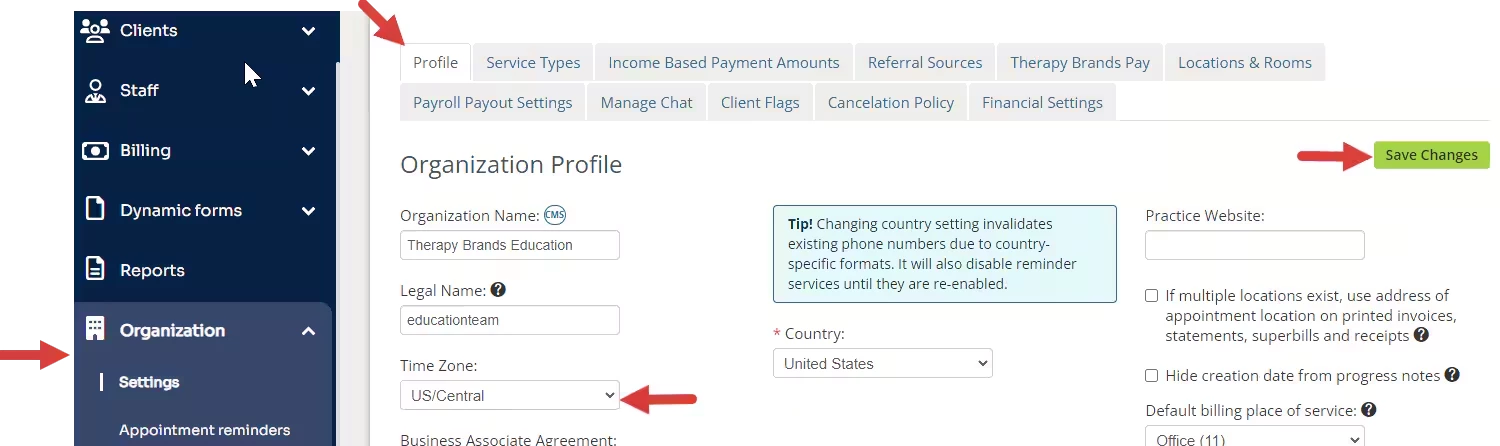
Organization - Profile
- Click the Organization and Settings in the navigation bar. The Profile tab opens.
- Click Time Zone drop down and select appropriate zone.
- Click Save Changes.
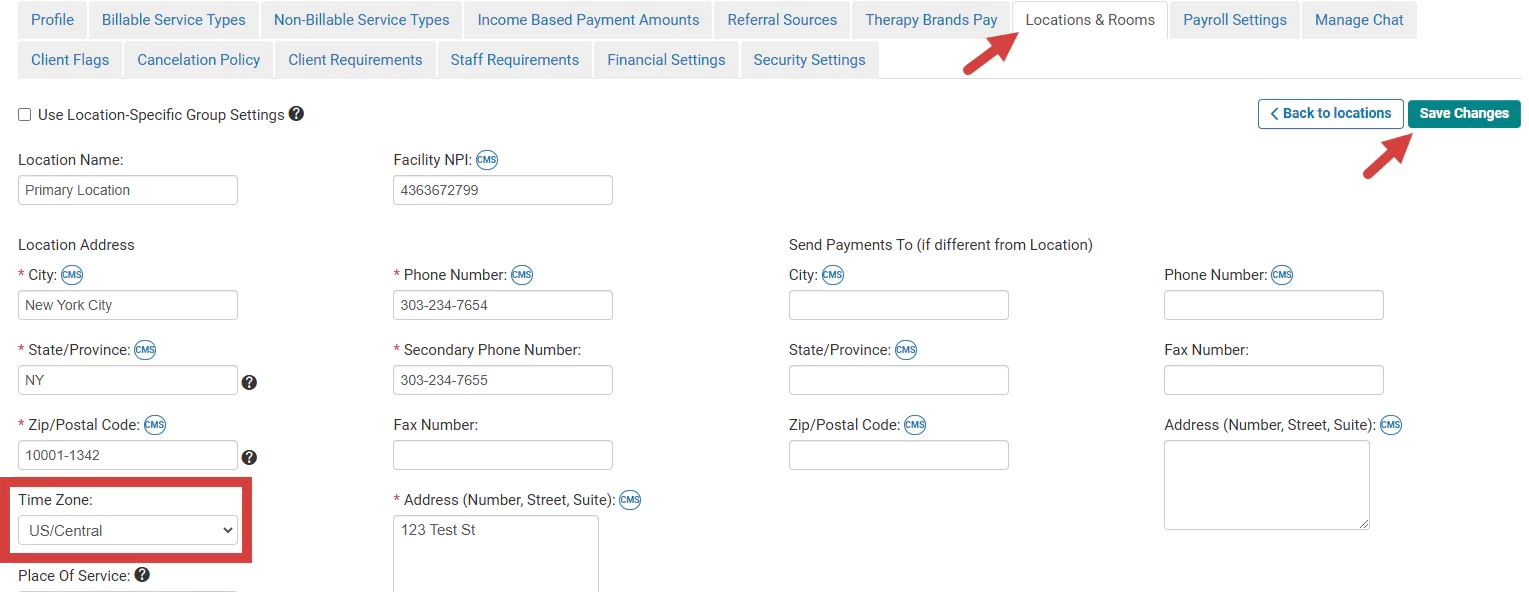
Organization - Locations & Rooms
NOTE: This is where you can set time zones for individual locations.
- Click Location and Rooms tab from Organization Settings.

- Click Details for the location.

- Change Time Zone and click Save Changes.
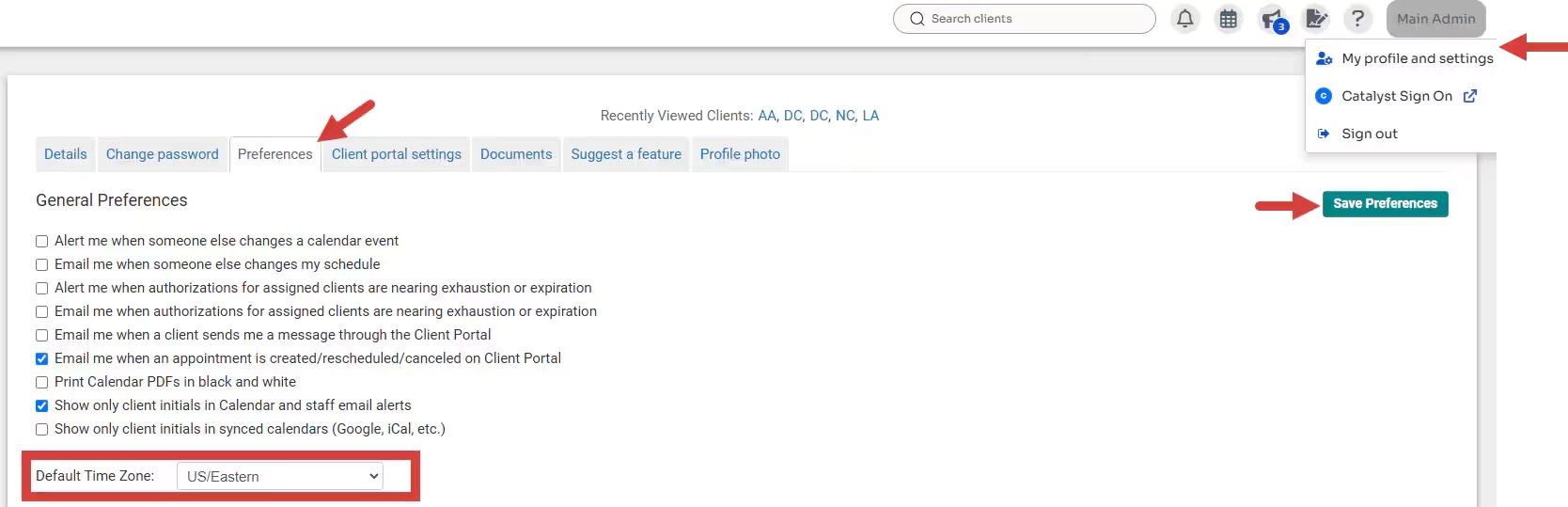
My Profile and settings
- Click My profile and settings from your profile name.
- Click Preferences.
- Select a Default Time Zone.
- Click Save Preferences.
[Back to Top]