


Jump to Section:
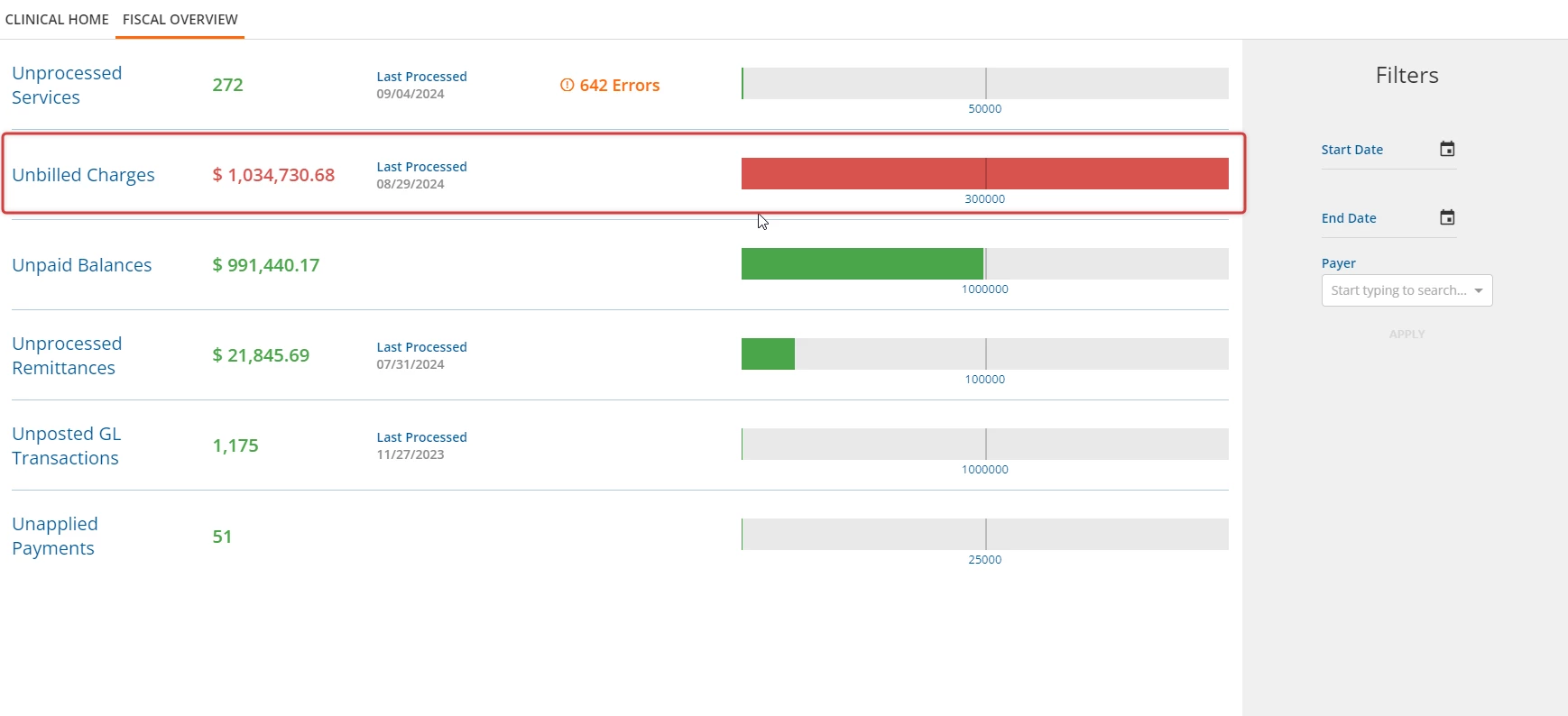
In Fiscal Overview, the Unbilled Charges screen allows users to create bills and create claims with an Outgoing charge status. Unbilled charges by definition are the charge balances created in Unprocessed Services that have not yet been billed to a Payer. Within the Fiscal Overview screen, a total of all unbilled charges display as a dollar amount.
Click the blue Unbilled Charges header to open the Create Bills window.
Create Billing Jobs
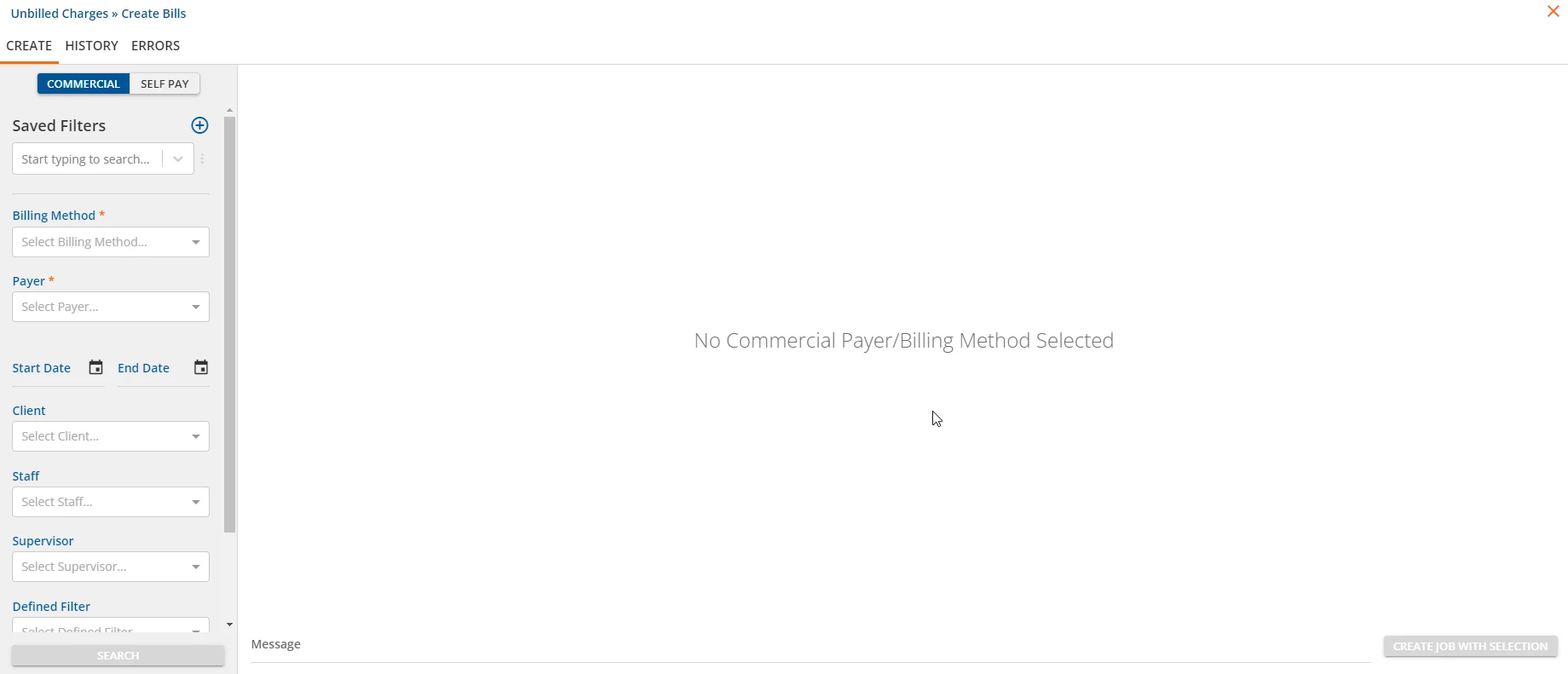
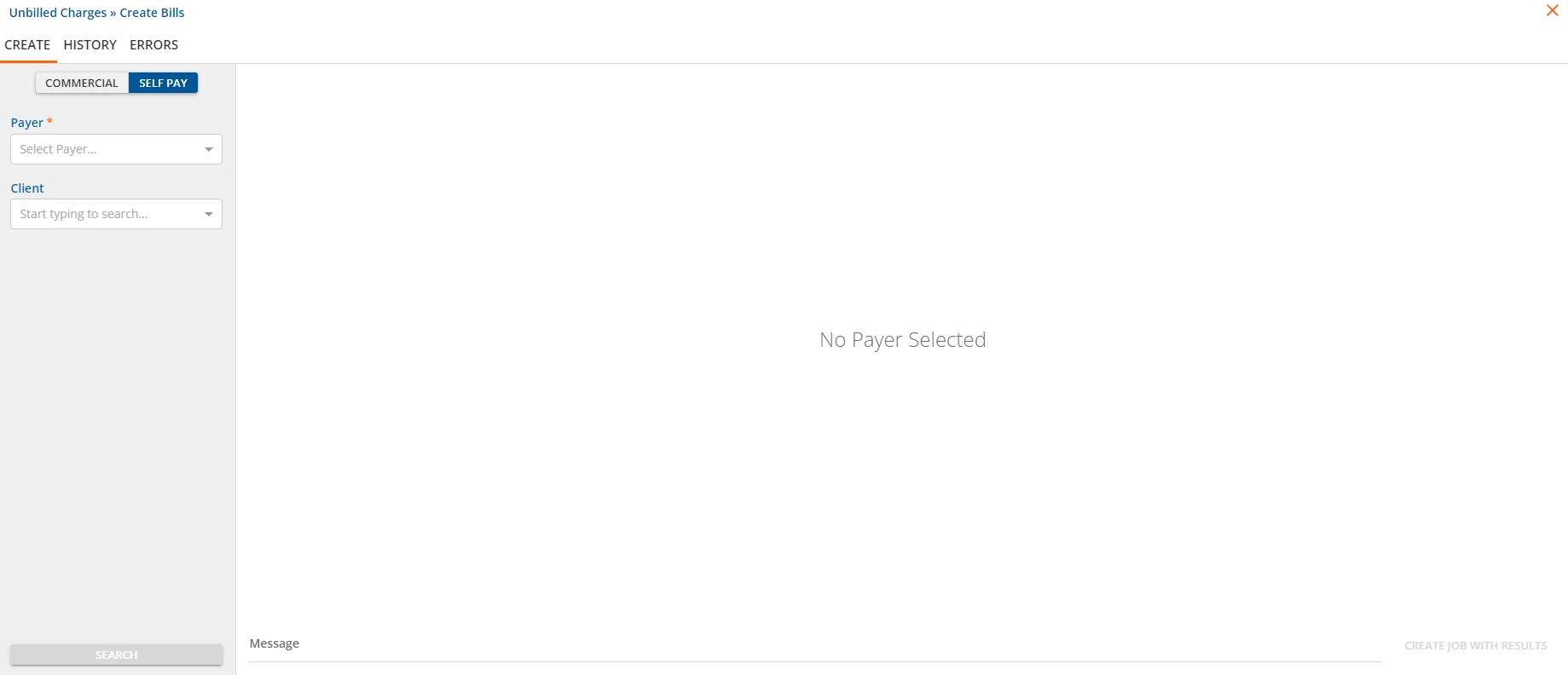
The Create Bills screen displays two different options based on Payer type. The Commercial Payer type is displayed by default. The Self Pay Payer type is accessible by clicking the Self Pay header.
| Commercial Payer Display | Self Pay Payer Display |
| 
|
At minimum, a Billing Method and one Payer must be selected before the Search button is enabled. Users have the option to utilize the Claims to Include field, below all filtering fields to select what type of claims are included in the search. The default selection is "All".
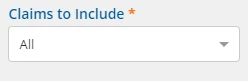
Additional options include: Void Requests Only and Active Charges Only.
- Billing Method - A Billing Method must be selected and only one Billing Method can be selected at a time.
- Payer - Select a Payer to begin searching for Unbilled Charges to add to the claim file, multiple Payers may be selected. Payer information is previously configured in Configuration - Services/Payers > Payers.
- Start Date and End Date - Enter a Start Date, End Date or both to search a specific date range.
- Client - Use to limit the Search results to a single Client's charges.
- Staff - Use to limit the Search results to return on charges associated with the selected Staff.
- Supervisor - Use to limit the Search results to return charges associated with the selected Supervisor.
- Defined Filter - Use to limit the Search results to return charges that meet the Defined Filter settings.
NOTE: When creating bills in the Commercial tab, users have the ability to save filters in the Saved Filters section, allowing the filter combinations used most frequently to be recalled quickly. When creating Self Pay Payer bills within the Self Pay tab, there is no option to save filtering and there are only two dropdown fields, for Payer and Client.
- Click the blue + Add Filter button to save currently entered filters.
- A pop-up box will prompt for a Saved Filter Name. Enter a name and click the blue Save button to save the filter.
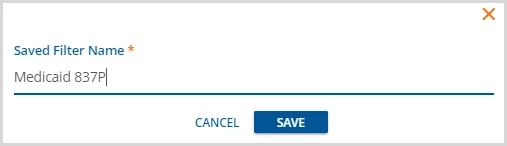
- A pop-up box will prompt for a Saved Filter Name. Enter a name and click the blue Save button to save the filter.
- Click the ellipsis icon to Update or Delete the Saved Filter.
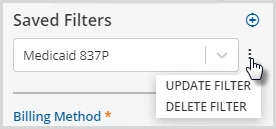
- Click Update Filter to make changes to an existing Saved Filter. This may include changes to the Filter setting and the Saved Filter name.
- Click Delete Filter to remove a previously Saved Filter. A Confirm Action pop-up window will display. Click the blue Delete button to confirm.
When all desired filters have been populated, click the blue Search button to see the results.
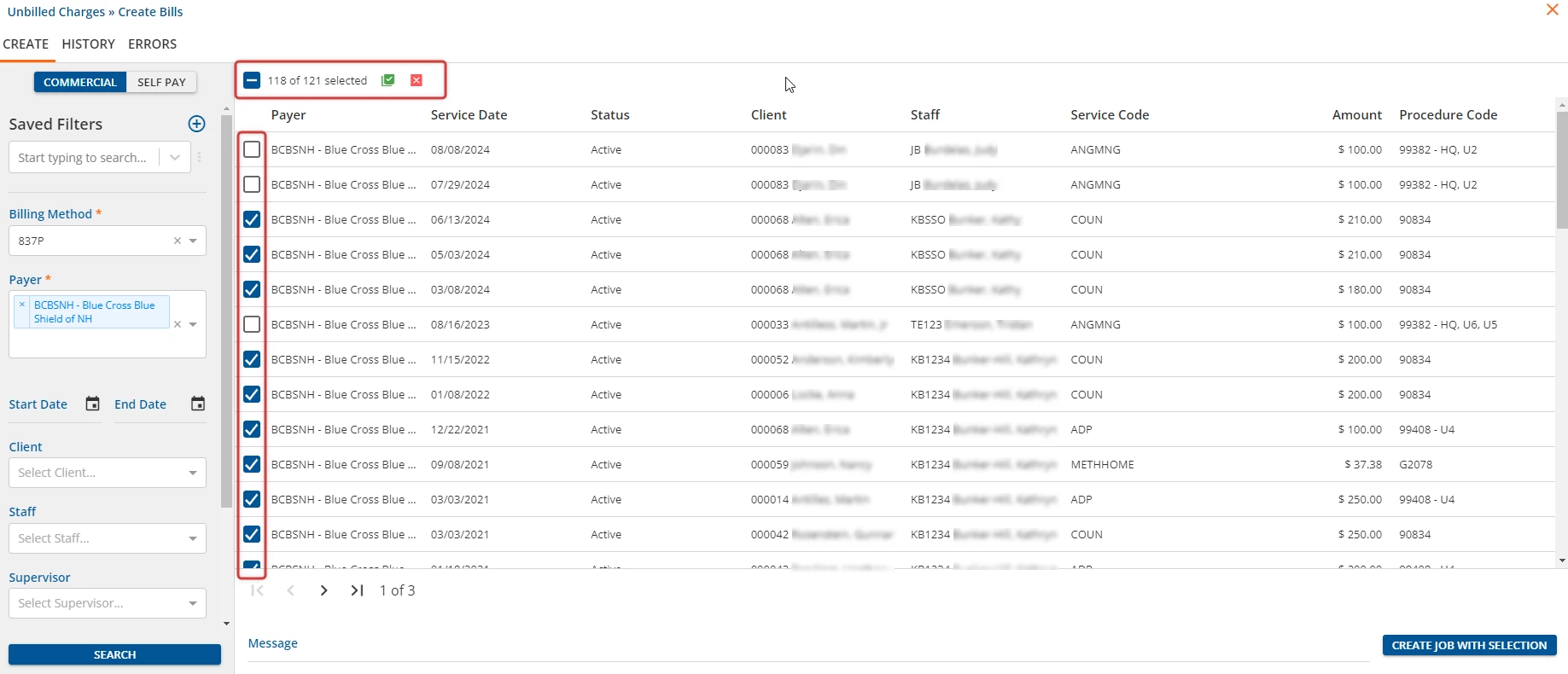
Use the individual check boxes to select or deselect individual charges to include in the Create Bills job. Selections persist as users navigate page to page.
IMPORTANT: Two buttons are available to quickly select all results, across all pages.
- Click the green square button to Select All Results.
- Click the red square button to Clear Results and deselect all line items.
NOTE: The checkbox to the left of the bulk selection buttons will only select/deselect all the first page of results, which are the 50 most recent charges.
- Once charge are selected, the blue Create Job With Selection button will be enabled.
- Enter a unique description to identify the billing job throughout processing in the Message field.
- Click the enabled blue Create Job With Selection button.
- A Confirm Job Creation will display with the number of charges selected.
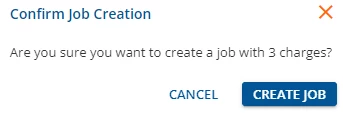
- Click the blue Create Job button to confirm the action.
- Continue to the History tab to process the billing job.
History Tab
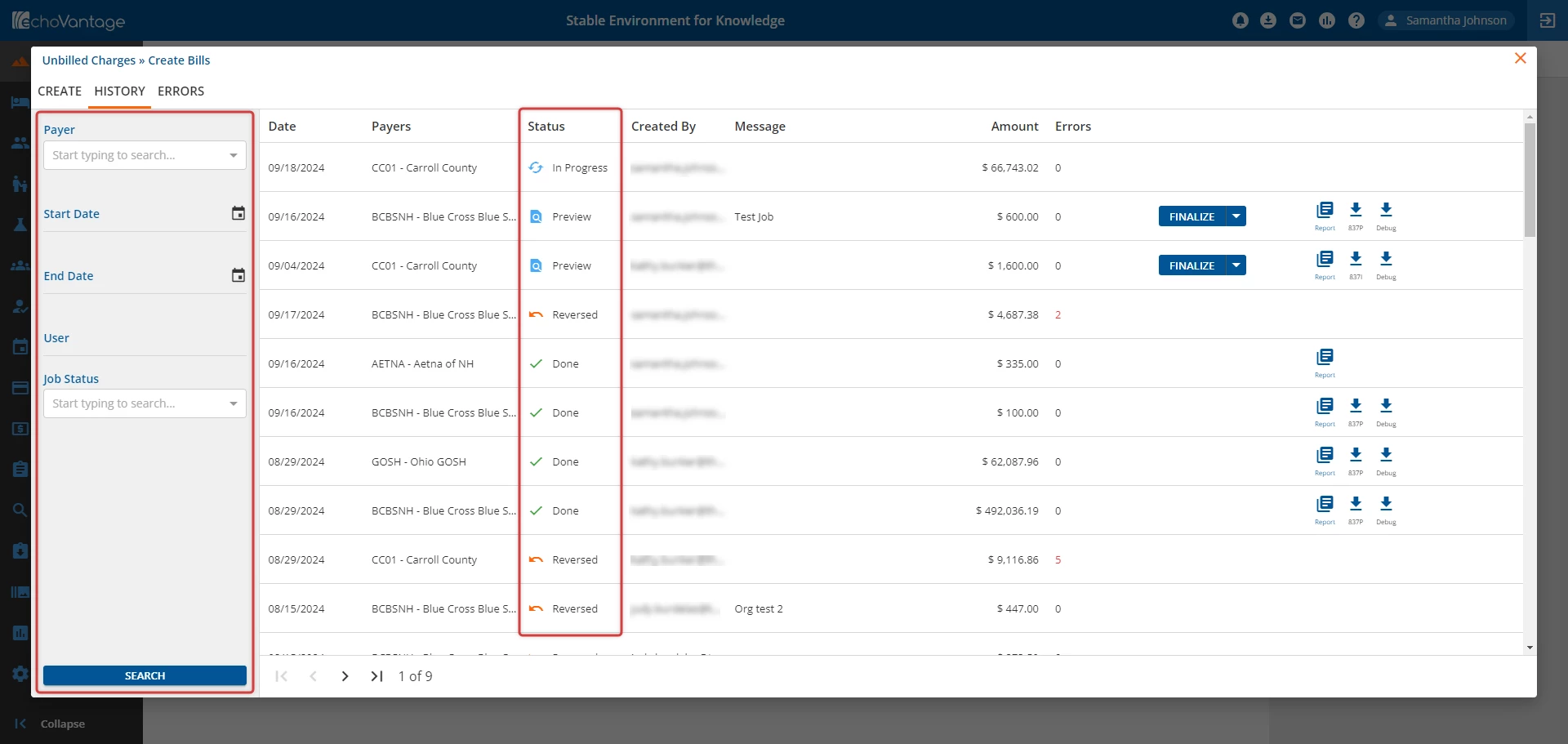
All billing jobs are displayed within the History tab, with most recent created jobs appearing at the top of the list view. The display can be filtered by Payer, Start and End Dates, User, and Job Status. These are not required selections.
Status - Status indicates which stage the selected job is in during processing.
- Preview (blue magnifying glass icon) - Indicates the job is ready to Finalize, Retry, or Reverse.
- Pending (blue ellipsis icon) - Indicates the job is waiting to be processed.
- In Progress (blue cyclical arrows icon) - Indicates the job is processing.
- Done (green checkmark icon) - Indicates the processing is complete.
- Reversed (orange curved arrow icon) - Indicates the job was previously created but returned to Unbilled Charges state.
The total charges for the batch are listed in the Amount column.
Errors - This indicates the number of Errors in a job. If equal to "0", the job is ready to finalize, retry, or reverse. If not equal to "0", see the Resolve Errors section to make corrections.
NOTE: It is recommended that Errors be corrected early in the process to improve accuracy and decrease payment time.
- To view the details of a billing job, click within the row.
- The Job Details screen will open in the window:
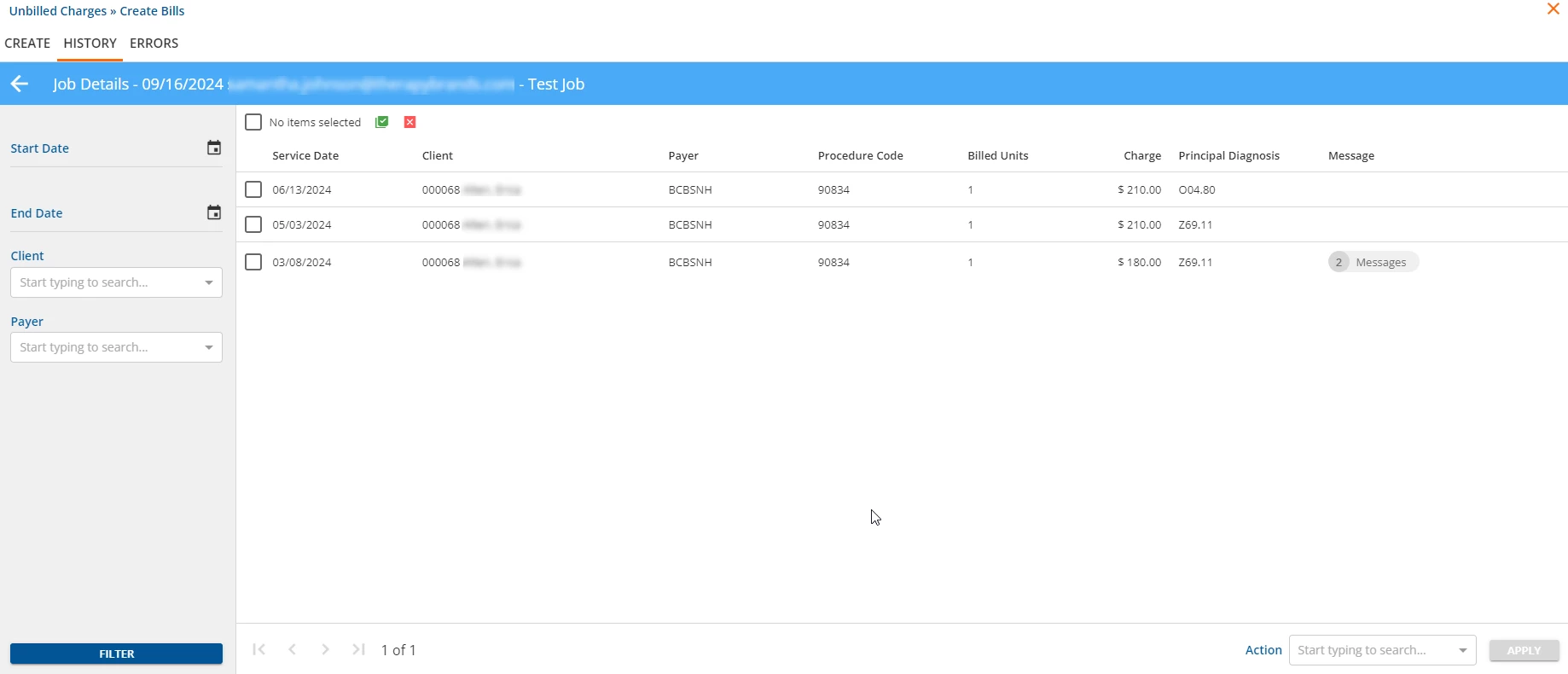
- The following columns are displayed:
- Service Date
- Client
- Payer
- Procedure Code
- Billed Units
- Charge
- Principal Diagnosis
- Message
- If one message is present, it will display. If multiple messages are present, users can click on the number icon to view all error messages.
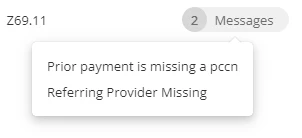
- If one message is present, it will display. If multiple messages are present, users can click on the number icon to view all error messages.
- Similar to the Create tab, users can utilize the individual check boxes to select or deselect individual charges to perform actions. Selections persist as users navigate page to page.
IMPORTANT: Two buttons are available to quickly select all results, across all pages.
- Click the green square button to Select All Results.
- Click the red square button to Clear Results and deselect all line items.
NOTE: The checkbox to the left of the bulk selection buttons will only select/deselect all the first page of results, which are the 50 most recent charges.
- Users can also view the Claim Details of each individual charge by clicking within the row item.
To remove selected charges from the billing job:
- Once making selections, the user will select the Remove action from the Action field.
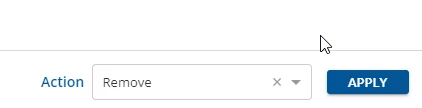
- Click the blue Apply button to apply the changes to the billing job and remove the selected line items.
- A pop up message will appear to notify when the action is successfully completed.
Finalize Jobs
Within the History tab, the create bills and resulting claim process is not complete until the job without errors is Finalized. The Retry and Reverse functions are used depending on the errors and the corrections required.
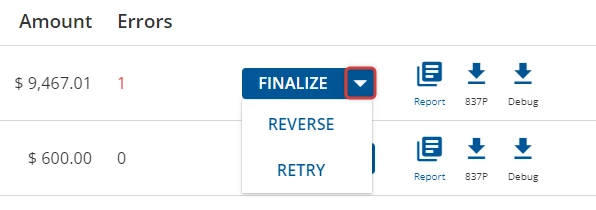
Finalize/Reverse/Retry - Click the white arrow to the right of the Finalize button to expand to all three buttons.
- Finalize
- Moves Preview status services with no errors to Unpaid Balances. The line item status will be converted to Done in the list view.
IMPORTANT: Unbilled Charges with errors will not be finalized. The status will be changed to Hold and they will be returned to the Create tab of the Unbilled Charges window until the errors are corrected and included in another batch.
- Moves Preview status services with no errors to Unpaid Balances. The line item status will be converted to Done in the list view.
- Retry
- This function reprocesses the billing job to test if corrections have fixed the errors. This function can be run as often as necessary to correct all errors.
- Reverse
- This function will undo the creation of the billing job. The batch will show as Reversed in the History tab and the charges will be returned to the Create tab with an Active Status.
Report, 837(I/P), and Debug - These icons allow access to the bills or billing file in different forms.
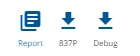
- Click the blue page Report icon to view a report with all billing job information. The Reports icon is available even after the job is Finalized.
- Click the blue down arrow 837I or 837P icon to download the read-only 837 file for the job submitted.
- Click the blue down arrow Debug icon to download a zip file version of the 837 file for the job submitted.
Resolve Errors
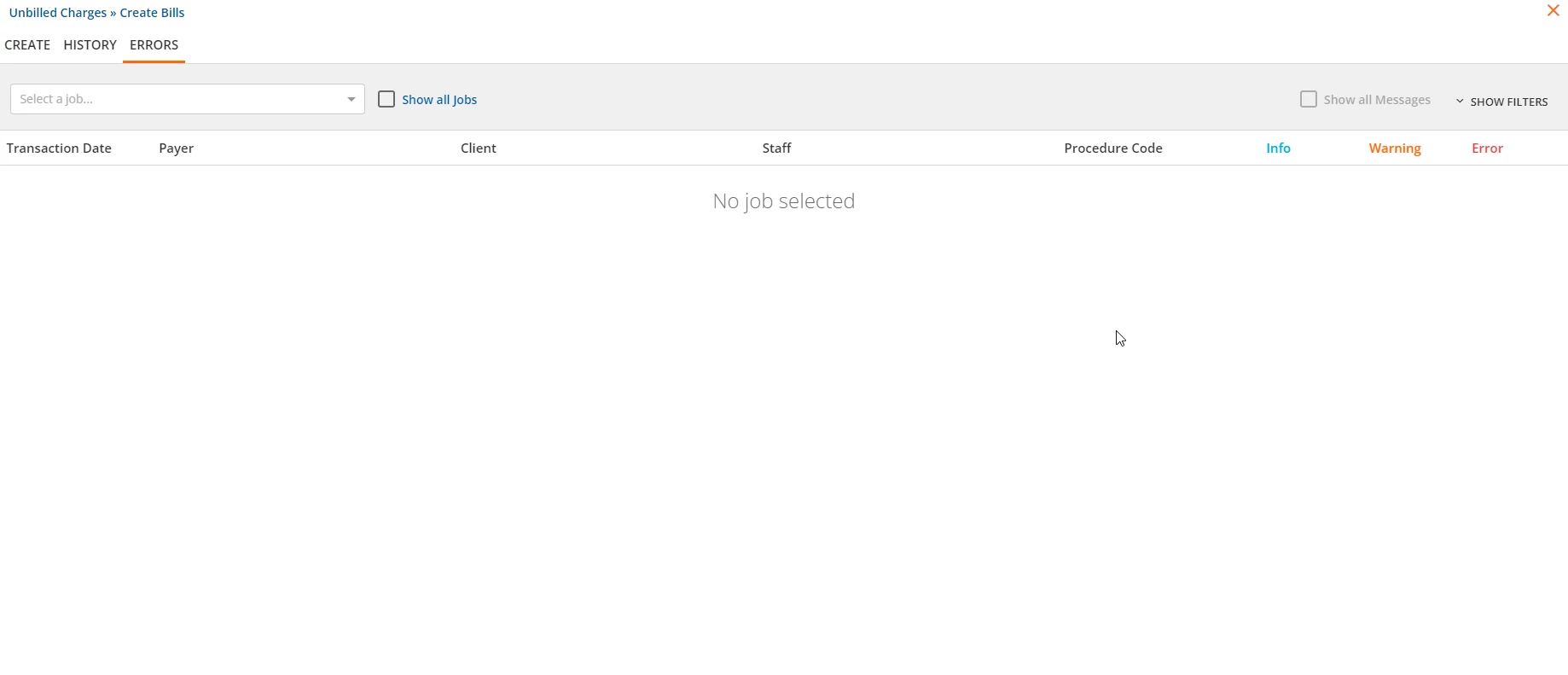
The Errors tab displays batches with errors and the user can view more information on the specific errors.
- Use the drop-down list to select the job to be viewed. By default, only jobs that contain errors are displayed in the drop-down listing. Click the blank Show all jobs checkbox to include all jobs in the drop-down listing.
- Click the Show Filters button at the right of the screen to display filters that can be used to refine the results in the job drop-down listing.
- The job results can be filtered by date range using the Start Date, End Date, or both.
- The job results can be filtered to only those created by the currently logged-in user by clicking the blank Created by me checkbox.
- Click the blue Clear Job Filters button to clear the filters and show all jobs with errors (default) or all jobs (checkbox).
- Click the Show Filters button at the right of the screen to display filters that can be used to refine the results in the job drop-down listing.
- Click to check the Show all Messages checkbox to list all the charges in the job. Deselect to display only the charges with Errors.
- After selecting a job from the dropdown list, the billing job details will display.
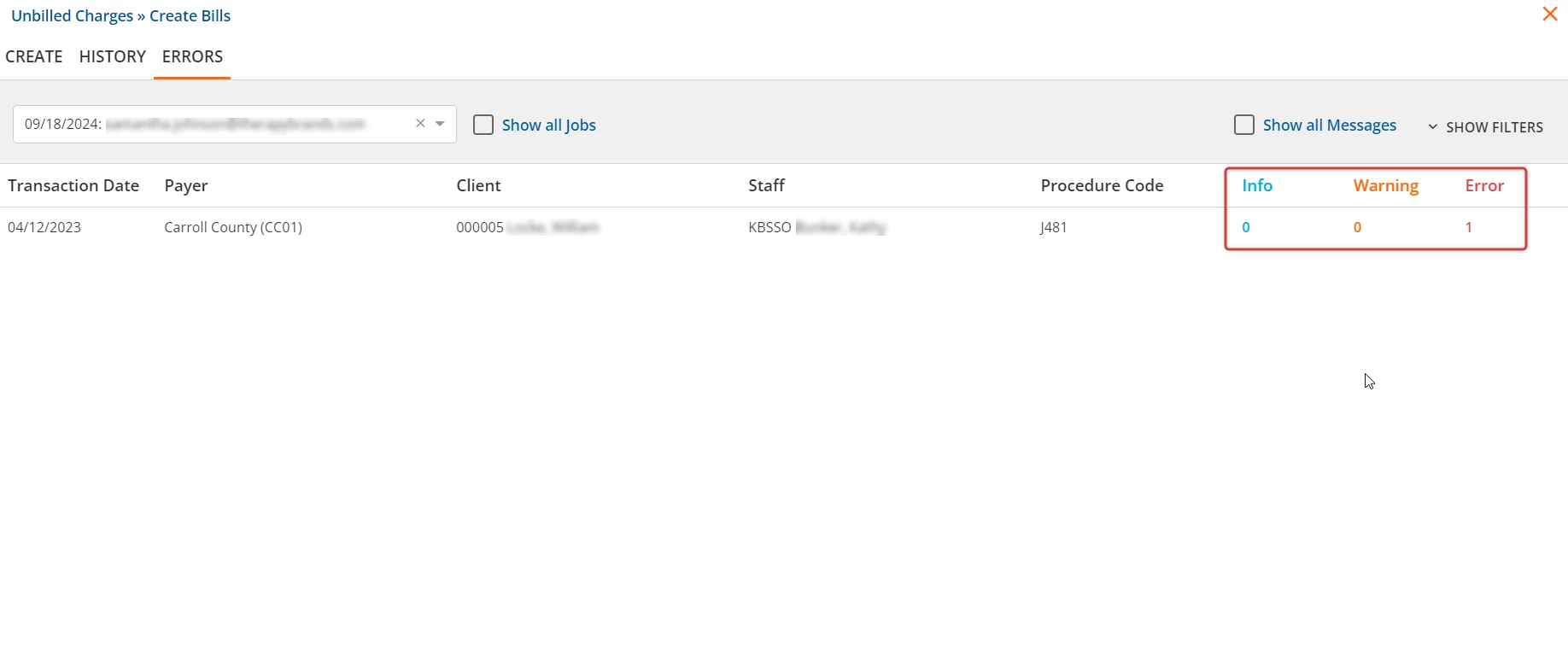
- For each row, the number of errors by level is displayed. See the Billing Error Codes Guide article for more information on the error levels.
- Click within the job row to open the Errors detail section for the currently selected row.
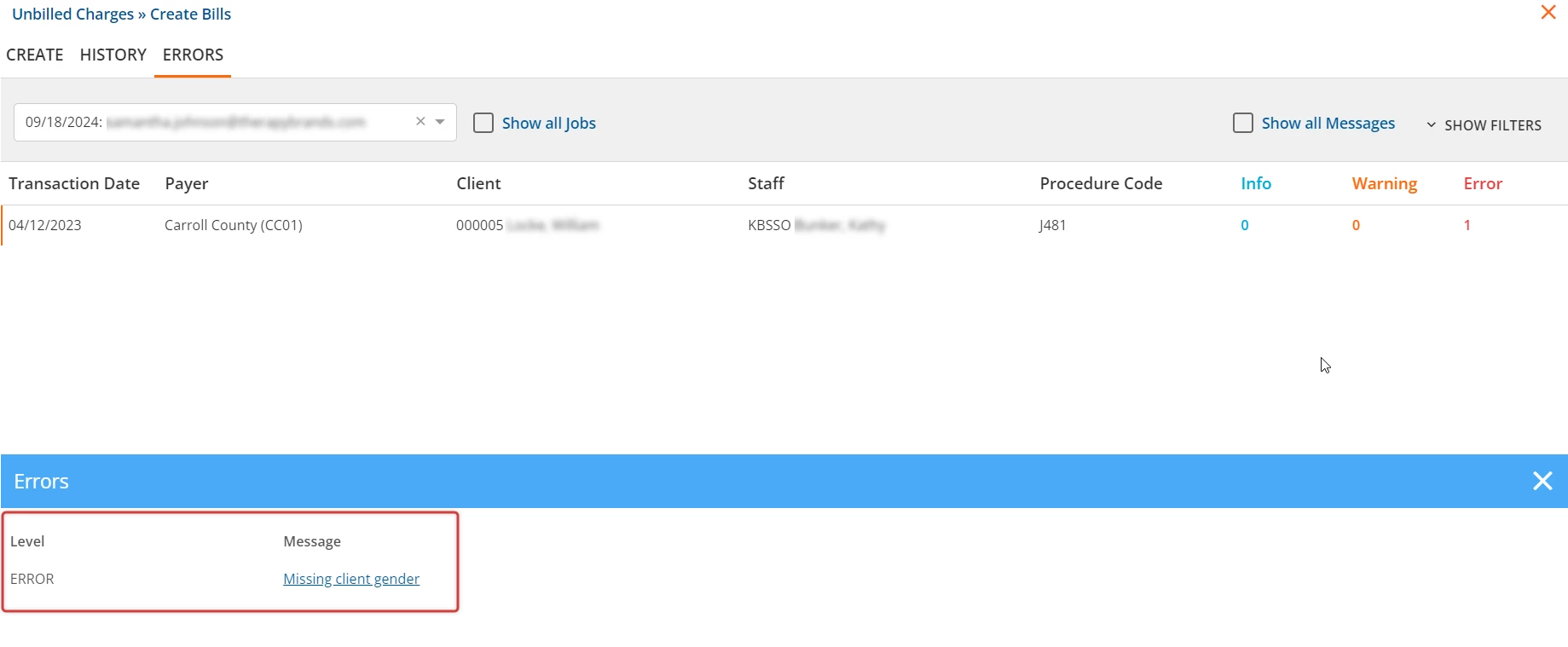
NOTE: A blue underlined error message is a clickable link that takes the user to the screen that will address the error. In the example above, the error is "Missing client gender". Click the blue link to resolve the error. In this example, the user will be taken to Client's Profile tab.
- After error corrections, return to Unbilled Charges. If the corrected charges are still in the Preview status batch within the History tab, click the white Retry button to create the charges again. If the job is free of errors, click the blue Finalize button.