


The Create Recurring CCD Export is similar to the Create One Time job. The differences are in the job scheduling date and time and the client data range. These sections are covered in detail below.
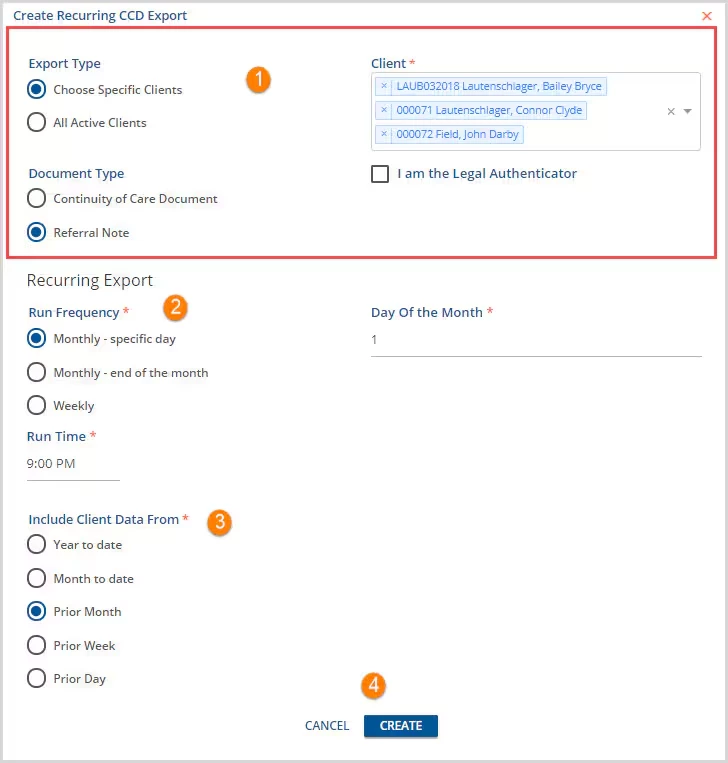
1. The section outlined in Red is the same as the Create One-Time CCD Export Screen.
- Export Type/Client - Specify if the export is for a Specific Client or All Active Clients.
- Choose Specific Clients - When this type is selected, the Client search bar is visible. The client or clients must be selected in order to create the CCD Export.
- All Active Clients - When this type is selected, the Client search bar is not visible. All active clients will be included in the export job.
- Document Type - Select the type of export document to be created. It may be either Continuity of Care Document or Referral Note.
- Both types have 15 categories of information in common: Allergies and Intolerances, Functional Status, Medical Equipment, Social History, Plan of Treatment, Goals, Encounters, Chief Complaint and Reason for Visit, Problems, Assessments, Medications, Vital Signs, Mental Status, Results, Procedures.
- Referral Note also includes a Reason for Referral category of information.
- Continuity of Care Document includes a Family History category of information.
- I am the Legal Authenticator - Select this checkbox to indicate that the user creating the export job is indeed the legal authenticator. Agency policy should determine when and by whom this selection should is made.
2. Recurring Export
- Run Frequency - This determines how often the export job will be created. Each frequency has different options associated with it.
- Monthly - specific day The specific day (1, 15, 30 etc.) must be entered for the Monthly - specific day option. This is shown in the example above.
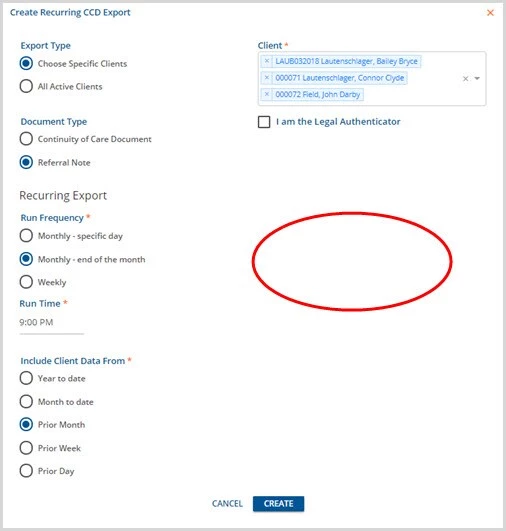
- Monthly - end of the month This has no options to select. The application will run the export job on the last day of the current month at the entered Run Time.
-
- Weekly This option brings up Days of the Week check boxes.
- At least one day must be selected. Multiple days can be selected.
-
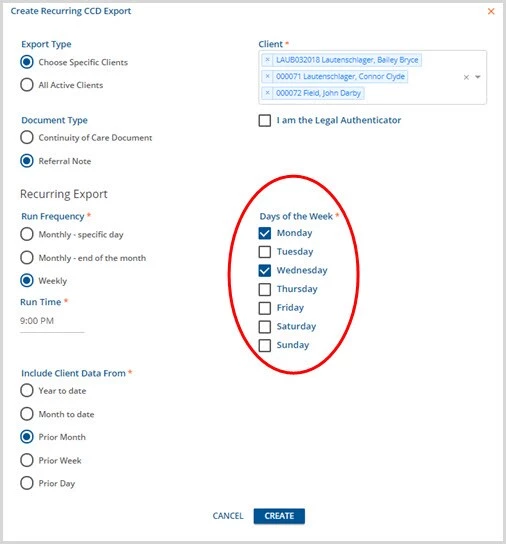
- Weekly This option brings up Days of the Week check boxes.
- Run Time - This is the actual time of day the application launches the export job. If the recurring export job(s) tend to be large, it may be a good idea to schedule them to occur in the evening when most users are not accessing the system.
3. Include Client Data From - Use the radio buttons to select the date range of client data to be included in the export.
- Prior Month is the full calendar month preceding the current month.
- Prior Week is the full calendar week (Monday-Sunday) preceding the current week.
- Care should be used in selecting the Run Frequency and Include Client Data From combination so that the export job contains the expected information.
- The example has Monthly - specific day and the 1st day of the month selected and Prior Month selected in the Client Data section.
- An export job will be created for the selected client on the first of every month that includes the prior month's data.
- If a client is seen on the last day of the month and all notes, reports, services, and/or reports are not entered for that appointment the same day, that last appointment and associated information will not be included in the export.
4. Remember to click SAVE to record entries/changes. Select CANCEL to exit without saving.
Once the CCD Export job is saved, summary information is available on each job in a listing on the Recurring job tab. This is a log of all jobs created not just the jobs the currently logged-in user has created.
Recurring Export Jobs
Recurring CCD Export jobs may be Edited, Disabled, or Archived by clicking the ellipsis (3 dots) on the right side of the job record.
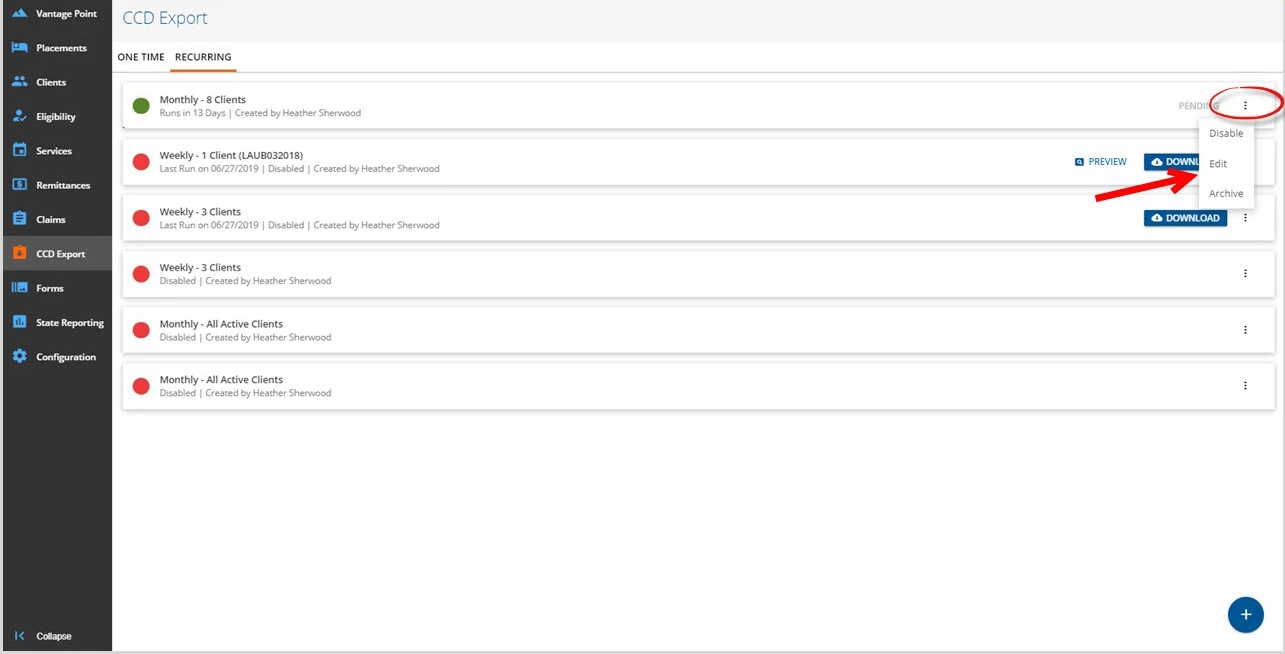
Disable - The Disable option suspends the job from running but allows it to remain in the Recurring Jobs list. Selecting the ellipsis again for that job at a future date will display an Enable instead of Disable option. Select Enable to resume the jobs run schedule.
Edit - The Edit option allows the Recurring Job to be changed such as adding or deleting clients, adjusting run date or time, or even adjusting the date range of information to include.

Archive - The Archive option removes the job from the list essentially deleting it from view. This same job would need to be recreated to run again.