


The Insights menu option provides basic analytic tools to run comparisons for the logged-in user versus a comparison group. Five comparisons come standard and Additional Insights may be configured by navigating to Configuration - Setup > Insights menu option. To view, navigate to Insights by selecting Vantage Point and then the Insights tab. If no Insights are configured to display, the screen will be similar to the image below.
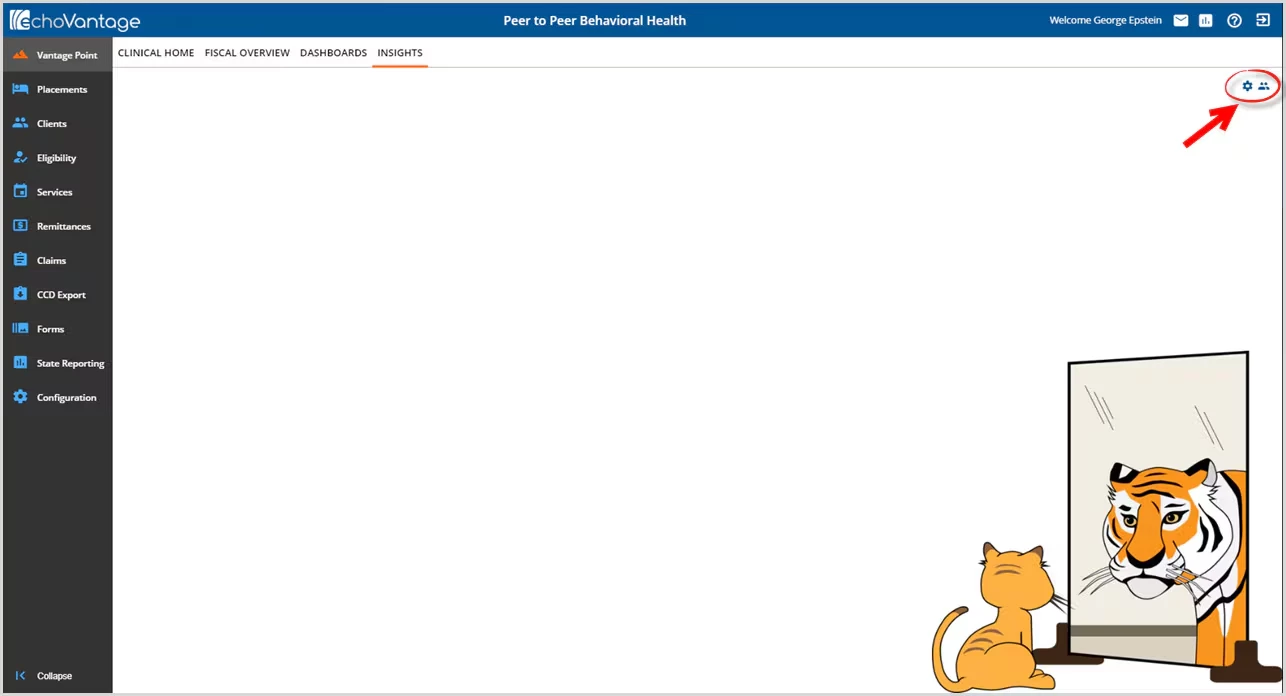
The circled icons in the upper right-hand corner determine which Insights to display (gear icon) and who to include in the comparison group (people icon). The steps below work through configuring which Insights to display and then configuring the comparison group.
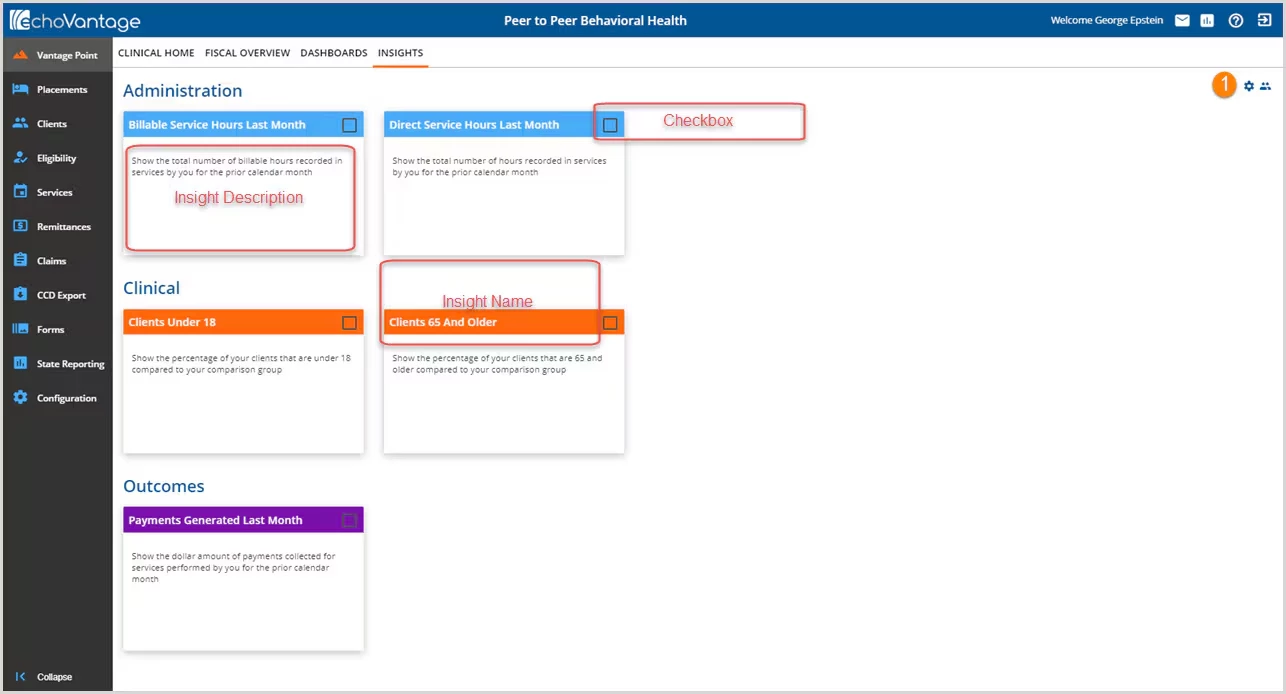
1. Click on the gear icon to display all the currently configured Insights in card form.
- Insights will display in one of three categories based on the information the Insight displays:
- Administration
- Clinical
- Outcomes
- The name and description display exactly as entered in the Configuration > Setup.
- Each Insight has a check box to Enable or Disable the display.
- Selecting the check box enables the Insight to display.
- Deselecting the check box disables the Insight and it is hidden from view.
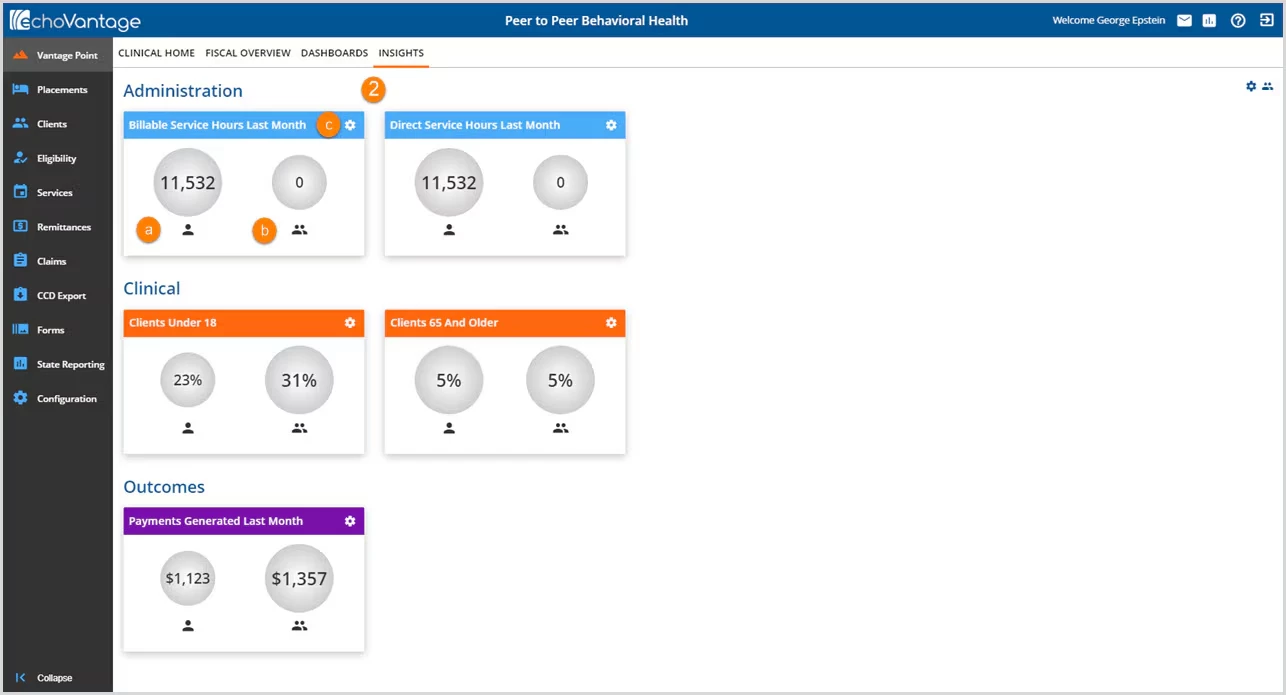
2. Selecting all of the checkboxes and clicking on the gear icon a second time, enables the Insights and displays the analytics.
- (a) The single-person icon represents the currently logged-in user.
- (b) The multi-person icon represents the comparison group.
- (c) Clicking on the Insight-specific gear icon will flip the card over to display the Insight name and description.
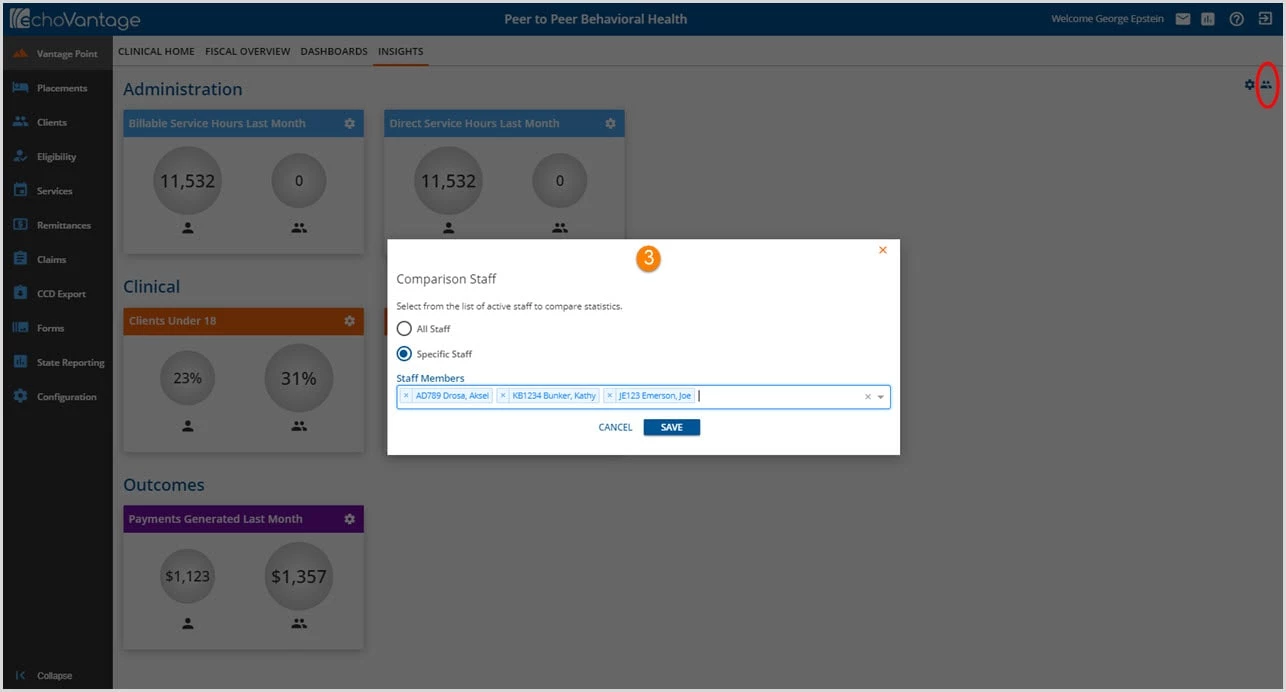
3. Selecting the multi-person icon in the upper right-hand corner of the page displays the Comparison Staff selection screen.
- Select the radio button to set the comparison group to either All Staff or Use the drop-down listing to select specific staff.
- Click SAVE to record changes and return to the Insights screen.
- Click CANCEL to exit without saving changes.
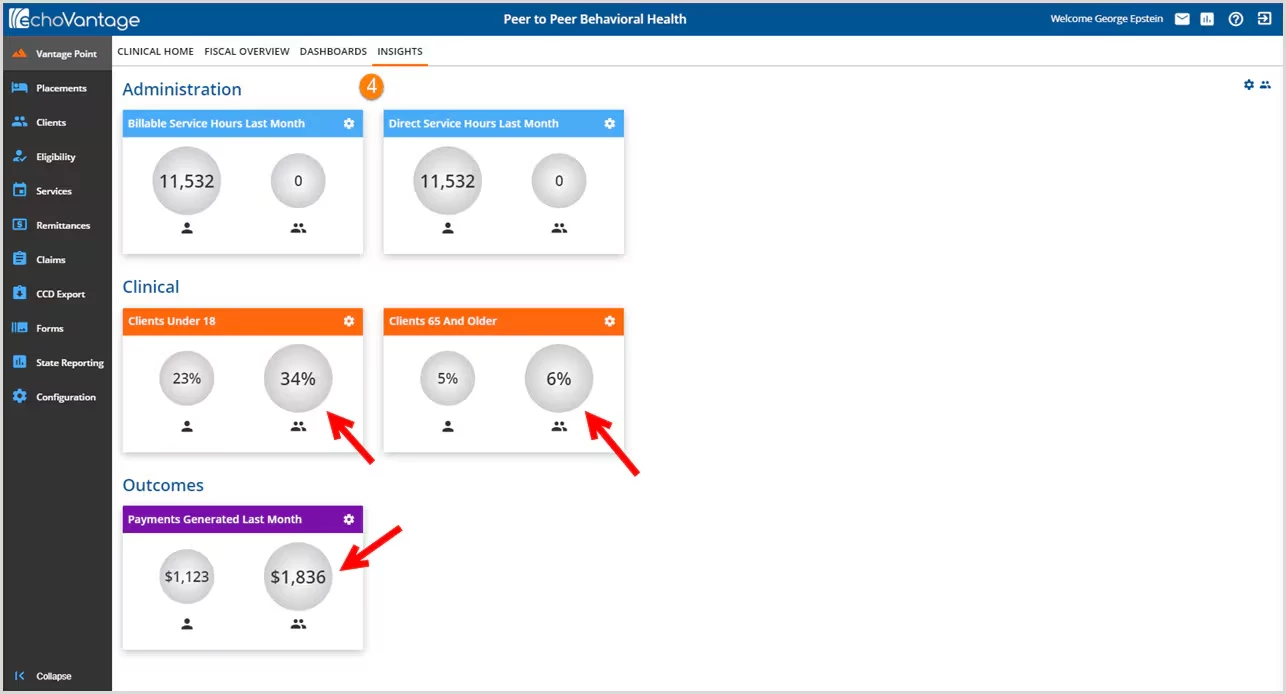
4. In the example above, the Comparison Staff was changed from All Staff (the comparison group displayed in Step 2) to the three specific staff shown in Step #3. Notice that the user information remains static while the comparison group information changes (indicated by the red arrows).