Click Support Hub on the top menu of the Experience Hub.
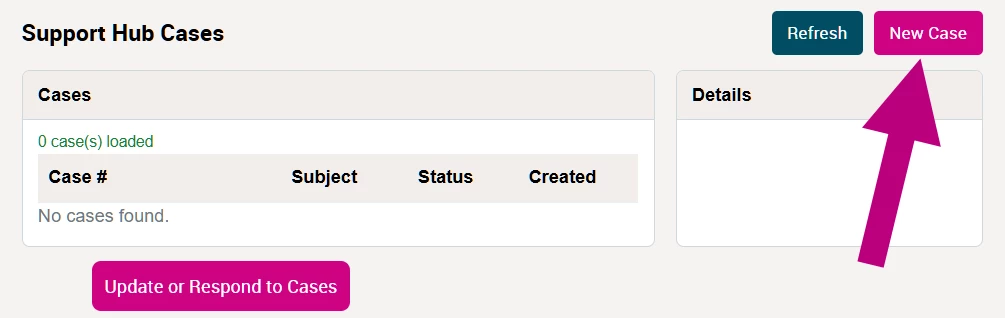
Click New Case in the top-right.
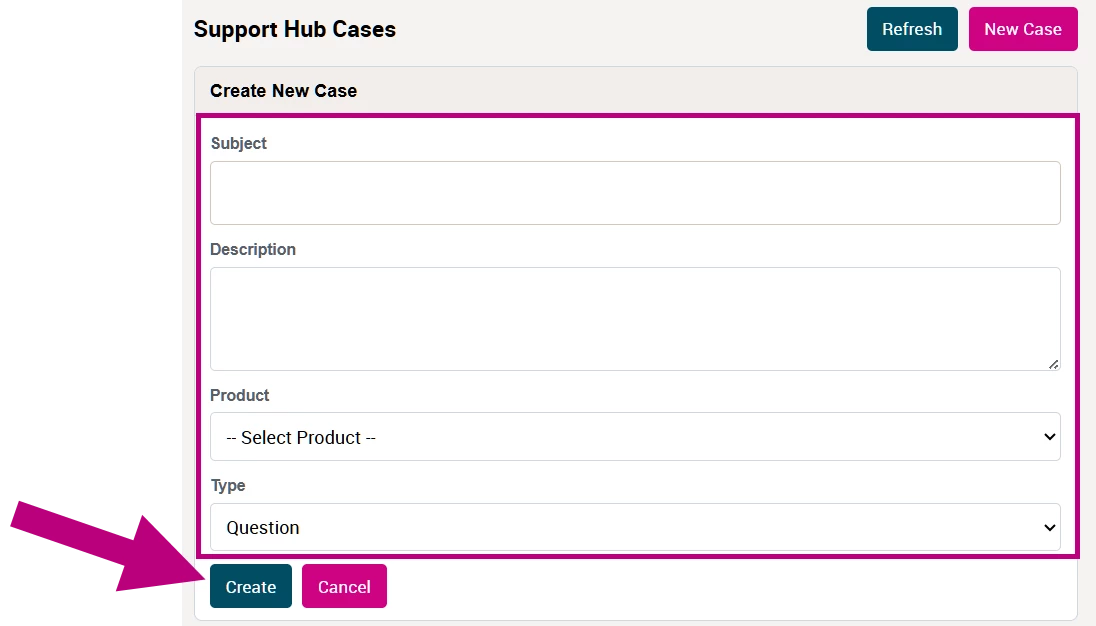
Fill out all the fields with as much detail as possible.
NOTE: Sign in first, if you are not seeing the New Case button.
Select your product from the Product dropdown field. (ex. TheraNest, Fusion, etc.).
Enter a specific Subject (exp. "Can't Submit a Claim", not "Billing") and enter a detailed Description of your question or problem (as much information as possible helps the team get you a solution/answer quickly).
Click the Create buttonand a member of your product's dedicated support team will connect with you shortly.
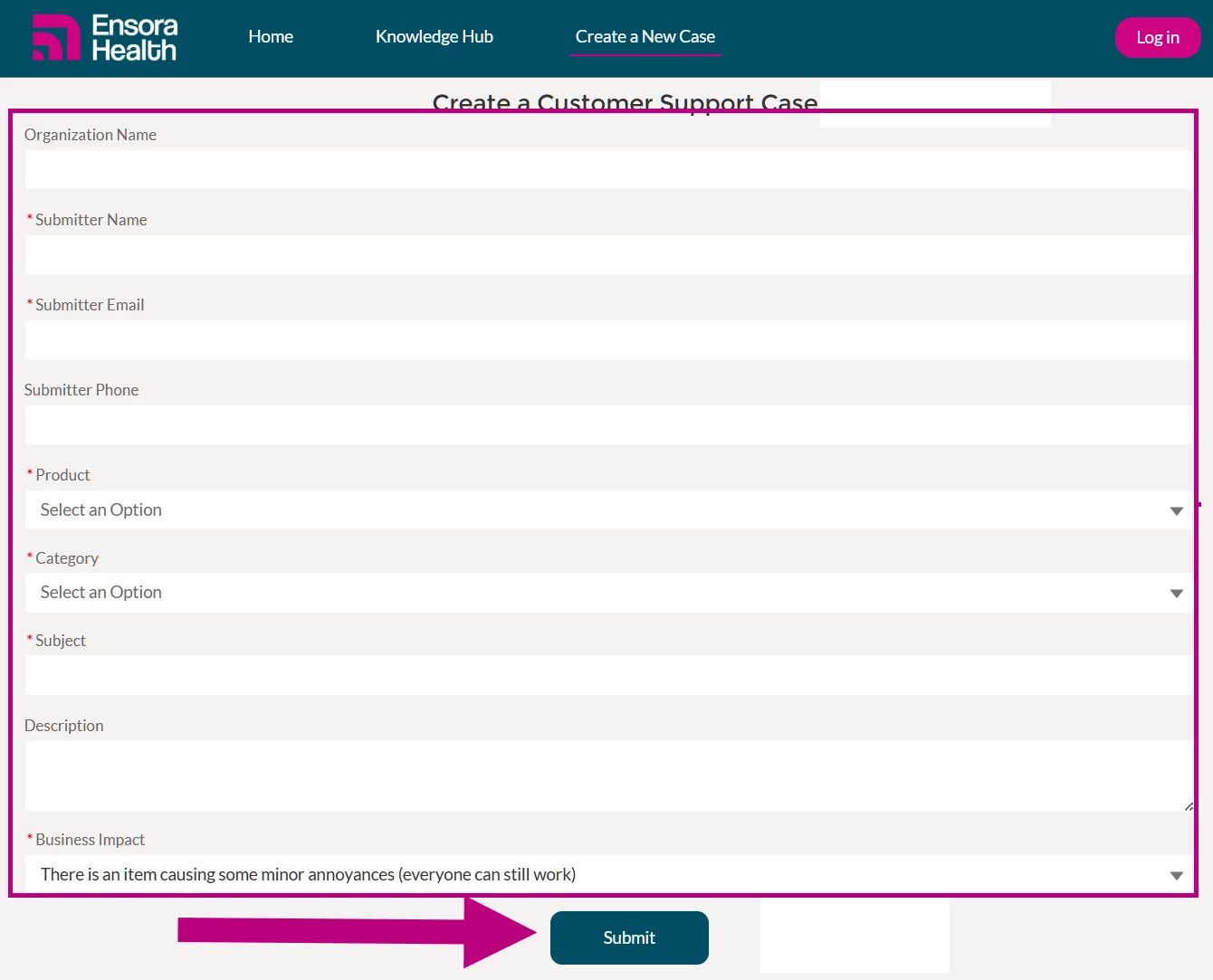
Fill out all the fields with as much detail as possible.
NOTE: Sign in first, if you are not seeing the Create a New Case button. TIP: If you sign-in first you will have less fields to fill out.
Enter your name, email, and phone. Enter a specific Subject (exp. "Can't Submit a Claim", not "Billing") and enter a detailed Description of your question or problem (as much information as possible helps the team get you a solution/answer quickly).
Select your product from the Product dropdown and a Category. (ex. TheraNest, Fusion, etc.).
Click the Submit buttonand a member of your product's dedicated support team will connect with you shortly.