


Based on Student attendance, the system can automatically add "zero" data points to select Target Types and Behavior measurements. This feature allows graphs to be reflective of days in which the student was present but did not exhibit any behaviors.
For example, if you have two behavior reduction frequency targets of spitting and aggression, if, during the session, the student exhibits two aggression and zero spitting behaviors. The RBT only enters 2 for aggression behavior. If this setting is set to 'Yes', the system will graph the spitting behavior to zero automatically.
If set to 'No', the system will not graph to zero and the RBT will have to do the following if they want to record zero:
- In Behavior Reduction Frequency, Duration or Rate Behaviors: Increment the target first, and then return it to zero to show in the raw data.
- In Skill Acquisition Frequency or Duration Targets: Go to the Target on the app and select Record Zero.
This can be overridden at the Behavior level (but not the Skills Target level) by navigating to the behavior and selecting 'Do not zero out'.
NOTE: The feature affects the Behaviors: Frequency, Duration, and Rate, and the Target Types: Frequency and Duration.
|
|
Set Zero Out Behaviors and/or Targets to Yes
- Select the Student from the dropdown on the Students tab.
- Select the Setup tab
- Select the Settings subtab.
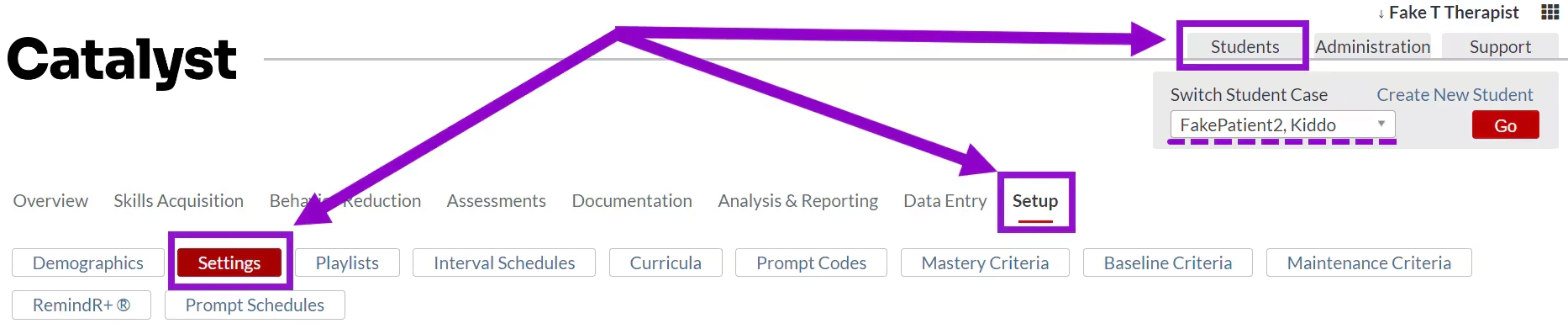
- The Student Settings screen will display.
- Scroll down to the Other Settings section.
- Set Zero Out Targets and/or Zero Out Behaviors to Yes by clicking on the dropdown.
Target Types this setting affects: Frequency or Duration.
Behavior Types this setting affects: Frequency, Duration, or Rate.Â
- Click Save at the bottom left when finished.
Â
[#top ]
Override Zero Out at Behavior Level
- Select the Student from the dropdown on the Students tab.
- Select the Behavior Reduction tab.
- Select the Behaviors subtab.
- Locate the desired Behavior.
- Click Actions.
- Select Edit Details.
- Check the box for Do not zero out.
- Click Save.
[#top ]