


Videos can be created via the app. Once a video is saved, it must be synced with the Portal for viewing.
Jump to Section
NOTE: To learn more about creating a video in the app, please visit Video Tab.
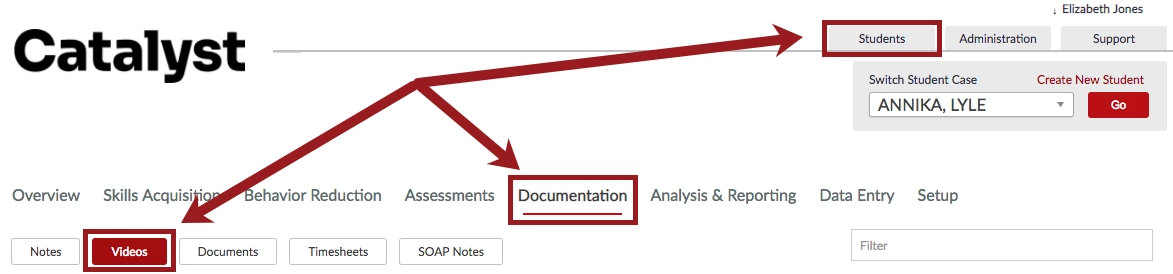
Access the Videos subtab from the Documentation tab in the Students Section.
View Video in Portal
- Click on the Video Date to watch the video.
- View Video in a web browser.
[ #top]
Download Video to Computer
- Locate the desired Video.
- Click Actions.
- Select Download.
[ #top]
Edit Video Details
After a video has been synced to the Portal, users can edit the video title and description.
- Locate the desired Video.
- Click Actions.
- Select Edit.
- Edit Video details as desired.
- Click Save.
[ #top]
Mark Video as Private
Users have the ability to mark a video as Private after it has been synced to the Portal.
NOTE: If desired, set Security Rights so only certain users can view private videos, edit, delete and view. To learn more, please visit Security Rights Glossary.
- Locate the desired Video.
- Click Actions.
- Select Mark Private.
- Private videos are marked by a Lock icon.
[ #top]
Delete Video
NOTE: Deleting a video cannot be undone. Delete with caution.
- Locate the desired Video.
- Click Actions.
- Select Delete.
[ #top]
Errors
Occasionally when attempting to view a video in the Portal, users will receive an error.
| Problem: Recorded Video doesn't show up in the Portal. Likely, the video did not fully sync to the Portal. Since videos are much larger pieces of information than regular data points, it may take a few moments longer to upload to the Portal. | Solution: Connect the device you are running the app on to Wi-Fi or a 3G network and allow the app to be open for a few minutes while the video uploads. After a few minutes, check the portal for the video again. |
| Problem: Can view the video but there is no audio. | Solution: It may be necessary to download the video to view. If the video was not recorded in the correct orientation (landscape, with the Home button on the right) it will need to be adjusted. Downloading the video in the Portal will re-orientate the video automatically and you should be able to view AND hear it. |
For additional assistance, please contact Support.
[ #top]