Manage your tasks to easily track everything you need to do and create custom tasks to organize your schedule. You can add new tasks at any time and customize the tasks page view based on priority, task name, recurrence, due date, and client name. The task list is only viewable by you and cannot be seen by other users in your organization.
You can also view task activities on the Activity Log Report from the Organization tab.
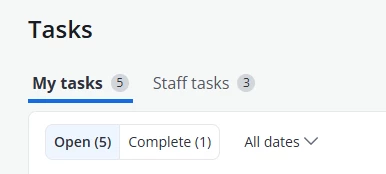
The Tasks page is divided into two tabs: My tasks and Staff tasks, displaying open tasks within My tasks by default. All tasks created and assigned to you will display within the My tasks tab. Any tasks you have created to assign to another staff member will display within the Staff tasks tab.
Click a column header to sort the list by the data in that column.
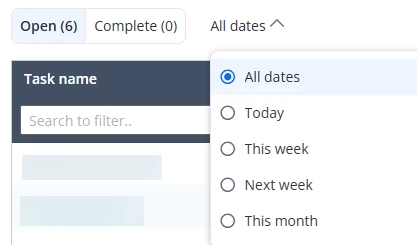
Click the dropdown to the right of the status toggle to filter the tasks by due date. Filter options are: All dates, Today, This week, Next week or This month.
Click the Gear icon to show or hide columns on the task list. Column options are: All, Client, Status, Due date, Priority, Recurs, and Created By (My tasks) or Assigned To (Staff tasks).
Click + New task to add a new task. Fill all required and necessary fields, and click the blue Save button to create the new tasks. To learn how to assign a task to another staff member, see the Assign a Task section for further steps.
Each tab has a status toggle that you can use to view Open and Complete task lists. Click the Open & Complete status toggle to view each task list.
Open vs. Complete tasks
Open tab
Click the buttons in the Actions column to Complete, Edit or Delete a task.
Complete
Click the buttons in the Actions column to Reopen, Edit, or Delete a task.
Assign a Task
When creating a new task, the system will automatically assign the task to yourself unless you select to assign it to another staff member using the Assign task to staff dropdown.
Any staff member has permission to assign a task to any other staff member in their organization. There are no permission restrictions.
NOTE: There are however restrictions on the list of clients to choose from if you are associating a task to a client. If the user has restrictions to only view assigned clients, then they will only see those clients available in the Client or group dropdown.
The assigner of the task can edit all fields on these tasks, can delete the tasks, and can complete and reopen them.
The assignee of the task can only edit the Notes field and complete and reopen the task. They cannot edit any other fields on the task assigned or delete the task. This must be done by the creator of the task.
If the original creator of a task is deactivated, the assignee of the task will become the owner and will then have the ability to perform all aforementioned actions.
Users can receive alerts in relation to tasks created by or assigned to the user. This permission is configured within the Preferences tab. See Set Your General Preferences for more information.
View Tasks on the Activity Log
To view tasks on the Activity Log Report, click Organization on the side bar, select Activities, then select the task action from the Actions dropdown.
The following task actions are recorded on the Activity Log: