


Multi-factor authentication (MFA) requires you to confirm your identity when logging into the system. If your organization has turned on MFA, you will be prompted to enter a verification code sent to your email address.
Overview
- The verification code sent to your email will expire after 10 minutes.
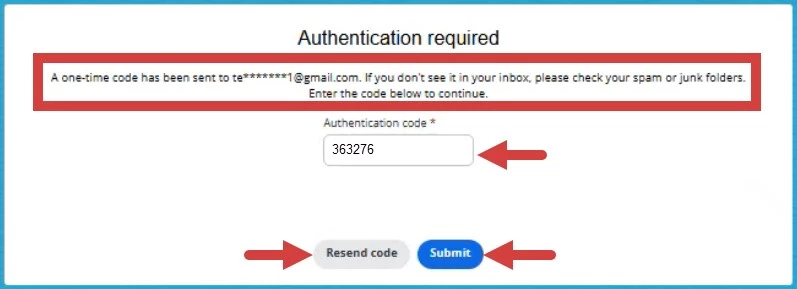
- The Resend code button will send a new code to your email. All previous codes will be invalid. You can resend a code once every minute.
- Your account will lock after 5 failed verification attempts and automatically unlock after 30 minutes. An administrator or our support team can also assist with unlocking your account.
Complete the MFA Prompt
- Login to the system with your email and password.
- Enter the code sent to your email into the Authentication code field.
Note: Codes expire in ten minutes.
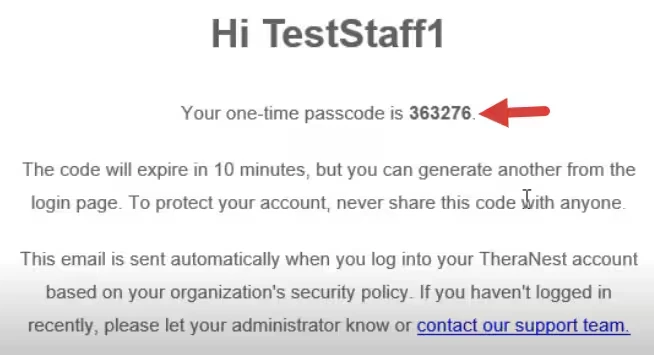
- Click Submit.
Note: Click Resend code If you do not receive the email or the code expires. You can resend a code once every minute and there is no limit on the number of codes you can resend.
Locked Account
- If you enter the wrong code too many times, you will see a message to let you know your account has been locked.
Note: You have five attempts to enter the correct code.

- Contact your organization administrator to reset your account.
Note: If you take no action, your account will unlock after 30 minutes and return to the main login page.