


Permissions: You must have Administrator Permissions or higher
Deactivating a Staff Member immediately deactivates their account and prevents them from accessing My Clients Plus by Ensora Health again.
Jump to Section:
Deactivate a Staff Member
- Click Staff in the navigation bar, then select Active Staff members from the drop-down.
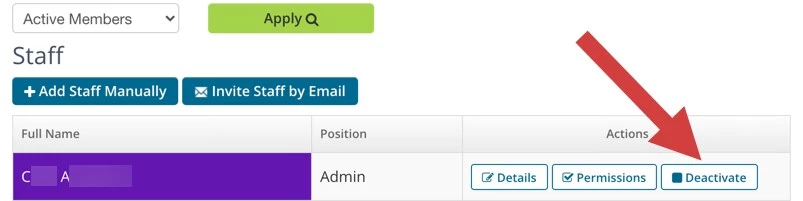
- Click the Deactivate button next to the appropriate Staff name.
NOTE: If the Deactivate button is greyed out it means they have Administration Permissions in My Clients Plus. You must remove those Permissions first. See below.
- Click the Deactivate button next to the staff member's name. Staff Member is immediately deactivated.
Deactivate an Administrator
To deactivate an Administrator, you first need to remove their Administration Permissions in My Clients Plus by Ensora Health, then you can deactivate via the steps listed above.
- Click Staff in the navigation bar, then select Active Staff members from the drop-down.
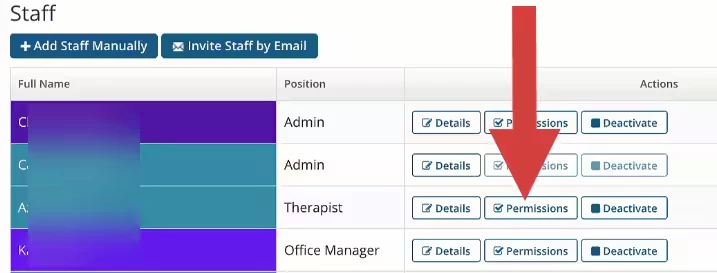
- Click the Permissions button next to the appropriate Staff name.
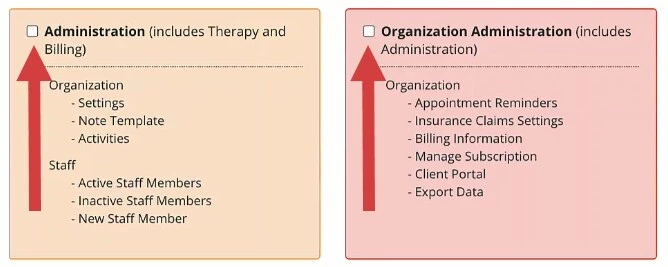
- Deselect Administration and Organization Administration Permissions.
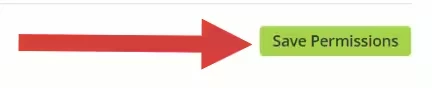
- Click the Save Permissions button.
- Then follow the steps above to deactivate.