


Use the Tasks page to create and manage single or recurring clinic tasks. Single and recurring tasks can be created for both you and other staff members.
See the Task List Page article for more information.
Set a recurring task for items on your list that you need to complete daily, weekly, monthly or yearly. When a recurring task is created, the task with the closest upcoming due date will display on your My Tasks page with the Clock and Arrow Recurring Task icon and indicate how often the task recurs. Once a recurring task is marked as complete, the next occurrence of the task is generated with the new due date.
Jump to Section:
Single Task
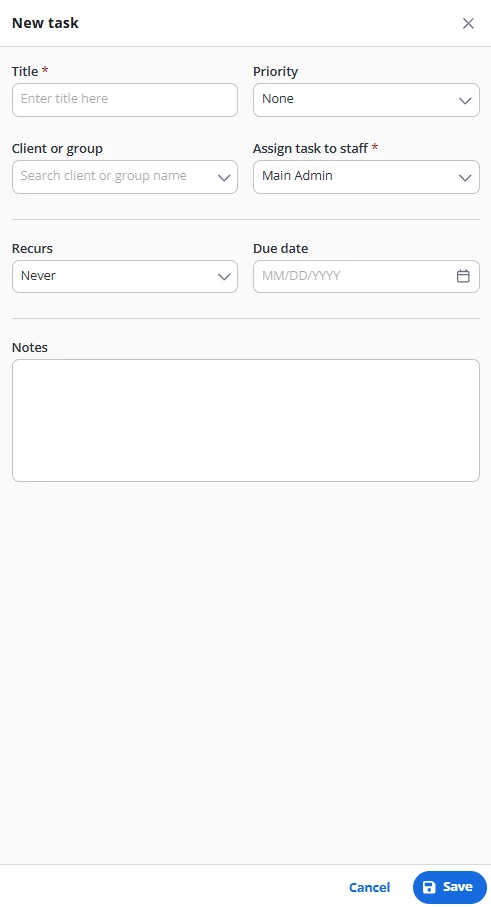
- Click Tasks on the side menu.

- Click New Task.

- Enter Information: Task Title (required), Client or Group (optional), Priority (optional),
Notes (optional). - The Recurs dropdown is set to Never by default.
- Click Save.
Daily Task
- Click Tasks on the side menu.

- Click New Task.

- Enter Information: Task Title (required), Client or Group (optional), Priority (optional),
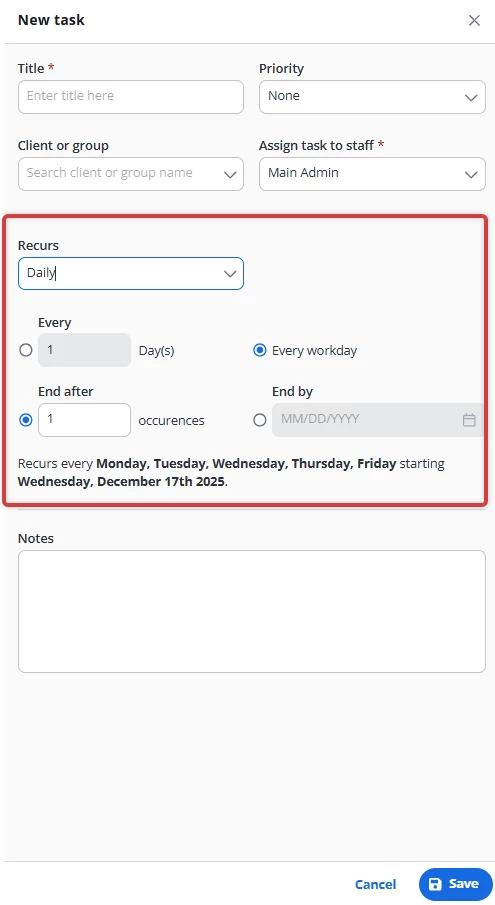
Notes (optional). - Select Daily from the Recurs dropdown menu.
- For the occurrence:
- Select one option for how the task will repeat:
- Every Workday
- Every [1, 2, 3, etc.] Day
- Select one option for when the repeating task will end:
- End after [1,2,3, etc.] occurrences
- End by date
- Select one option for how the task will repeat:
-
Click Save.
Weekly Task
- Click Tasks on the side menu.

- Click New Task.

- Enter Information: Task Title (required), Client or Group (optional), Priority (optional), Notes (optional).
- Select Weekly from the Recurs dropdown menu.
- For the occurrence:
- Select how the task will repeat:
- Every [1, 2, 3, etc.] Week
- Select day of the week
- Select one option for when the repeating task will end:
- End after [1,2,3, etc.] occurrences
- End by date
- Select how the task will repeat:
- Click Save.

[Back to the Top]
Monthly Task
- Click Tasks on the side menu.

- Click New Task.

- Enter Information: Task Title (required), Client or Group (optional), Priority (optional), Notes (optional).
- Select Monthly from the Recurs dropdown menu.
- For the occurrence:
- Select how the task will repeat:
- Repeat every [1, 2, 3, etc.] Month(s)
- Select either a specific day of the week or a specific date
- On [1, 2, 3, etc.] Day
- On [first, second, third, etc.] [day of the week]
- Select either a specific day of the week or a specific date
- Repeat every [1, 2, 3, etc.] Month(s)
- Select one option for when the repeating task will end:
- End after [1,2,3, etc.] occurrences
- End by date
- Select how the task will repeat:
- Click Save.

[Back to the Top]
Yearly Task
- Click Tasks on the side menu.

- Click New Task.

- Enter Information: Task Title (required), Client or Group (optional), Priority (optional),
Notes (optional). - Select Yearly from the Recurs dropdown menu.
- For the occurrence:
- Select how the task will repeat:
- Repeat every [1, 2, 3, etc.] Year(s)
- Select either a specific day of the month or a specific date
- On [month] [1, 2, 3, etc.] Day
- On [first, second, third, etc.] [day] of [month]
- Select either a specific day of the month or a specific date
- Repeat every [1, 2, 3, etc.] Year(s)
- Select one option for when the repeating task will end:
- On End after [1,2,3, etc.] occurrences
- End by date
- Select how the task will repeat:
- Click Save.

[Back to the Top]
Edit Tasks
- Click the Edit button or the task name.

- If the task is recurring: A pop-up opens with the message: Do you want to edit the whole set of repeated tasks?
- Select Edit Series to edit the whole series.
- Select Edit Occurrence to edit the one occurrence.
- The Edit Task pop-up window opens. Make your edits.
- Click Save.
[Back to the Top]
Delete Tasks
- Click the Delete button or the task name.

IMPORTANT: You cannot delete tasks assigned to you if they were created by another staff member. Only the creator of the task can do so.
NOTE: You can also delete a single task from the Edit Task pop-up window. Click Delete in the bottom left corner of the window.
- If the task is recurring: The Delete Task pop-up window opens with the message: Task is a recurring task. Do you want to delete this one task or the whole series?
- Click Delete This Task to delete the one occurrence.
- Click Delete Series to delete the whole recurring series.

[Back to the Top]