



PERMISSIONS REQUIRED: You must have Administrator Permissions or higher.
Control which Staff Members have access to specific Clients and Cases.
- Client (or Client record) access allows user to see basic Client Details (Demographics, Insurance, Billing).
- Case access allows users to see Client Details AND a Clients Clinical Information.
NOTE: Staff assigned to Clients will automatically be assigned to any active Client Cases.
Any Staff assigned to an active Client Case will be automatically added as an Assigned Staff.
When creating a new case, only the staff creating the case (and assigned staff supervisor) will be added. Other Staff must be added individually.
IMPORTANT: After Staff Member is assigned, be sure to check all assignments to ensure they are correct.
Jump to Section:
Assign Staff to a Client
- Click Clients from the navigation bar, then selec All Clients from the drop-down.
- Click on desired Client Name.
- Click Assign Staff tab in Client Profile.
- Click +Assign to add a staff member to the Assigned staff column on the left, if you have not already done so.
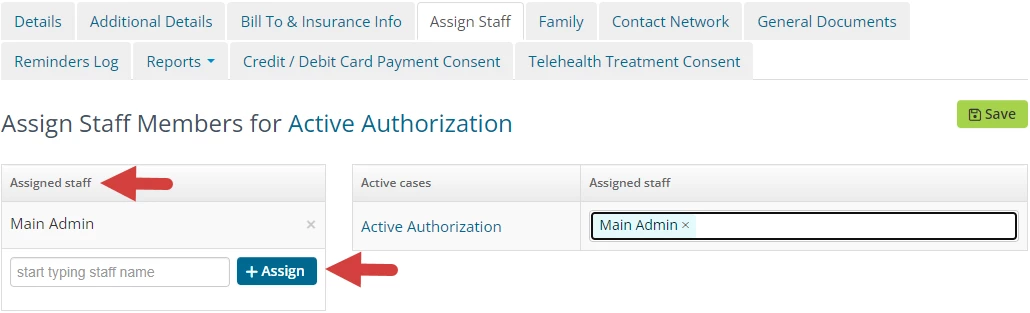
- In Assigned Staff section, click the Select Member dropdown and select appropriate Staff.
- Click + Assign button and assigned Staff Members will display in list and in all active Cases.
- Remove Staff from all active Cases.
- Click Save. Staff Member is now only assigned to the Client.
Assign Staff to a Client Case
When you assign a Staff Member to a Client's Case they automatically will be assigned to the Client.
- From the Client Details page, click Assign Staff tab.
- Active Client Cases display on the right.
- Click +Assign to add a staff member to the Assigned staff column on the left side, if you have not already done so.
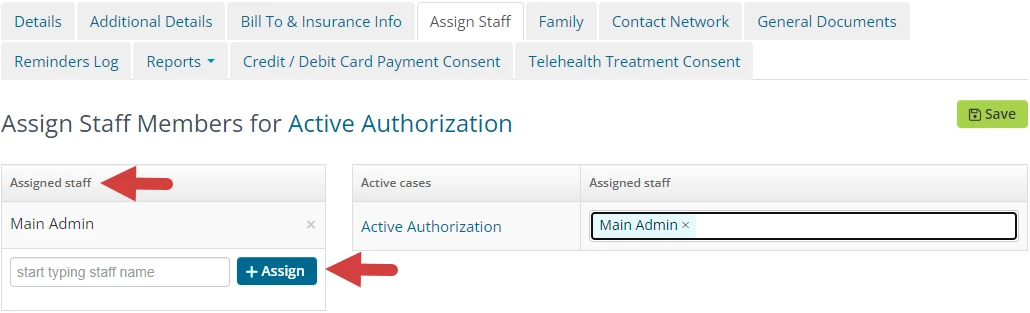
- Click in the Assigned staff field to the right of the appropriate case and select the correct staff from the drop-down.
- As soon as they are added to the Case, you'll notice their name is also added to the Assigned Staff list.
- Make all desired changes and click Save.
Remove a Staff's Client Assignment
- Navigate to a Client's Assigned Staff tab.
- Click the X next to Staff Members name in Assigned Staff List and click Save.
NOTE: If Staff Member is removed as a Client's Assigned Staff, they will also be removed from the Client Case.
- OR Click the X next to a Staff Members name in an Active Case and click Save.
NOTE: If Staff Member is removed from a Clients Case, you will still need to manually remove them from Assigned Staff if desired.