


PERMISSIONS REQUIRED: You must have Administrator Permissions or higher.
Users have the option to add a photo to their staff profile. This photo is visible to admins when managing staff.
Jump to Section:
Add Profile Photo - Admin
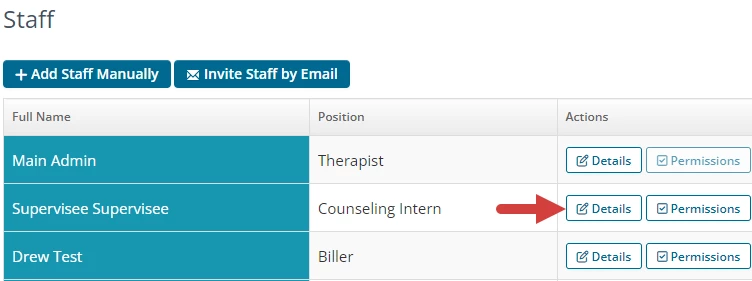
- Go to the staff Details page .
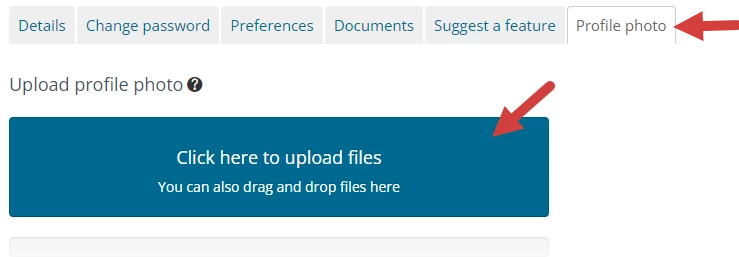
- Click the Profile Photo tab,
- Click in the upload files field.
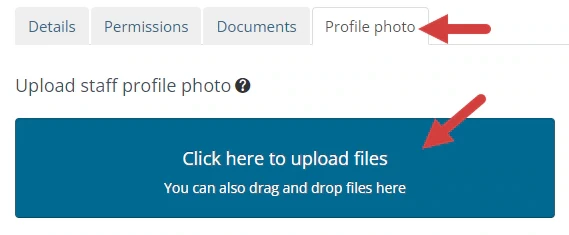
- Upload photo from your files.
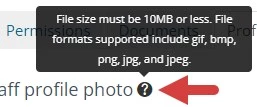
NOTE: Click
for file requirements.
-
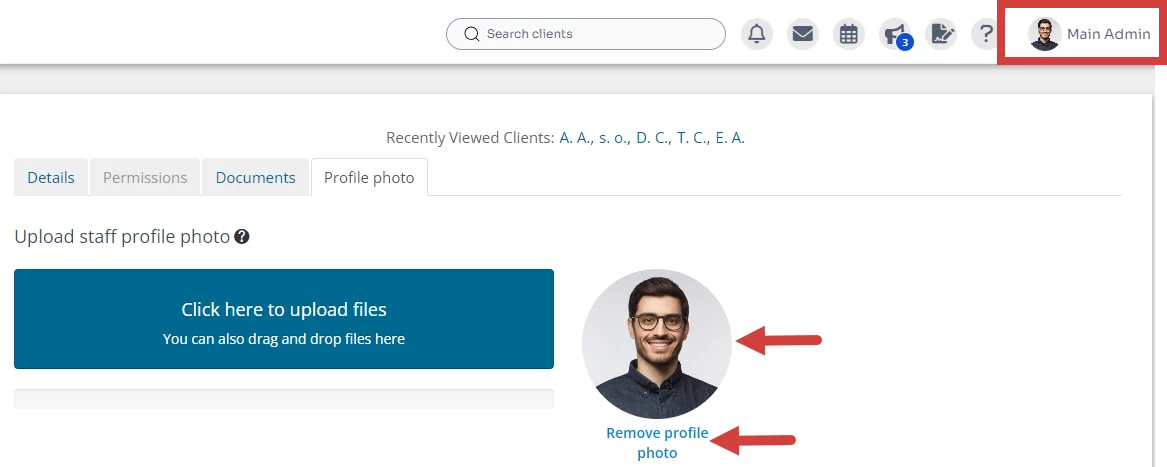
Your photo will display next to your profile name in the upper right corner of the screen when you are logged in.
- Click Remove profile photo if you need to remove the photo.
Add Profile Photo - User
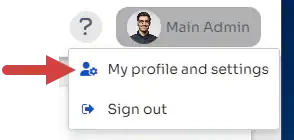
- Click My Profile and settings from your profile in the upper right corner of the screen.
- Click the Profile photo tab on your profile page.
- Follow steps 4-6 above to upload and manage your photo.
[Back to Top]