


Both the Provider and the Client can share their screen and audio during a Session.
It is important to note the following:
- You cannot share a screen from an iPhone or iPad as this functionality is not supported.
- Mac computers block screen sharing by default, so be sure to enable screen sharing before you begin your session.
IMPORTANT: Do not show anything that would violate HIPAA. We recommend you close out all other screens or apps before sharing your screen to ensure that you aren't sharing HIPAA information.
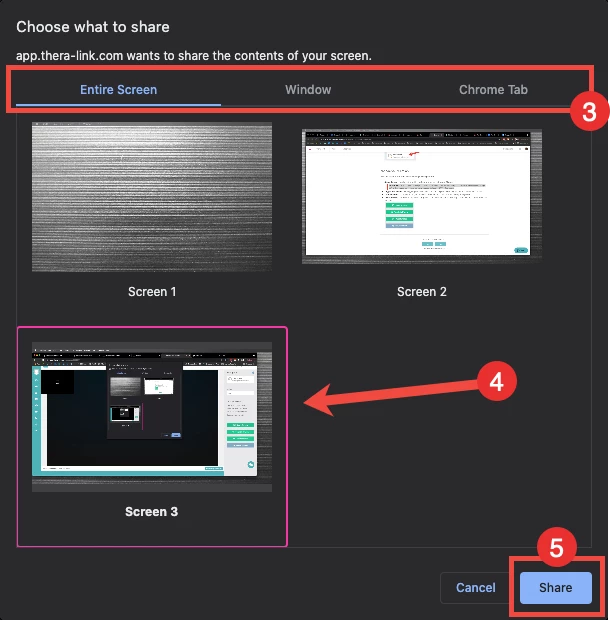
- Join the Session.
- Click Share Screen button on right side of screen (Provider) or the bottom of screen (Client).
- Select to share Entire Screen, a specific Window, or specific Chrome Tab.
- Click appropriate screen.
- Click Share.
Enable Screen Share on Mac
On newer Mac devices:
- Click the Apple icon.
- Click Preferences and select Security and Privacy.
- Click Screen Recording and add Chrome.
- You should only need to do this once, but note that this setting can occasionally revert back after a software update.