


When using a browser, you must give permission to a website to use your webcam and microphone for security reasons.
NOTE: A problem with your camera or microphone can be caused by many things. If your camera or microphone isn't working, first try unplugging them and plugging them back in.
Additionally, another application might still be attempting to use those devices, which would prevent the system from having access to them. Make sure any applications that might be using your audio/video settings are closed prior to beginning a session, and consider rebooting your device prior to your session. See Camera/Microphone Access Blocked for more information.
To give the system permission to access your camera, click Allow when prompted. Occasionally, you may be prompted and inadvertently press Block. If you've done that, you'll need to correct it by allowing permissions in your browser's settings.
In Chrome Browser
- Locate the video camera icon in the URL bar up top. It will have a small red X on it and say it's blocking the camera if you hover over it.
- Click the icon, and choose Always Allow.
- Refresh the session page so the browser knows to start using your camera and mic.
In Firefox Browser
- Generally, Firefox will prompt you every time unless you tell it to remember your setting so a Refresh will re-prompt and you can click Allow.
- If you've selected Don't Allow and Remember this decision, you'll need to clear the permissions by clicking on the video camera in the URL bar and then clicking the X next to both the camera and microphone settings.
- Refresh the page and you'll be re-prompted to Allow the mic and camera access again.
On iPhone or iPad
- Go to Settings > Safari > Enable Camera & Microphone Access. This is off by default.
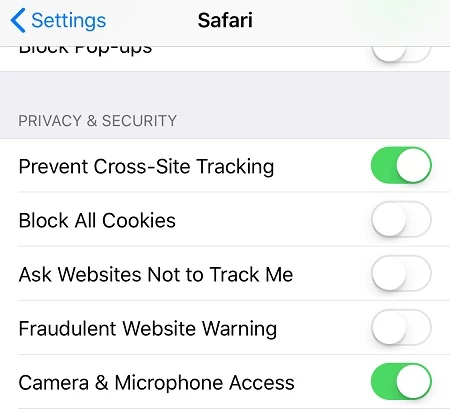
- If using the app with an older version of Safari or Chrome, Go to Settings > Privacy.
- Locate Camera and ensure the slider is turned to On (green) for the app.
- Locate Microphone and ensure the slider is turned to On (green) for the app.
