


Before Add-On Services can be entered, the Service Definition needs to be created in Configurations>Payers>Service Definitions. If an Add-On Service exists for the currently entered Service, the + ADD-ON button in the type right of the Service Entry screen will be enabled after saving the parent or primary service as indicated in the example below.
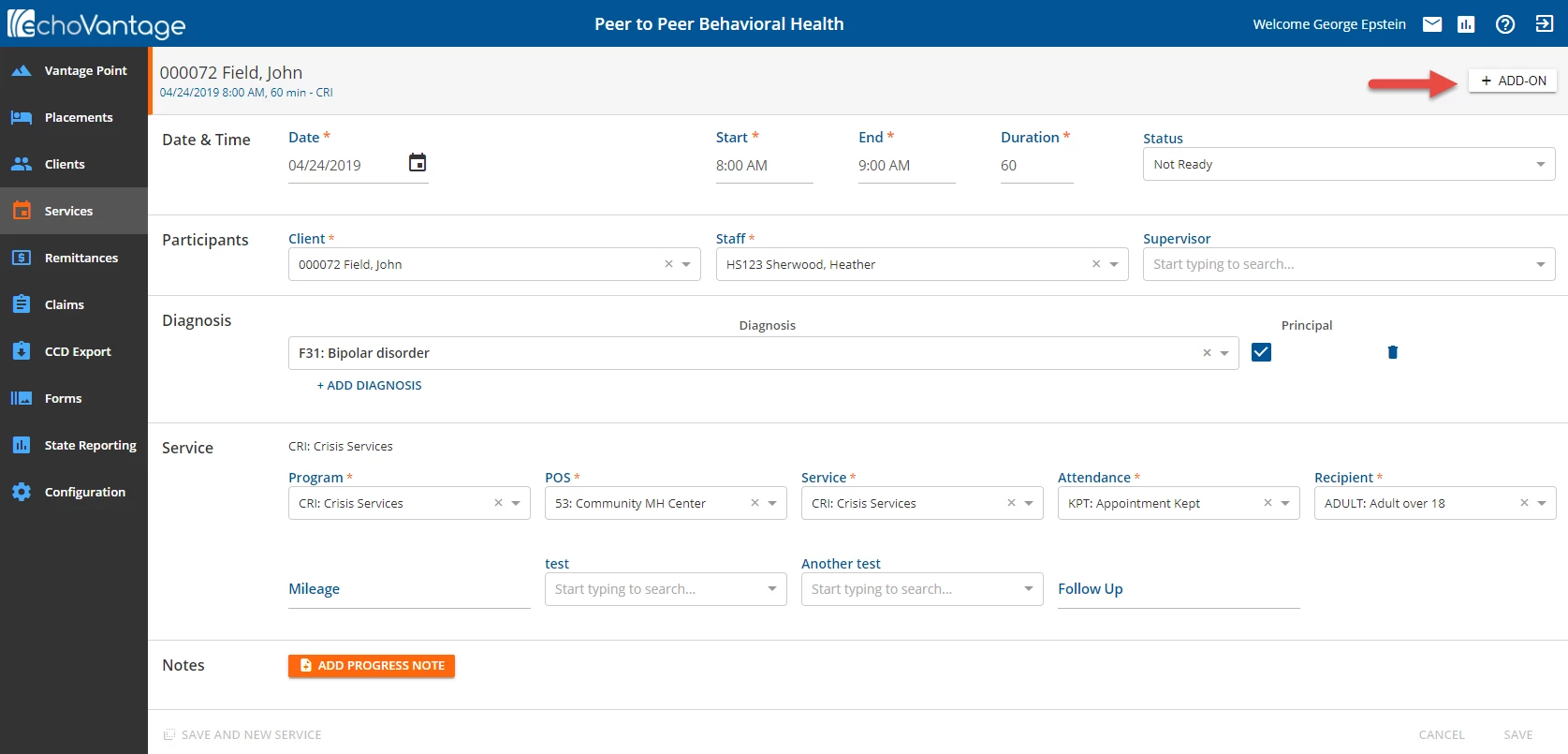
Clicking on the +ADD-ON button will open a New Service Entry screen for the add-on service.
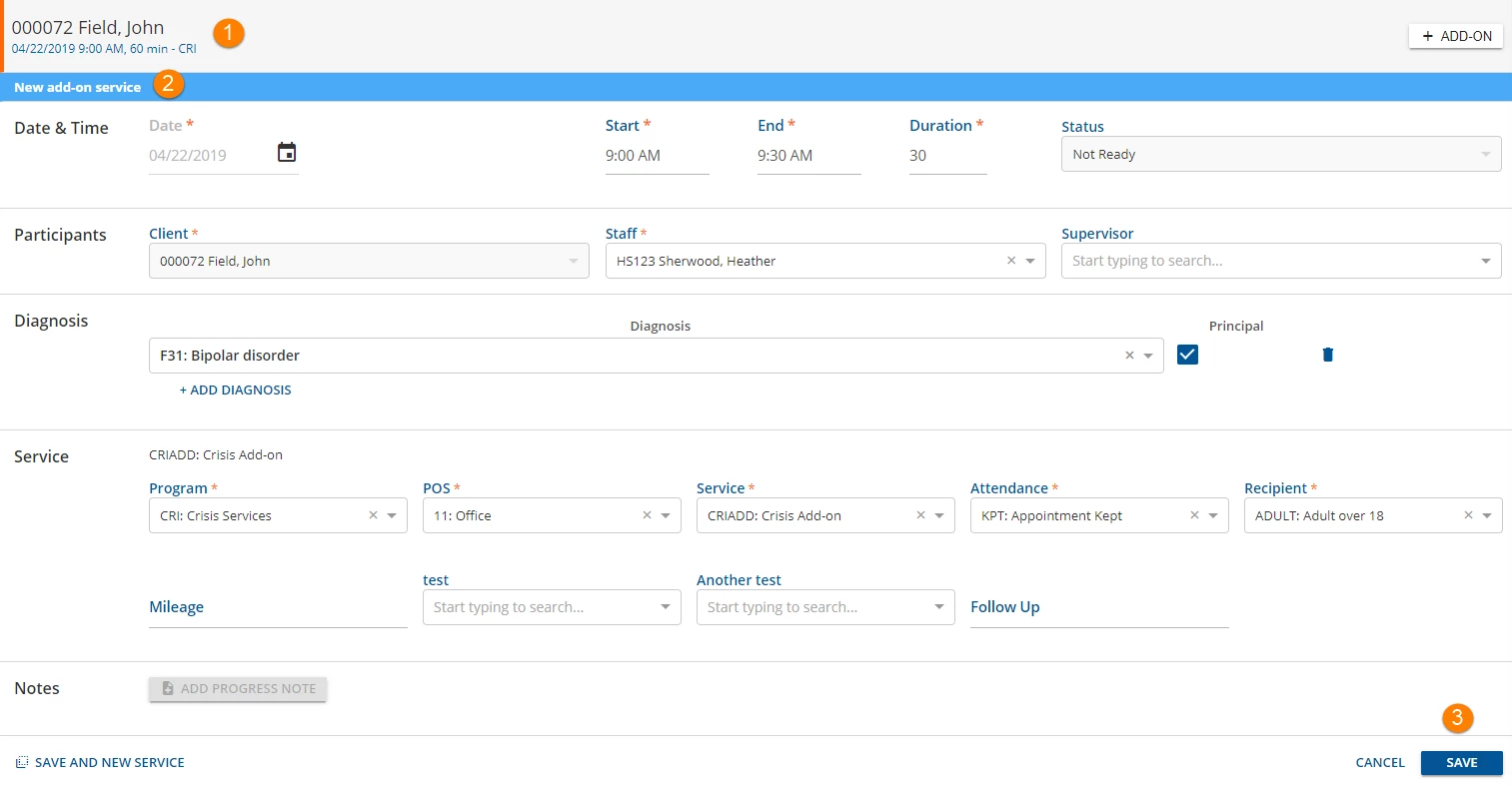
1. The grey header has information about the parent or primary service.
2. A second blue header exists entitled New add-on service to indicate that this is an ADD-ON Service entry.
3. Enter the required information and then click SAVE to record the Add-On service. A green on screen action box will pop-up momentarily with the message "New service created!"
Delete an Add-On Service
Add-on services may be deleted without affecting the parent service. For the Delete button to appear on the Add-On Service screen, the user must be granted permission to delete services in Configuration>Staff/Users>Permissions>Form Unlocking. For the Delete button to be enabled, the parent service must have a Not Ready status.
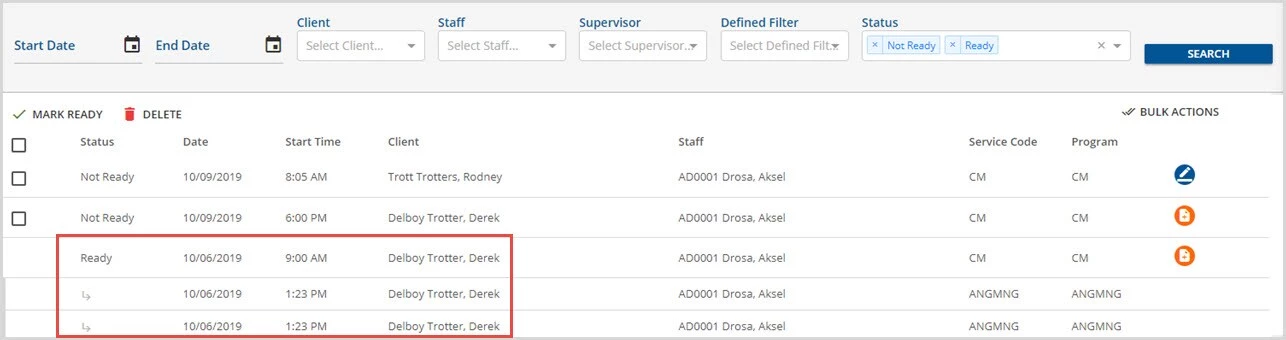
In the example above, there is a Parent service in Ready status that has two Add-On services.
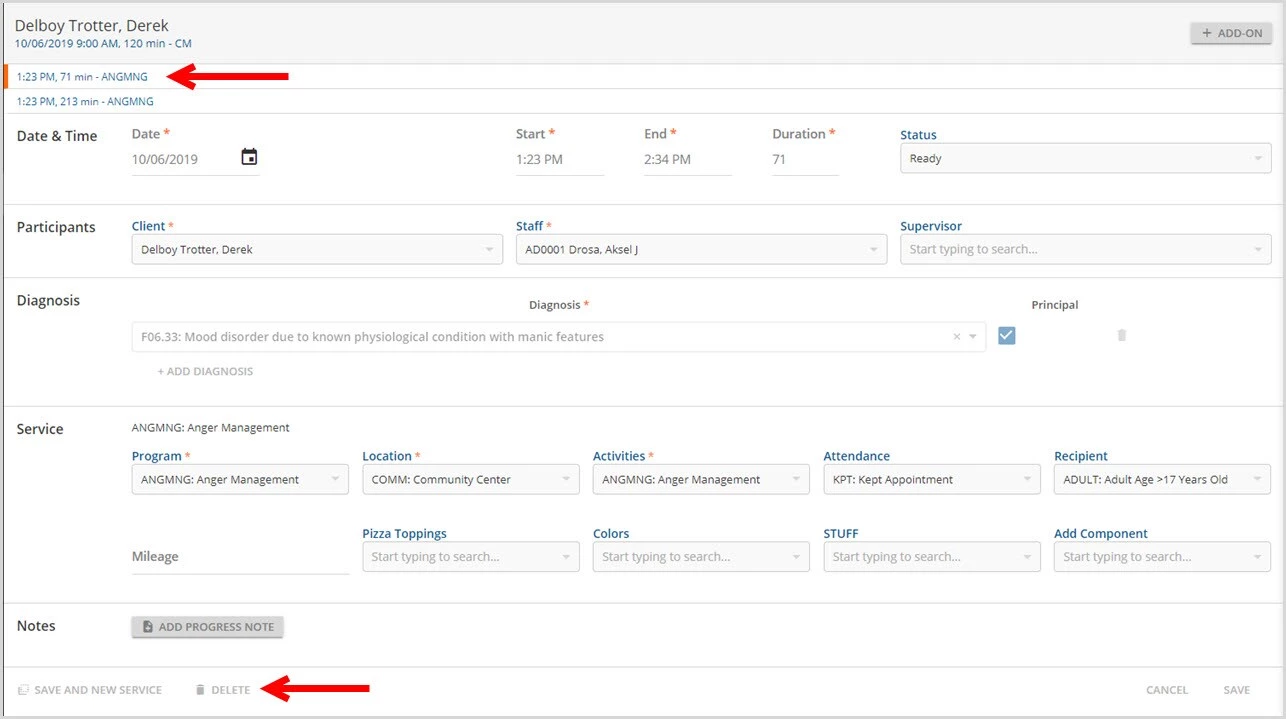
Selecting one of the Add-On services while the Parent service is still in Ready status displays a disabled DELETE button.

Change the Parent service to Not Ready.
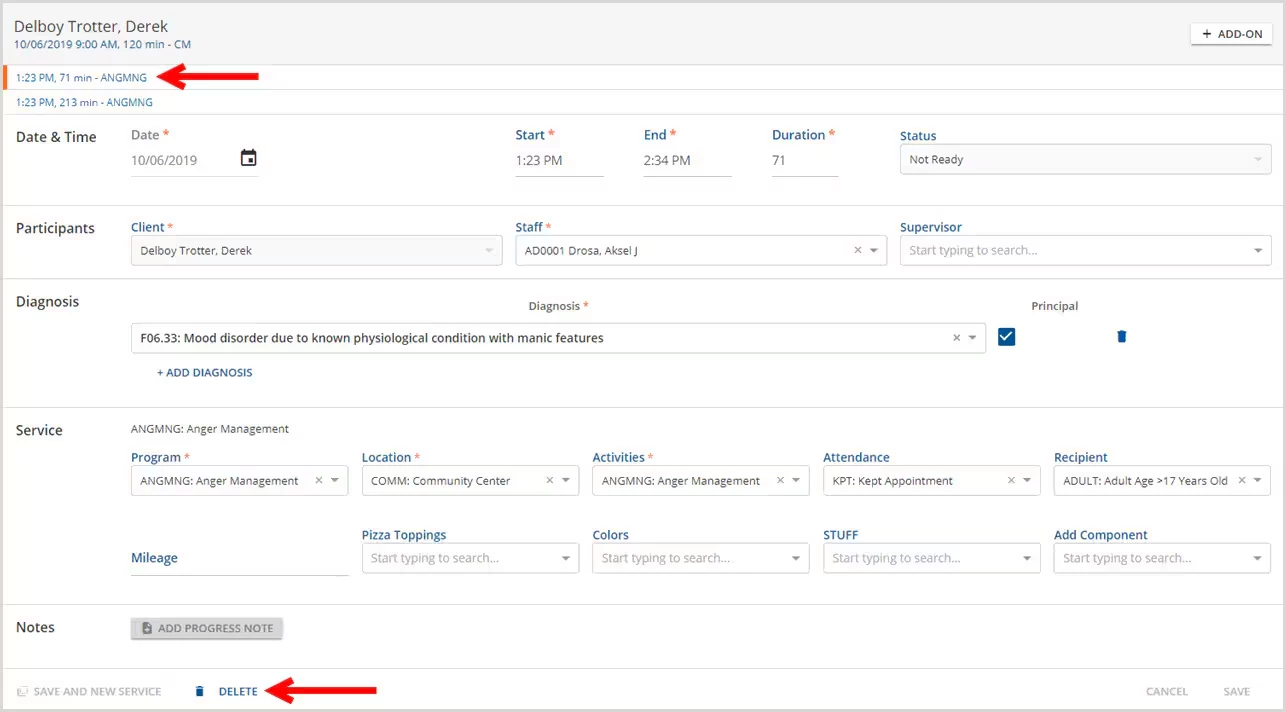
Now, the DELETE button is enabled when the same Add-On service is selected.
Edit an Add-On Service
The Staff and Supervisor of an Add-On service are locked down so that edits may not be made to these two fields. This helps ensure that both the staff and supervisor of the Add-On service are the same as the parent service. Any changes to the staff or supervisor in the parent service will automatically be reflected in the Add-On Service.
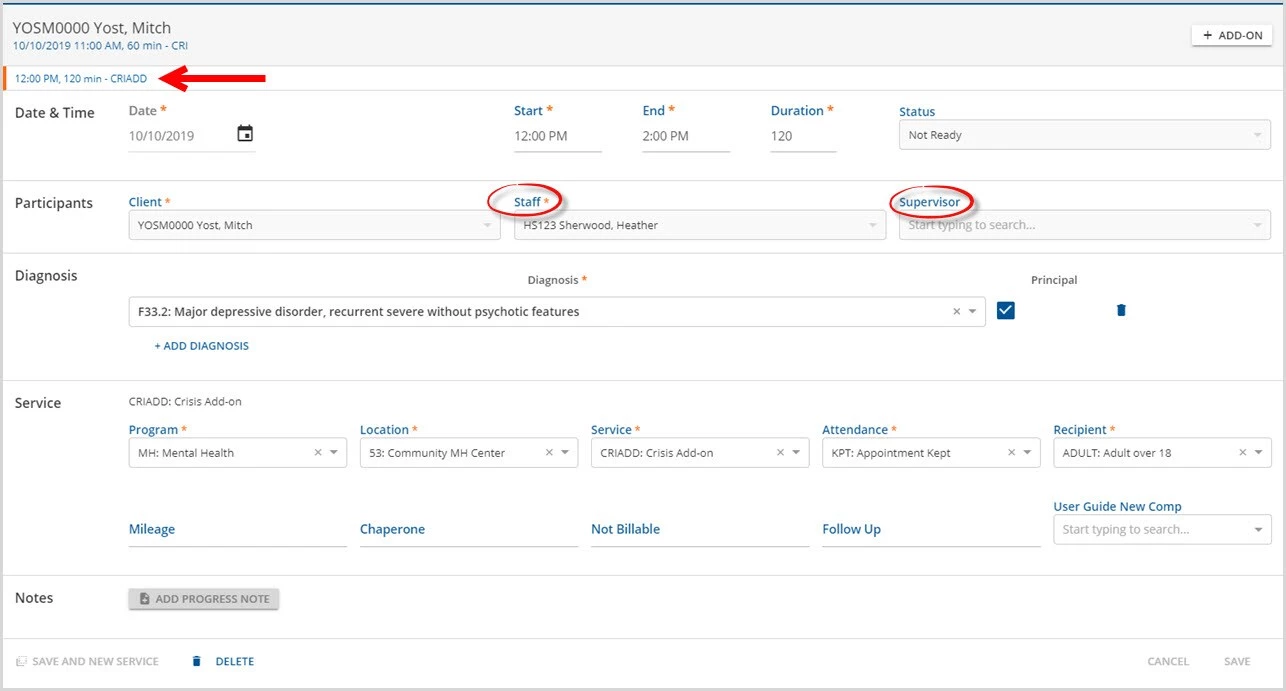
Note in the sample Add-On service image above, the Staff and Supervisor boxes are now shaded to indicate that the field is disabled. Edits may still be made to the Start and End Times and the Service components as needed.