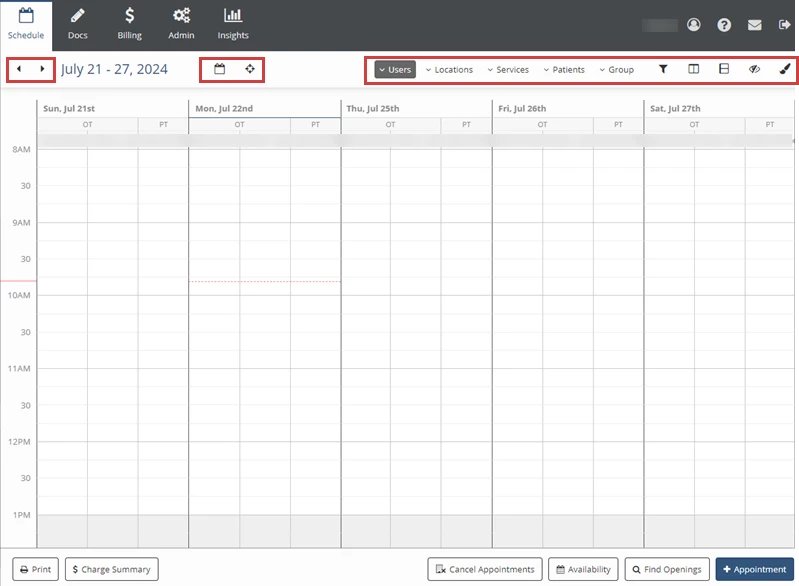
The icons on the calendar navigation bar are there to help you customize your view. Using these tools and filters to specify the kind of content that appears on your calendar will make it easier to schedule appointments, check in patients and view appointment details.
Icon | Navigation |

| Click the Back and Next arrows to move back or forward by one week. |

| Click the Date icon to pick a specific date. |

| Click the Today icon to quickly move to today's date. |

| Click the Filters icon to customize the calendar navigation bar. Use the checkboxes in the drop-down to add and remove filters for Users, Locations, Services, Patients and Group. Once a filter has been added to the navigation bar, you can use it to narrow down the information that displays on the calendar. You can also click a column header to filter by that user, service, or day of the week. |

| Click the Column Width icon to change the width of columns to normal, compact, narrow, or wide. |

| Click the Time Interval icon to change the time intervals that display in on the calendar. You can select intervals of 10 minutes, 15 minutes, 20 minutes, 30 minutes, or 60 minutes. |

| Click the Hide Columns icon to hide the columns for users that have no appointments scheduled for that day. If no appointments are present across all visible users for a date, that entire day will be hidden. |

| Click the Colors icon to switch between colors for Users and colors for Appointment Presets. |