


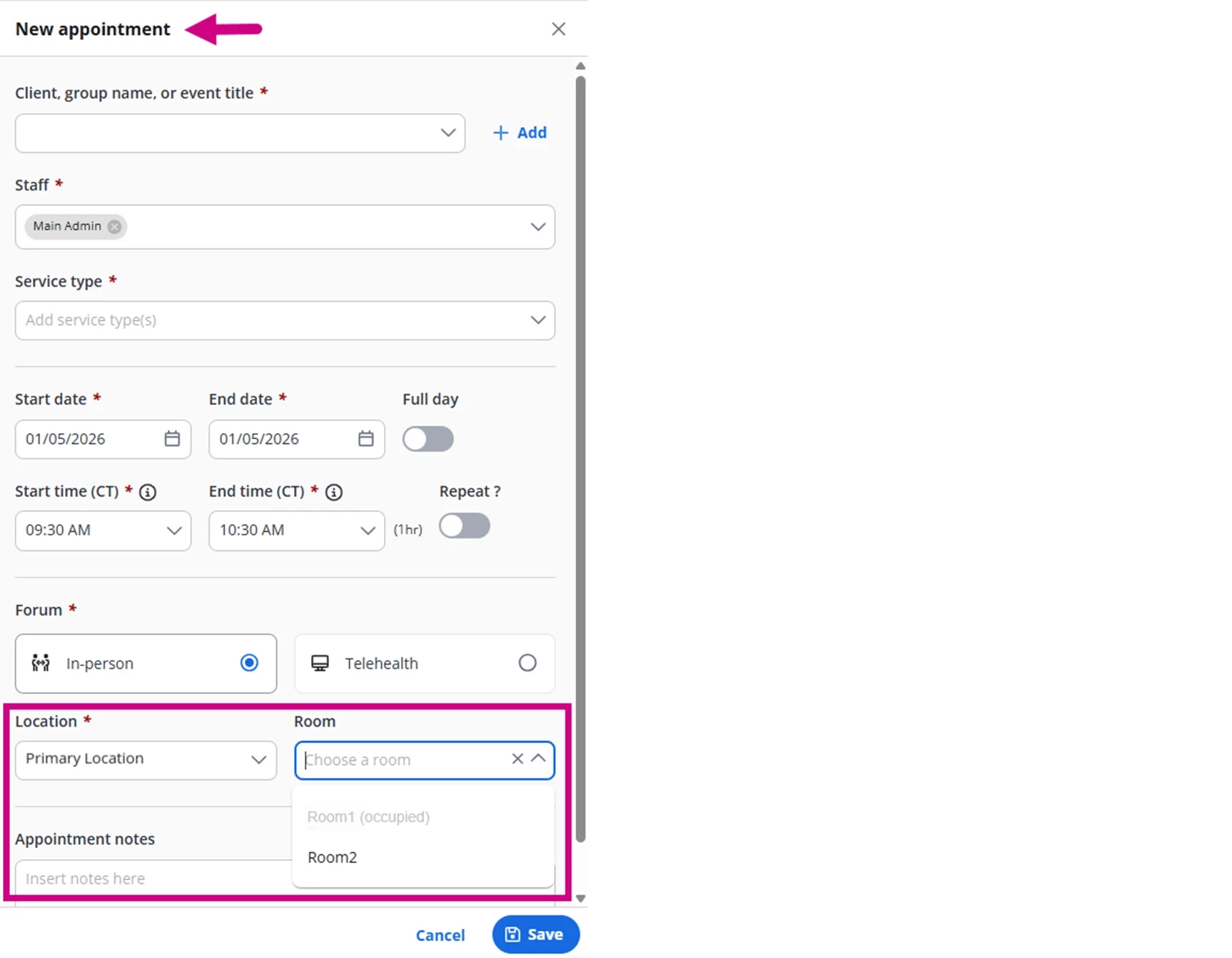
If Room Booking is available, Room options will display in the Room drop-down. Rooms are available by Location and will display on the Schedule. If you don't see the room you are looking for, ensure that you have selected the correct Location.
IMPORTANT: Administrators must add rooms in the system before you can book a Room. See Add & Edit Rooms for more information.
Jump to Section:
Add Appointment
- Click Schedule from the navigation bar and New Appointment. The New Appointment window opens.

- Enter appointment details (Client, group name, or event title, Staff, Service type, Date/Time/Duration/Repeat, and Forum)
- Select Location and then appropriate Room.
- Available Room - Will be bolded and be available to select.
- Booked Room - Will be greyed out and you will not be able to select it.
Room Conflicts
- If you drag an Appointment on the Calendar with the same Location/Room assignment into the same time slot where another Appointment already has that Room booked, an error will prompt and reject the change.
- If you edit an Appointment from within the Appointment screen to a time where another Appointment with the same Location/Room assignment already exists, an error will prompt and reject the change.
- If you create or edit a repeating Appointment with a Room, The system will check across the entire Calendar if any occurrence has a Room conflict. It could be a single conflict or multiple conflicts. Making a Room assignment change to a repeating Appointment will only update future Appointments and all past appointments will not be modified.