Just like any other program, Telehealth is optimized to work in certain devices and versions of a web browser. We recommend that you use the latest versions of your desired browser. Below are the minimum browser requirements:
MacOS Ventura, Safari 16.5 and the latest version of Chrome or Firefox
Android 13, latest version of Chrome or Firefox
Windows 11, latest version of Chrome or Firefox
IOS 17, Safari 16.5
Test your Network Connection
Once you are using a compatible device and browser, it can be helpful to test your connection. This will assess whether your internet connection is stable enough for Telehealth. You can do this just before you join a Telehealth Session.
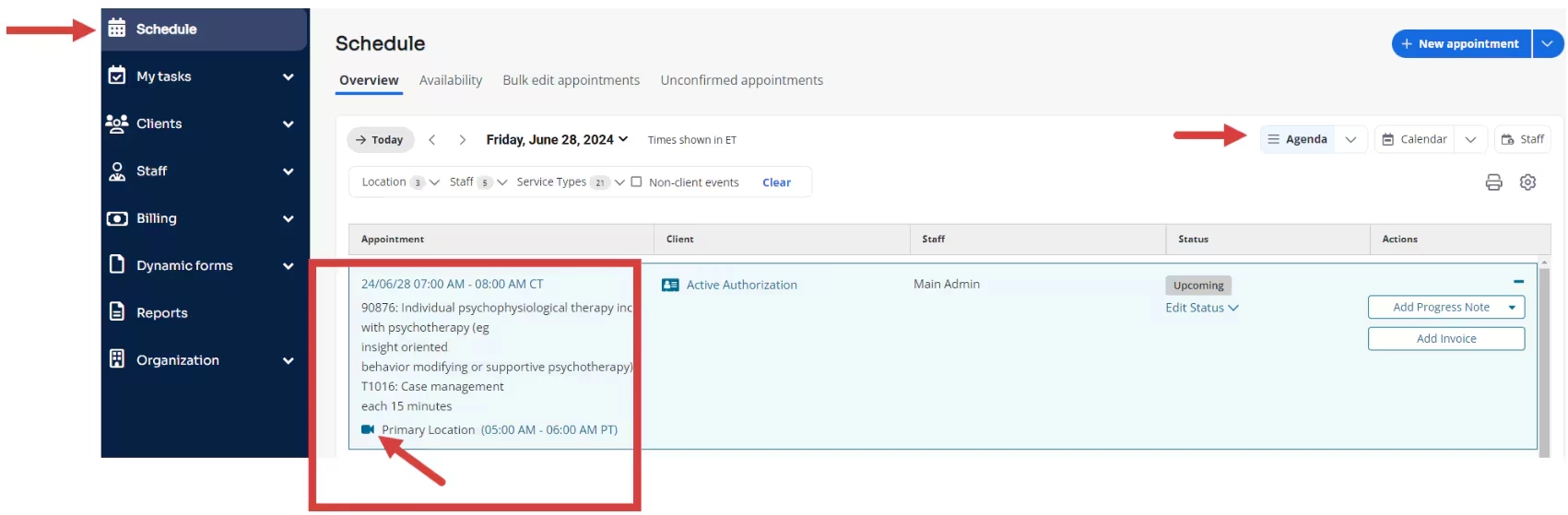
Join the Telehealth Session from your Schedule
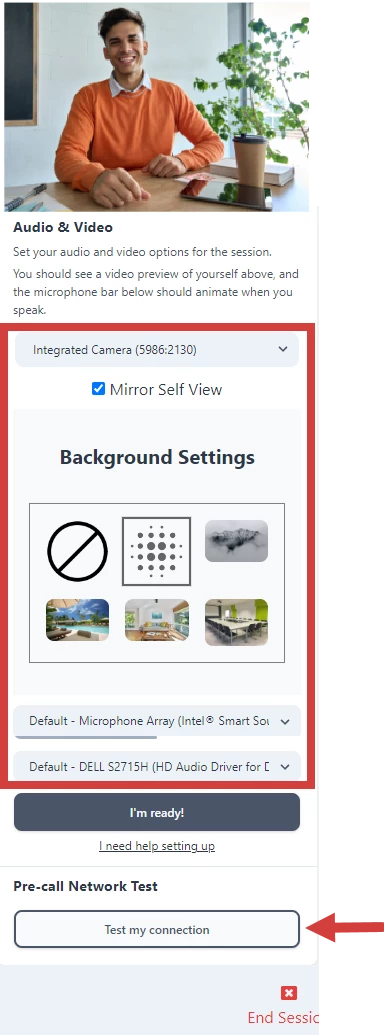
Scroll down and click Test My Connection button.
NOTE: You can select a virtual background to display during the session.
Audio & Visual Issues
If you or your client is not able to see or hear the other, there are two things you may want to check.
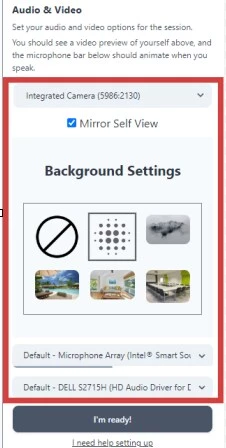
Ensure that the correct audio and visuals are selected. When you join a session, on the first screen you will want to select what microphone, speaker and camera will be used.
NOTE: If you are using headphones, or anything other than your default computer connections, be sure to select them here.
Be sure that you enabled your browser for your microphone and camera when prompted. The first time you use Telehealth in a browser you will be prompted to enable your microphone and camera.
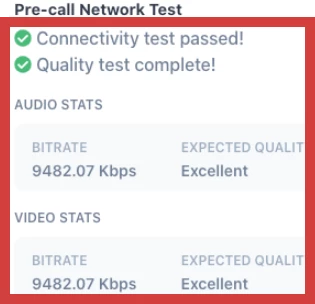
2. Connection test results display.
Connection Tips
If your connection isn't strong, you can try some of these to see if it helps.
Unplug any devices that aren't working and plug them back in.
Restart your device if time allows.
Close any other programs or browsers that may be running at the same time.
Contact Support
If you are still having trouble connecting to your Telehealth Session, contact Support.
This topic has been closed for replies.
Community Spotlight
Acceptance in Action: Neurodiversity in Care
This month, we’re shining a spotlight on another essential part of high-quality care: putting acceptance into action for neurodivergent patients and families.