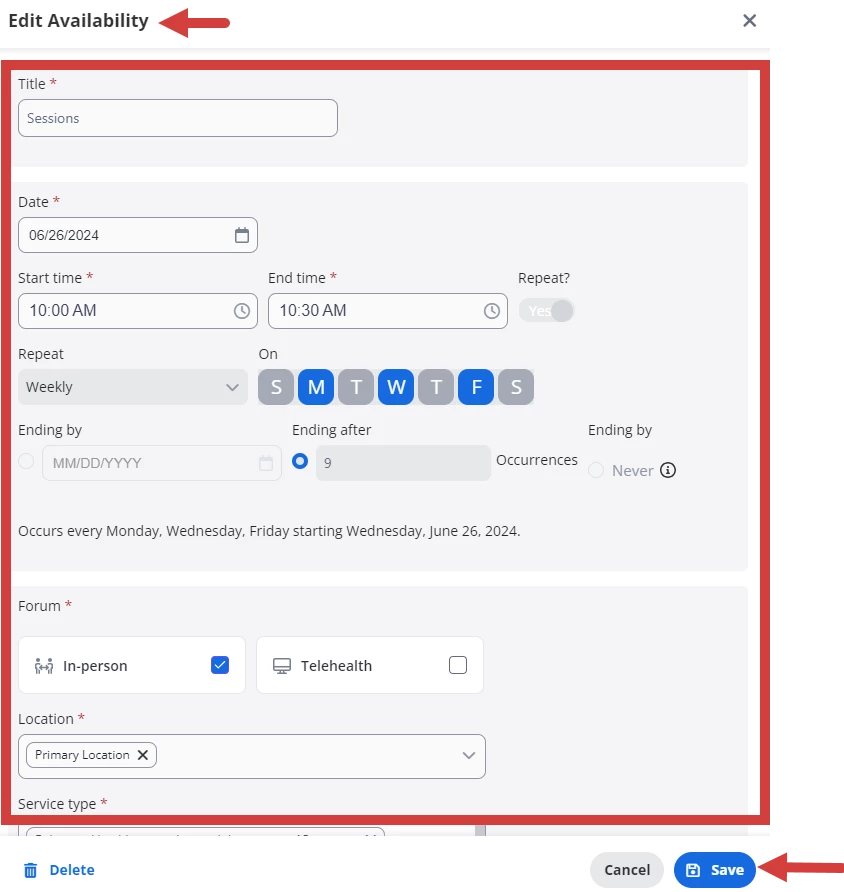
You can edit and delete availability blocks for other staff members. You cannot edit the staff field. You must have this permission: Can manage Advanced Availability for other staff.
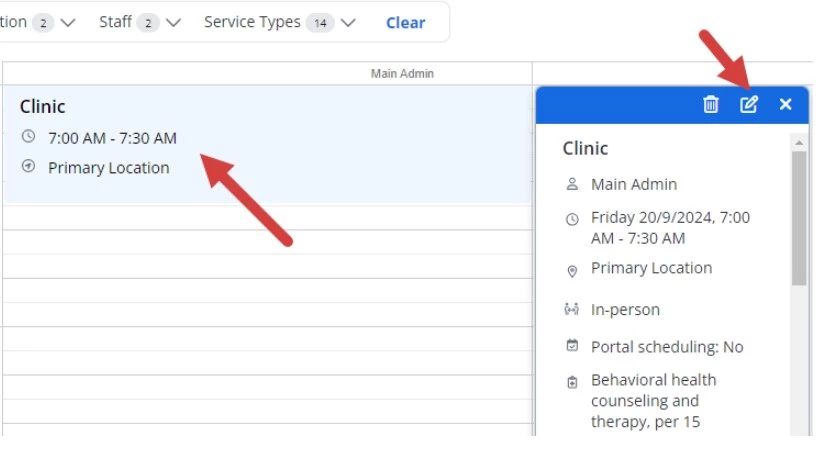
Click in the block to open details. NOTE: You can also double click in the block to open the Edit window.
Click the edit icon The Edit Availability window opens.
Make edits to fields as needed.
Click Save.
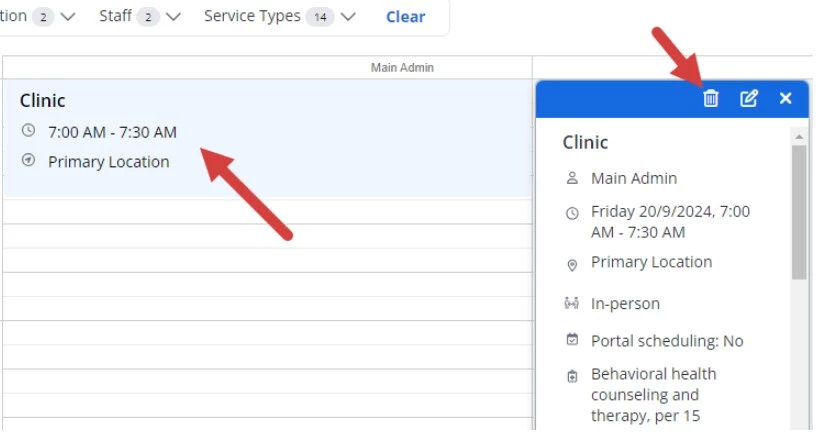
Delete Single Block
Click the Availability tab and select Staff or Week view. See Availability Schedule Views for more information. Click in the block to open details. NOTE: You can also double click in the block to open the Edit window and click Delete at the bottom.
Click the edit icon.
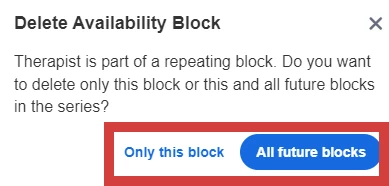
Click Delete Availability in the confirmation pop-up.
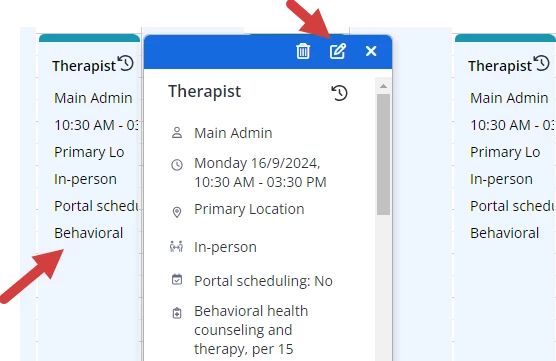
2. Click in the block to open details. NOTE: You can also double click in the block to open the Edit window.
Click the edit icon
The Edit Availability window opens.
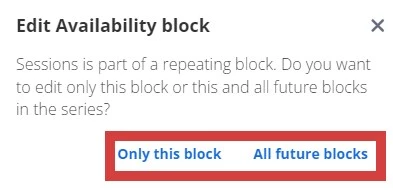
. Select one:
Only this block - edit only this block
All future Blocks - edit this and all future blocks.
NOTE:If you select Only this block, the Repeat setting will be disabled. If you select All future blocks for a series that ends after a set number of occurrences, you will see the number occurrences left in the series
Click in the block to open details. NOTE: You can also double click in the block to open the Edit window and click Delete at the bottom.
Click the edit icon
Select one:
Only this block - edit only this block
All future Blocks - edit this and all future blocks.
NOTE: If you select Only this block, the Repeat setting will be disabled. If you select All future blocks for a series that ends after a set number of occurrences, you will see the number occurrences left in the series.
This topic has been closed for replies.
Community Spotlight
Acceptance in Action: Neurodiversity in Care
This month, we’re shining a spotlight on another essential part of high-quality care: putting acceptance into action for neurodivergent patients and families.