


Events are a good way to block off times on your Calendar so people will know not to schedule Appointments during those times. If you're going to be out of the office for a few hours, a day, or week it's good to add those blocks of time to your Calendar.
See Schedule Client Appointment for more information on scheduling appointments.
Create Non-Client Event
- Click the Schedule tab in the navigation bar.
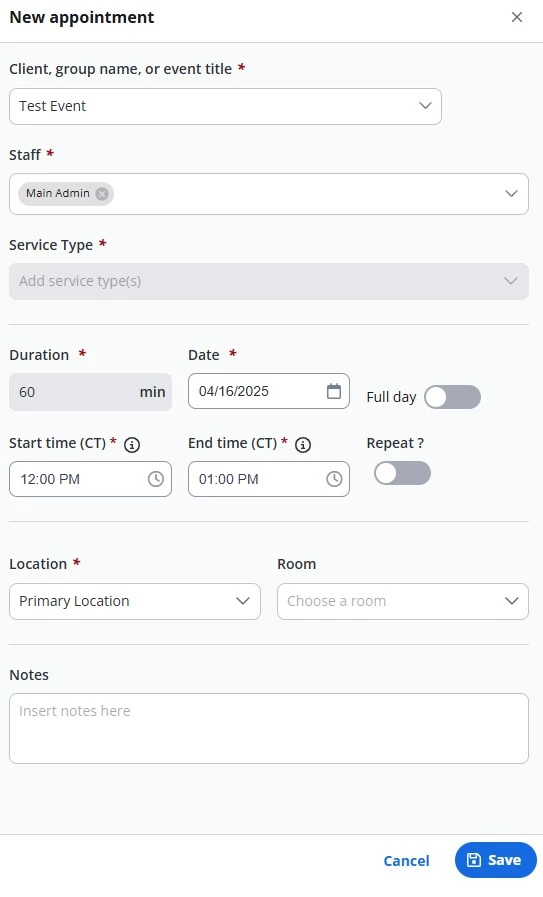
- Click +New appointment. The New Appointment window opens.

- Enter the Event Title in the Client, group name or event title field. Examples might include Out of Office, Vacation, Appointment etc.
- Confirm Staff name.
- Select Duration, Date, Start/End times & Repeat setting (if applicable).
- If you're not seeing the minute increment you want, see Set Up Calendar Appearances & Preferences for more information on how to set your time scale units.
- Enter Location & Room (if applicable).
- Enter Mileage (if applicable).
- Enter Note if needed.
- Click Save.
- You are now considered booked for that time and no one else will be able to book you.
- You are now considered booked for that time and no one else will be able to book you.
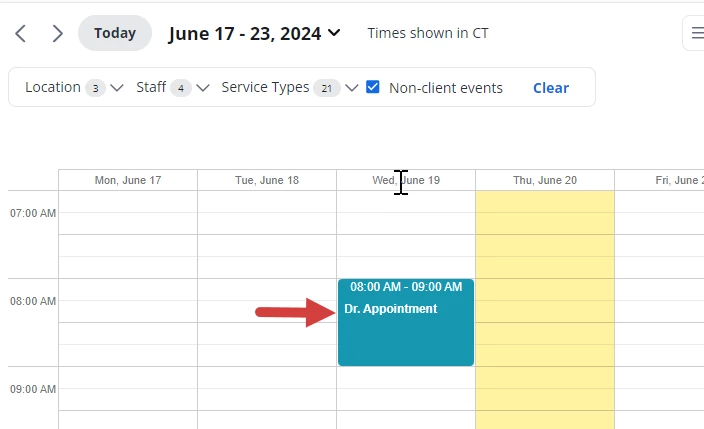
NOTE: Any Non-Billable events will appear in the Agenda and Calendar with the Non-Billable Service Code and an indicator that is Non-Billable time.

Related Articles: Create All Day or Multi-Day Events