



You have the ability to easily schedule recurring Appointments in the system. Use the Repeat setting to schedule daily, weekly, monthly and yearly repeating appointments.
There are a few caveats with recurring Appointments:
- All future recurring Appointments for a Client will appear in the Calendar to prevent double booking.
- Only recurring Appointments 1 year into the future will display in the Client's Appointment History.
- Only recurring appointments 60 days into the future will display in the Detailed Attendance Report. This is to prevent any performance issues on our end. Check your Calendar to see Appointments further than 60 days out.
- Similarly, if using Google Calendar sync, only Appointments 60 days into the future will display. Check your Calendar to see Appointments further than 60 days out.
Jump to Section:
Create Repeat Appointment
NOTE: Some fields are set by default dependent on where you create the Appointment (Agenda, Calendar, Clients Tab). Default settings cannot be changed in the appointment details window.
- Click the Schedule tab in the navigation bar. You can also schedule appointments from the Client page. See Schedule Individual Client Appointment for more information.
- Click +New appointment. The New Appointment window opens.

- Enter appointment other details as required for your appointment: Event Type, Client Name, Service Type, Staff Name, Forum, Location & Room and Notes.
IMPORTANT: Click the Client name that results in the search field. This is necessary to link the appointment to the Client's File.
- Select Duration & Date and choose the Time. If you're not seeing the minute increment you wish to see then, see Change Appointment Time Increments for more information.
- Activate the Repeat setting and select how you want the appointment to repeat: Daily, Weekly, Monthly, Yearly.
- Enter details for the Repeat appointment as explained below.
Repeat Appointment Details
Use the Repeat setting to schedule daily, weekly, monthly and yearly repeating appointments.
- Click the white button on the Repeat setting.
- Select Daily, Weekly, Monthly, Yearly in Repeat field.
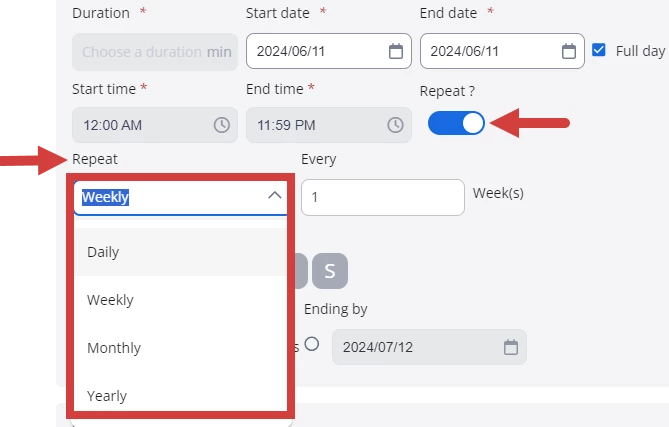
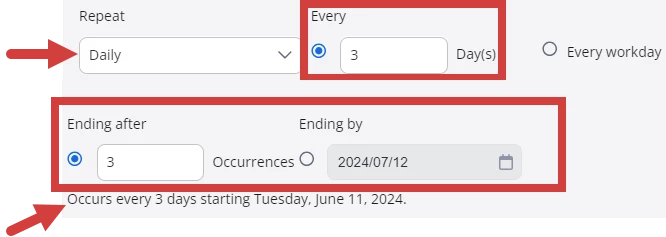
Daily - Select Every Day(s) or Every workday.
Every Day(s) - The schedule will occur according to the number of days you want it to repeat.
- Select Daily in the Repeat field.
- Select the number of days you want the schedule to repeat (i.e., every 1 day, 2 days, 3 days, 4 days, etc.)
- Select either Ending after and enter number of occurrences or Ending by and enter a date.
- The schedule displays.
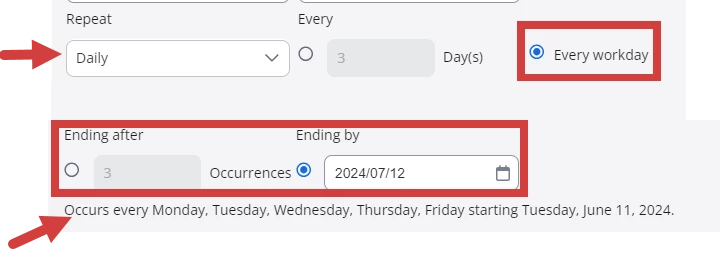
Every workday - The schedule will occur everyday.
- Select Daily in the Repeat field.
- Select Every workday.
- Select either Ending after and enter number of occurrences or Ending by and enter a date.
- The schedule displays.
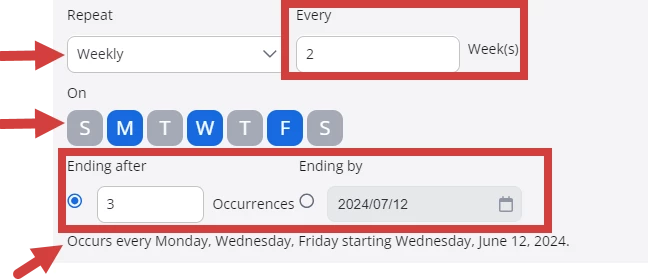
Weekly - The schedule will occur weekly according to the number of weeks you want the schedule to repeat.
- Select Weekly in the Repeat field.
- Select the number of weeks you want the schedule to repeat (i.e., every 1 week, 2 weeks, 3 weeks, 4 weeks, etc.).
- Select the day(s) of the week you want the schedule to occur.
- Select either Ending after and enter number of occurrences or Ending by and enter a date.
- The schedule displays.
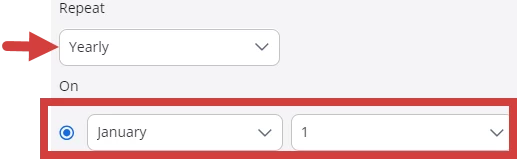
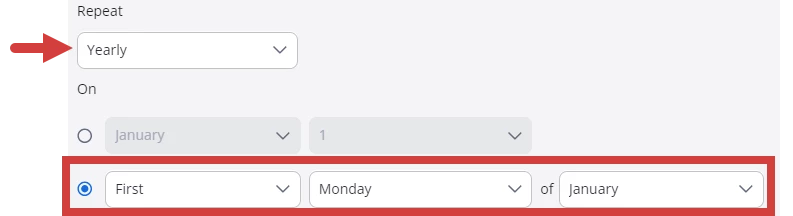
Yearly - The schedule will occur yearly according to the the month and day you want the schedule to repeat.
- Select Yearly in the Repeat field.
- Select how you want the schedule to repeat.
- Specific month and day
- Specific week (first, second, third, fourth, last), day and month
- Specific month and day
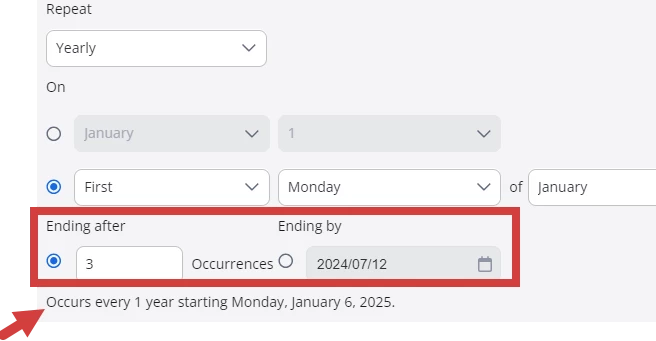
- Select either Ending after and enter number of occurrences or Ending by and enter a date.
- The schedule displays.
Related Articles: