


Advanced Availability allows staff to specify when they can be scheduled for appointments.
Jump To Section
Check Staff Availability
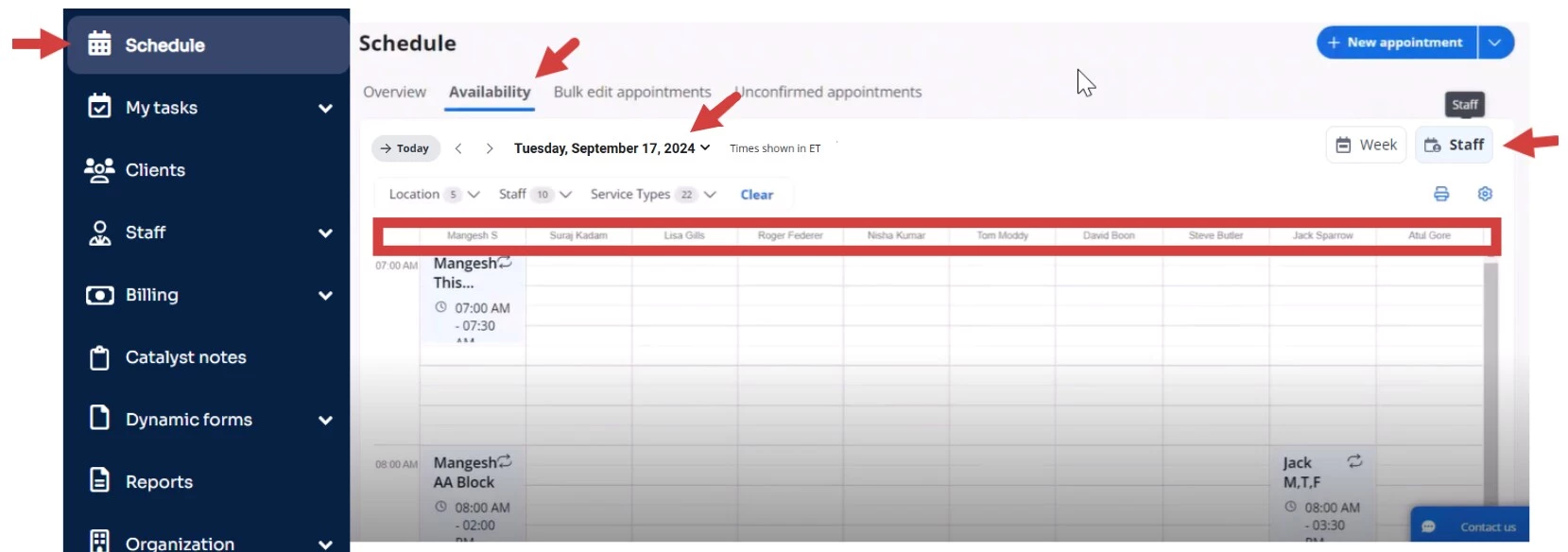
If your staff is using Advanced Availability, click the Availability button on the schedule, to see when your staff can be scheduled for specific times and locations. View scheduling options, then click back to the main calendar or staff view to add your appointments.
- Click the Availability tab. You can view availability by the staff member's individual schedule or by the combined weekly schedule of all staff members. See Availability Schedule Views for more information.
Staff View
Week View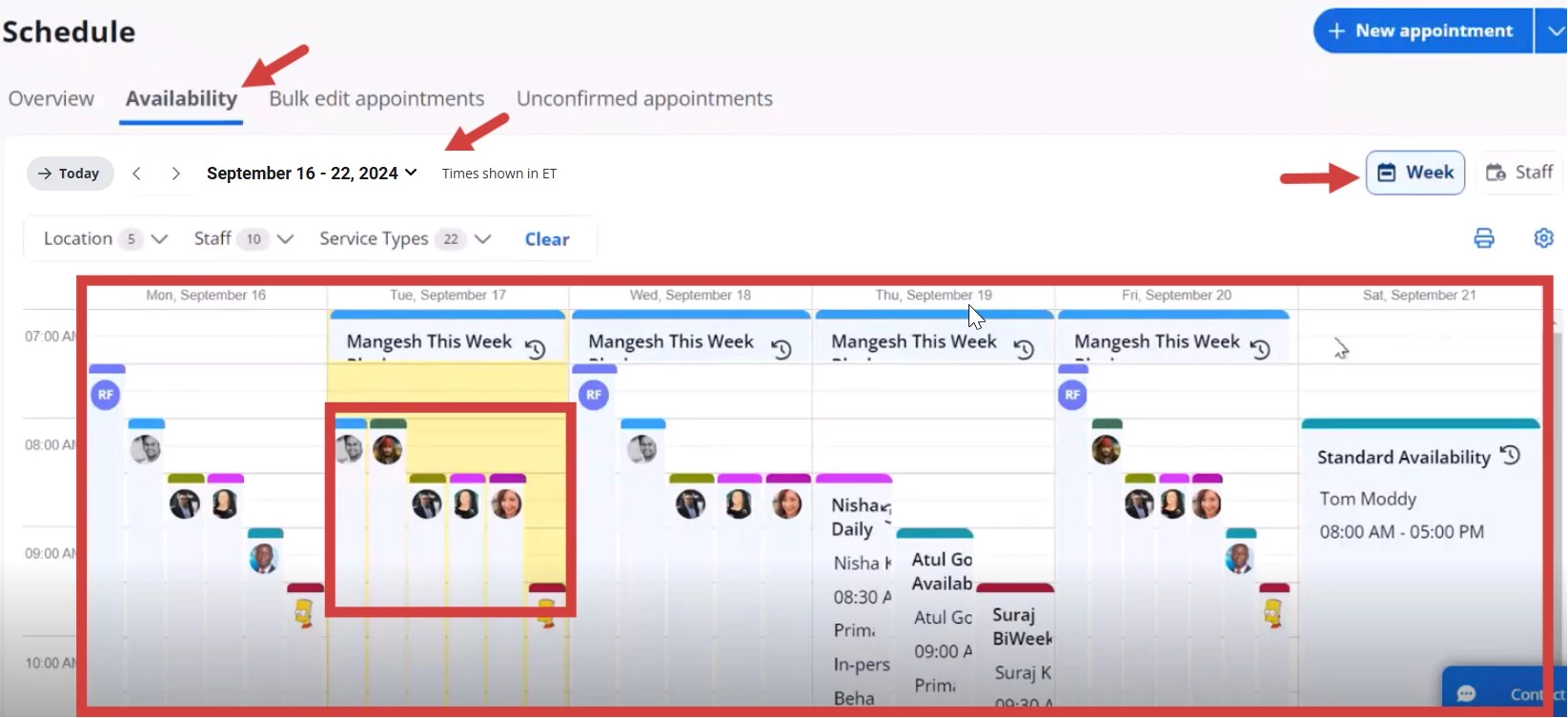
Schedule Appointment
- Click Click Schedule from the side navigation and click +Appointment.

- Enter appointment information. See Schedule Client Appointment for more information.
- Click Save.
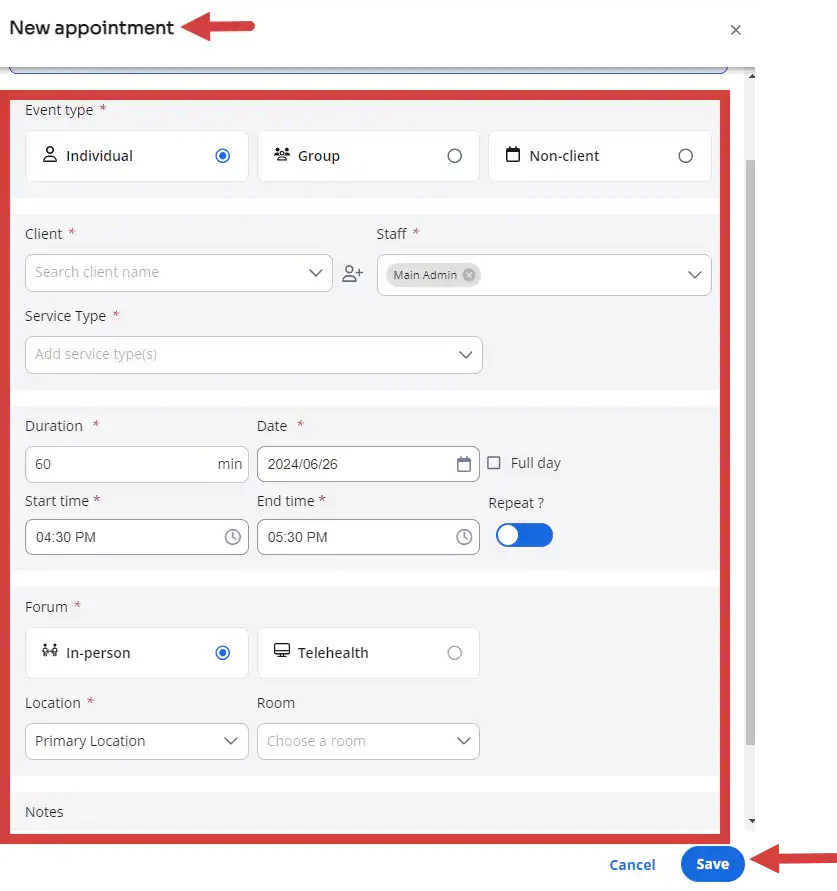
NOTE: A warning message displays to let you know if the new appointment conflicts with your availability. This does not prevent you from scheduling the appointment.
The After-hours override checkbox has been removed, but you can still schedule appointments outside of a staff member's availability by clicking Save.
Schedule Appointment in Staff View
- Click the Overview tab and the Staff tab to view see staff members' availability and unavailability.
- Select an available time on the calendar.
NOTE: Unavailable times will be grayed out.
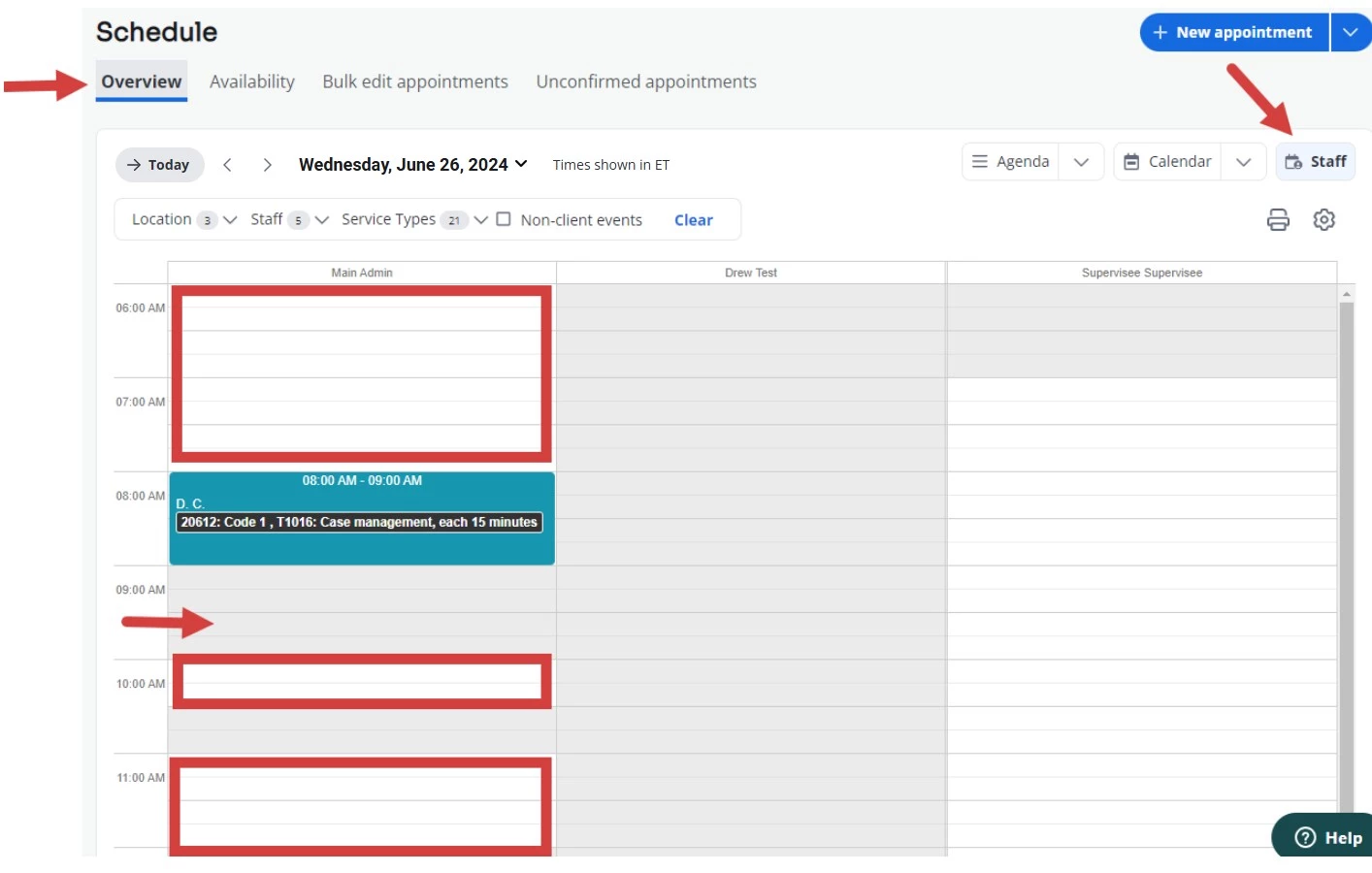
- Enter appointment information and click Save.
Schedule Appointment in Client Portal
- When Advanced Availability is enabled, clients can schedule appointments.
NOTE: You must be subscribed to the Client Portal and turn on Allow clients to schedule appointments online setting.
- The client logs in to the client portal and clicks +New Appointment.
- Select Provider and Location.
- Select Forum: In-person or Telehealth.
- Select Service(s).
NOTE: Only service types saved in the availability block will be available in the services list.
- Select the date and time for the appointment based on the provider's availability.
NOTE: Unavailable times are grayed out on the calendar.
- Submit the appointment.
In-person Appointment
Telehealth Appointment