PERMISSIONS REQUIRED: Administrators and any user subscribed to Telehealth can convert Appointments.
NOTE: We cannot convert recurring Group Appointments to Telehealth session. You will need to do this on an individual Group Appointment basis.
Jump to Section:
Convert Appointment
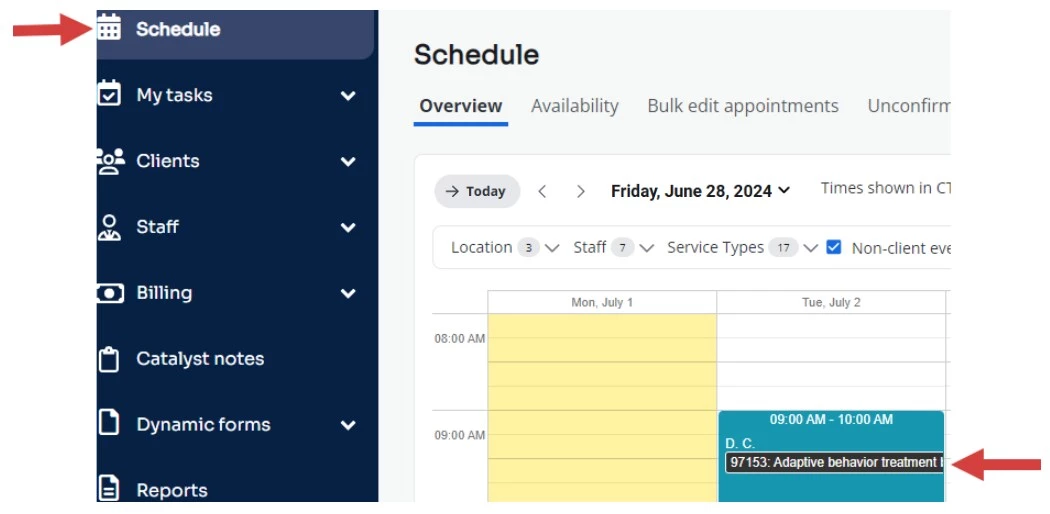
- Navigate to the Schedule and find desired Appointment.
- Double click on the Appointment to edit.
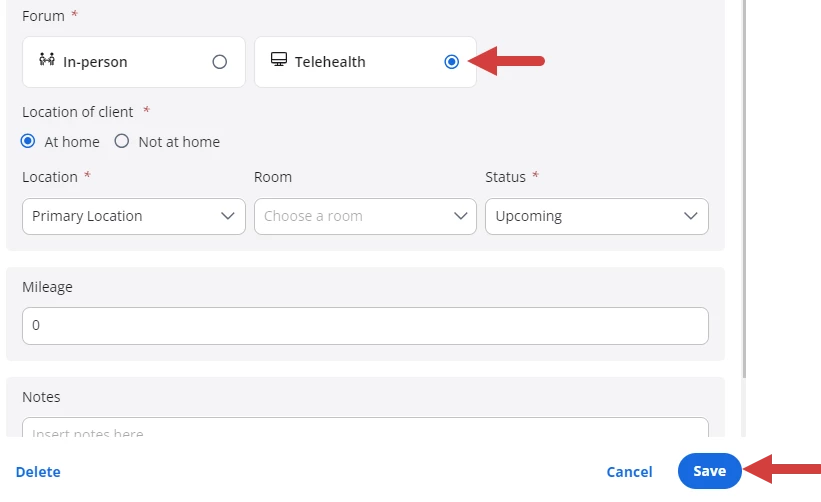
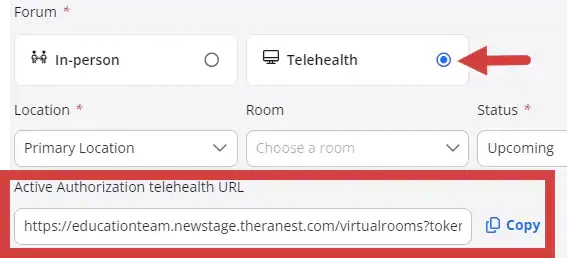
- Select Telehealth. The place of service will display if the setting is active in your The place of service will display if the setting is active in your organization profile. Learn More: Set Default Place of Service for your Organization
NOTE: When this setting is turned on, you can select the telehealth POS code (At home or Not at home) when creating the appointment. The code will appear on progress notes and invoices.
- Click Save.
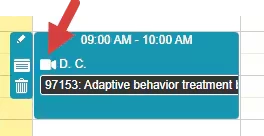
- Appointment will now have a camera icon and a unique URL for the Client will display in the appointment window.
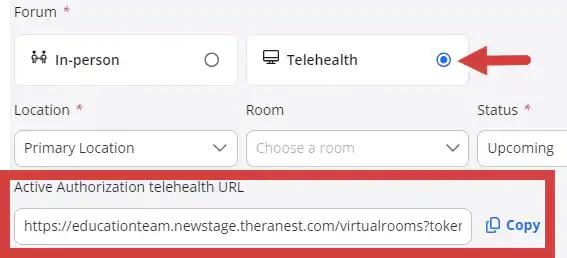
NOTE: When you click Save, the telehealth invitation link will display in the appointment window in the Telehealth URL section. You can copy & paste the URL link from here.
Convert Recurring Appointment Occurrence or Series
IMPORTANT: If you make any changes to the Appointment Series (e.g. change time, Staff Member, Location, etc.) BEFORE a converted Appointment takes place, that Telehealth Session will be reverted back to a regular appointment. The link will be removed from the occurrence and will not work for your Client. Because of this we suggest only converting a small amount of recurring sessions at a time.
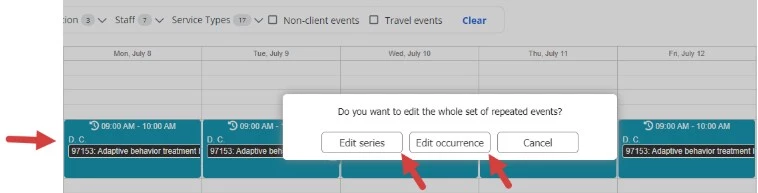
- Navigate to the Schedule and find desired Appointment Recurrence.
- Double click on the Appointment and choose Edit Occurrence or Edit Series.
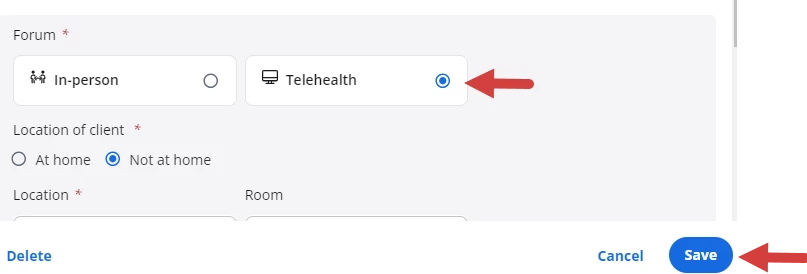
- Mark the box for Telehealth Session.
NOTE: The place of service will display if the setting is active in your organization profile. Learn More: Set Default Place of Service for your Organization
When this setting is turned on, you can select the telehealth POS code (At home or Not at home) when creating the appointment. The code will appear on progress notes and invoices. - Click Save.
- Appointment(s) will now have a camera icon and a unique URL for the Client will display in the appointment window.

NOTE: When you click Save, the telehealth invitation link will display in the appointment window in the Telehealth URL section. You can copy & paste the URL link from here.