You have the ability to view the availability schedule by Staff and by Week. You can filter these views according to Location, Staff and Service Type.
Jump to Section:
Filters
- Use the Location, Staff and Service Types filters to customize your Availability Schedule view. These filters are independent from the Overview filters.
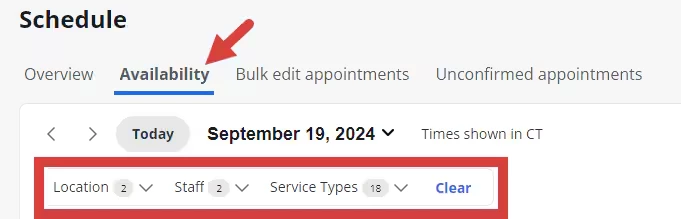
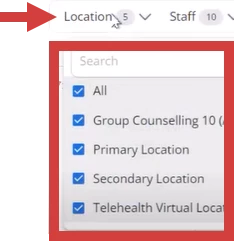
- Location - Filter view by Location.
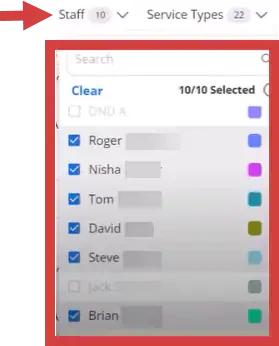
- Staff - filtering is limited to 10 staff members. Clear current selections to select other staff.
- Service Types - filter view according to service types.
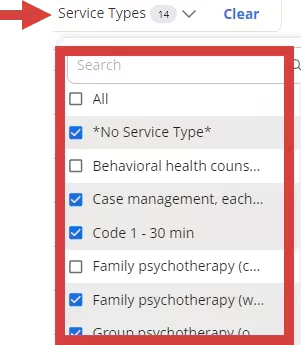
- Location - Filter view by Location.
Staff View
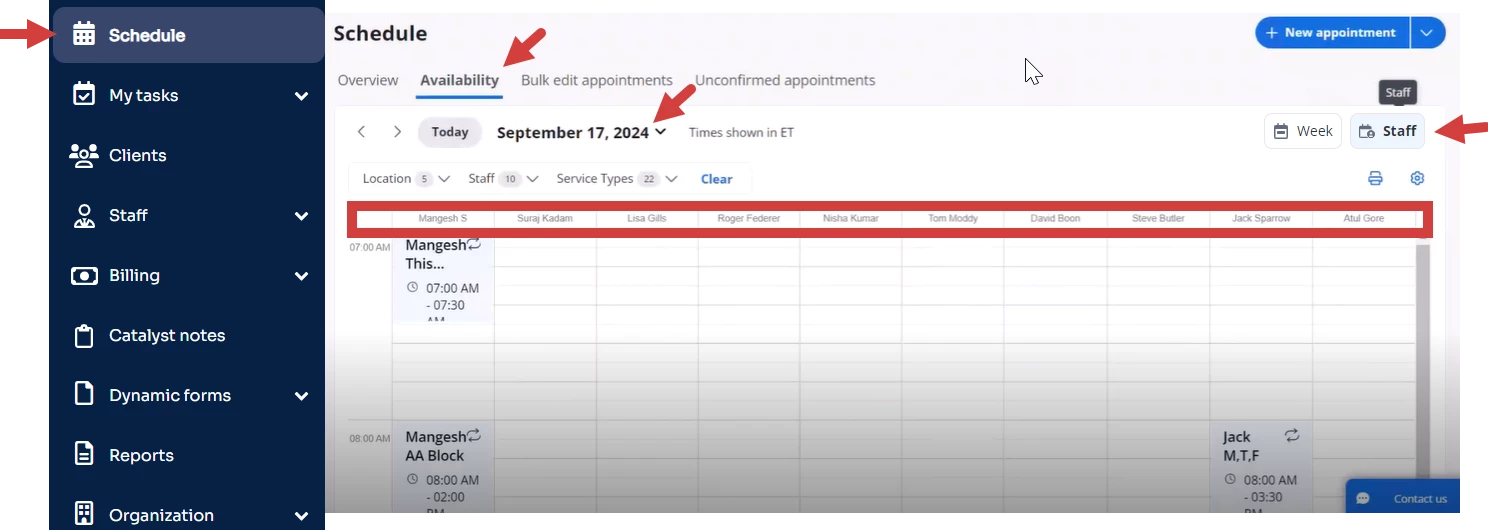
- Click the Availability tab from the Schedule.
- Click the Staff button.
- The schedule opens showing the availability of up to ten staff for the selected date. Manage how many staff display using the Staff Filter.
NOTE: Use the Staff members per page setting in Preferences to manage how many staff show on the Schedule Overview. See Set up Calendar Appearances & Preferences for more information.
Week View
- Click the Availability tab from the Schedule.
- Click the Week button.
- The schedule opens showing the availability of staff for the selected week. Blocks are color coded based on staff member's profile preferences. See My Profile for more information.
NOTE: The staff member's photo will display for the block if there are more than three staff members in the time slot:
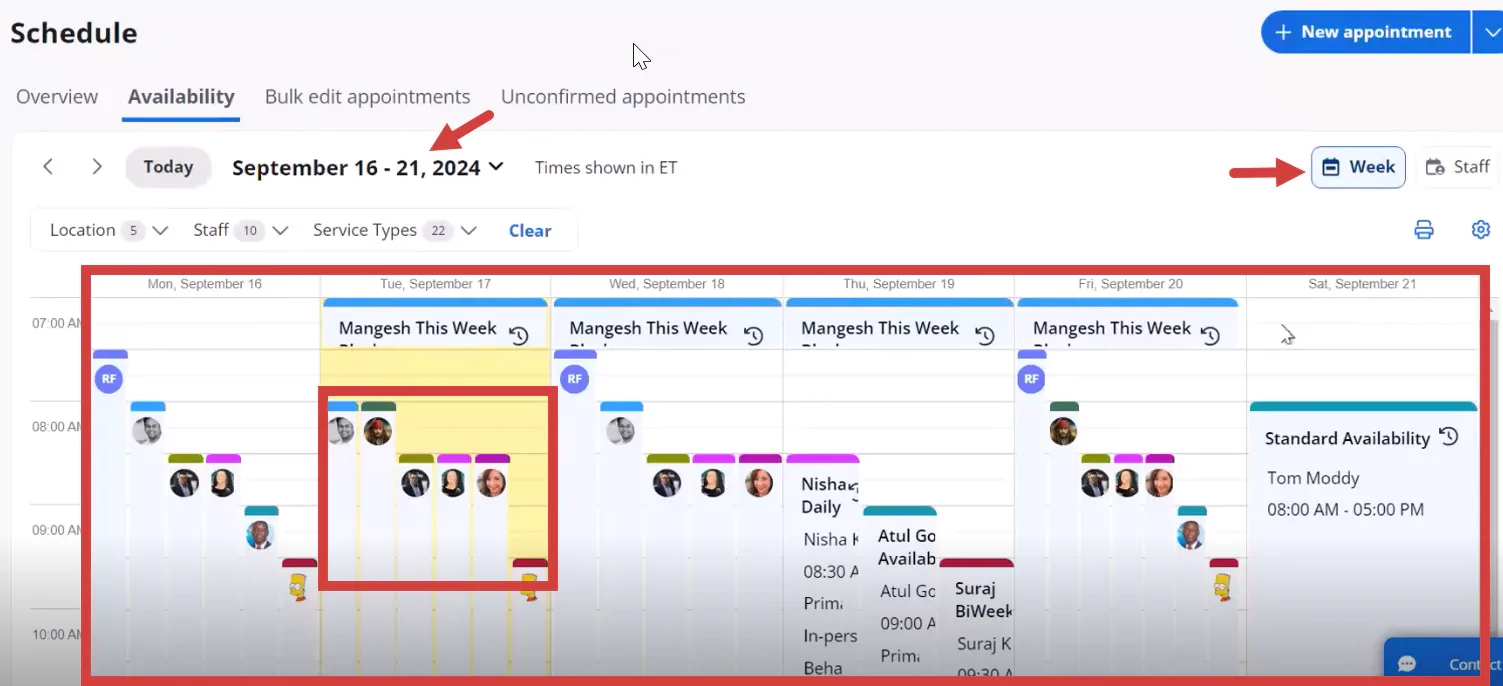
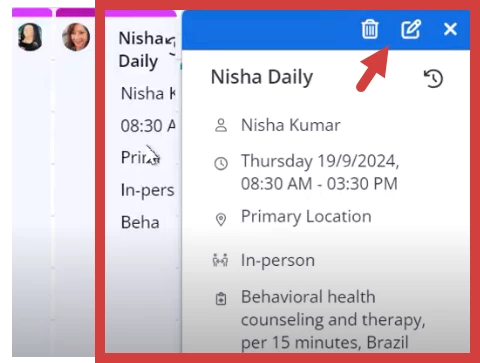
- Click on the block to see details, make edits or delete.