


This article will show you how to find reports that might be helpful, based on parameters and fields contained in the report, as well as provide direction on what you will see on the Reports Home screen. The Canned Reports folder is where you'll find many standard reports based on a variety of criteria. Within Canned Reports, there are reports that are very helpful at different stages of the implementation process and they will be suggested here. And finally, when you find the reports that you like and will use regularly, you can add them to your Favorites so that they are easily accessed.
Jump to Section:
Advanced Reporting Search
Go to Reporting > Advanced Reporting Search.
- Searches the Parameters (aka filters) at the top for all reports. Values like Program and Location will be common in many reports.
- Find all reports with Fields (aka columns) in the report that include the search term.
- The example above shows all reports containing a diagnosis field.
Reports Home
- The Canned folder contains all the standard and customer-requested reports created and managed by the system.
- The Dashboards folder includes graphical dashboard reports featuring outcome-based forms like CANS, DLA-20, and PHQ-9. It also includes example dashboard reports with fake data to show other capabilities.
- The Data Sources folder is for system internal use only.
- The Reporting Legend contains definitions of eCR and reporting terms and acronyms to help you better understand the system.
- The Reporting List contains all the available Canned Reports, Adhoc Reports, and Models.
- The Search Box allows a user to search for a report containing a keyword, the report name, or description.
Canned Reports
- All reports are grouped into folders to maintain organization.
- All customer-requested reports are included in these folders as well.
- Some reports are dependent upon information taken from specific forms. All form-specific reports will be explained in the report description.
- In this example, the report is generated using the data from the specific forms highlighted.
- Tips for interacting with a Report.
- Refresh the page if the data in eCR has changed since the report was previously run. If the report filters have been modified, click View Report.
- Export the report data to a particular file type. The most common types are PDF (for archiving or printing), CSV (for importing into tools such as Power BI and Excel because it includes no formatting or grouping), and XLS (for opening in Excel, but including all groupings and formatting, thus making it difficult to use for PivotTables and analysis).
- Print the current report.
- Use the Search Field to search for a keyword in the report. This is restricted to only those words visible in the report, thus any grouped sections of the report where details are collapsed, those details will not be found by this search.
Suggested/Key Reports
Pre-Go Live Reports
- Canned > Administration > User Login History
- For Project Managers to monitor the core team's usage of eCR.
- Canned > Administration > User Login Deficiency
- View users who have not logged into their eCR system within the filter Date Range.
- Canned > eCR Lists > eCR Master List
- Several different versions of these reports encompass different portions of eCR setup to ensure the completion and accuracy of your eCR setup.
- Versions: Access Levels, Users, Diagnosis, Insurances, Procedures, and Visit Types.
- Canned > Billing > Insurance Authorization Report
- View authorizations grouped by insurance for patients with a certain amount of auths remaining.
- Canned > Chart Metrics > Patient Chart Status Count by Date
- List of all patient chart statuses with a count and details of those patients moved into that status.
- Canned > Patient > Patient Diagnosis List
- List of diagnoses for patients within a specified admit date range. Also, look for patients missing a diagnosis.
- Canned > Patient > Patient Insurance List
- List of patients with all Insurance information filtered on Admit Date, Programs, Chart Phase, SED, Managed Care.
Go Live Reports - Clinical
- Canned > Scheduling > Scheduled Appointments by Patient
- View one patient per page with a list of their appointments that meet the filters selected.
- Canned > Caseload > Caseload Report
- List of all patients with their Chart, Diagnosis, Primary User, Doctor, and Nurse Practitioner; grouped by specific chart role.
- Canned > Compliance > Appointment to Progress Note Reconciliation
- Appointments with the status of their accompanying Progress Note. This replaces Missing Notes and Billable but Not Locked reports. Its very useful to ensure all notes are written and billing can be run.
Go Live Reports - Financial
- Canned > Financial – Payments > Posting Activity
- Details of payments and write-offs per Transaction Date or Date of Deposit.
- Canned > Financial – Accounts Receivable > Total Accounts Receivable Reports
- Multiple permutations of this report, grouped by either Payer, Program, or Client.
- Summary reports include summary-level data of outstanding balances for all visits, and aged groupings every 30 days past due. It does not include claim details.
- Details include claim-level data of outstanding balances for each visit and aged groupings every 30 days past due. This one will take longer to run than the Summary report.
- Canned > Financial – Payments > Payments Reports
- Multiple permutations of this report, grouped by either Payer, Program, or Client.
- Unapplied payments, payments, and write-offs with numerous filters based on different dates to fine-tune what claims are returned.
- Canned > Financial – Charges > Charges Reports
- Multiple permutations of this report, grouped by either Payer (Gross), Payer (Net), Program, or Client.
- Charges with procedure details with numerous filters based on different dates to fine-tune what claims are returned.
Favorites
You now have the ability to favorite your most used or favorite reports. In doing so, these reports can be found in an easily accessed folder in eCR.
- Navigate to the report you want to favorite but do not open it.
- Click on the … symbol in the top right corner of the report.
- Click Add to Favorites.
- Note the star next to the …. This report has been added to the Favorites section of Reporting.
View Favorite Reports
- On the home screen of Reporting, click Favorites.
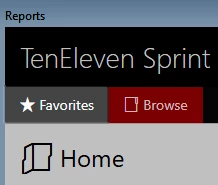
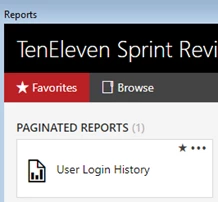
- Here you will see all of your favorite reports.
Remove a Report from Favorites
- Navigate to the report in the Favorites section.
- Click on the … symbol with the star next to it.
- Click Remove from Favorites.