


The system has a robust Progress Note Template Library, you can search, and preview Note Templates and then save ("favorite") Templates for easy access later.
Add or Save Progress
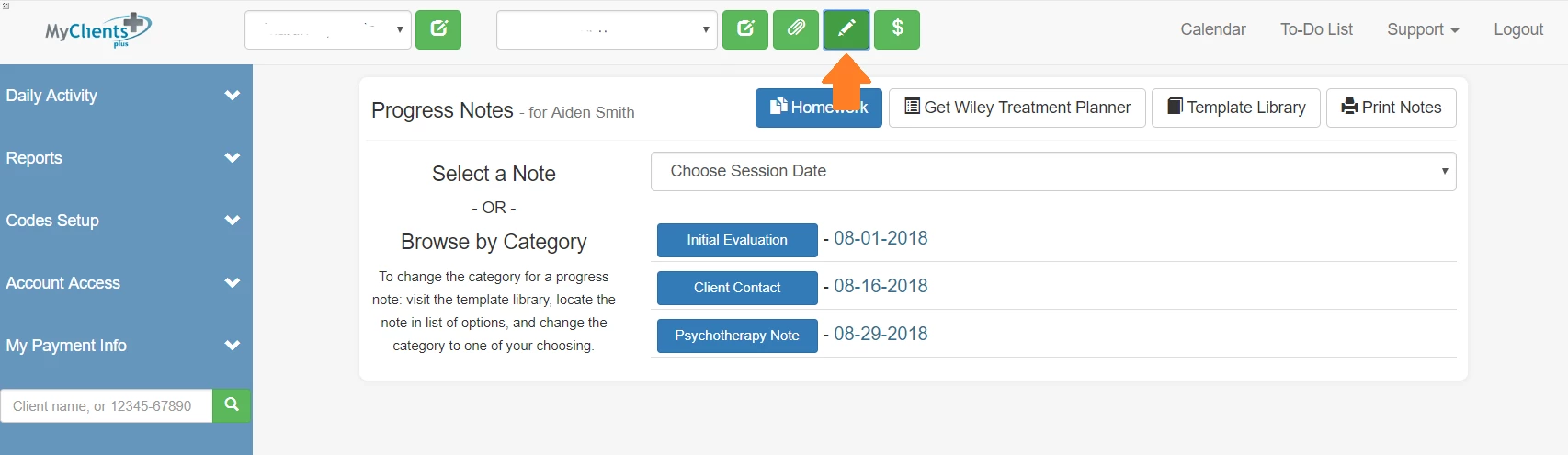
- Select Client from drop down list and click the green Progress Note (pencil) icon.
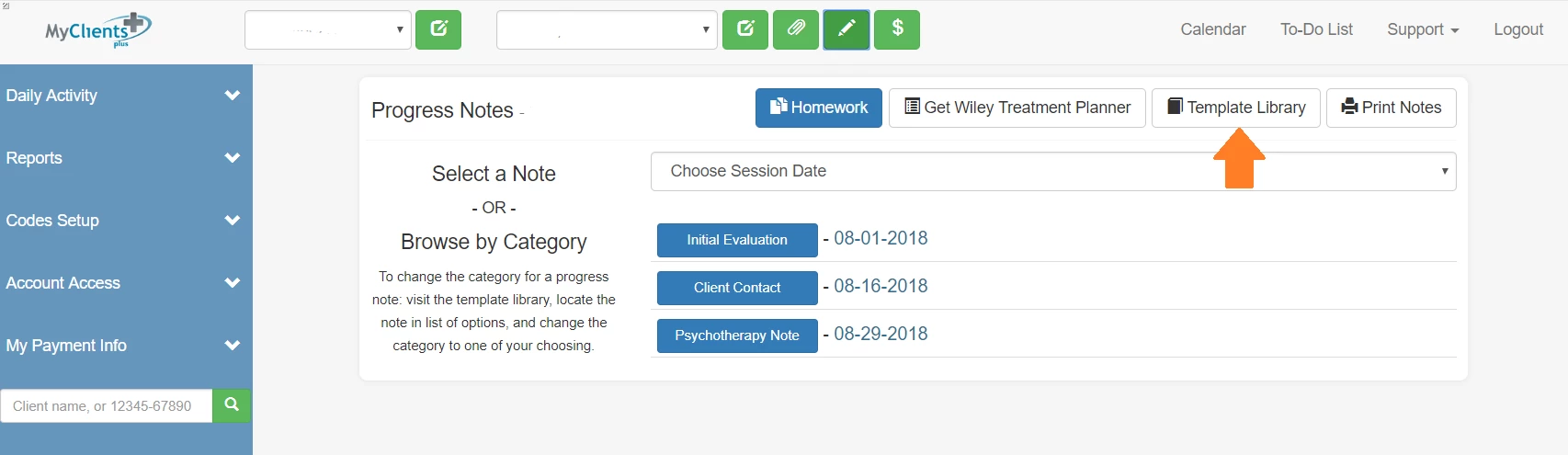
- Click Template Library.
- Click on the category to expand and view templates.
- Click the blue template number/name link to preview. Click X to exit.
IMPORTANT: DO NOT enter Client Note on this screen, it is simply a preview and will not save information entered.
- Click the checkbox next to any templates you want to save for easy access later.
- Select the template by adding a check to the box, select an appropriate Category** from the drop-down box and click on Click to enter a description to name the template. When you're done, click the green Save button.
NOTE: Categories will allow you to organize your notes based on the Category you select for a template. For example, in cases where you would need to keep Psychotherapy notes separate from your regular Progress Notes, you could select the Psychotherapy Note category in the drop down by the template name.
- Multiple templates may be selected and saved. Once all templates have been selected, click on Back to Progress Notes.