


Payment processing and enrollment errors with Ensora Payments & Stripe can often be resolved by adjusting your browser, device or operating systems settings. You can also check to make sure you are using a Credit Card Accepted by Fusion.
Common errors include:
- An error message that states "An Unknown Error Occurred" while trying to process a payment.
- Continuous spinning wheel when trying to process a payment.
- Unable to add a credit card to the client record/Nothing happens when you click the Manage Payment Methods or Add Payment Method buttons.
If you experience these errors while trying to process a payment with Ensora Payments & Stripe, make sure you have your settings configured appropriately. Browser pop-up blockers should be disabled or turned off for all browsers, and Chrome is the recommended browser for Ensora Payments & Stripe. If you are using an iPhone, iPad or Mac, your settings should allow cross-site tracking and cookies.
NOTE: For payment-related questions, please contact the Ensora Payments Team at payments.support@ensorahealth.com or 877-288-5583 (option 2 then 6 for Payments)
Jump to Section:
Enable Payment Processing with Chrome on Windows
Chrome is the recommended browser for Ensora Payments & Stripe. To enable payment processing with Ensora Payments & Stripe on Chrome, set settings to allow third-party cookies and pop-ups, or add https://app.fusionwebclinic.com and other Ensora Payments websites as trusted sites and allow third-party cookies and pop-ups on trusted sites.
NOTE: Microsoft Edge is not a supported Ensora Payments & Stripe browser.
Allow Cookies or Allow Cookies on Trusted Websites:
- Click the Customize and Control icon (Three vertical dots) at the top right.
- Select Settings.
- Enter Cookies in the Search field.
- Select Third-Party Cookies.
- You can either allow third-party cookies, or add https://app.fusionwebclinic.com and other Ensora Payments websites as trusted sites and allow third-party cookies on trusted sites.
- Allow third-party cookies: Select Allow Third-Party cookies in the Default Behavior section.
- Add https://app.fusionwebclinic.com as a trusted site and allow third-party cookies on trusted sites: Click the Add button next to Allowed to Use Third-Party Cookies in the Customized Behaviors section, then enter https://app.fusionwebclinic.com in the site field and click the Add button. Click the Add button again to add therahub.io and other Ensora Payments websites.
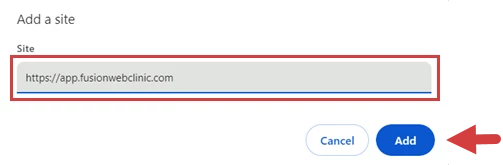
- Allow third-party cookies: Select Allow Third-Party cookies in the Default Behavior section.
Allow Pop-Ups or Allow Pop-Ups on Trusted Websites:
- Click the Customize and Control icon (Three Dots)
at the top right.
- Select Settings.
- Enter Pop-Ups in the Search field.
- Select Site Settings.
- Select Pop-Ups and Redirects.
- You can either allow pop-ups, or add https://app.fusionwebclinic.com and other Ensora Payments websites as trusted sites and allow pop-ups on trusted sites.
- Allow third-party pop ups: Select Sites Can Send Pop-Ups and Use Redirects in the Default Behavior section.
- Add https://app.fusionwebclinic.com as a trusted site and allow pop-ups on trusted sites: Click the Add button next to Allowed to Send Pop-Ups and Use Redirects in the Customized behaviors section, then enter https://app.fusionwebclinic.com in the site field and click the Add button. Click the Add button again to add therahub.io and other Ensora Payments websites.
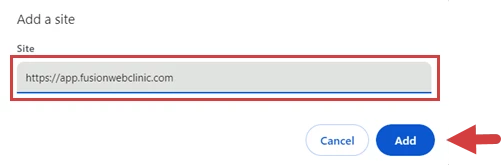
- Allow third-party pop ups: Select Sites Can Send Pop-Ups and Use Redirects in the Default Behavior section.
Enable Payment Processing on iPhone & iPad
To enable payment processing with Ensora Payments & Stripe on your iPhone or iPad, go to your Settings > Safari and toggle off Prevent Cross-Site Tracking and Block All Cookies.
Enable Payment Processing on Mac
To enable payment processing with Ensora Payments & Stripe on your Mac, choose Safari > Preferences, click Privacy, then uncheck Prevent Cross-Site Tracking and Block All Cookies.