


My Client List provides access to client charts. This list can be filtered by Primary and sorted by program, clinician, or schedule.
The different aspects of setting up your view of My Client List include:
- Access Level Permissions - For all access levels that will need permission to use the My Client list, follow these steps.
- My Client List - Users can filter their view of My Client List in a variety of ways.
- Right-click Functionality - While in the My Client List, you can right-click on a client to be directed to different areas of the client’s chart.
- Automatically Open My Client List Upon Login - My Client List can be set to automatically open upon login.
- Set Up My Client List View - Users can customize their view of My Client List in a variety of ways.
- Set Up Program Category - Programs that provide sub-level programming or services within the program can be sorted in My Client List via a Program Category.
My Client list can be found one of two ways:
- From the Day-to-Day drop-down menu, go to My Clients.
- From the desktop menu, go to Day-to-Day > My Clients.
Jump to Section:
Access Level Permissions
For all access levels that will need permission to use the My Client list, follow the steps below:
- Go to Administration > Access Levels.
- Select an existing access level or create a new access level.
- Select the 1st User Access tab.
- Check the box for My Clients.
- Save and repeat for each access level that will need permission to use the My Client list.
My Client List
Users can filter their view of My Client List in a variety of ways.
- The View By selection allows the user to sort the client list by that filter.
- Select Program to filter the client list by program.
- Select Client to filter the client list by the clients' last name.
- Select Scheduled Today to only view the clients scheduled today.
- Select Clinician to filter the client list by the user’s name.
- Select Location to filter the client list by location.
- The Program Drop Down allows you to select a specific program to display in the client list.
- The Role Drop Down allows you to display a client list associated to staff with a specific role.
- In the Filter text box, to search for a specific client, enter the client’s name.
- Select My Role Only to limit the display of clients to the user’s role.
- Select Show Program Category to include the Program Category column.
- Select Include Discharged to include discharged clients.
- Select My Clients Only to display only clients assigned to the user as their Primary provider.
- Select Refresh to update the client list based on your selected filters.
Right-click Functionality
While in the My Client List, you can right-click on a client to be directed to different areas of the client’s chart.
- Patient Details
- Chart List
- Chart Details
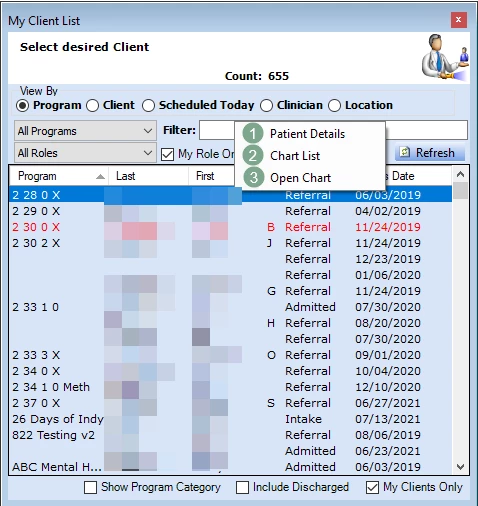
NOTE: You may see an additional option, Check In / Out, if the program identifies as Docking/Undocking. For further details refer to the Docking / Undocking - Table of Contents.
Automatically Open My Client List Upon Login
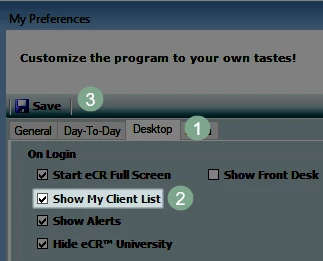
My Clients List can be set to automatically open upon login.
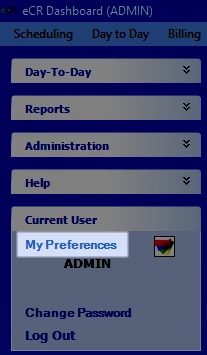
Go to Current User > My Preferences.
- Go to the Day-to-Day tab.
- Go to the My Client List section.
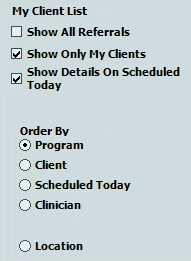
- Select Show All Referrals to have the My Client List include all referrals.
- Select Show Only My Clients to have the My Client List display only the clients where the user is the primary staff.
- Select Show Details On Scheduled Today will display clients with an appointment on that day.
- Select one option under Order By to choose the default order of My Client List.
- My Client List can be ordered by Program, Client, Scheduled Today, Clinician or Location.
- Click Save. Any changes made to this tab will be implemented on the next login.
Set Up My Client List View
Users can customize their view of My Client List in a variety of ways.
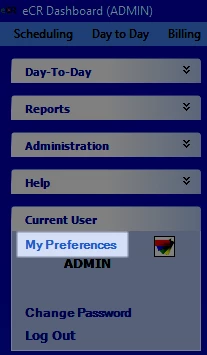
Go to Current User > My Preferences.
- Go to the Day-to-Day tab.
- Go to the My Client List section.
- Select Show All Referrals to have the My Client List include all referrals.
- Select Show Only My Clients to have the My Client List display only the clients where the user is the primary staff.
- Select Show Details On Scheduled Today will display clients with an appointment on that day.
- Select one option under Order By to choose the default order of My Client List.
- My Client List can be ordered by Program, Client, Scheduled Today, Clinician or Location.
- Click Save. Any changes made to this tab will be implemented on the next login.
Set Up Program Category
Programs that provide sub-level programming or services within the program can be sorted in My Client List via a Program Category.
Enable a Program Category in eCR
- Go to Setup > Clinic Options > 3rd General tab.
- Under Programs, check Show Program Category.
- Click Save.
Set Up a Program Category
- Go to Administration > Programs > Edit Program Category button.
- Click anywhere in the blank space of the Lookup Editor window to remove the highlighting in the grid > click the Clear button.
- Enter the Name/Description of the Master Program Category you want to add.
- Click Save Item.
- Repeat steps 2-4 to add additional fields.
Add a Program to a Program Category
- Go to Administration → Programs.
- In the Name field, enter the name of the new sublevel program/service or choose the previously created program from the list below.
- In the Program Category drop-down menu, select the Master Level Program.
- Click Save.
View a Program Category in My Client List
- Go to Day to Day → My Clients.
- Check the box for Show Program Category to add a sort column for Program Category.
- Click the Program Category header to filter the list and find the Master Level Program.