


We understand that managing all of your cases is a critical function of any practice. We have created the system to be easy to use and allow any therapist to be able to sit down and with very little instruction be able to complete an evaluation or a daily note. We have designed the actual documentation to be as customizable as possible. This series of introductory articles will cover the essential aspects of the Therapist Documentation with Fusion Enterprise.
Forms & Roll-Ups
The Forms / Rollups module is where you go to work with the Case Forms, Visit Forms, and their associated rollups. From this module, you can retrieve the forms for editing, delete forms, and add newly created or edited forms.
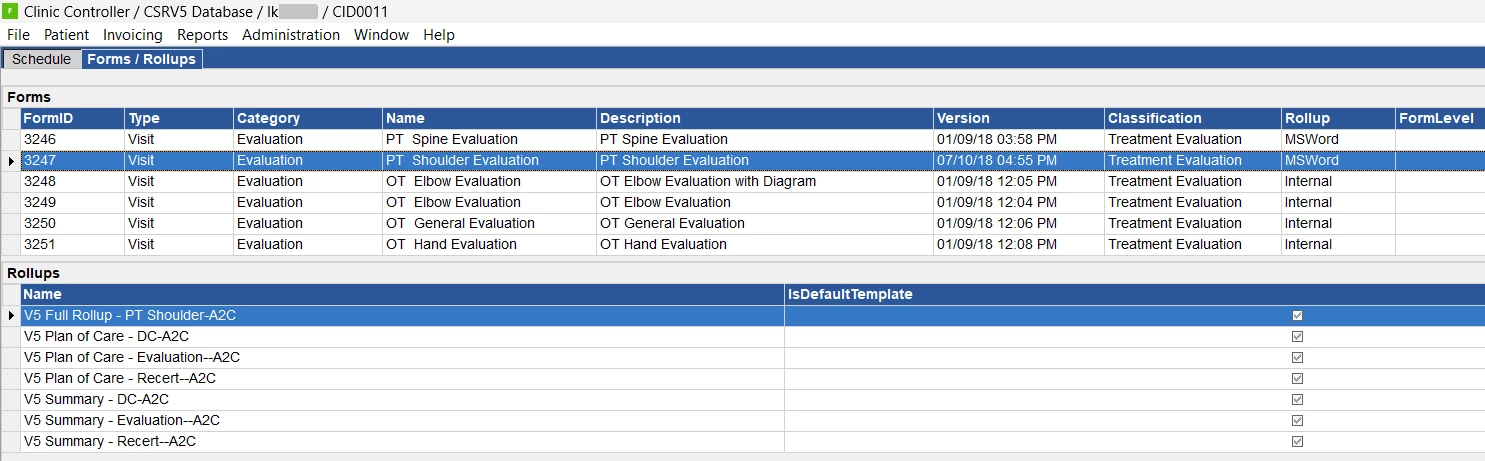
The top half of the screen displays a list of all the Forms currently in your system. Selecting one of these forms populates the bottom half of the screen which displays all of the Rollup Templates associated with the selected form.
| FormID | A unique number assigned to a form when it is loaded into the system. |
| Type | Forms can either be Visit-based (linked to a visit) or Case-based (linked to a case). |
| Category | Categories are set when the form is being created and can be anything. Most commonly Evaluation, Daily Note, Case Form, etc. |
| Name | The name of the form, set when the form is being built. |
| Description | The longer name of the form, most commonly referred to. |
| Version | This is the date/time when the form was created/edited in the Form Designer, not when it was loaded into the system. |
| Classification | Classification is Treatment Evaluation, Treatment Daily Note, Treatment, Non-Treatment, and Non-Treatment Protected. |
| Rollup | The rollup handling for the form. Either Internal or MSWord. |
Right-clicking on the Forms grid displays the following menu:
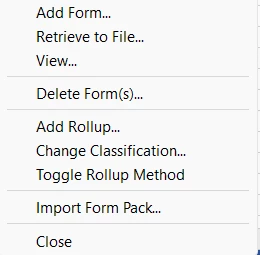
Forms Menu
| Add Form... | Allows you to add a new form to your system from a file on your computer. |
| Retrieve to File... | Takes the currently selected form and saves it to your computer where you can then load it into the Form Designer for editing. These are .xml files. |
| View... | Pops up a preview of the form that you can interact with. |
| Delete Form(s)... | Removes the form from your system for all users. This will NOT affect any of the documentation that is currently associated with a patient. This only prevents a form from being used again in the future. |
| Add Rollup... | Allows you to select a rollup template from your computer and associate it with the currently selected form. |
| Change Classification... | Changes the classification of a form, moving forward. Previously used instances of this form will not have their classification changed. |
| Toggle Rollup Method | Toggles the Rollup Method for the selected form between Internal and MSWord. You can see this in the Rollup column. |
| Import Form Pack... | Allows you to load in a Form Pack that you have downloaded. Form Packs are .dat files and contain forms (and any rollups for those forms). |
| Close | Closes the popup box. |
Right-clicking on the Rollup grid presents you with the following menu:
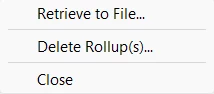
Roll-Up Menu
| Retrieve to File... | Allows you to save the selected rollup to a file for editing the template. These are .docx files. |
| Delete Rollup(s)... | Deletes the currently selected rollup(s). |
| Close | Closes the popup box. |
It is possible to add a rollup template to more than one form at a time. If you select multiple rows in the Form grid (either by shift-clicking or ctrl-clicking the rows) and then selecting Add Rollup the rollup template will be added to each of the selected forms.
NOTE: Not all rollups will work with all forms automatically. Each rollup has merge fields that correspond to tags (fields) on the form it is linked to.