Permissions Required: You must have Organization Administration Permissions.
You now have the ability within My Clients Plus to sign a new Business Associate Agreement and have a copy emailed to you.
Important Things to Note
- DO NOT sign a New BAA if you already have one with My Clients Plus, as the effective date cannot be backdated. This is ONLY for a first time, New BAA
- At this time, when you sign a new BAA, a copy will be emailed to you for your records. A copy will also be emailed to My Clients Plus. It is NOT currently stored in My Clients Plus.
- The BAA copy will be sent to the email on file in My Clients Plus for the owner of the My Clients Plus account .
Sign a New BAA
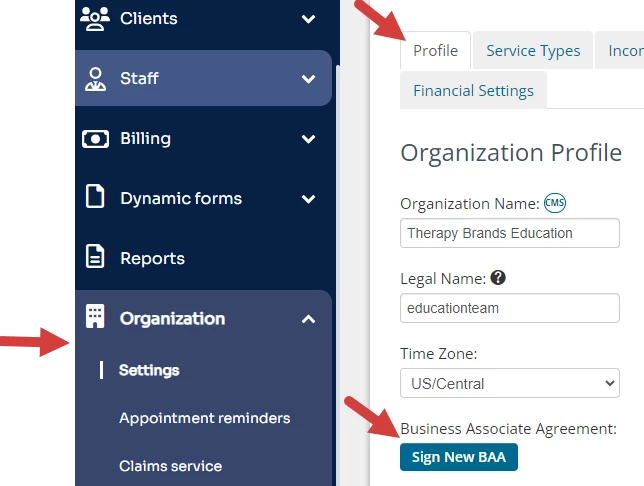
- Click Organization and Settings in the navigation bar. The Profile tab opens.
- Go to Business Associate Agreement and click Sign New BAA button.
- Read the warning and click Confirm & Sign New BAA.
IMPORTANT: Do not do this if you already have a BAA with My Clients Plus.
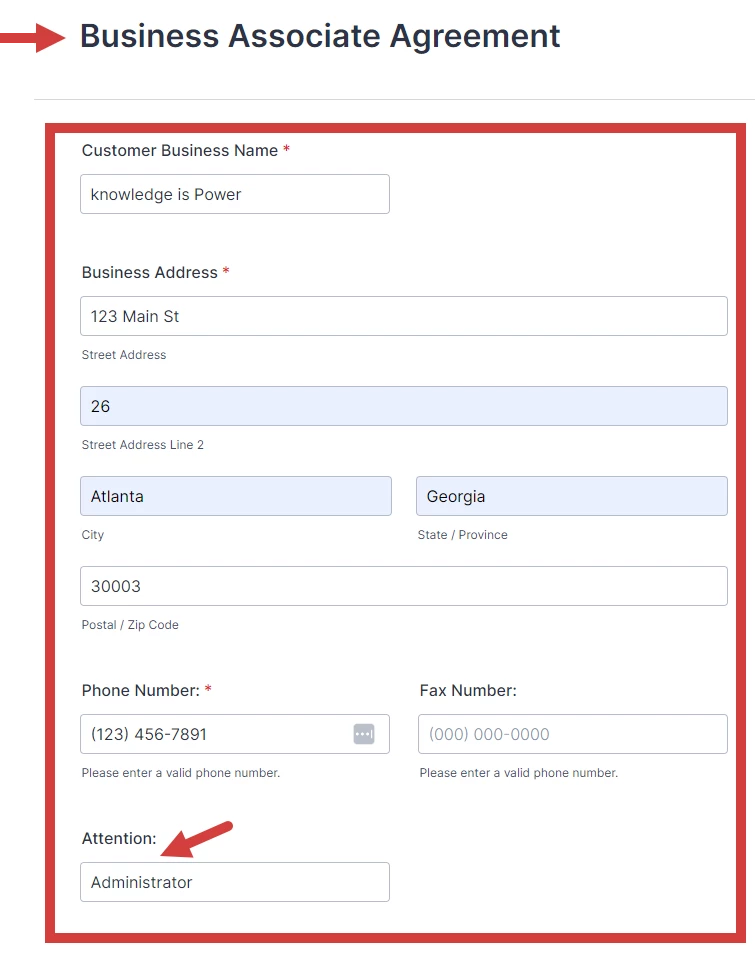
- Enter all required information on the Business Associate Agreement form.
NOTE: Attention - Is who you would like the email copy directed to.
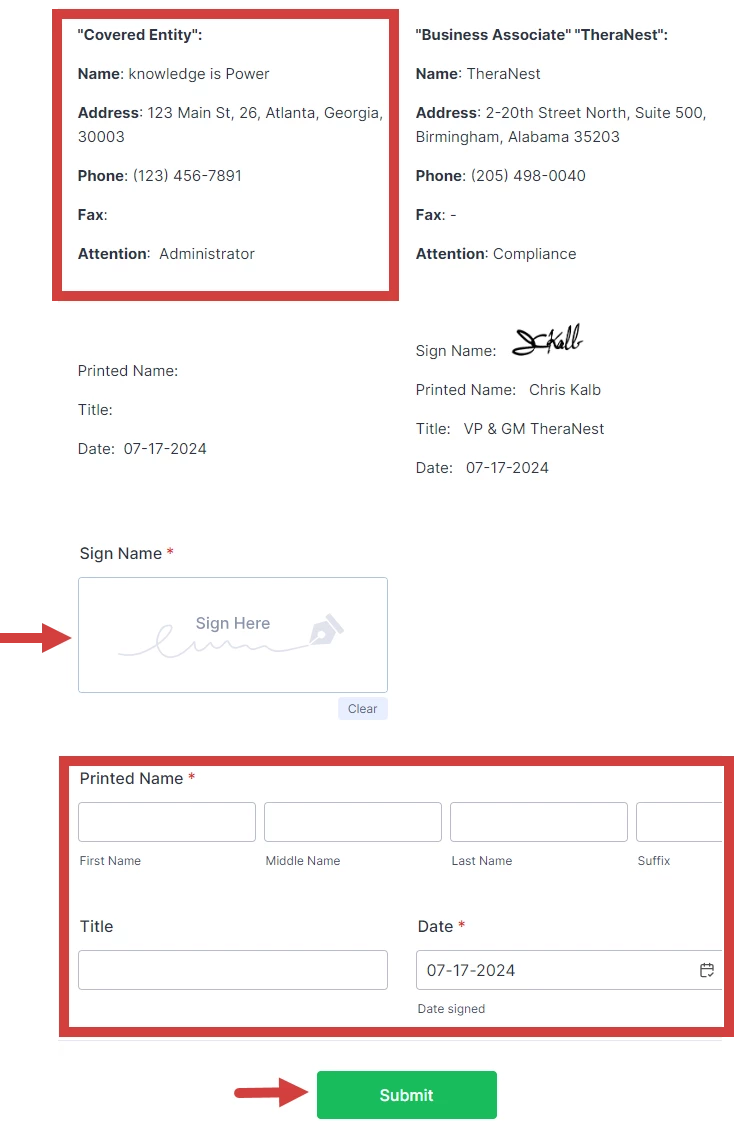
- Read through the BAA.
- Verify that the information entered above is pulled in correctly at the bottom.
- Sign and then add your Printed Name.
- Click Submit.