Permissions Required: You must have Billing Permissions.
Jump to Section:
Run the Report
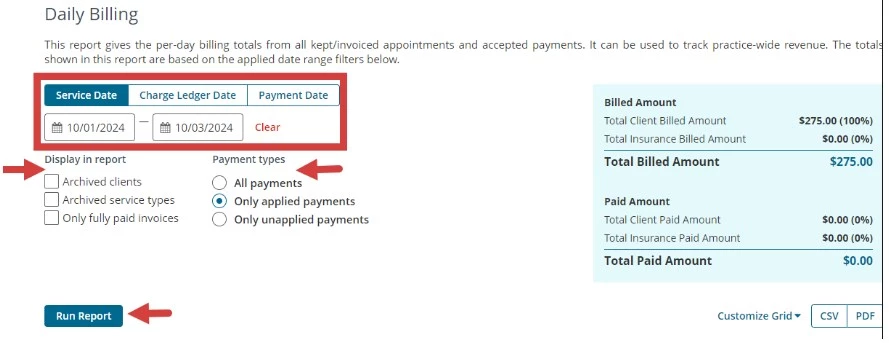
This Report gives the per-day billing totals from all Kept/Invoiced Appointments and accepted payments. It can be used to track practice-wide revenue and view unapplied Payments. The totals shown in this Report are based on the applied Date Range filters. It can also be customized using the customize grid option.
-
Click Reports in primary navigation bar and click Daily Billing under the Billing section.
-
Set Filters:
- Date Range
- Service Date - date of service listed on the invoice.
- Change Ledger Date - date the invoice was created.
- Payment Date - date the payment was entered on ledger ("Date" on payment details).
- Display in Report
- Archived Clients
- Archived Service Types - Archived Service Types are service types no longer able to be used for appointments or added to invoices.
- Only Fully Paid Invoices
- Payment Types to display.
- All Payments
- Only Applied Payments - Applied Payments are payments that have been applied to an Invoice.
- Only Unapplied Payments - Unapplied Payments are payments that were accepted from the Client but live in the Unapplied payments/credits and refunds section of a Client's Ledger and have yet to be applied to an Invoice.
- Click Run Report
NOTE: Change the number of Clients shown per page (10, 25, 50, or 100) by clicking desired unit at top of report.
Read the Report
- Totals Calculated in Report - As you Search or Filter the Report, these totals will update.
- You can Search the Report using the column.
From left to right, you can see:- Service Date
- Client
- Rendering Provider
- Service Type
- Payment Date
- Client Amount Billed
- Client Amount Paid
- Insurance Amount Billed
- Insurance Amount Paid
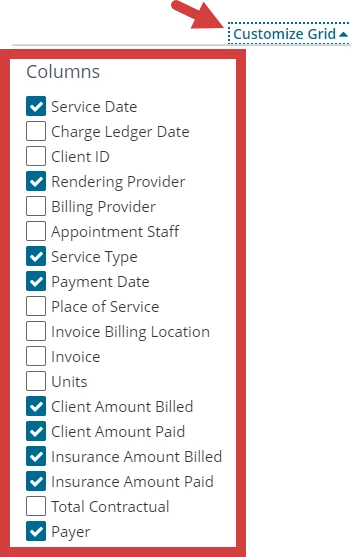
- Payer - The payer will populate when a payment is applied from the ERA Received tab or Manual Insurance Payments tab. You may need to add the Payer column from the Customize Grid menu.
NOTE: Use Customize Grid to manage columns.
Download Report
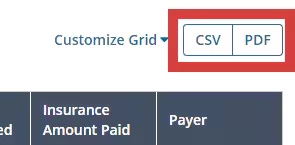
Once you have run the Report, you can copy or download the CSV, Excel, and PDF version directly to your computer.
- Click the CSV and PDF button on the upper right tab.