Session Notes that added from the Task List will be automatically attached to the Appointment. Once a Note is added, you can view it from the Client's Notes tab.
NOTE: Alternatively, you can create a Note from the Notes tab in the Client File. See Add a Session Note from a Client File for more information.
Create Note
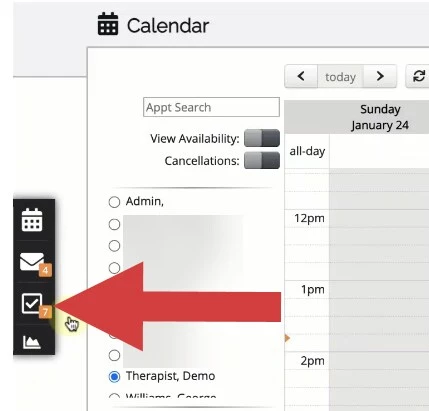
- Click the Task List icon from the menu on the left.
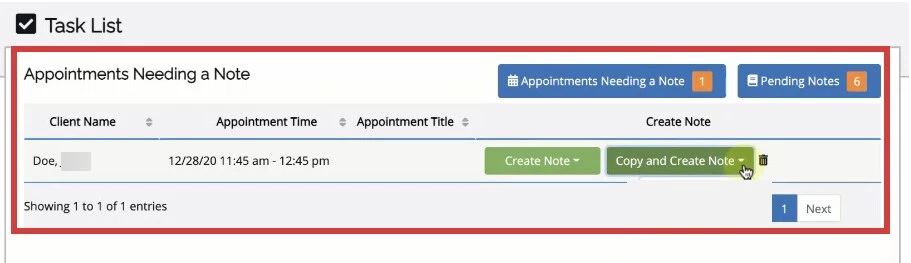
- All Appointments that need a Note will display.
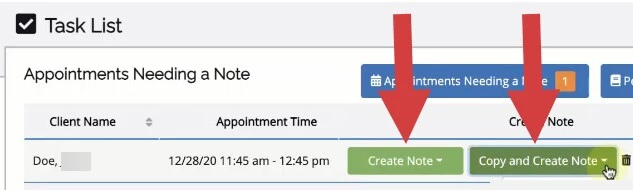
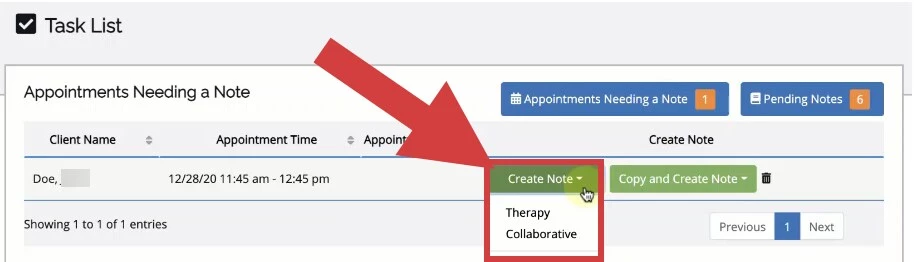
- Locate desired Appointment and click Create Note or Copy & Create Note.
- Select Therapy or Collaborative.
- Therapy - Used for all billable Notes. i.e. Session Notes.
- Collaborative - Used for NON-billable Notes.
Complete Note
Start and End Date/Time, Service Code, Location and Client Diagnosis are all required to complete a Note. If you need to leave a Note to finish later, click Save and access it later from your Pending Notes.
- Select Appointment Details.
NOTE: Start and End Date/Time and Location default from Appointment.
- Enter Mental Status.
- Enter Risk Assessment.
- Enter any Current Medications or Pharmacological History.
NOTE: Information entered here will populate in future Notes so you can just make updates in the future.
- Ensure a Diagnosis is entered. This defaults from Client Clinical Information tab.
- Enter Clinical Information (SOAP - Subjective, Objective, Assessment, Plan).
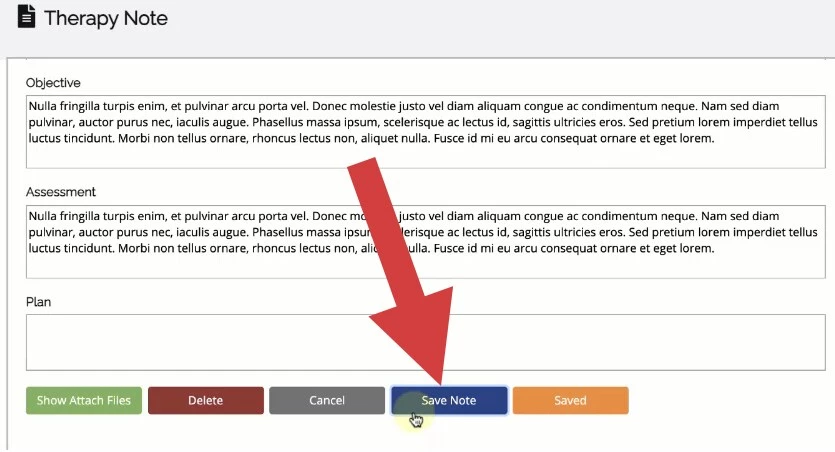
- Click Save Note. The Note will verify to ensure that all required fields are complete.
- If there are any errors, fix the required fields.
- Click Sign Note to complete Note.