When enabled, all future Appointments will automatically have Invoices created. To exclude Invoices from automatic creation, exclusion rules can be configured on the Automation Settings page.
NOTE: Feature availability depends on your subscription plan.
Jump to Section:
Enable Automated Invoice Creation
- Click Claims Service under Organization.
- Click Automation Settings tab.
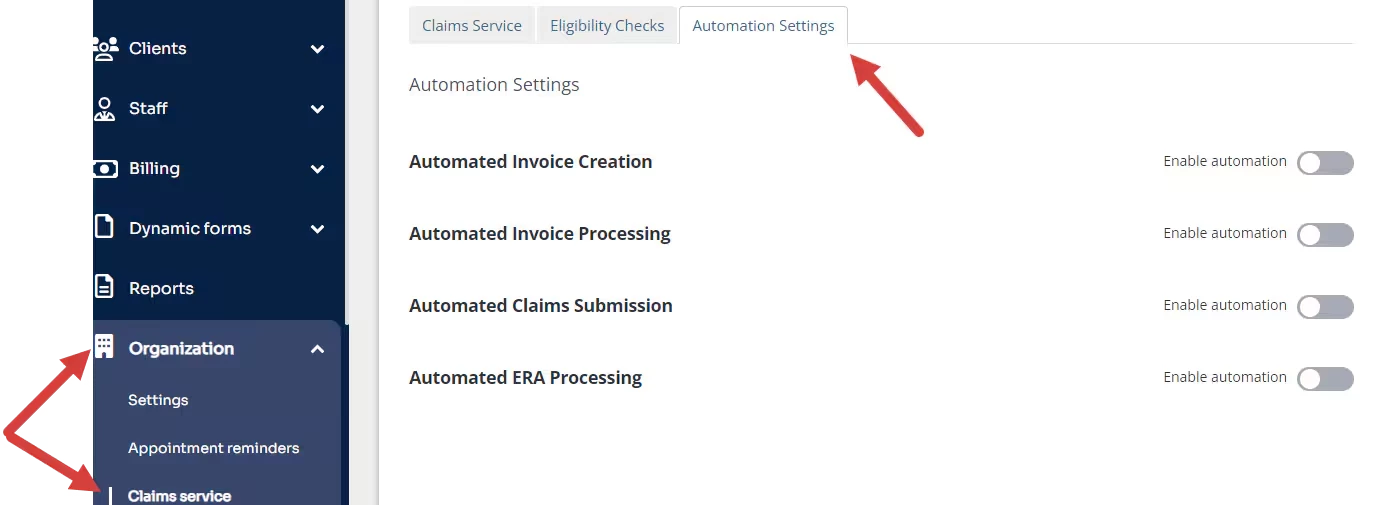
- Click the toggle to Enable Invoice Creation. A confirmation window opens.
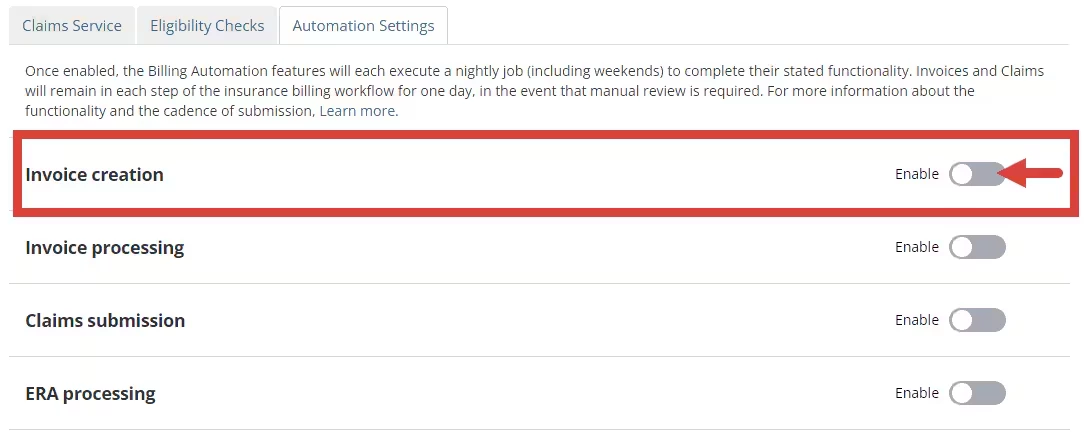
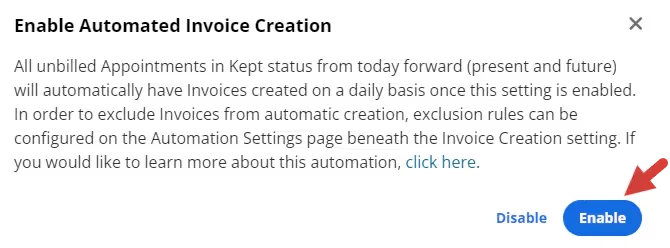
- Click Enable in the confirmation window. The toggle moves to the right and turns blue.
- The Exclusion window opens where you can configure conditions to exclude invoices from automatic creation.

Set Exclusion Rules
You can exclude invoices from automatic creation by configuring exclusion rules.
- The Exclusion Rules window opens when you enable the setting.
- Select conditions in the drop down menu for fields: When (condition) Equals (condition).
- Click +Add Condition to add as many conditions as needed.
- Click +Add Rule to add as many rules as needed.
Click Save for each rule.
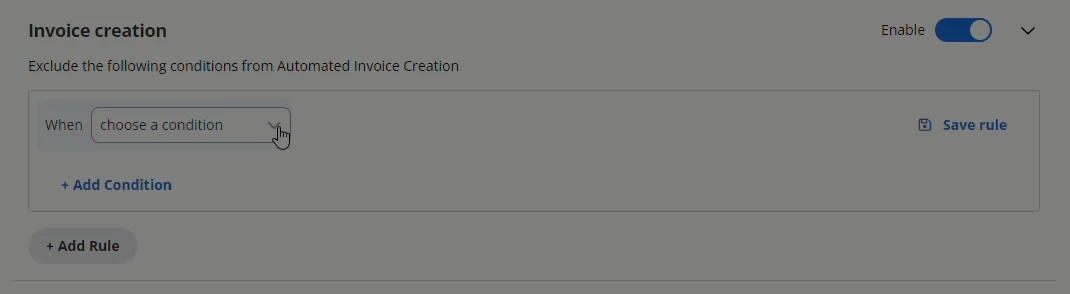
The following When conditions are available for configuring Invoice Creation Exclusion Rules:
- Primary Insurer
- Appointment Staff
- Service Type
- Client pays by
- Appointment date
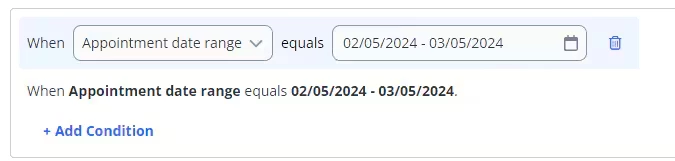
- Appointment date range
- Progress Note signed by provider
NOTE: If the supervisee has a supervisor who needs to approve, the progress note is considered signed when the supervisee has signed the note. If the supervisee has a supervisor who needs to cosign, the progress note is considered signed when both the supervisee and supervisor have signed the note.
Disable Automated Invoice Creation
- Click the toggle setting.
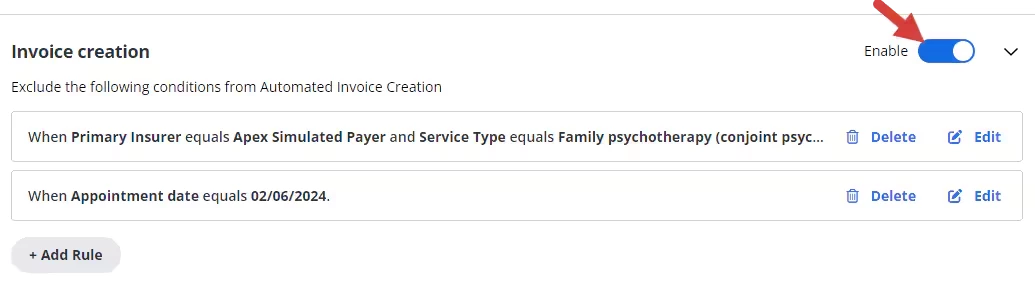
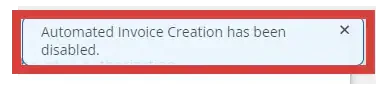
- A message displays to confirm the setting is disabled.
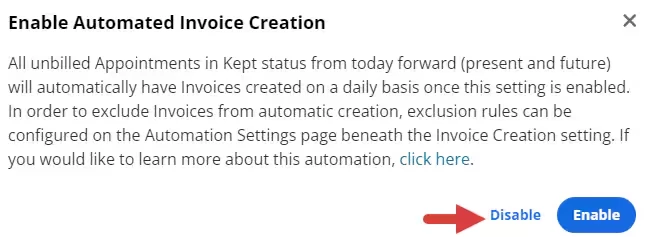
NOTE: A Disable button also displays in the confirmation window when you enable a setting but it is only used to cancel the Enable action.
Suggested Use Cases
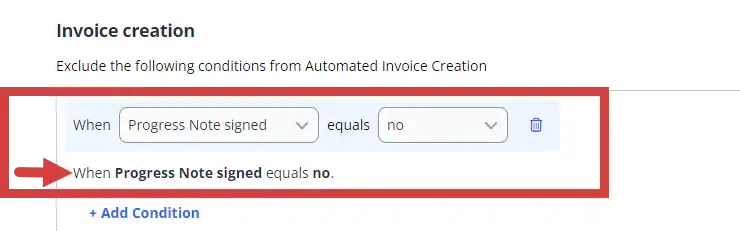
Progress Note Not Signed
Use Case - If your Organization would like to prevent automated creation of Invoices for unbilled sessions without a Progress Note signed for the session, the following is an example of the exclusion rule that should be configured:
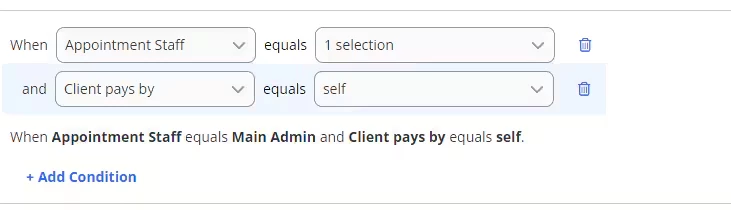
Specific Appointment Staff and Client Self-pay
Use Case - If your Organization would like to prevent automated creation of Invoices for unbilled sessions that have a specific Appointment Staff and Client pays by set to self-pay, the following is an example of the exclusion rule that should be configured:
Unbilled Sessions in a Specific Date Range
If your Organization would like to prevent automated creation of Invoices for unbilled sessions that have a specific Appointment date range, the following is an example of the exclusion rule that should be configured: