



Submit Claims Externally (Outside of Integrated Clearinghouse)
Submitting claims externally allows you to mark claims as "Externally Submitted" in the system, which enables you to manually track the progress of claims that were submitted outside of the integrated clearinghouse. This can be used when you need to submit claims to external payer portals, submit via paper claims, billing to school systems, or other similar situations.
NOTE: You must be connected to one of our Partnered Clearinghouses (CHC or Ensora Clearinghouse) to enable this feature. These claims will NOT be submitted to the integrated clearinghouse so all updates on the status of these claims must be updated manually. These claims also will not count towards your claim fees when using our claims service. If you switch from a partnered to a non-partnered clearinghouse after marking claims for External submission you will continue to see an “External” badge on those claims to identify them.
Jump to Section:
Enable Ability to Mark Claims as Externally Submitted
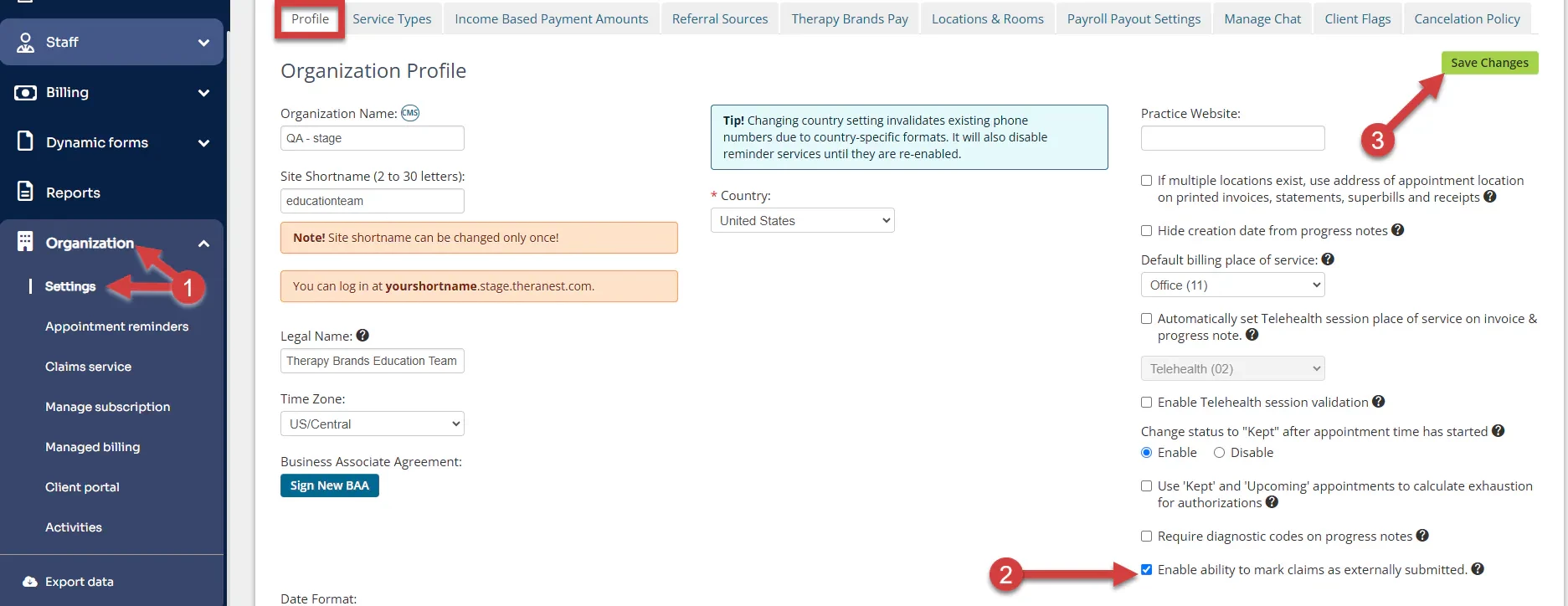
- Click the Organization tab and select Settings from the drop-down.
- On the Profile tab, check the box to Enable ability to mark claims as externally submitted.
- Click Save Changes.
Mark a Claim as Externally Submitted
- Create an invoice.
- Move the invoice to the Claims Awaiting Submission tab. This is the same process that is used for electronic claims. Learn More: Submit Electronic Claims
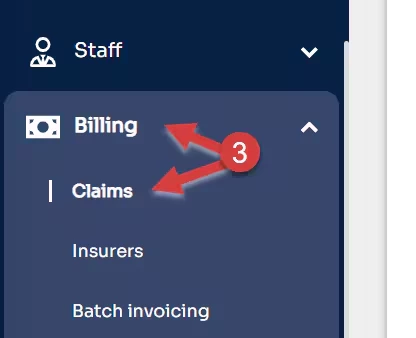
- Click the Billing tab and select Claims from the drop-down.
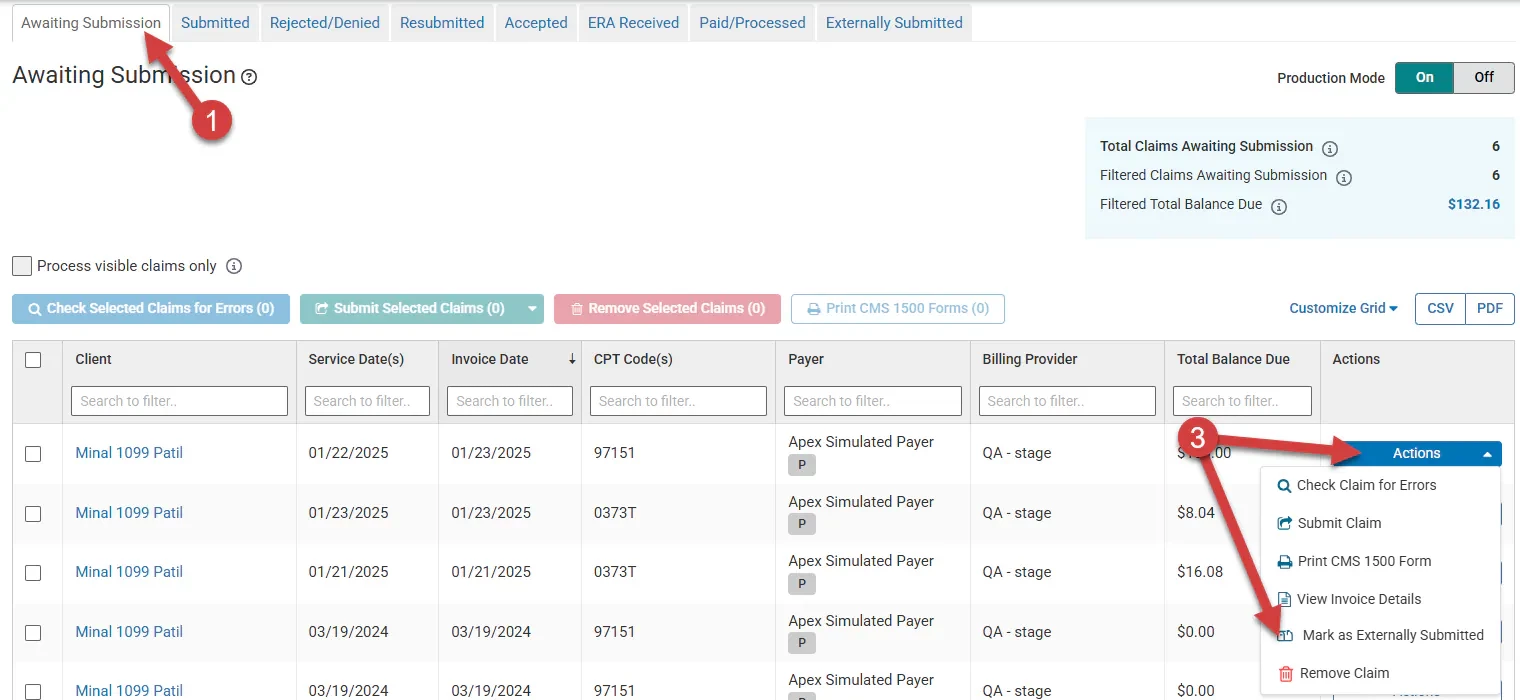
To select one claim for external Submission:
- Click the Awaiting Submission tab.
- Locate the claim you wish to submit.
- Click the Actions drop-down and select Mark as Externally Submitted.
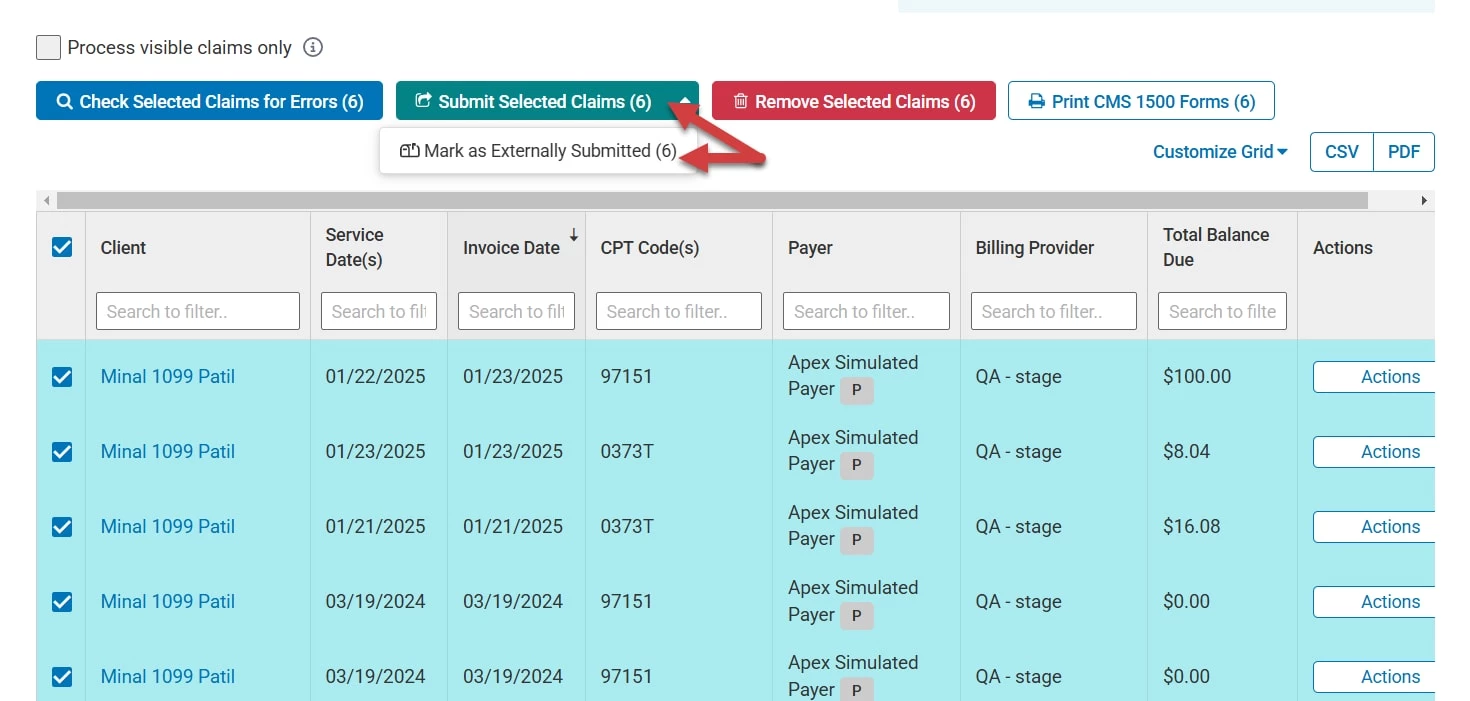
If selecting more than one claim for external submission, select all claims needed, then click the Submit Selected Claims drop-down and select Mark as Externally Submitted.
A confirmation modal will appear to confirm your selection. If any of the claims have errors, you can choose to fix these as you would with electronic claims before submitting or you can choose to ignore the errors and continue to mark as externally submitted.
NOTE: The only error that must be fixed before marking a claim as externally submitted is when the appointment status has been marked as Canceled, Late Cancel, No Show, or Rescheduled which causes a $0 balance on the invoice. If you choose to ignore errors on these claims, an EDI file will not be generated for these claims.
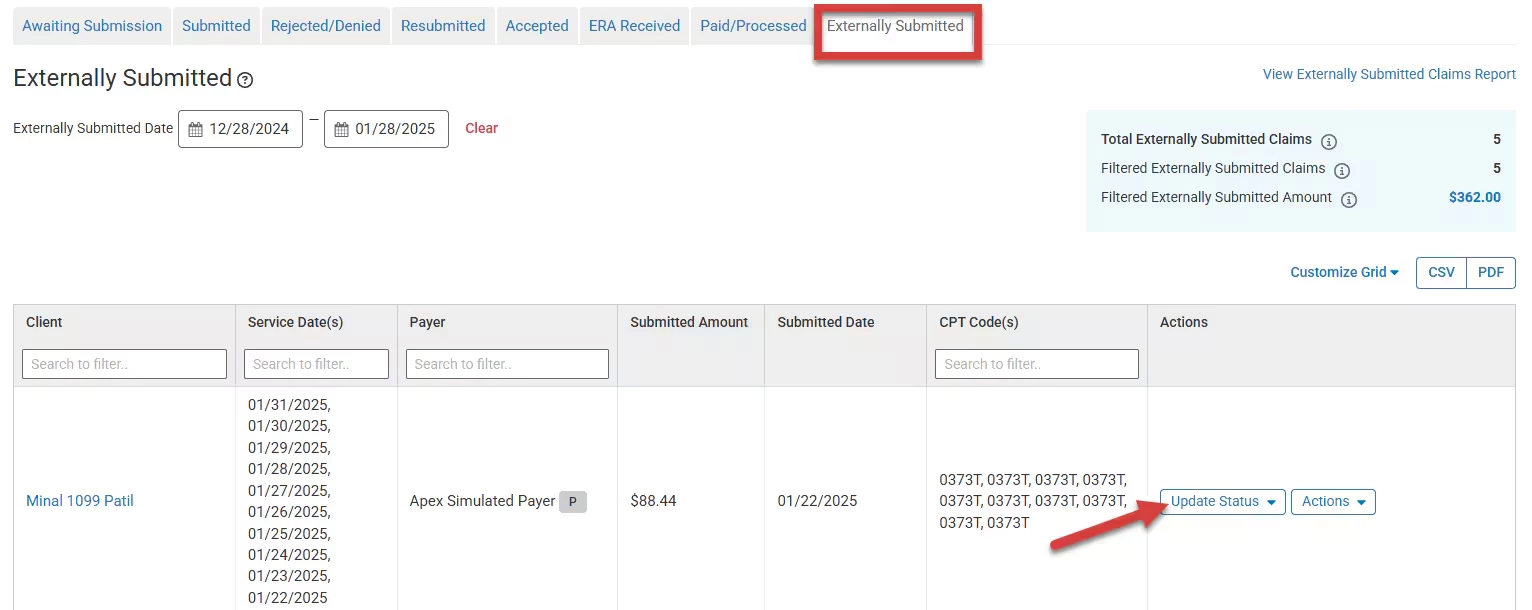
Once the claim(s) have been marked for external submission, they will move to the Externally Submitted tab.
[Back to Top]
View the Externally Submitted Tab
To view claims that have been marked for external submission click Billing > Claims > Externally Submitted. These claims are considered "In Progress" while in this tab. You are able to select the date range of when the claims were marked for external submission. The date range can only be pulled for a maximum of three months.
You can manually update the status of these Externally Submitted Claims to reflect where they are at in the billing cycle. Click on the Update Status drop-down.
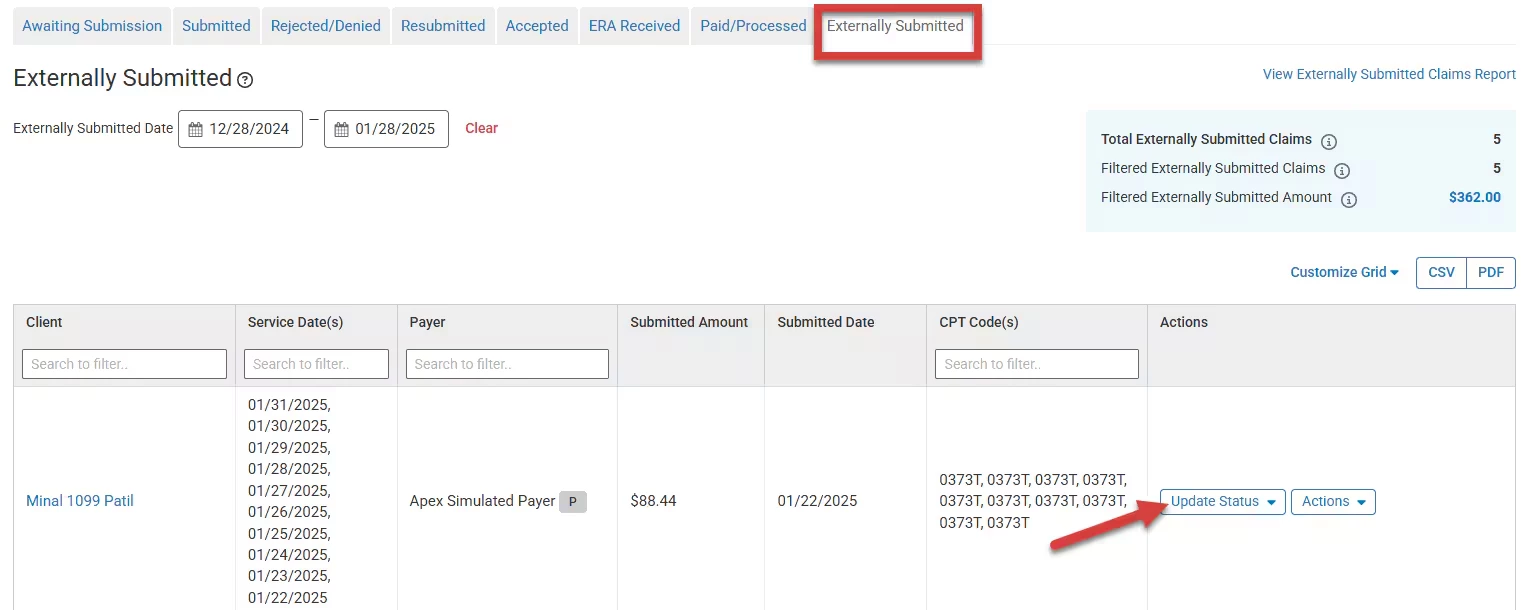
If a claim was Rejected/Denied you can select this status, which will move the claim to the Rejected/Denied tab.
If a claim has been Paid/Processed there are two ways you can move this claim to the Paid/Processed tab:
- Apply payment from the client’s ledger and manually update the Status to Paid/Processed.
- Search for the claim on the Manual Insurance Payments screen and apply a payment.
You can also take various actions on Externally Submitted claims:
- Add Claim Memo
- View Claim History
- View EDI file: This action will be disabled if the claim contained errors when marked for external submission as the EDI file could not be generated.
- Download EDI file: This action will be disabled if the claim contained errors when marked for external submission as the EDI file could not be generated.
- View Invoice Details
- Remove Claim
To view additional information on all your Externally Submitted claims, you can view the Externally Submitted Claims Report.
[Back to Top]
View Externally Submitted Claims on the Rejected/Denied & Paid/Processed Tabs
Externally submitted claims that have had the status manually updated to "Rejected/Denied" or "Paid/Processed" will also appear on the Rejected/Denied and Paid/Processed tabs along with electronic claims. These claims can be viewed and filtered along with or separately from electronic claims.
- From the Rejected/Denied or Paid/Processed tab, click Customize Grid, then check the box for Submission Type.
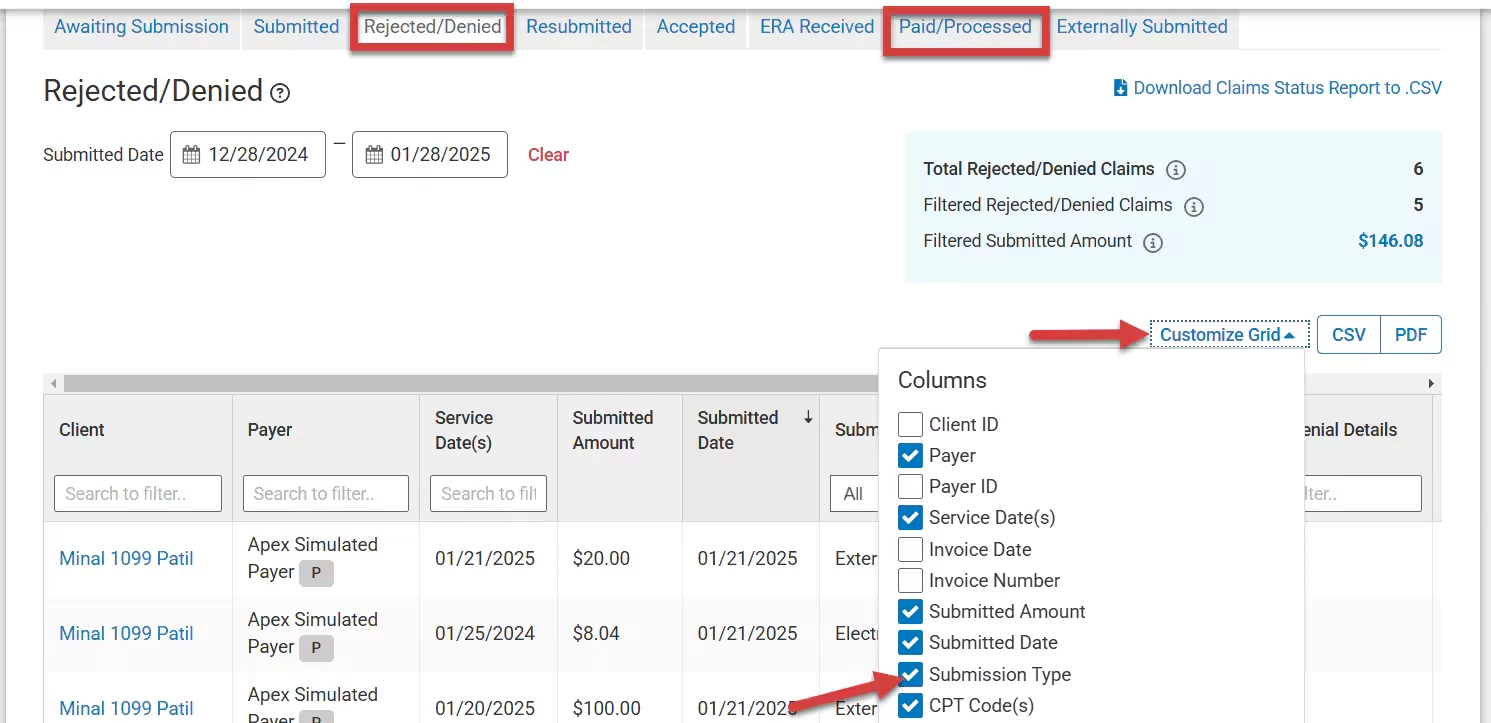
- In the Submission Type column, you can filter by three different options. These will be reflected in the total on the blue box at the top of the screen.
- All: Shows both Electronic and External claims.
- Electronic: Only shows claims that have been submitted electronically through the integrated clearinghouse.
- External: Only shows claims that have been marked for external submission.
View Externally Submitted Statuses
When viewing claims from the invoice or ledger, externally submitted claims will have an additional indicator tied to their status to let you know that they were marked for external submission and are not currently in the integrated clearinghouse. Clicking on these statuses will navigate you to the appropriate claims tab page. The following statuses for these claims may be displayed:
- In Progress (External): Claim was marked as Externally Submitted and is on the Externally Submitted tab.
- Rejected/Denied (External): Externally submitted claim was manually moved to the Rejected/Denied tab.
- Paid/Processed (External): Externally submitted claim was moved to the Paid/Processed tab.