


The ability to view and sign forms from the Inbox, both Personal and Group Mailboxes, was introduced and enhanced over several versions. The process of viewing and signing forms is the same whether working in an individual or a group mailbox.
- The release of version 3.07 introduces the ability to view and sign VHR Timeline forms within the inbox message. Users with access to the forms can select the recipient and then select either Request Review or Signature Requested.
- The release of version 3.08 adds the ability to send a VHR Timeline form and Progress Notes to a group mailbox for review or signature.
- The release of version 3.09 introduced PIN signatures, see the link in the Signing Forms section below.
- The release of version 3.12 introduced the ability to expand the signature box to full screen.
Jump to Section:
Send Forms
Sending forms starts the process. A form can be sent to any application user by selecting the name from the drop-down recipient list. The ability to send to a group mailbox is permissible. A user must have SEND permissions to a group mailbox to be able to send a form or progress note. See Permissions for detailed information on configuring group mailbox permissions. The examples below walk through sending a Progress Note to a group mailbox, viewing, and then signing the note.
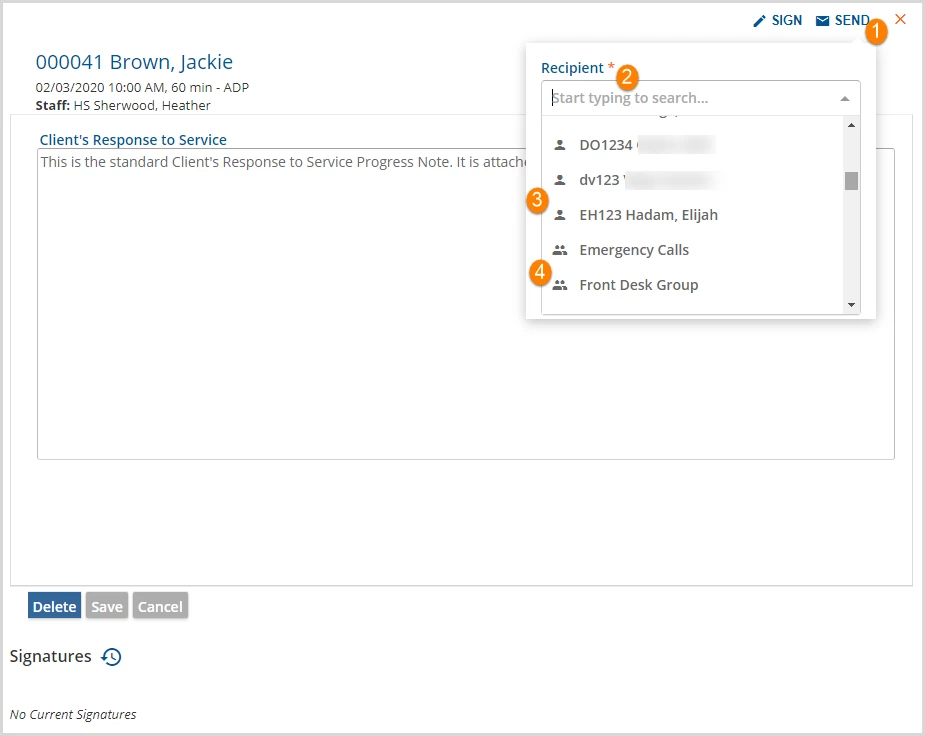
- Select the blue SEND button to open the send modal.
- Select a Recipient.
- Individual recipients have a single-person icon.
- Group recipients have the multi-person icon.
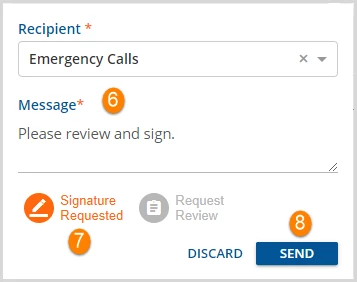
- Once the Recipient is selected a Message is required.
- Select an action button.
- Request Review sends a read-only version of the form to the selected recipient.
- Signature Requested sends a read-only version of the form to the selected recipient AND a signature box is available at the bottom of the form.
- Once the required fields have been populated, the blue SEND is enabled.
View Forms
Navigate to the Inbox by:
- Selecting the envelope icon from the main application information bar OR
- Navigating to the Messages and Alerts section of the Clinical Home Page OR
- Using the Inbox shortcut keystrokes CTRL + i
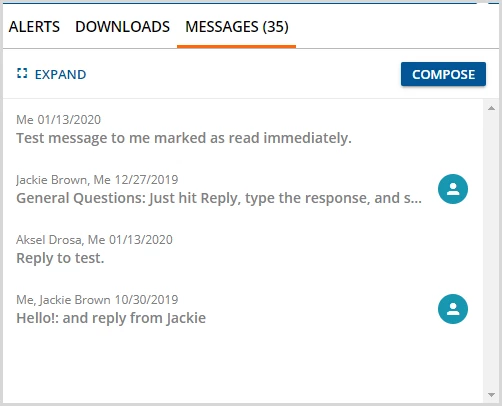
Then click on the blue EXPAND to open the Messages screen.
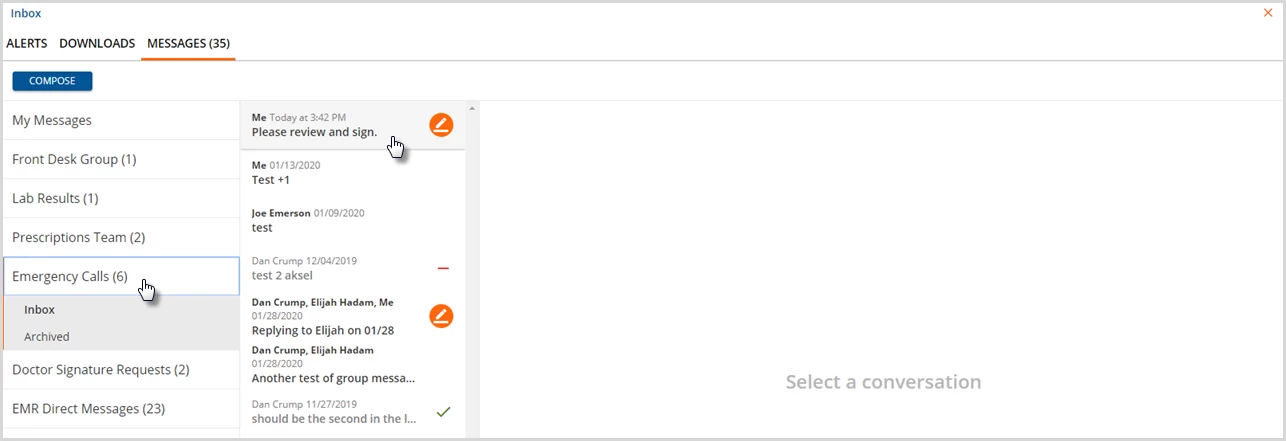
Navigate to the desired mailbox, Emergency Calls in this example, and select a conversation to load the message and form.
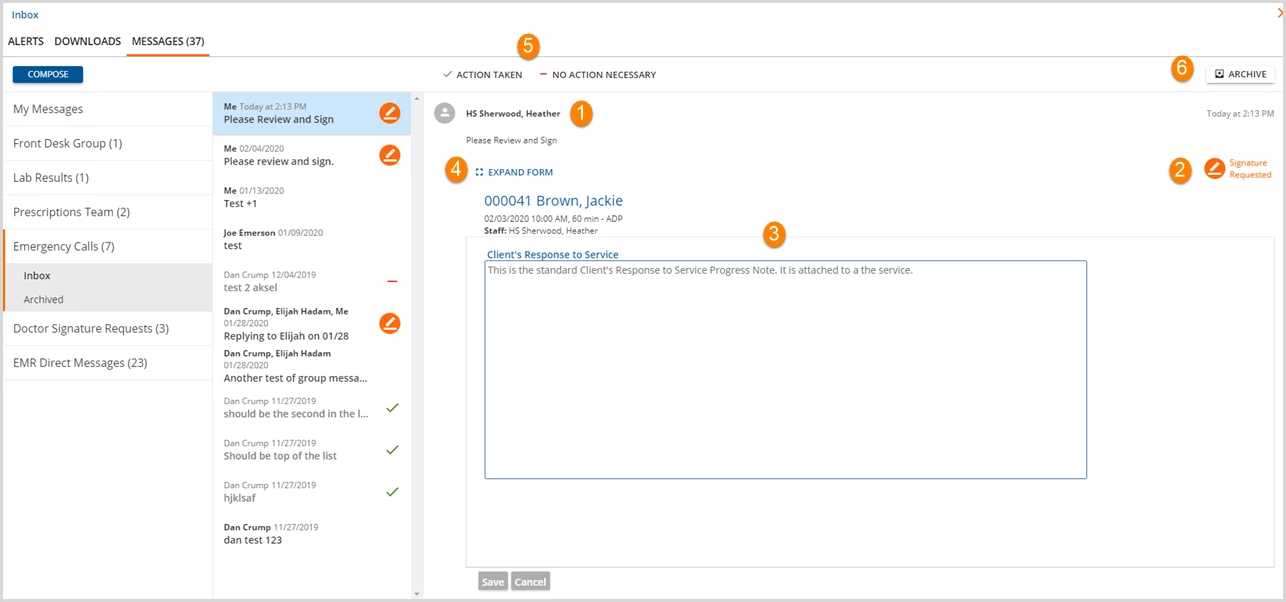
- The Sender's name is in bold and the message text is just below it.
- The Signature Requested link is still available to return to the progress note on the parent Service.
- The progress note is displayed within the message pane.
- A blue EXPAND FORM button is available. This expands the form into the conversation area allowing more of it to be viewed at one time.
- The Action buttons are available to communicate to all members of the group what status of this particular message.
- These are defined in the group mailbox configuration.
- A group mailbox does not require that actions be defined.
- Once an action has been selected, the message is no longer bold and is not considered in the new count.
- An ARCHIVE button is available to move a message to the Archived folder. The message will no longer be visible in the Conversations or Inbox list but can be accessed from the Archived folder.
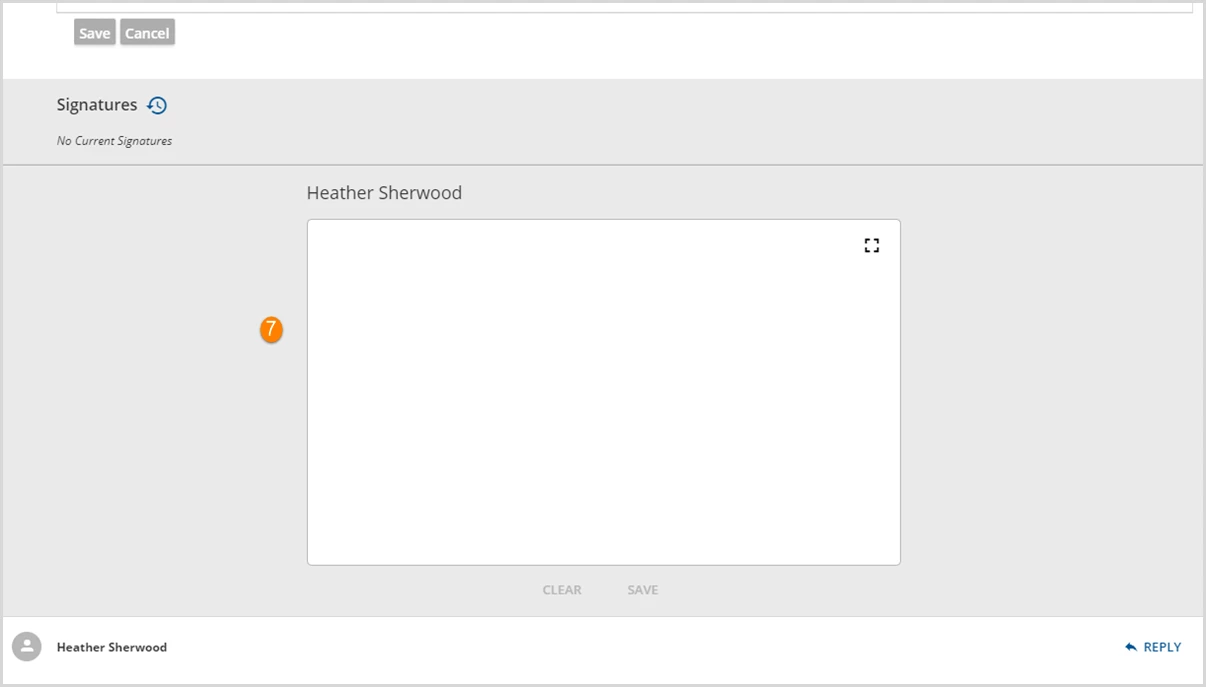
- Signatures - When a signable form is sent with the Signature Requested, a Signature box is displayed at the bottom of the form.
Sign Forms
With the release of version 3.09, a 4 to 6-digit PIN may be used to sign forms. See User Preferences for more information on configuring your PIN.
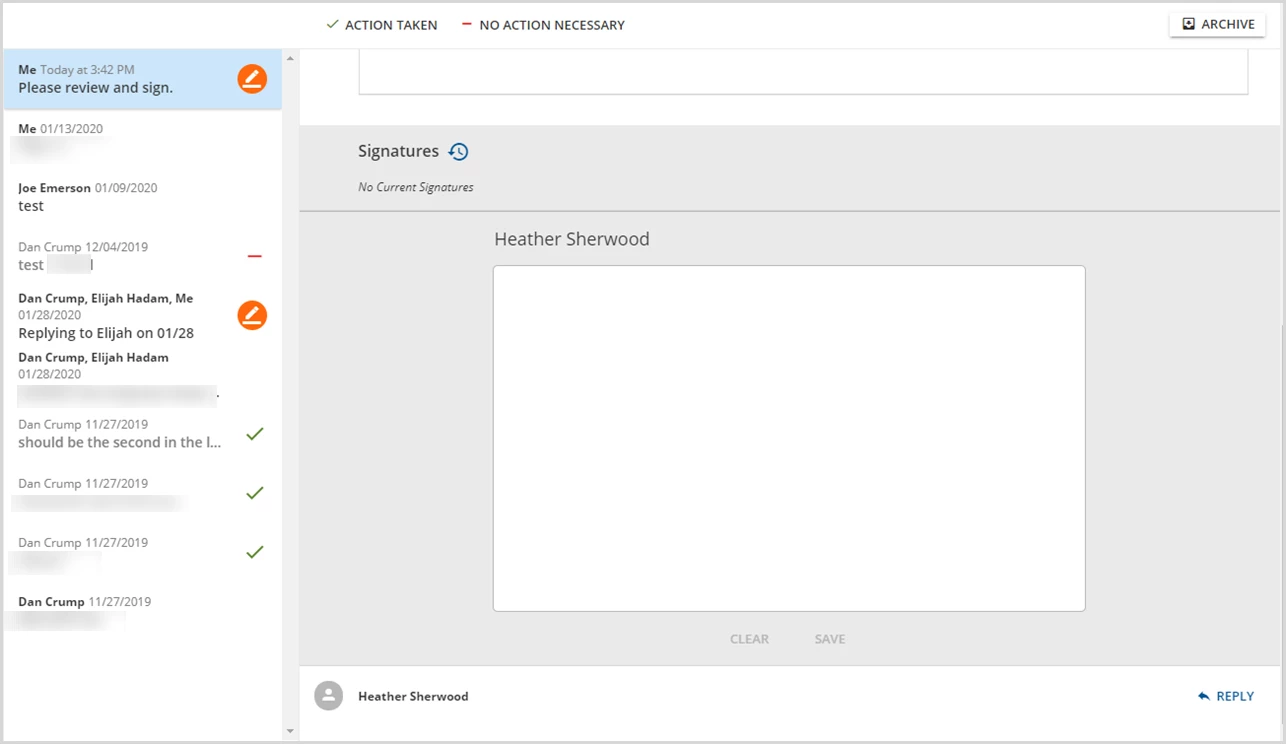
The signature box functions just as it does on the Timeline or Progress Notes screens. Once signed, the blue SAVE button is enabled.
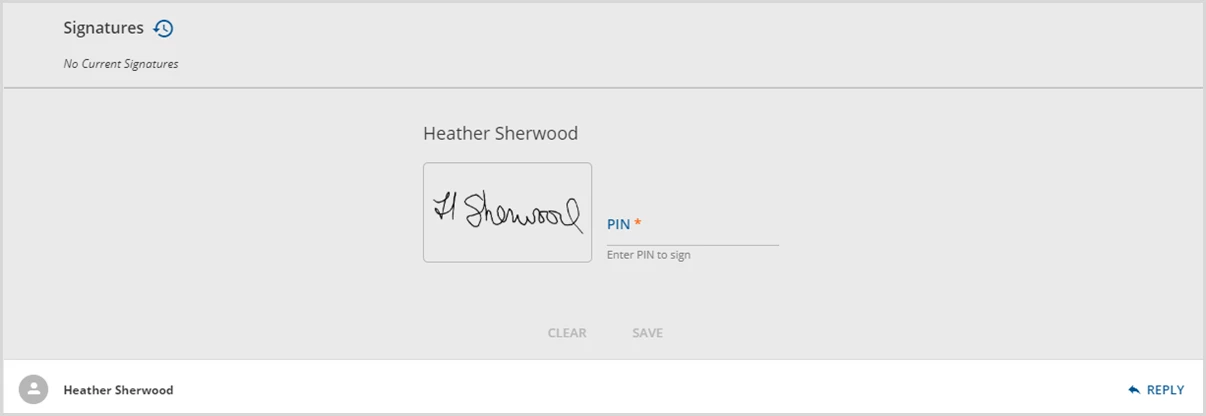
If using version 3.09+ and the PIN has been configured in User Preferences, the Signature Box will already display the signature and prompt for the 4 to 6-digit PIN to be entered.
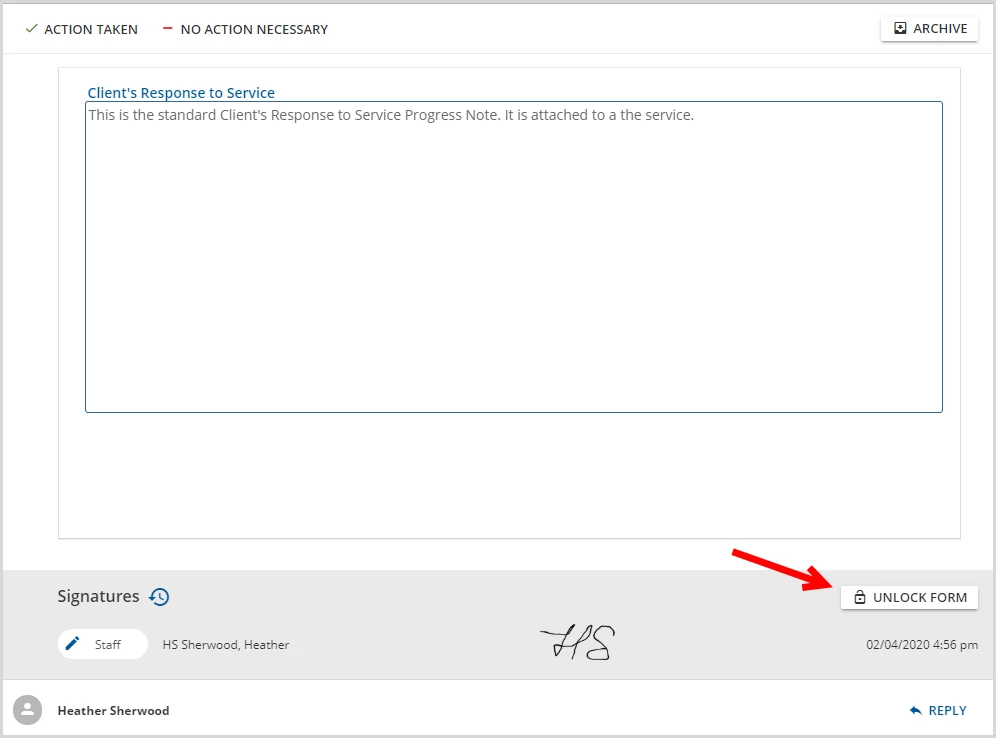
Saving the signature locks the forms. If the currently logged-in user has the Unlock Form permission, the form can be unlocked, a reason given, and the signatures cleared making the form ready to be signed again.
A user with both View and Send permission to the group mailbox will have the option to REPLY when viewing a group message. This Reply will be visible to all members of the group mailbox but will not be seen by the original sender unless he/she is also a member of the group mailbox.
Expanding the Signature Box to Full Screen
With the release of version 3.12, the signature pad when collecting a non-PIN signature can be expanded to full screen. This is especially helpful when using a device with a smaller screen or a capture pad to collect the signature.
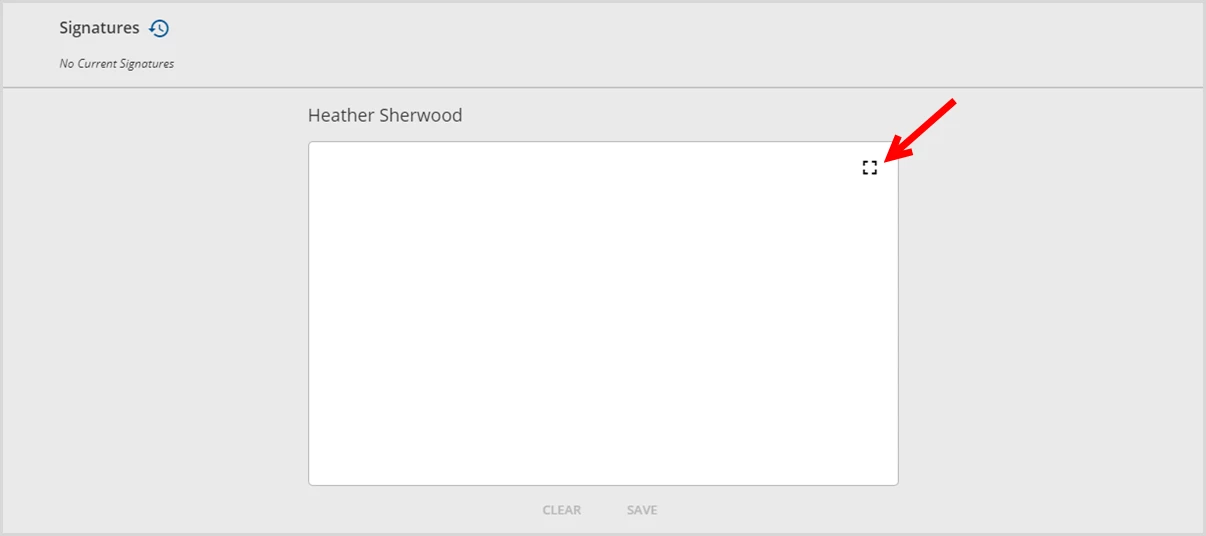
To expand the signature area, click on the expand icon as shown above.
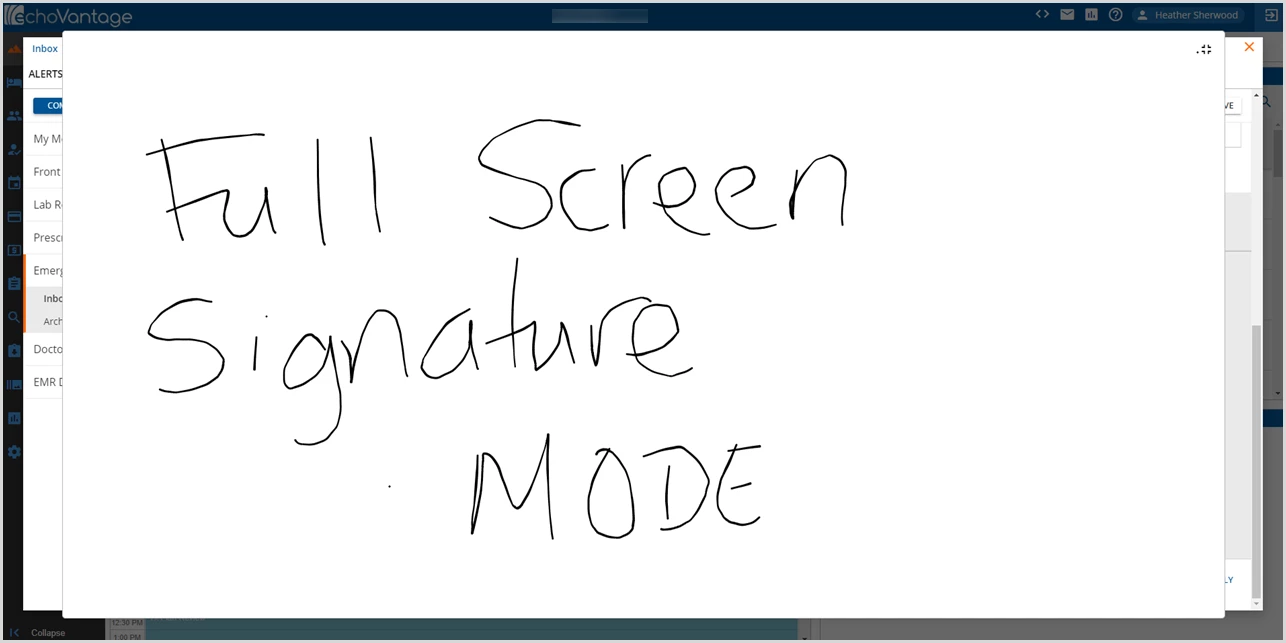
The signature pad expands and is much easier to sign on smaller devices.
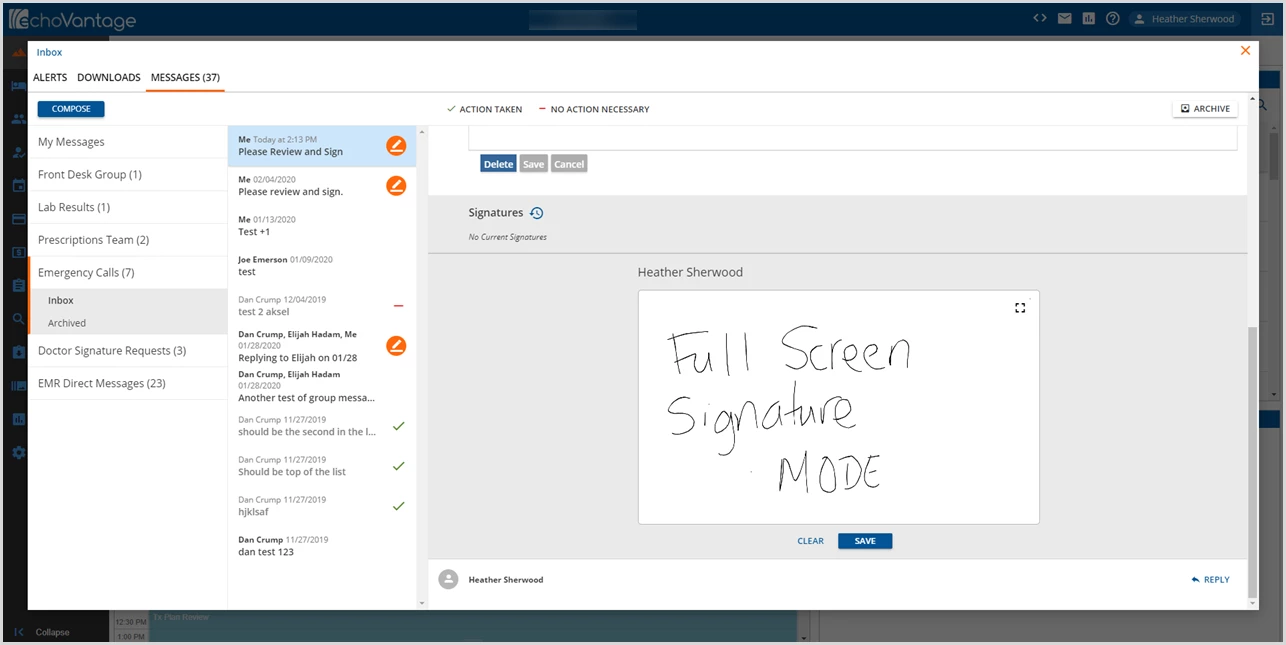
When the signature is complete, tap the expand icon again to return the signature pad to normal size.