



Permissions Required: You must have Administration Permissions.
ABA Therapy provides you with consent Forms that you can use for your Clients. You can edit these Forms and add and take content away from them. In addition to these Forms you can create your own as well as copy any Custom Forms over to the Client Portal to use as Intake forms.
Jump To Section:
Access Forms
- Click Organization in primary navigation bar.
- Click Client Portal in side menu.
- Click Intake Forms tab.
Available Forms
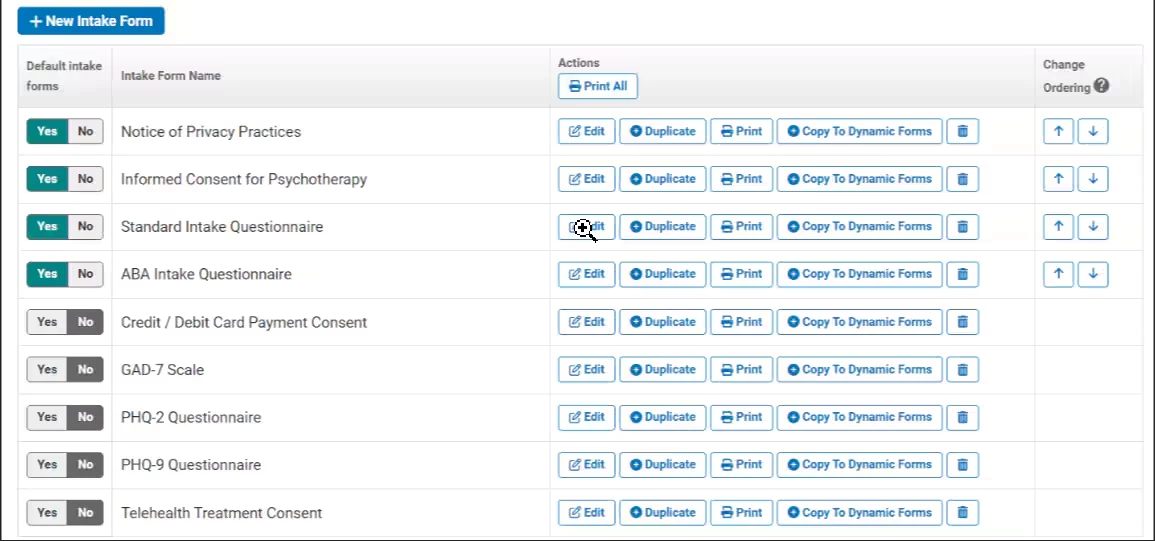
- Notice of Privacy Practices - This can be used to describe how health information may be used and disclosed and how your clients can get access to this information.
- Informed Consent for Psychotherapy - A generic consent to receive treatment based on the answers in the questionnaire.
- Standard Intake Questionnaire - A standard behavioral health questionnaire that can be used when doing an initial intake for a client.
- ABA Intake Questionnaire - A standard ABA questionnaire that can be used when doing an initial intake for a client.
- Credit / Debit Card Payment Consent - This form gives you permission to use the card on file for a Client. It does not collect all card information for a client because that would not be PCI compliant. Your Client needs to choose to save card on file while making their first payment in the Client Portal or add card to the Client Portal under Billing. It will not ask them for the CVV (again, due to PCI compliance) so you will need that information to process the card.
- GAD-7 Scale - The GAD-7 is useful in primary care and mental health settings as a screening tool and symptom severity measure for the four most common anxiety disorders.
- PHQ-2 Questionnaire - The PHQ-2 inquires about the frequency of depressed mood, with a score ranging from 0 to 6.
- PHQ-9 Questionnaire - PHQ-9 total score for the nine items ranges from 0 to 27. In the above case, the PHQ- 9 depression severity score is 16 (3 items scored 1, 2 items scored 2, and 3 items scored 3).
- Telehealth Treatment Consent - A voluntary consent form to conduct Telehealth sessions.
Duplicate Intake Forms
You can duplicate existing Forms and then make adjustments/edits as desired.
- From Intake Forms tab, locate appropriate Form.
- Click Duplicate button and duplicate form displays with a 1 behind it.
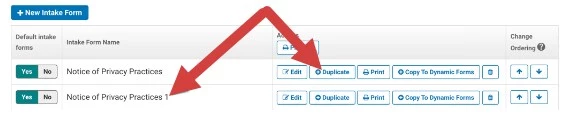
- Once a Form is duplicated you can edit as desired.
Edit Existing Intake Forms
- From Intake Forms tab, locate appropriate Form.
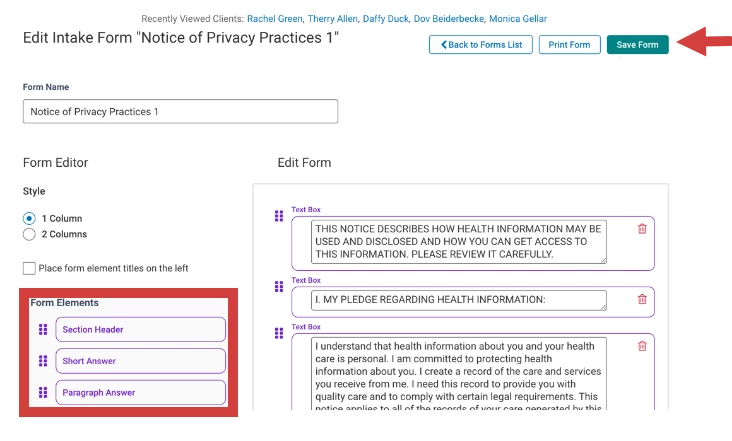
- Click Edit button.
- Add additional fields, remove fields, adjust text, etc. The style elements are the same as Custom Forms.
- Click Save Intake Form.
Set Default Forms & Send
Default Forms
Default Forms are Forms you want every Client to fill out no matter what age, treatment etc. You can determine which Forms will automatically be included, and which order they will display for the Client to fill out.
- From Intake Forms tab, locate appropriate Form.
- Toggle Yes.
- Use the arrows to the right to select desired order for default Forms.
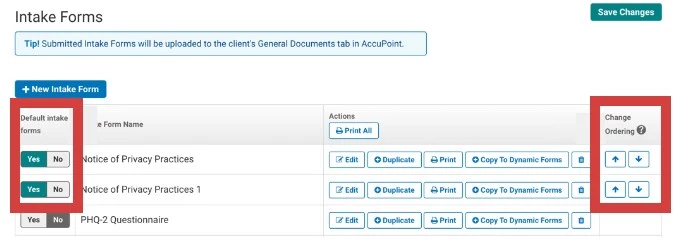
Note: The Forms toggled Yes will be sent to Client's using the Client Portal. You will be able to select additional Forms if desired when you send the Client Portal Invitation.
Important:
- All Staff Members assigned to the Client will receive an email when the Client completes/submits the Intake Forms. If the Client is not assigned to a Staff Member the Organization Administrator will receive the notification.
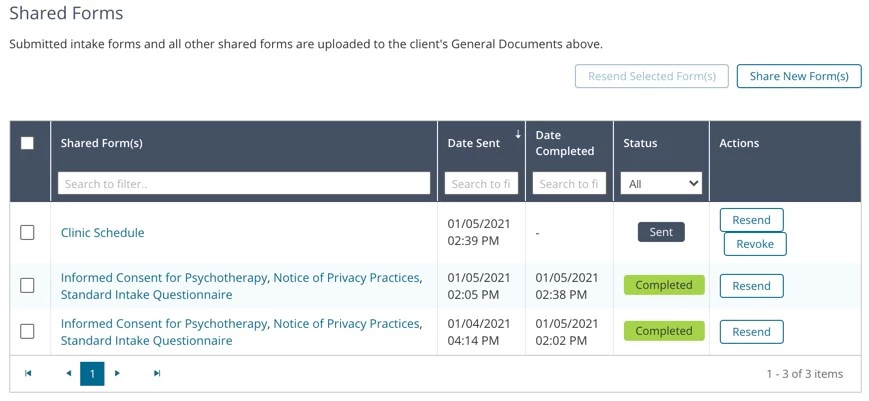
- You can view and manage Documents sent to a Client's Portal at the bottom of the General Documents page. You can track status (sent/completed), resend and revoke forms, as well as share new Forms not sent previously.
Related Articles: