


Ensora Data Collection provides a SOAP Note Session-Matching option for clients who also use/integrate with one of our Practice Management System platforms. This feature is not available on the legacy app. For a short video about this feature, see Integrated Calendar & SOAP Note Session-Matching.
Jump to Section:
It is important for the Ensora Data Collection SOAP notes to match the appointment in the system more efficiently and have therapists see their appointments on the Ensora Data Collection App for the day. To do this, there are three important steps:
- Enable your Ensora Data Collection integration. See Integrated Calendar with Ensora ABA Therapy for more information.
- Contact Ensora Data Collection Support to enable the Session Note Matching & Integrated Calendar You can reach them at ABADataCollection.Support@ensorahealth.com
- Once they enable those features in Ensora Data Collection, ensure to update your SOAP note templates to have the session field.
IMPORTANT: If you have any users who are working on the legacy Ensora Data Collection app, we recommend not creating SOAP Note Templates with Session Field since this only works with the new app. Using this new feature while users are still on the legacy app may cause syncing issues.
To use this feature you must first create a SOAP Note Template with the field called Session included under the Date field. See Create SOAP Note Template for more information. If you have existing SOAP Note Templates, you can edit them and add the field called Session and move it up under the Date field. See Edit or Delete SOAP Note Fields for more information. If you are not seeing this option, please reach out to ABADataCollection.Support@ensorahealth.com for assistance getting this turned on.
NOTE: If a SOAP Note is Published and does not have an Appointment/Session linked to it, it will follow the regular syncing procedures.
Match an Appointment/Session to a SOAP Note
- In the Ensora Data Collection app, navigate to the SOAP Notes tab.
- Select a SOAP Note Template.
NOTE: The SOAP Note Template must contain the field called Session for this to function.
- Once you select the Date on top, under Session will be a list of all the Student's Appointments (Sessions) that match that date and the User that is logged in.
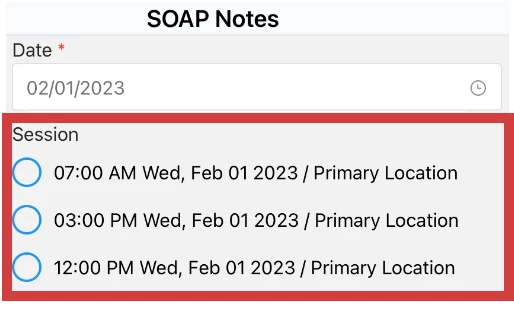
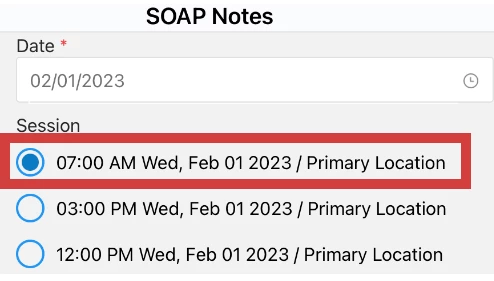
- Select the correct Session you want to match with this SOAP Note, which will show with a blue dot.
NOTE: If there are no appointments for the date selected, a message will display.
- Once you Publish the SOAP Note there will be a Completed banner on the Appointment on the Student Dashboard of the app.
Ensora Data Collection SOAP Note Requirements for Matching
- SOAP Note must have the field type called Session included below the date field.
- SOAP Note must have the Date entered.
- Student must have appointments that match the Date entered for the same Therapist.
- Clinic must have Integrated Calendar turned on. See Integrated Calendar for more information.