


PERMISSIONS REQUIRED: Therapist can print Notes for their assigned Cases, Administrators or higher can print ALL Notes.
You can download or print a client's individual Client Progress Notes or all Progress Notes for a Client at one time.
If the Ensora Data Collection Integration is enabled:
- If you download a Progress Note for an Appointment that has been matched with an Ensora Data Collection SOAP Note, when you print or save as a PDF, the Progress Note will display first followed by the appended SOAP Note. If you download or print multiple Progress Notes, the appended SOAP Note will display after each Progress Note.
NOTE: You can only download per client at this time. Bulk download is not currently available.
- Locate Client and open Client Profile.
- Click Reports tab and select Notes History.

- Click Print Notes History for All Cases button.
- OR click Print Notes History next to desired Case if multiple Cases are listed.
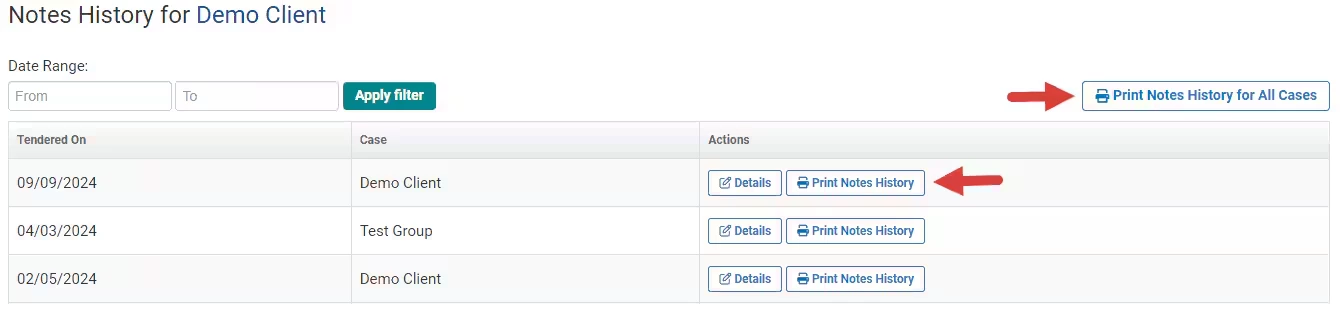
5. A PDF of the notes report selected is generated and opened in a new window. You can print and/or download from that window.