Ensora Data Collection provides an Integrated Calendar option for clients who also use/integrate with one of our PMS platforms (Ensora ABA Therapy). This feature is not available on the legacy app. For a short video about this feature, see Integrated Calendar & SOAP Note Session-Matching. If you are not seeing this functionality (and you are already an integrated client), please reach out to ABADataCollection.Support@ensorahealth.com for assistance.
It is important for the Ensora Data Collection SOAP notes to match the Ensora ABA Therapy appointment in the system more efficiently and have therapists see their appointments on the Ensora Data Collection App for the day. To do this, there are three important steps:
- Enable your Ensora Data Collection integration.
- Contact Ensora Data Collection Support to enable the Session Note Matching & Integrated Calendar You can reach them at ABADataCollection.Support@ensorahealth.com.
- Once they enable those features in Ensora Data Collection, ensure to update your SOAP note templates to have the session field. Learn More: Soap Note Session Matching
Jump to Section:
Integrated Calendar in Ensora Data Collection App
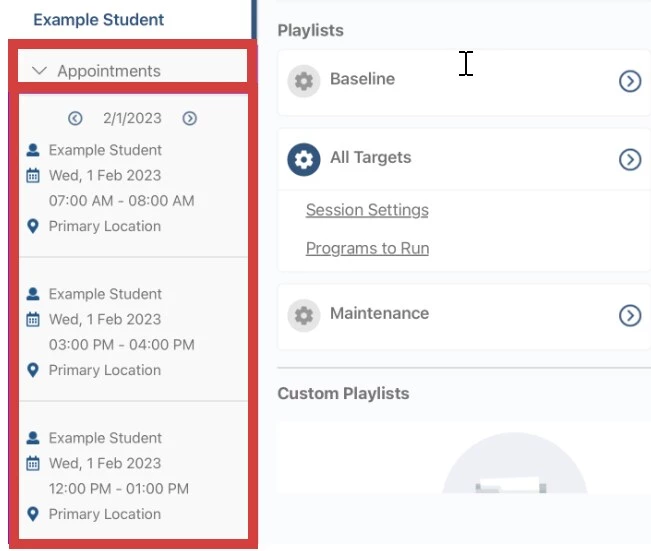
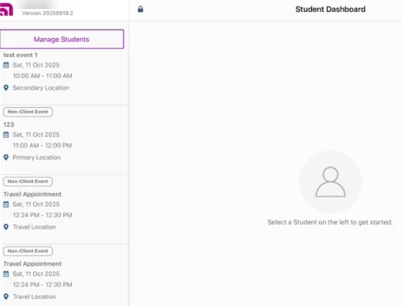
Users will see their student/client appointments and non-client events that were added in Ensora ABA Therapy in the Ensora Data Collection app on the Student Dashboard (Student Selection) screen under Appointments. The criteria for the appointments and non-client events to display is:
- App User must match the user in Ensora ABA Therapy.
- Appointment must be for a Student that sees that particular therapist.
- Appointment must not be canceled or unsaved in the system.
- Appointments must be for 14 days in the past or 14 days from the current day.
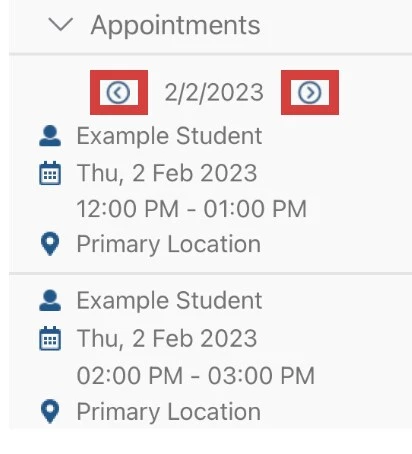
You can use the Forward/Backward Arrows to see appointments 14 days in the past and 14 days in the future.
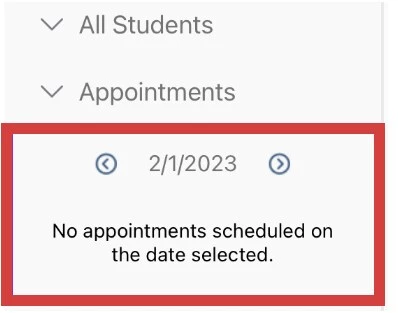
If there are no appointments for the selected date, a message will display, stating "No appointments scheduled on the date selected."
Student/Client Appointment
The following appointment information displays for student client appointments:
- Student/Client Name
- Day & Date of the appointment
- Start time to End time of the appointment
- Location (POS) of the appointment (for example Primary Location, 12, etc.)
Non-Client Events
Non-client events, including automatically and manually created travel appointments, appear in the app and display the date, time and location. These appointments can not be matched with a SOAP note and the status of these appointments can not be updated from the app.
Appointment Status Indicators
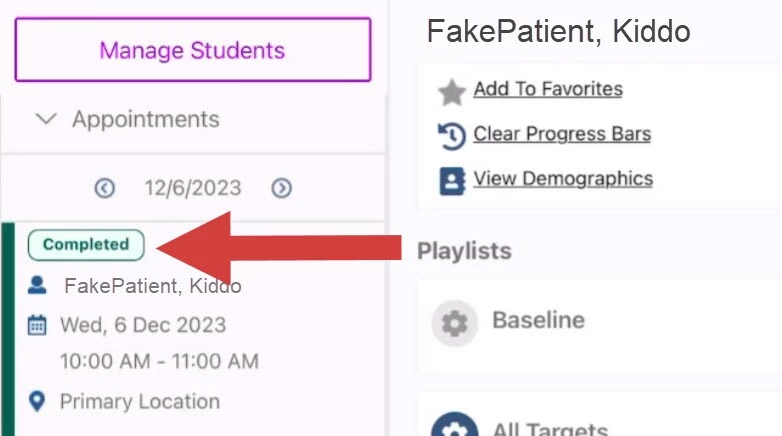
Each student/client appointment will show a green Completed banner indicator once a SOAP Note has been Published with a Session/Appointment assigned. For more information on SOAP Note Session Matching see SOAP Note Session-Matching.
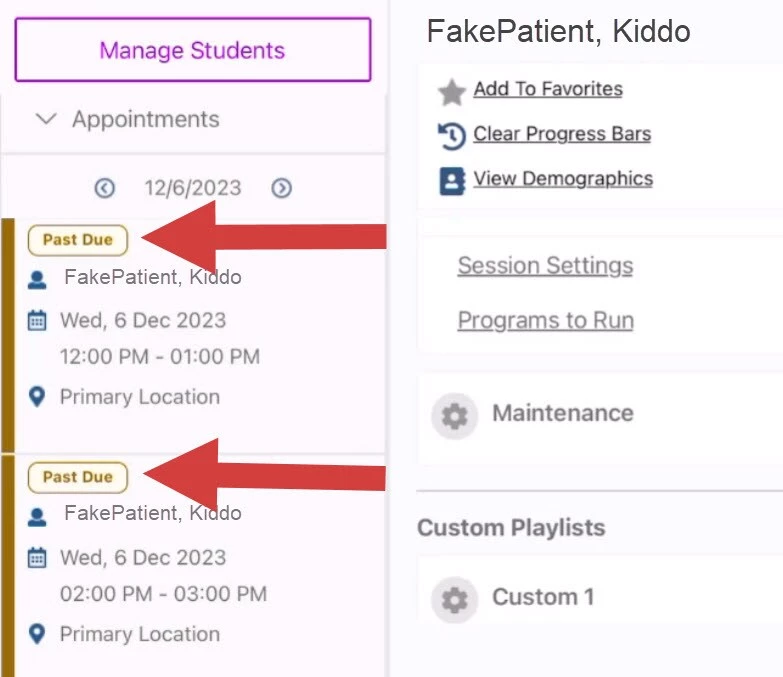
Each appointment will show a gold Past Due banner indicator once the end time of the Session has passed without a SOAP Note being Published.
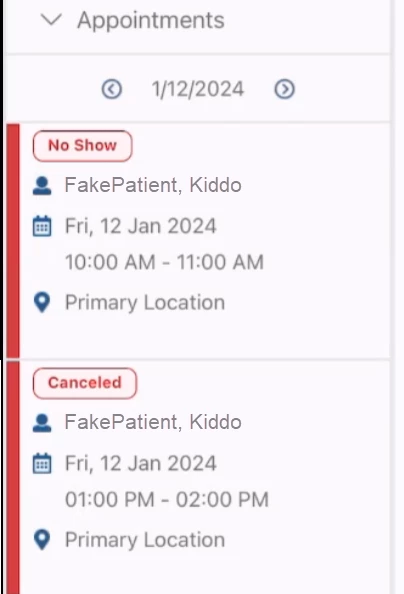
Each appointment will show a red No Show or red Canceled banner indicator if the appointment has been marked as Canceled or No Show in the PMS or changed via the Ensora Data Collection app for Ensora ABA Therapy customers.
Update Appointment Status
For student/client appointments that are currently showing a Past Due status, Ensora ABA Therapy users with this integration will see an Update Status dropdown option.
NOTE: The feature allowing users to view or update the status of appointments from the PMS is currently only available to organizations that are integrated with Ensora ABA Therapy and have the Integrated Calendar feature enabled. You can not update the status of a non-client event from within the app.
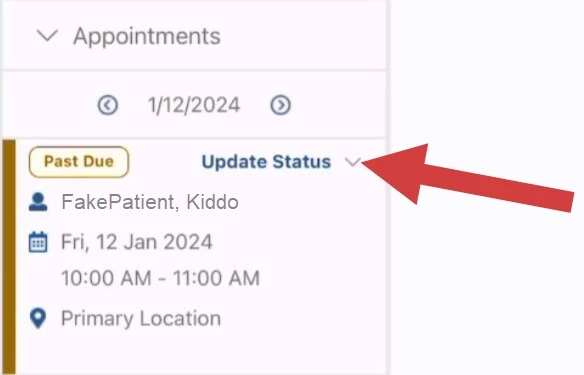
You can choose either No Show or Canceled from the dropdown.
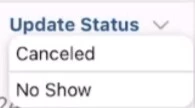
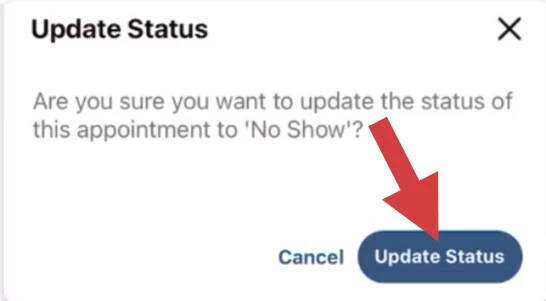
You will confirm the popup message to finalize this change.
After you confirm the Update Status, the appointment will show in the app a No Show or Canceled banner. This cannot be changed after you change it to No Show or Canceled. Instead, you would need to change it on the Ensora ABA Therapy side. (The system will update statuses from the app every 10 minutes, so you will not see this change instantly.)