


When you choose to integrate your system with Ensora Data Collection, you have the option to use the Ensora Data Collection SOAP Note times as the time of record for your appointments. This feature must first be enabled on the Ensora Data Collection Integration page
IMPORTANT: Using this feature will override appointment times in the calendar and change the time of the appointment to the time recorded in the Ensora Data Collection note. The updated Ensora Data Collection times will also be used for billing and payroll reports. It is important to review and understand the conditions that are used to match appointments before you enable this feature. Ensure that your student’s time zones in their Ensora Data Collection demographics is accurate as this information is used when correctly converting the times of the appointment within your system, especially if you have multiple time zones in your organization. See Demographics Subtab for more information.
Jump to Section:
Ensora Data Collection Note Time & System Appointment Time Matching
Appointments are matched automatically with the Ensora Data Collection Note when the start and end times of the appointment are within 5 minutes of the Ensora Data Collection Note time or if you are using the SOAP Note Session Matching feature. See SOAP Note Session-Matching for more information.
Example:
- System appointment is 1:00 pm - 2:00 pm and Ensora Data Collection Note is 1:00 pm - 2:05 pm
- The appointment is matched
- The end time of the appointment in the system is changed to 2:05 pm.
NOTE: The Ensora Data Collection time will be used and your system time updated even if it has a system Progress Note or Invoice attached.
Multiple appointments in the Same Time Slot
Each Provider has the option to Allow booking of multiple appointments in the same time slot.
When this option is enabled by the Provider and the Ensora Data Collection Note time is a match, the times of the matching appointment will be changed and the overlapping appointment will not be changed.
Example:
Multiple appointments in the same time slot is allowed:
- System appointment is 1:00 pm - 2:00 pm and Ensora Data Collection Note is 1:00 pm - 2:05 pm
- The appointment is matched
- There is another appointment scheduled for 2:00 pm to 3:00 pm
- The end time of the Ensora Data Collection note is used and the matching appointment is changed to 2:05 pm.
NOTE: The Ensora Data Collection time will be used and the system time updated even if it has a system Progress Note or Invoice attached.
When this option is not enabled, appointments are matched depending on whether or not the adjacent system appointment has a progress note or invoice.
Examples:
If there is a progress note or invoice attached to the adjacent appointment:
- System appointment is 1:00 pm - 2:00 pm and Ensora Data Collection Note is 1:00 pm - 2:05 pm
- There is another appointment scheduled for 2:00 pm to 3:00 pm and has a progress note or invoice attached
- The end time of the Ensora Data Collection note is NOT used and the matching system is not changed.
If there is no progress note or invoice attached to the adjacent appointment:
- System appointment is 1:00 pm - 2:00 pm and Ensora Data Collection Note is 1:00 pm - 2:05 pm
- There is another system appointment scheduled for 2:00 pm to 3:00 pm with no progress note or invoice attached
- The matched system appointment is updated to 1:00 pm - 2:05 pm
- The adjacent system appointment is update to 2:05 - 3:00 pm
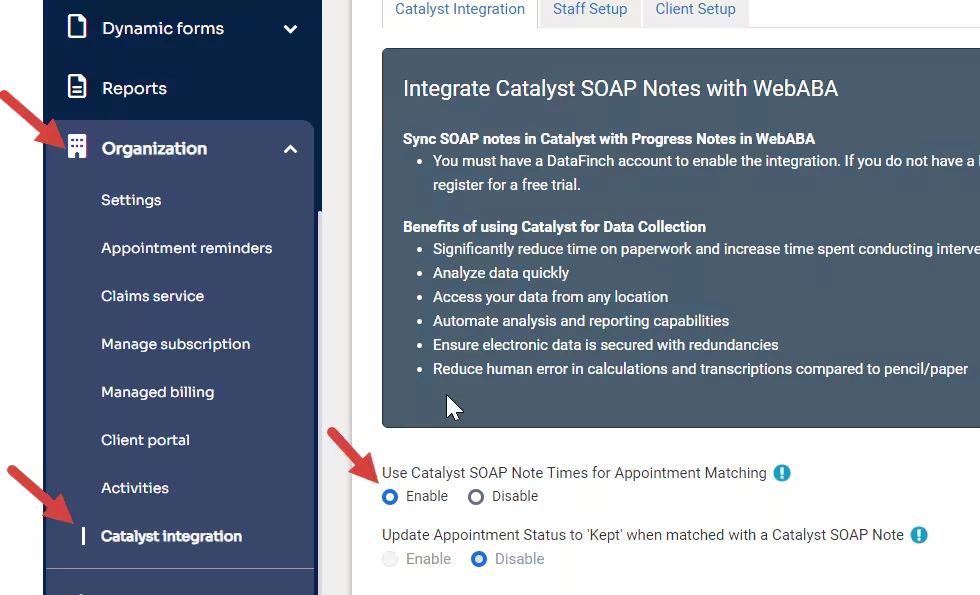
Enable Use Catalyst SOAP Note Times for Appointment Matching
PERMISSIONS REQUIRED: You must have Organization Administration Permissions.
- Click the Organization tab.
- Click Ensora Data Collection integration in the navigation menu.
- Select enable for Use Ensora Data Collection SOAP Note Times for Appointment Matching.
Manually Adjust Automatically Matched Appointments
When the automatic processing for using the Ensora Data Collection SOAP Note Times for Appointment Matching is turned on you may have appointments that are not matched.
To manually match appointments:
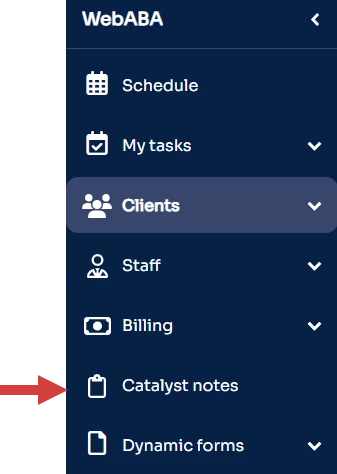
- Click the Ensora Data Collection Notes in the side menu.
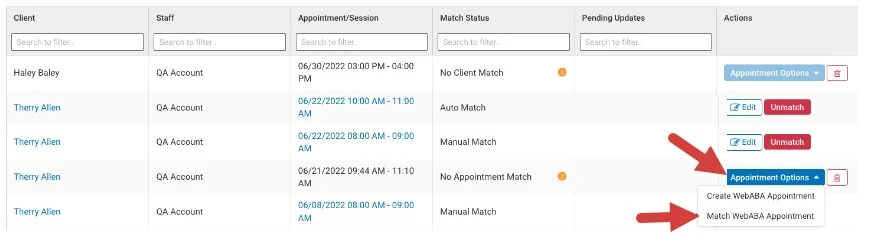
- Locate the unmatched appointment.
- Select Appointment Options and click Match system Appointment from the drop-down.
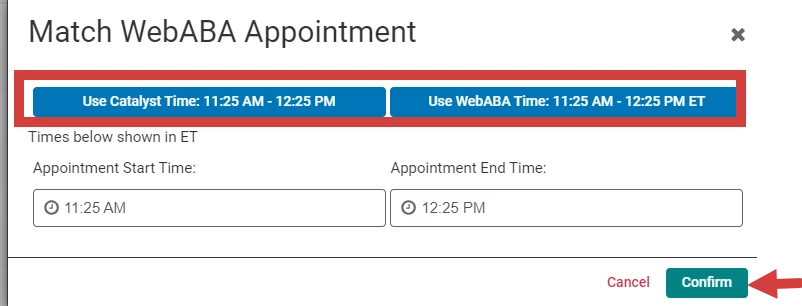
- Choose the Use Ensora Data Collection Time or Use Your System’s Time. The use Ensora Data Collection Time option will display in the Ensora Data Collection Student’s time zone. The Use System time will display in the staff’s preferred time zone. Whatever option is selected the time will be converted accordingly on your system schedule based on your staff preferred time zone.
- Click Confirm.
For information about matching Ensora Data Collection and system appointments without auto processing see:
Ensora Data Collection Integration: Match Ensora Data Collection Notes to System Appointment