PERMISSIONS REQUIRED: You must have Organization Administration Permissions.
When the integration is enabled, Staff from Ensora Data Collection and ABA Therapy are listed on the Staff Setup tab in ABA Therapy. Staff are automatically matched by the system or manually matched by the User. Staff matches can then be edited and un-matched.
Automatic Match
The system automatically matches Ensora Data Collection and ABA Therapy Staff Members based on the Staff Member's first name, last name and email address.
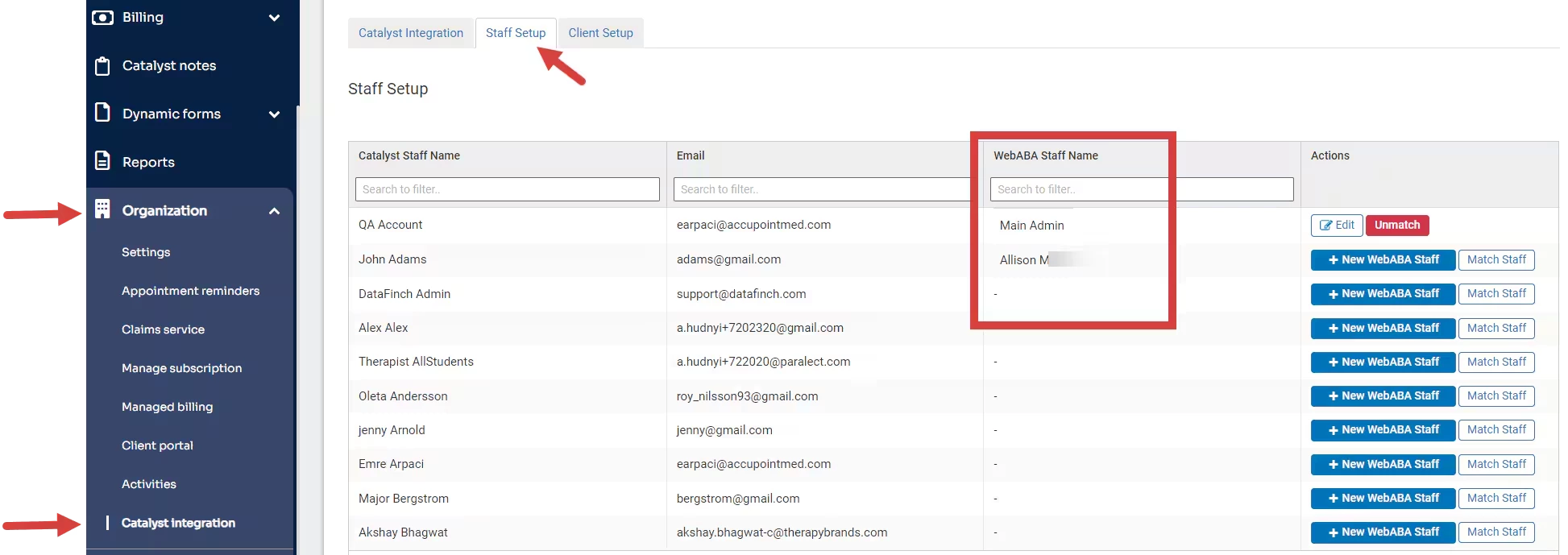
- Click Organization tab in primary navigation bar.
- Click Ensora Data Collection Integration in side menu.
- Click Staff Setup tab.
- All Staff members display to be matched.
Manual Match
The system does not automatically match Staff Members if a Staff Member's information is different in each system (first name, last name, email address). If the system does not auto-match a Staff Members, you can manually match Ensora Data Collection staff to existing staff in ABA Therapy.
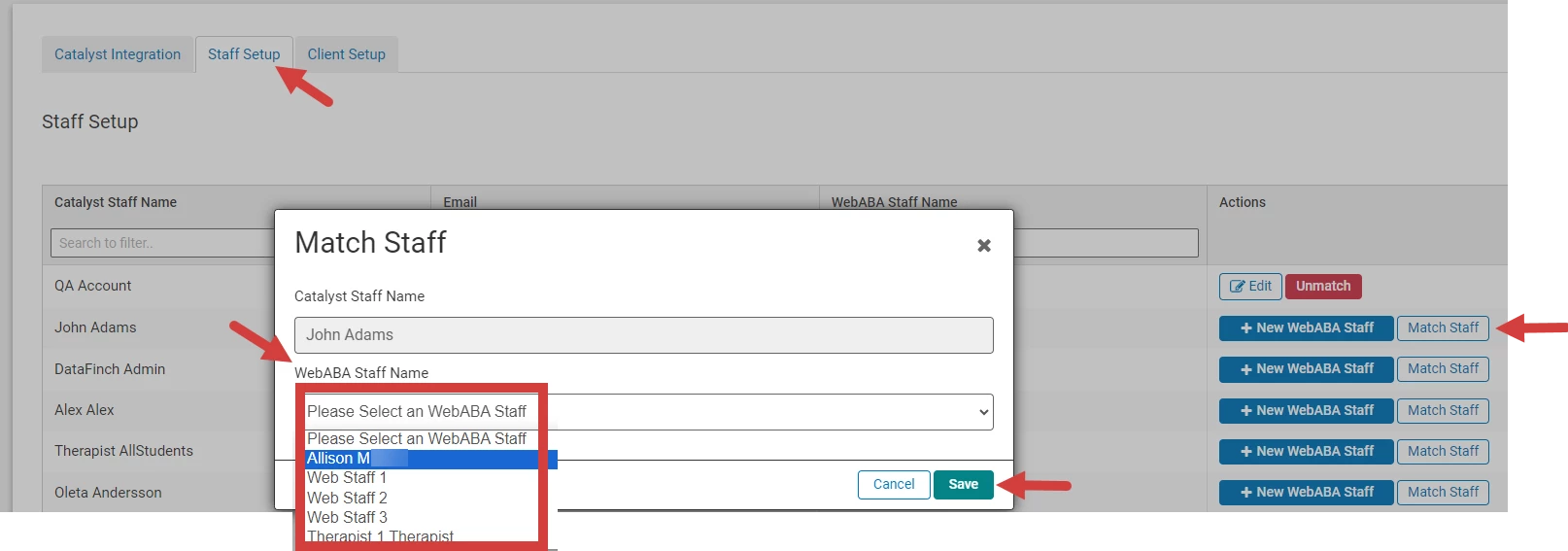
- Click Staff Setup tab.
- Click Match Staff button for appropriate Staff Member.
- Click ABA Therapy Staff Name dropdown and select appropriate ABA Therapy Staff.
- Click Save.
Create New ABA Therapy Staff Member to Match
If the Ensora Data Collection Staff Member you are trying to match doesn't already exist in ABA Therapy you can create the Staff Member and then match them.
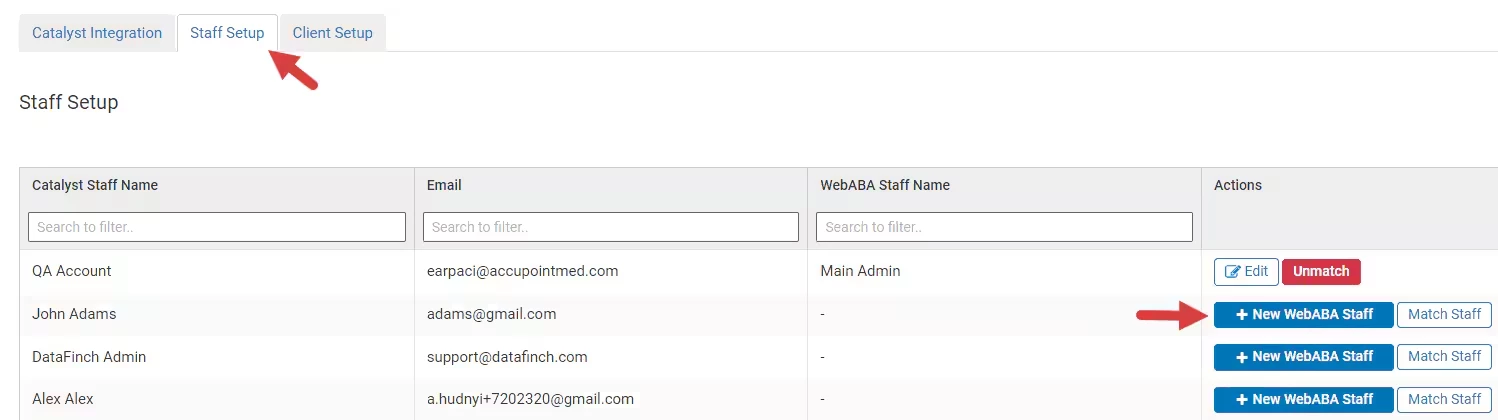
- Click Staff Setup tab.
- Click +New ABA Therapy Staff button for the Ensora Data Collection Staff Member.
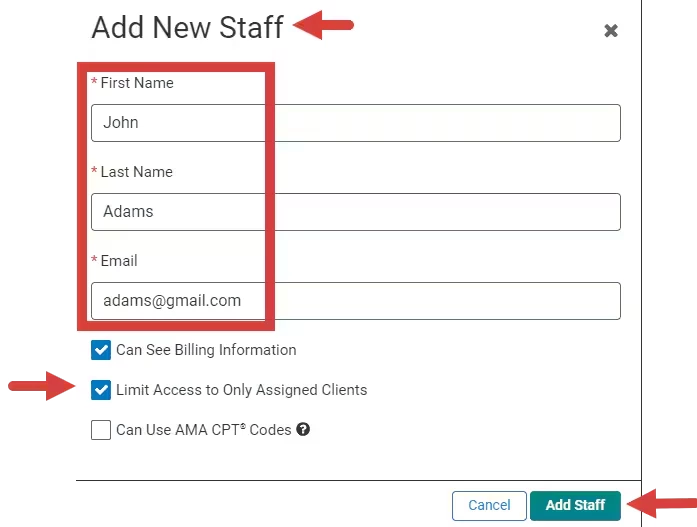
- The Staff First and Last Name and email will auto-populate in the Add New Staff window, to match the Ensora Data Collection Staff Member information. You can manually change these fields as needed.
- Set Staff Member ABA Therapy basic Permissions by selecting or deselecting the checkbox.
- Click the Add Staff button.
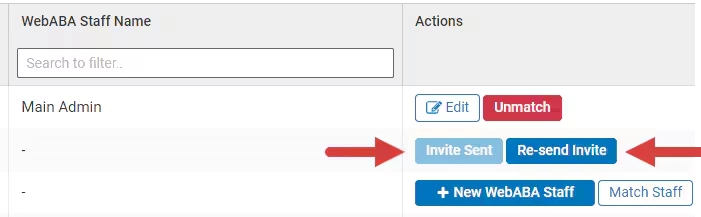
- The +New ABA Therapy Staff button changes to the Invite Sent button. The invite will reset after seven days.
NOTE: The Re-send Invite button will display after sending the invite.
- Click Re-send Invite button if you want to re-send the invite within seven days after the invite was sent.
- A Match Request Invite is sent to the ABA Therapy Staff Member. The Match Status is Pending until the invite is accepted.
Edit Staff Member
After a match is made, you can edit it or completely un-match the Staff profiles if needed.
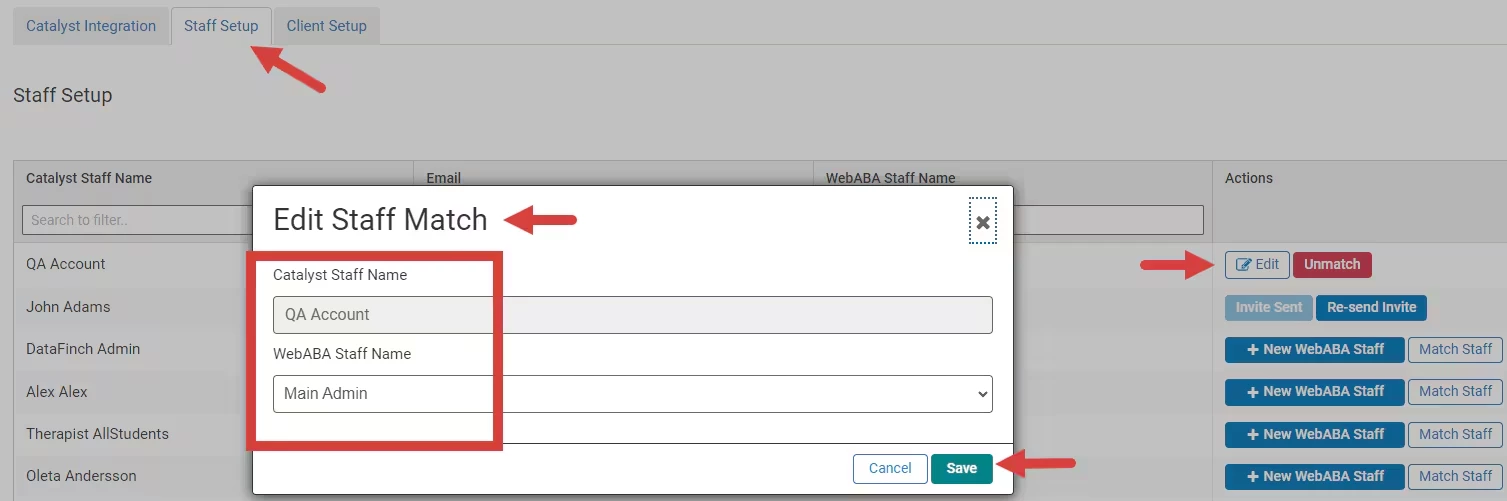
- Click Staff Setup tab.
- Click Edit button and make necessary changes.
- Click Save.
Unmatch Staff Member
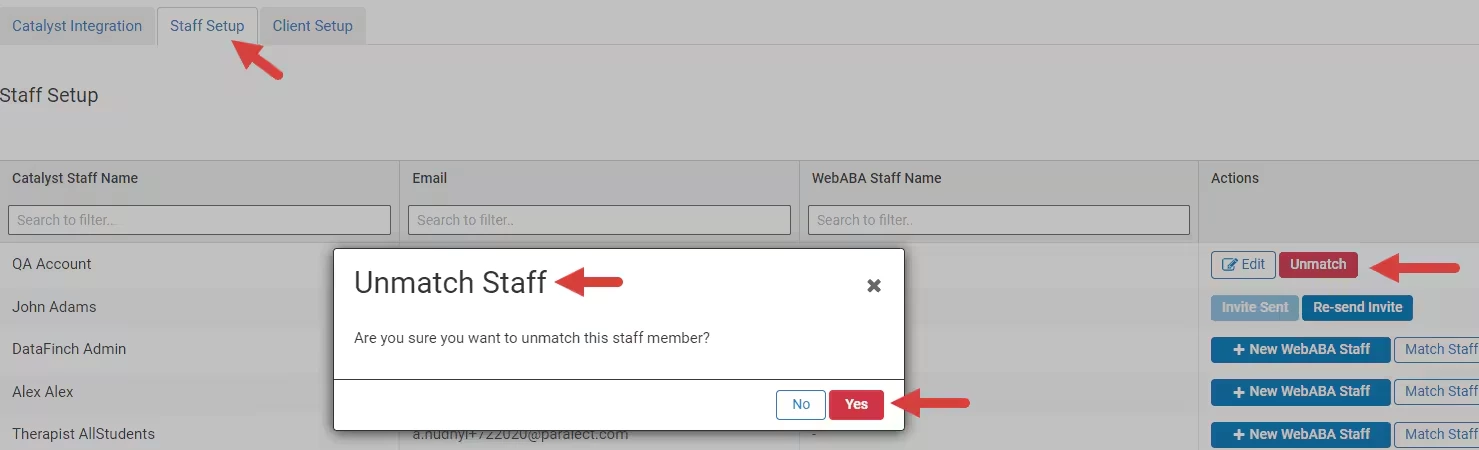
- Click Staff Setup tab.
- Click Unmatch button.
- Click Yes to confirm you want to unmatch staff.