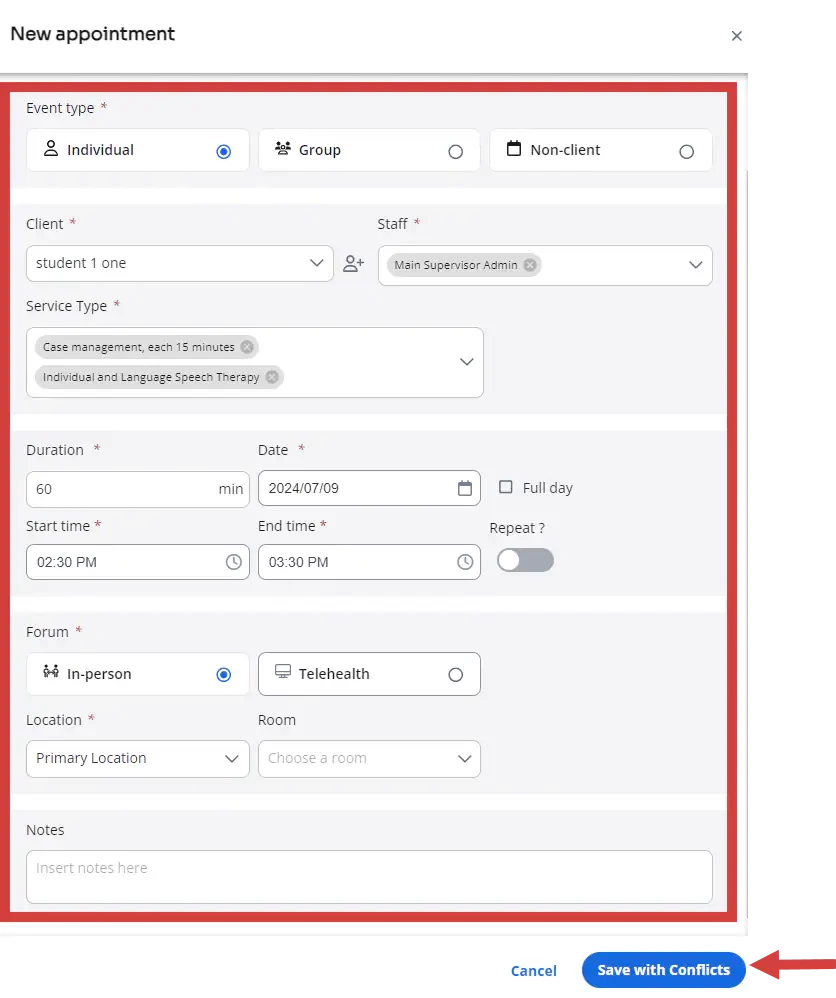
PERMISSIONS REQUIRED: You must have Therapist permissions or higher with the Can View Data Collection Notes permission checked in order to use this feature.
Staff members assigned to a client can see Data Collection Notes for that staff member/client combination. Users with Organization Admin permissions can see all Notes.
If a Data Collection Note is matched to the incorrect ABA Therapy Appointment you can edit that match and re-match it with the appropriate Appointment.
Alternatively, you can actually create a ABA Therapy Appointment FROM the Data Collection Note that was pulled in. This will create a new Appointment in ABA Therapy and a linked Progress Note will be created from the Data Collection Note.
Match Data Collection SOAP Note to ABA Therapy Appointment
IMPORTANT: If you are integrated with Data Collection you can opt to have a special field on your Data Collection SOAP Note Template that will allow you to choose the appointment in ABA Therapy to link to the SOAP Note. For more information on this, see Data Collection SOAP Note Session-Matching in the system.
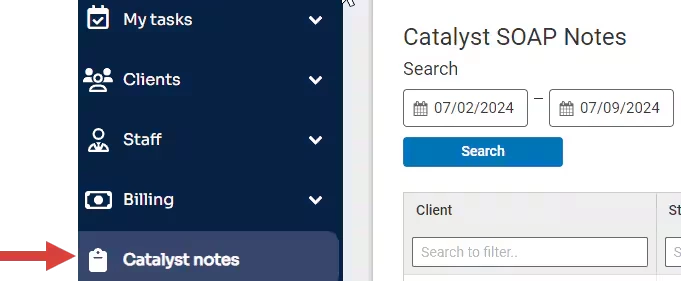
- Click the Data Collection Notes in the side navigation bar.
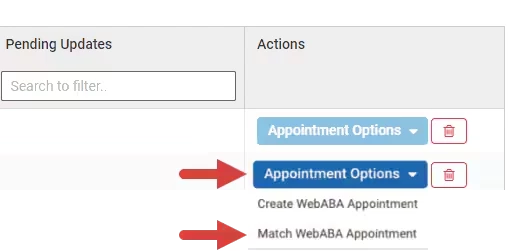
- Click Appointment Options and select Match ABA Therapy Appointment.
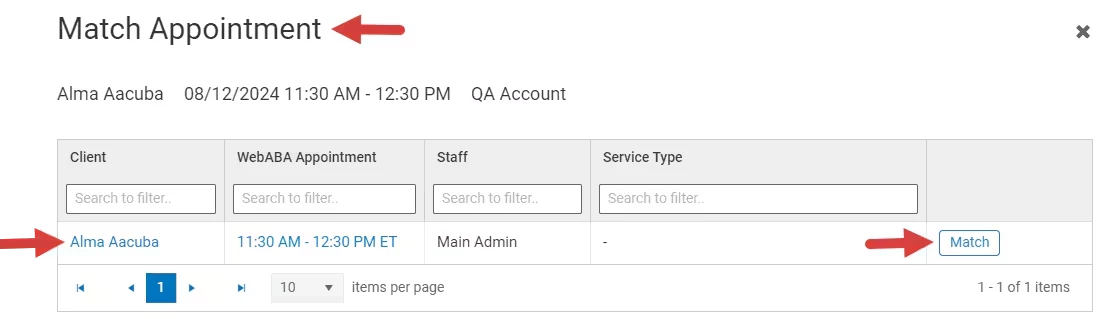
- In the Match Appointment window, filter Appointments for that Client/Staff combination that occurred on that same day.
- Click the Match button for the appropriate Appointment.
NOTE: The time zone that is set for the student in Data Collection will display at the top of the Match Appointment modal. The ABA Therapy appointments will display based on your staff preferred time zone. Make sure the time zone displayed for the Data Collection note for that student is accurate in Data Collection for times to be converted accurately when matched with a ABA Therapy appointment. See Create a Student to learn how to update a student’s time zone in Data Collection.
Edit or Manage Match
Once a Note is matched to an Appointment you can edit that match and re-match it with the correct Appointment. This includes SOAP Notes that are linked via the Ensora Data Collection Session-Matching feature.
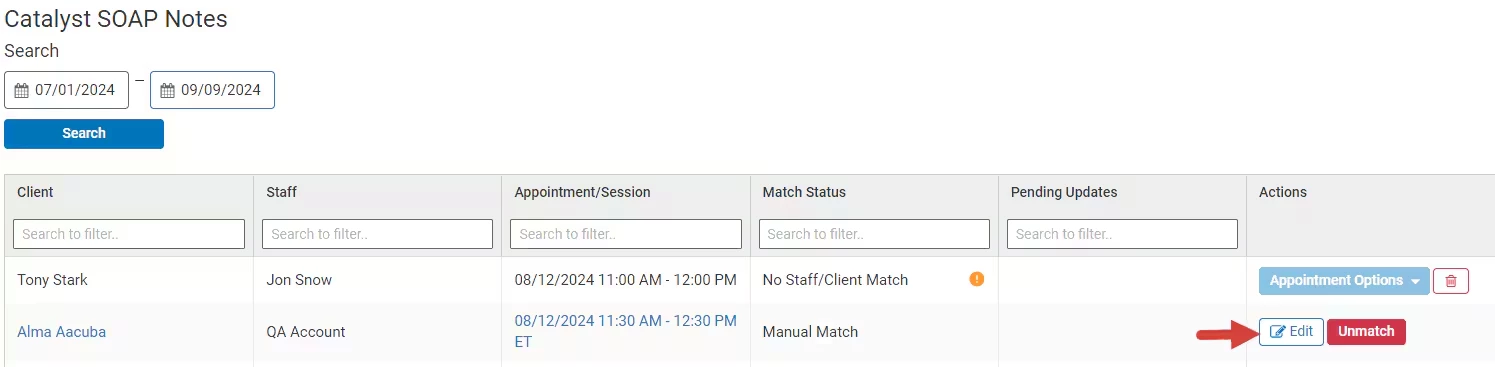
- Click Edit for the appropriate Data Collection Note to be matched.
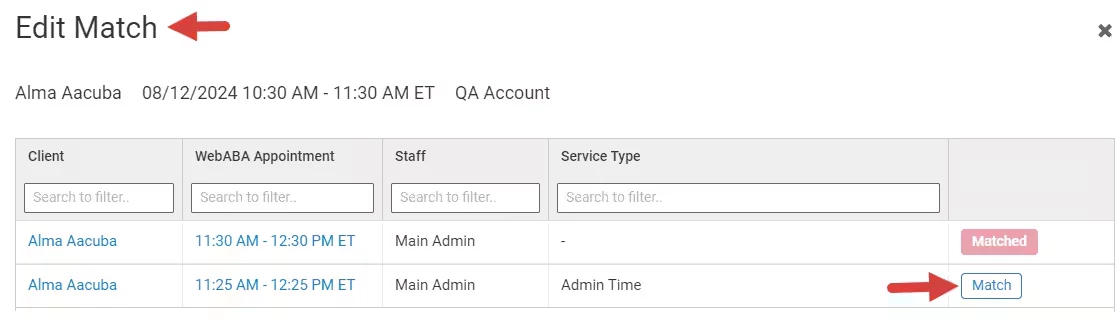
- In the Edit Match window, select the correct Appointment to match it to.
NOTE: The time zone that is set for the student in Data Collection will display at the top of the Edit Match Appointment modal. The ABA Therapy appointments will display based on your staff preferred time zone. Make sure the time zone displayed for the Data Collection note for that student is accurate in Data Collection for times to be converted accurately when matched with a ABA Therapy appointment. See Create a Student to learn how to update a student’s time zone in Data Collection.
Create ABA Therapy Appointments from Data Collection Integration
On rare occasions, you may have started with a Data Collection session and SOAP Note before you have created an appointment in ABA Therapy. If this happens you can create a new Appointment in ABA Therapy that will automatically link with the Data Collection Note.
IMPORTANT: You will need to enter the Service Type and other relevant information on the Edit Appointment Screen.
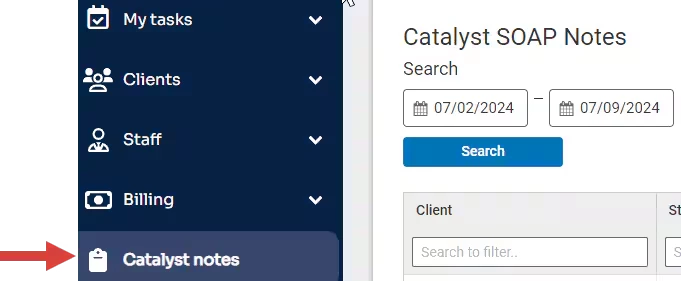
- Click the Data Collection Notes tab in the primary navigation bar.
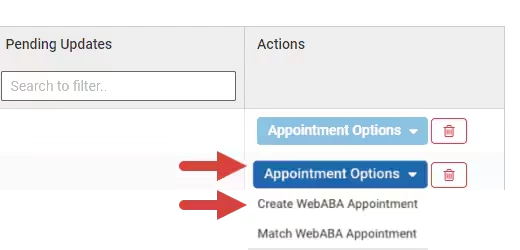
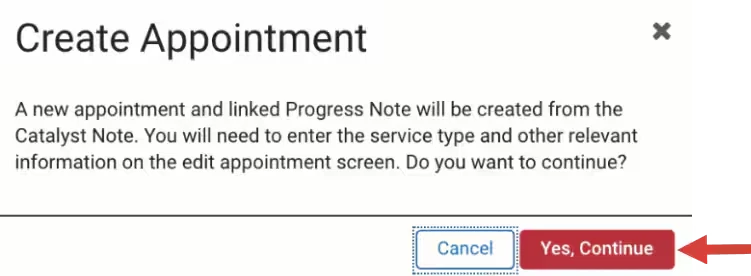
- Click Appointment Options and select Create ABA Therapy Appointment.
- Click Yes, Continue to confirm.
- Add details in the New Appointment window and click Save.