



Prescribers who will be using the system for controlled substances must register for Electronic Prescribing of Controlled Substances (EPCS). EPCS registration with Exostar is a three-part process during which prescribers will verify their information, complete identity proofing, and the confirm their registration after they are granted EPCS prescribing rights by an EPCS Admin.
Prescribers who are accessing the system for the first time via their EHR will see an End User License Agreement before they can proceed to EPCS registration. After that, the Welcome to ePrescribing window opens automatically. This is where these prescribers will indicate that they need to Sign Up for eRx with EPCS and access the EPCS Registration link.
Prescribers who already have access to the system or who access the system outside of an EHR via direct log-in will go to the Admin tab to access the EPCS Registration link. This could include prescribers who are already using the system but have not registered for controlled substances, or prescribers who need to re-register for EPCS.
NOTE: There may be EHR Admin tasks to complete prior to allowing prescribers to register for EPCS.
IMPORTANT: Before you Begin: Download the Twilio Authy app. This is a free mobile app for two-factor authentication that you will need to complete the EPCS registration process.
- Launch the system and navigate to the EPCS Registration link:
- EHR users registering for the first time: When you launch the system from within your EHR, your registration window will open automatically. If you are presented with an End User Licensing Agreement, click I Agree to proceed to the Welcome to ePrescribing Screen. Select Sign Up for eRx with EPCS, then click the EPCS Registration link.

- Direct Log-in users: Log in to the system, click the Admin tab at the top, then click the EPCS Registration link in the EPCS User Controls section.
- EHR users who already have access to the system but need to register or re-register for EPCS: Launch the system from within your EHR, click the Admin tab at the top, then click the EPCS Registration link in the EPCS User Controls section.

- EHR users registering for the first time: When you launch the system from within your EHR, your registration window will open automatically. If you are presented with an End User Licensing Agreement, click I Agree to proceed to the Welcome to ePrescribing Screen. Select Sign Up for eRx with EPCS, then click the EPCS Registration link.
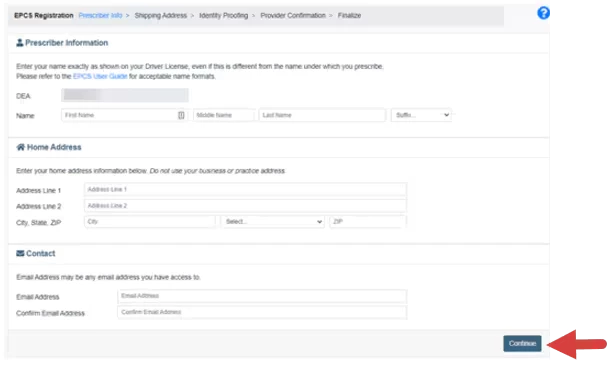
- Enter your Name exactly how it appears on your drivers license. Enter your Home Address (do not use an office address), and Email Address, then click Continue.
NOTE: To avoid registration errors, two word names without hyphens should be entered without a space in between. For example, the first name "John Paul" should be entered as "JohnPaul".
NOTE: The prescriber's DEA Number auto populates from the EHR. If this is incorrect, the change must be made in the EHR.
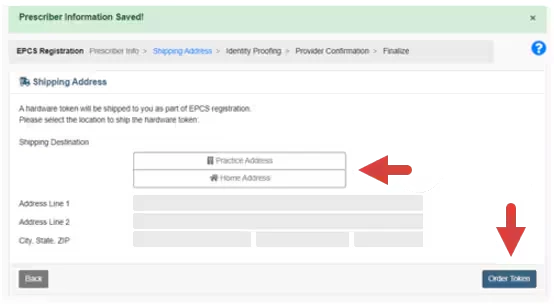
- Choose the Shipping Destination for the hardware token. This can be the provider's Practice Address or Home Address.
- Click the Order Token button.
NOTE: Providers who already have an existing Exostar account will see a Possible Duplicate Registration alert and must contact their EMR. Learn More: Copy an Exostar Registration to a Different Account
- A message confirms the order was successful.
NOTE: It typically takes 3 - 5 business days to receive the hardware token. You do not need to wait to receive the hardware token to continue the EPCS registration process. You can add the hardware token to your account later.
Next Step: EPCS Registration Part 2: Identity Proofing Process