


Use the Patient Details page to add and remove patient pharmacies, document patient details and health plan information, and review the pharmacy renewal request log.
Jump to Section:
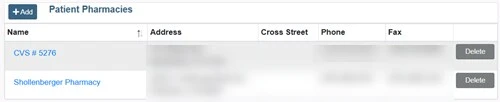
Patient Pharmacies
Click the Add button to add a pharmacy to the patient pharmacy list. Click the Delete button to remove a pharmacy from the list.
Learn More: Assign Patient Pharmacies, Select Patient Pharmacy
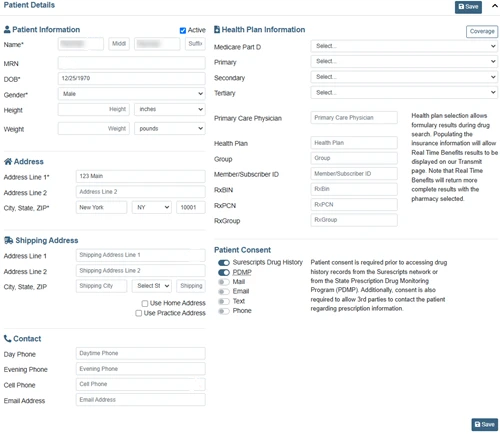
Patient Details
Use the Patient Details section to add and edit patient information, address and shipping address, contact information, health plan information, and patient consent settings. Click the Save button at the top of the section to save changes.
Learn More: View and Manage Patient Details, View Patient Coverage
Patient Information
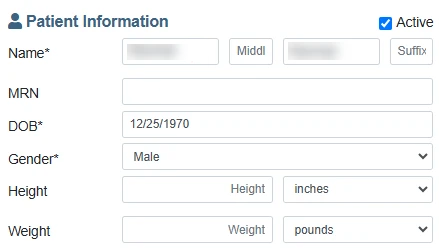
- The Active checkbox is checked to indicate that the patient is Active. Patients that are not active are not shown in the Patient Search by default.
- The Name field shows the patient's full name.
- The MRN field shows the patient's medical record number.
- The DOB field shows the patient's date of birth.
- The Gender field shows the patient's gender.
- The Height field shows the patient's current height. This field is required for patients under 19. Default units can be set in the Prescriber settings section on the Admin page.
- The Weight field shows the patient's current weight. This field is required for patients under 19. Default units can be set in the Prescriber settings section on the Admin page.
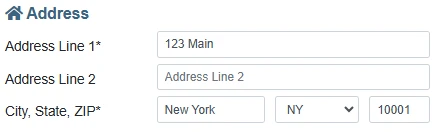
Address
- The Address Line 1 field shows the patient's home address used on prescriptions.
- The Address Line 2 field shows the patient's suite or apartment number.
- The City, State ZIP field shows the patient's city, state, and five-digit zip code.
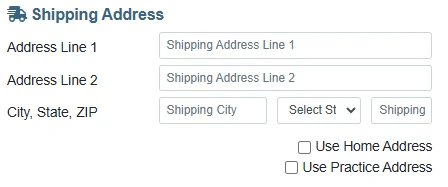
Shipping Address
- The Address Line 1 field shows the patient's shipping address used on prescriptions.
- The Address Line 2 field shows the patient's shipping suite or apartment number.
- The City, State ZIP field shows the patient's shipping city, state, and five-digit zip code.
- The Use Home Address checkbox pulls the patient's home address information into the shipping address fields.
- The Use Practice Address checkbox pulls the practice address into the shipping address fields.
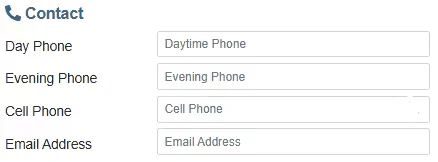
Contact
- The Day Phone field shows the patient's daytime phone number.
- The Evening Phone field shows the patient's evening phone number.
- The Cell Phone field shows the patient's cell phone number. If patient consent has been given for texts, notification messages will go to this number.
- The Email Address field shows the patient's email address. If patient consent has been given for email, notification messages will go to this address.
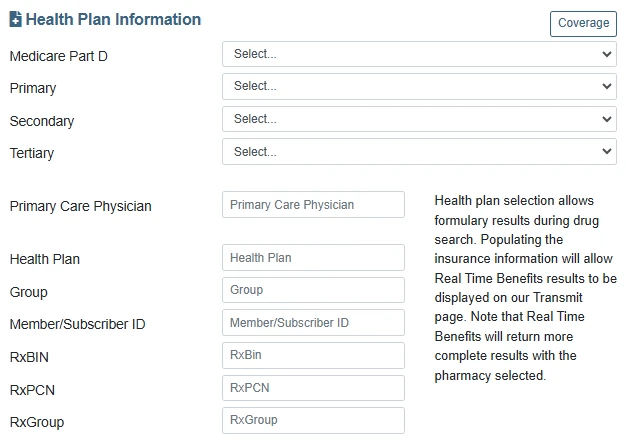
Health Plan Information
Up to four health plans can be manually recorded for the patient. These health plans may be used for formulary checks during the drug search. The Primary, Secondary, Tertiary and Medicare Part D plans will be included in the Health Plan dropdown in the header of each page. Health plans can be selected from a list of health plans associated with the practice. The list of health plans can be managed in the Account Health Plans section on the Admin page.
- The Coverage button opens the Formulary Benefit Details window, which displays the patient's PBM eligibility information as provided by Surescripts. These health plans will automatically populate into the Health Plan dropdown shown in the header of each page.
- The Primary Care Physician field shows the patient's primary care physician.
- The Health Plan field shows the health plan name.
- The Group field shows the Group ID as listed on the patient's insurance card.
- The Member/Subscriber ID field shows the patient's member ID as listed on the patient's insurance card.
- The RxBIN field shows the six-digit code for the health plan as listed on the patient's insurance card.
- The RxPCN field shows the pharmacy care network ID as shown on the patient's insurance card.
- The RxGroup field shows a Group ID that may be shown on the patient's insurance card. This is not used by all health plans.
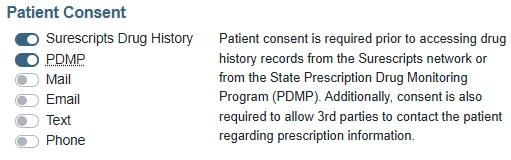
Patient Consent
- The Surescripts Drug History toggle enables patient drug history to be obtained from retail pharmacies and the patient's Pharmacy Benefit Manager. If available, this link is displayed in the header under the patient name.
- The PDMP toggle enables drug history to be obtained from the state Prescription Drug Monitoring Program. If available, this link is displayed in the header under the patient name.
- The Mail toggle indicates if the patient has approved coupon and informational materials to be sent to their address.
- The Email toggle indicates if the patient has approved coupon and information materials to be emailed to them.
- The Text toggle indicates if the patient has approved delivery of text messages regarding coupons and educational materials.
- The Phone toggle indicates if the patient has approved of contact by phone from manufacturers.
Pharmacy Renewal Request Log
The Pharmacy Renewal Request Log lists renewal request information.
- The Request Date column lists the date the request was sent from the pharmacy.
- The Drug column lists the name of the drug requested for renewal.
- The Pharmacy column lists the pharmacy originating the request.
- The Doctor/User column lists the user who responded to the renewal request, and the prescribing doctor if different.
- The Response Date column lists the date the response was sent to the pharmacy.
- The Response column will be populated if the request was denied.
- The Status column indicates if the status is Verified, Success, or Failed.
