


Use the Compose Rx page to search for and create new prescriptions, take action on pending prescriptions, and review patient allergies and medications.
Jump to Section:
Drug Selection
Drug Search
Use the Drug Search to search the drug database. Click the Checkboxes below the Drug Search field to filter for Ophthalmic Only or Obsolete Drugs that are no longer available.
Learn more: Create a New Prescription
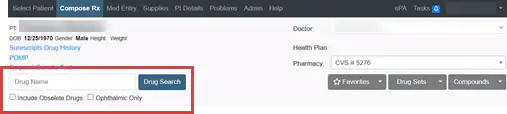
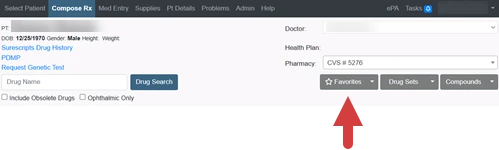
Favorites
Use Favorites to access a list of common prescriptions. Click the dropdown and select Insulin for a list of insulin drugs.
Learn More: Add & Manage Favorites, Prescribe a Favorite Prescription
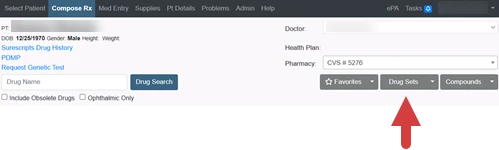
Drug Sets
Use Drug Sets to access a list of drug groups that can be organized and prescribed as a group.
Learn More: Add and Manage Drug Drug Sets, Prescribe a Drug Set
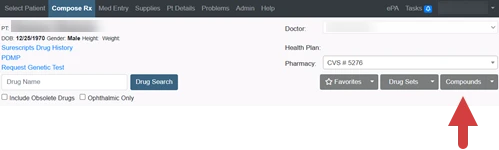
Compounds
Use Compounds to select a previously built compound or create a new one.
Learn More: Add and Manage Compounds, Prescribe a Compound
Drug Search Results
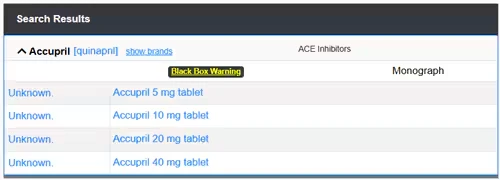
Drug Search Results are organized into categories by drug name. If a search returns more than four results, each category will be collapsed by default.
- Click the Drug Name Category to collapse or expand drug details.
- Ingredient Name is shown if the drug is a brand.
- Click Show Brands to show available brands of the drug.
- Therapeutic Category identifies the primary use of the drug.
- Black Box Warning will be present if the drug has been issued this high-level alert by the FDA.
- Monograph links to the drug monograph provided by Lexicomp, and is available for most drugs.
- Drug Formulations display under the parent drug category. These are the selectable options for prescribing.
- Formulary Status identifies the coverage level of the drug. The value descriptions may vary from health plan to health plan.
- Doctor's Favorites appear as underlined sigs for a given Rx. Clicking on the sig will take the prescription directly to pending status.
- Obsolete Drugs will be indicated with a notice showing that the drug is not currently available under the given name. If an alternative brand or generic is available, the link will still be shown and will redirect to the available drug.
Pending Rx
Prescriptions on the Pending Rx list have been started but not transmitted or printed.
Learn More: Create a Pending Prescription
Click the checkboxes to select one or more medications.
- Click the Prescribe button to take the selected prescriptions to the Transmit page, where you can send the prescriptions to a pharmacy or print the prescriptions.
- Click the dropdown on the Prescribe button and select Review to open the prescriptions on the review page prior to transmission.
- Click the dropdown on the Prescribe button and select Delete to remove the prescription from the Pending Rx list.
- Click the field in the Refills column to modify the refill count.
- Click the Edit button to open the sig builder.

Allergies
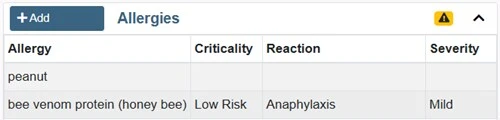
Patient allergies are listed in the Allergies section. From here, you can review and add patient allergies.
- Click the NKDA checkbox to indicate positive confirmation that the patient has no known allergies. This is only an option if the patient has no documented active allergies.

- An alert icon displays on the top bar if allergies are present.
- Click the Add button to open the Problems tab to add a new allergy. Learn More: Record and Manage Patient Allergies
Active Medications
Current patient medications are listed on the Active Medications list.
- Click the Takes No Medications checkbox to indicate positive confirmation that the patient is currently taking no medications. This is only an option if the patient has no documented active medications.

- Click the checkboxes to select one or more medications.
- Click the Prescribe button to take the selected prescriptions to the Transmit page, where you can send the prescriptions to a pharmacy or print the prescriptions.
- Click the Prescribe button dropdown and select Queue Rx to copy the medication and move it to the Pending Rx list.
- Click the Prescribe button dropdown and select Discontinue to remove the medication and allow the user to notify the pharmacy.
- Click the Drug Review button to perform an interaction check between all active medications.
- Click the Edit button to open the sig builder.
- Click the Edit button dropdown and select Replace to change the drug strength or form. Learn More: Replace Feature
- Click the Edit button dropdown and select Details to review prescription history, script notes, clinical information, and other options.

Previous Medications
Medications that the patient is no longer taking are listed on the Previous Medications list.
- Click the Show Hidden checkbox to view previously hidden medications.
- Click the checkboxes to select one or more medications.
- Click the Reactivate button to move the medication to the Active Medications list.
- Click the dropdown on the Reactivate button and select Queue Rx to move the medication to the Pending Rx list.
- Click the dropdown on the Reactivate button and select Prescribe to take the prescription to the Transmit page and renew the prescription.
- Click the Detail button to view prescription history, script notes, clinical information, and other options.
- Click the dropdown on the Detail button and select Hide to hide the medication from view on the previous medications list. This is intended for drugs that were added to the patient chart in error.
