If you frequently write specific prescriptions at your practice, they can be added to your Doctor's Quick Rx List. Customize and save route and frequency details, special instructions, dispense information and associated diagnosis to save time creating common prescriptions. There are multiple ways to do this.
Prescribers have their own individual Quick Rx Lists. The Quick Rx List Copy Tool allows a prescriber's Quick Rx List to be copied to one or more prescribers at the practice. This is helpful for quickly setting up new prescribers.
Jump to Section:
Build a New Quick Rx
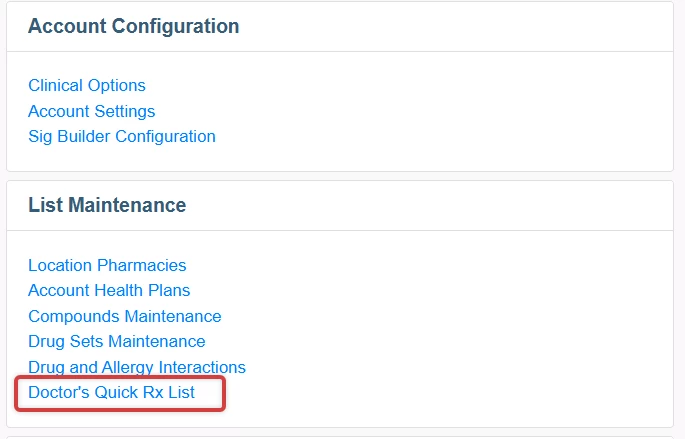
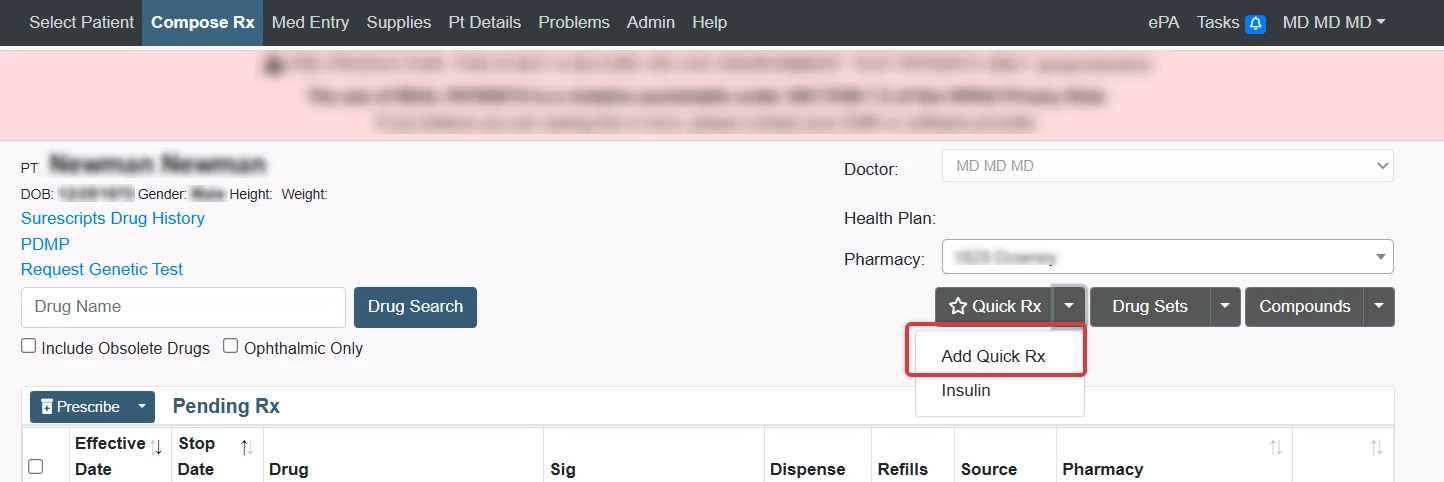
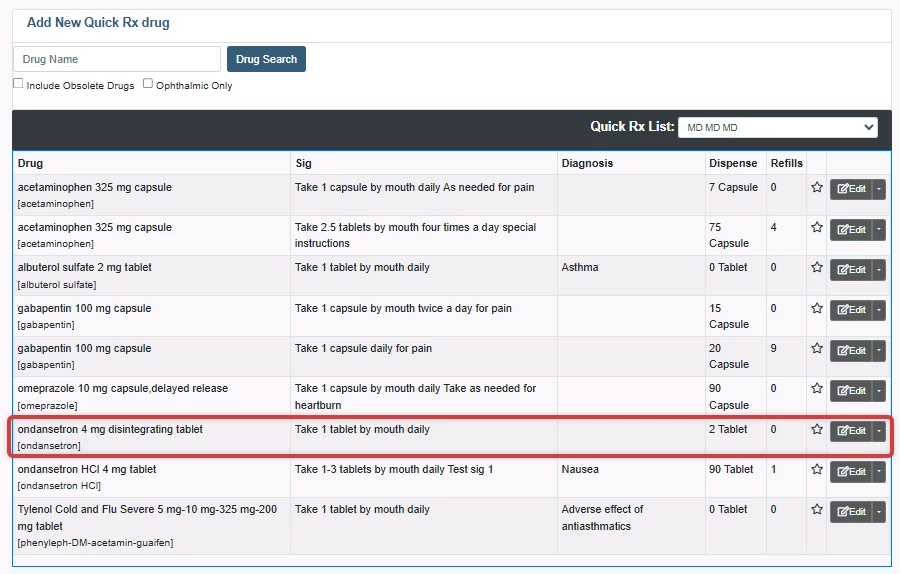
- Click the Doctor's Quick Rx List link from the Admin tab, or click Add Quick Rx on the Quick Rx button dropdown from the Compose Rx tab. The Add New Quick Rx drug window opens.
- From the Admin Tab
- From the Compose Rx tab
- Enter the name of the drug in the Search Field, then click the Drug Search button or press the Enter key.

- Search results display. If there are many results, each category of drug will be minimized by default.
Click on the Drug Name to expand the category and show the specific formulations. - Select the Preferred Formulation to open the Sig Builder.

- Enter Route and Frequency details, Dispense Information, Associated Diagnosis and other instructions, then click Save.
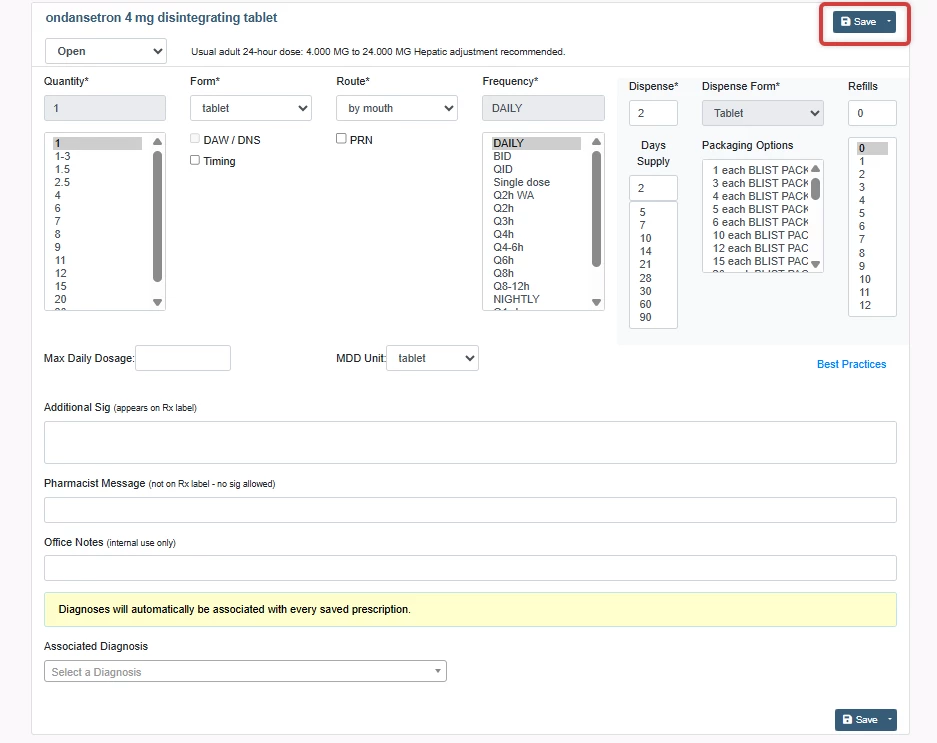
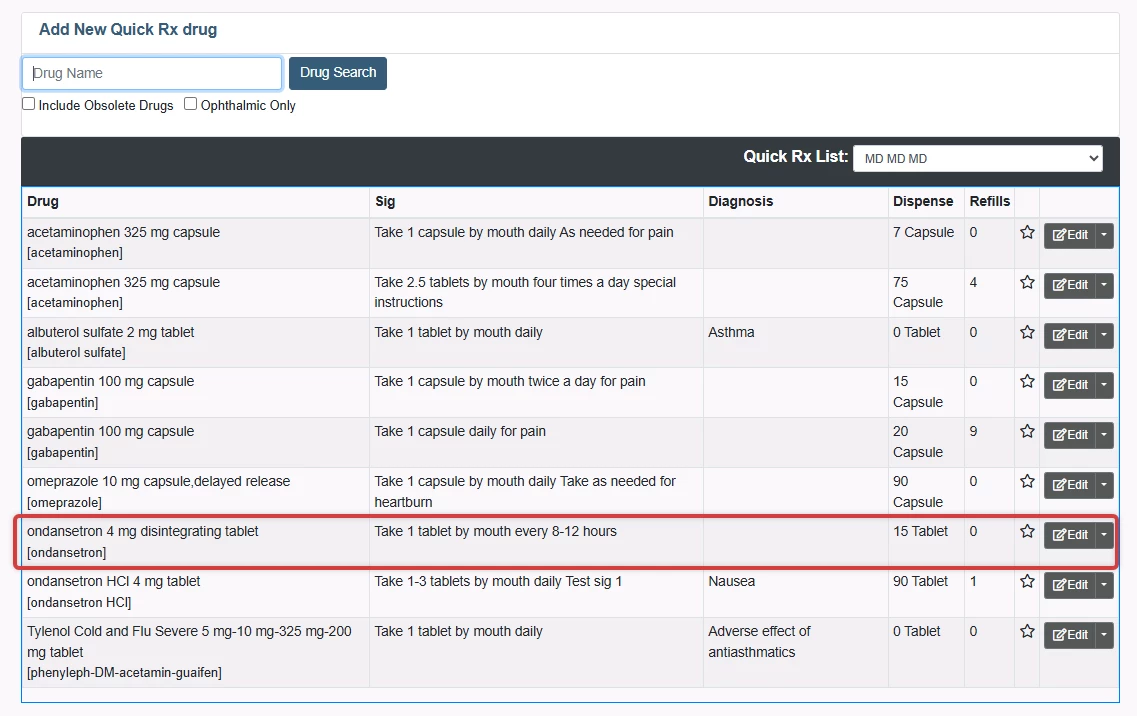
- The Prescription is saved to the Doctor's Quick Rx List.
Edit a Quick Rx
You can edit a Quick Rx prescription after you have saved it to your Quick Rx list. If a prescription on your Quick Rx list is highlighted in pink, this indicates that the Sig or Dispense Form is invalid and the Quick Rx should be edited.
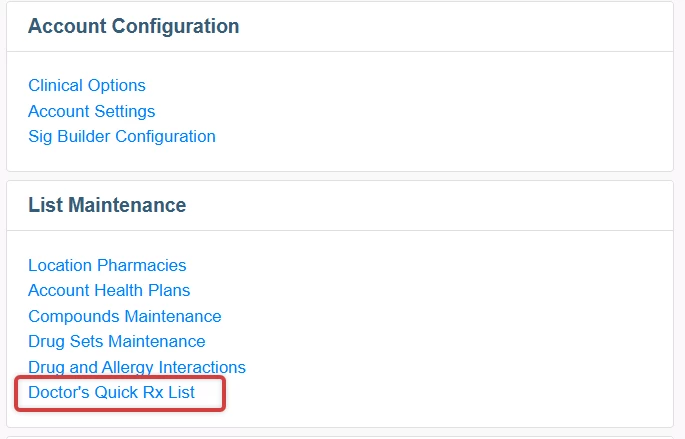
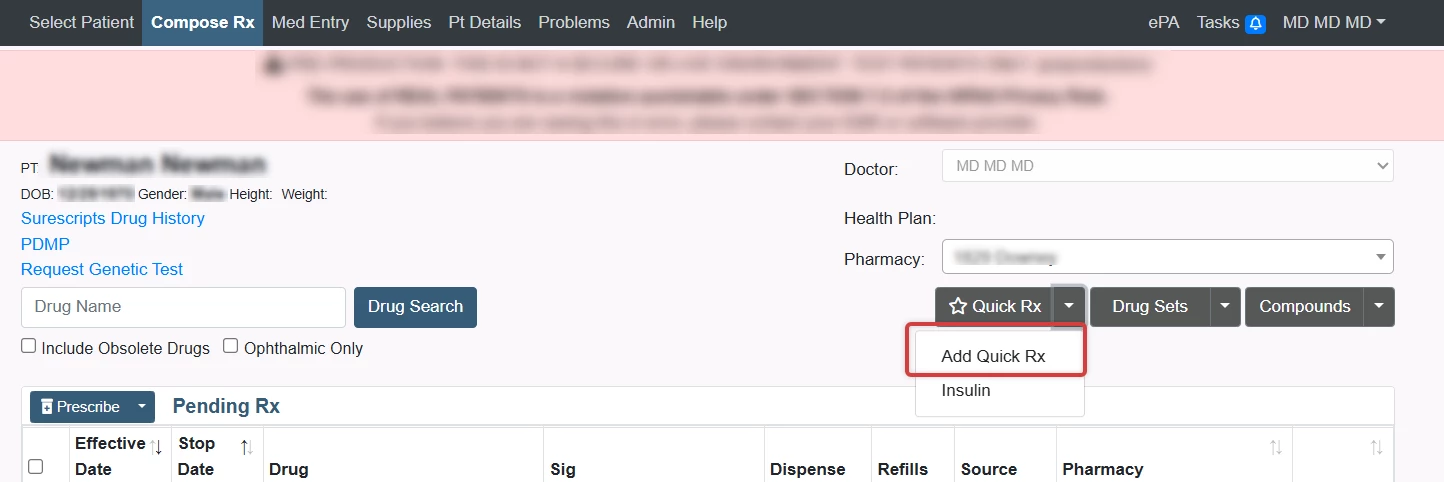
- Click the Doctor's Quick Rx List link from the Admin tab, or click Add Quick Rx on the Quick Rx button dropdown from the Compose Rx tab. The Add New Quick Rx drug window opens.
- From the Admin Tab
- From the Compose Rx tab
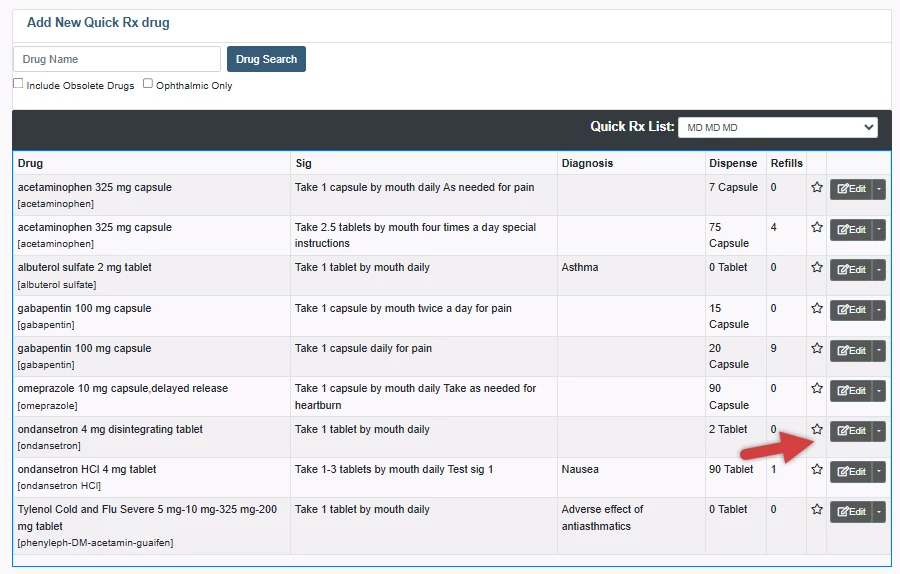
- Click the Edit button next to the Quick Rx prescription.
NOTE: Click the dropdown arrow on the Edit button and select Delete to remove the prescription from the Quick Rx List.
- Enter Route and Frequency details, Dispense Information and other instructions, then click Save.
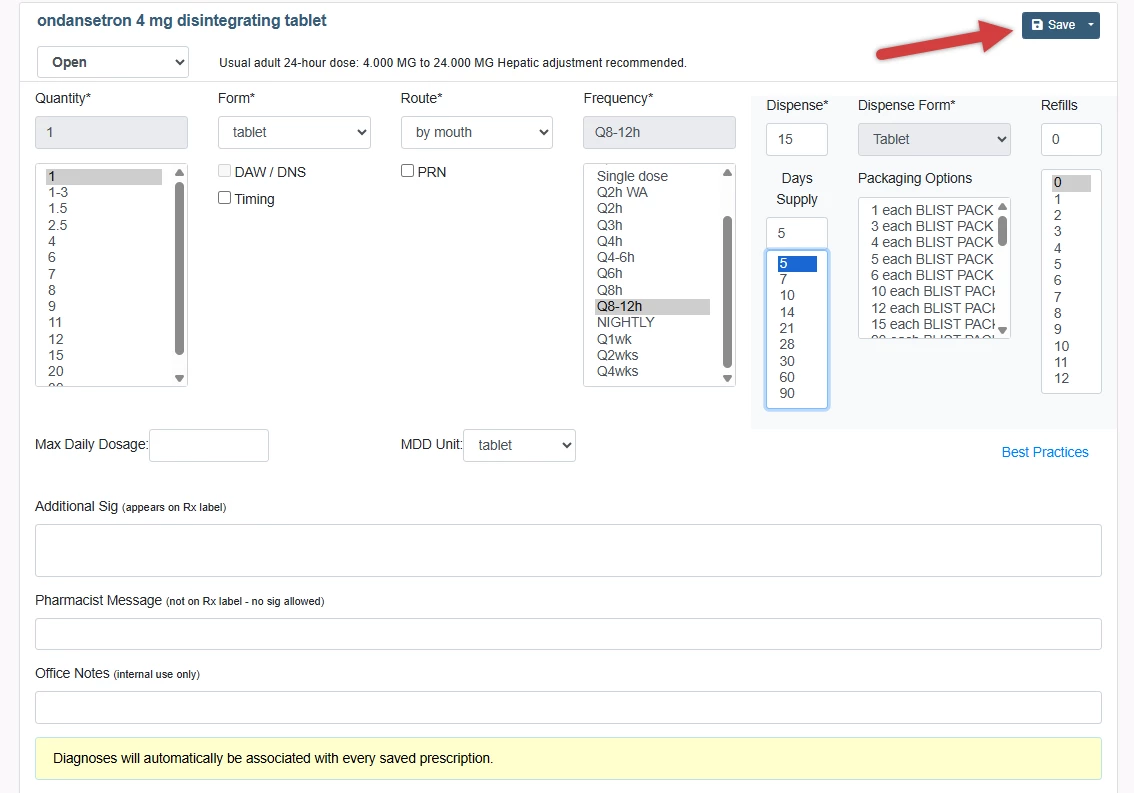
- The edited prescription is saved to the Quick Rx List.
Add to Quick Rx List from the Sig Builder
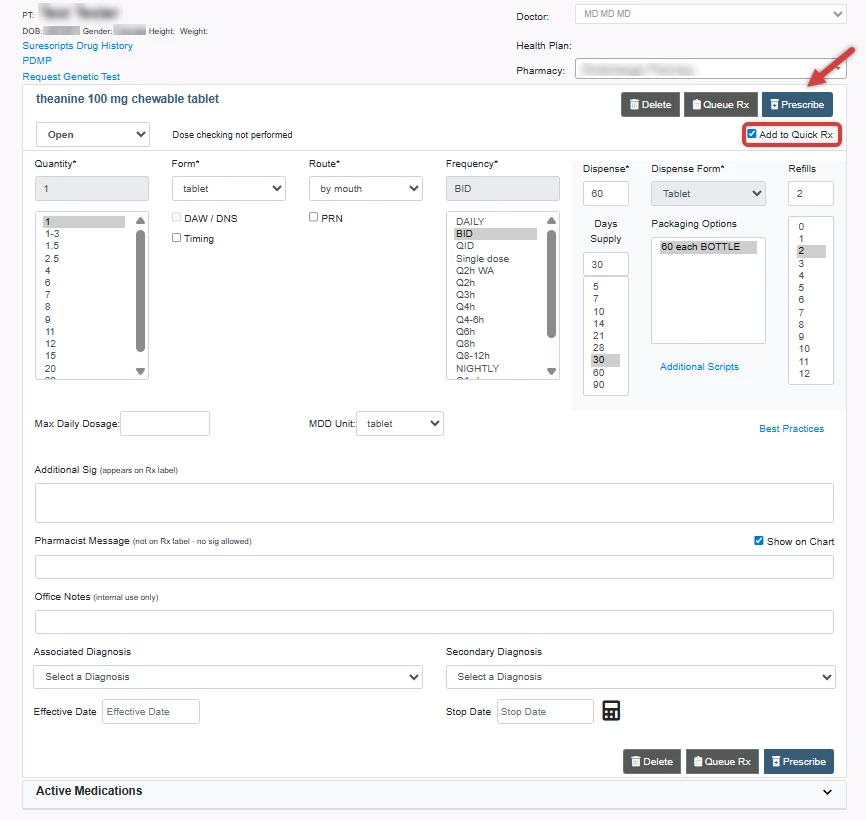
- Enter Route and Frequency details, Dispense Information and other instructions, then click the Add to Quick Rx checkbox.
NOTE: The associated diagnosis entered for this prescription is specific to this patient and will not be added to the Quick Rx. To save a Quick Rx with an associated diagnosis, use the Doctor's Quick Rx link on the Admin page.
- Click Prescribe. The Prescription is saved to the Doctor's Quick Rx List.