


Overview
If you prescribe controlled substances and work at more than one location, you must attach your existing EPCS registration to each additional location before prescribing from it.
This article explains how to copy your ID.me EPCS registration to another location.
Jump to Section:
PERMISSIONS REQUIRED: You must have access to the new location in your prescribing system.
Step 1: Start EPCS Registration for the new Location
- Login to eRx and access the ePrescribing site with your New Location selected.
- Open any Patient chart.
- Click the Sign up for eRx with EPCS dropdown.
- Select the EPCS Registration option.
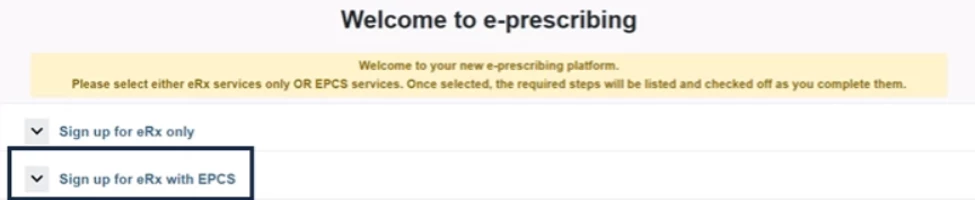
- If this option is not available, navigate to Admin > EPCS Registration.
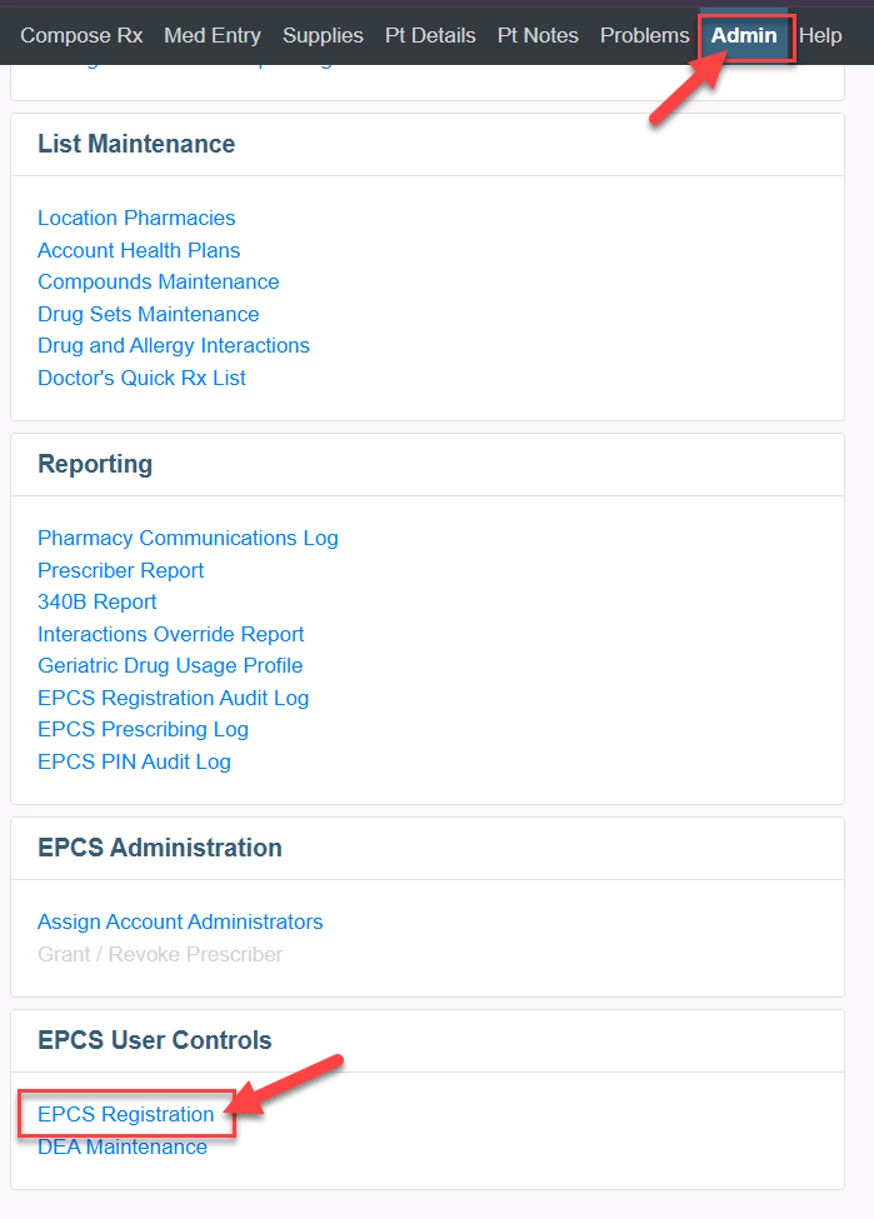
- If this option is not available, navigate to Admin > EPCS Registration.
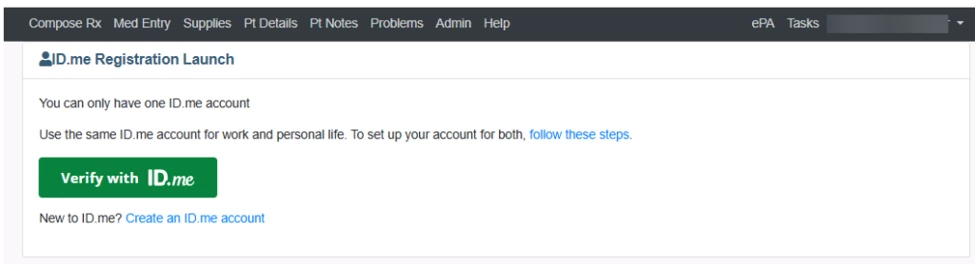
- Click the green Verify with ID.me button.
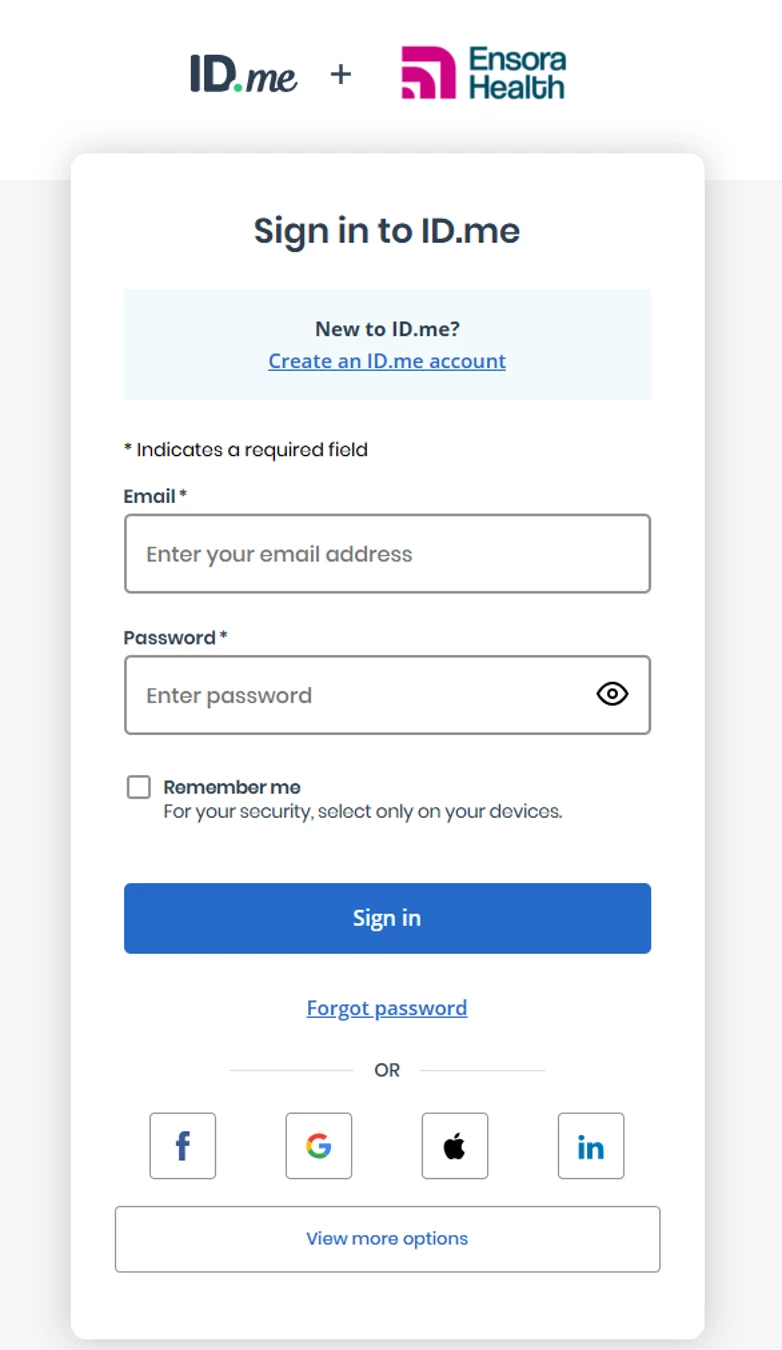
- Sign in to your ID.me account.
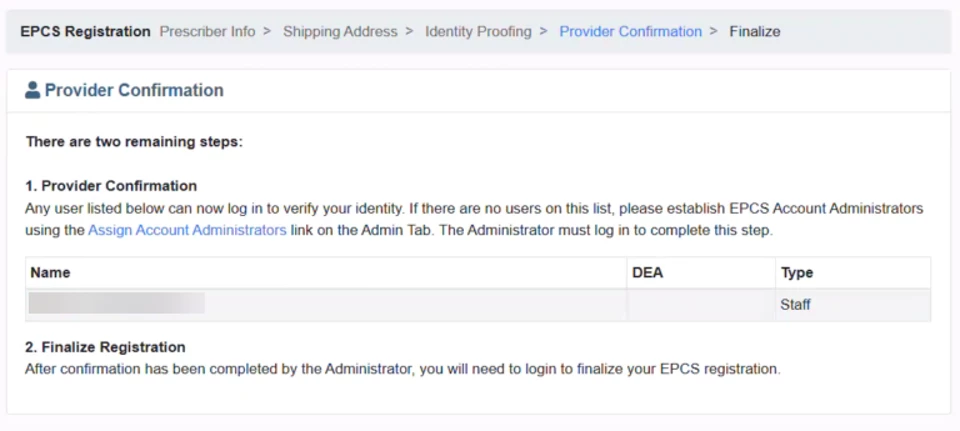
- Pause at the Provider Confirmation screen and continue to the next section.
Step 2: Assign an Account Administrator
An administrator must authorize EPCS access for the new location.
This can be done by:
- An in-house administrator, or
- An authorized implementation or support specialist
Assign an In-house Administrator
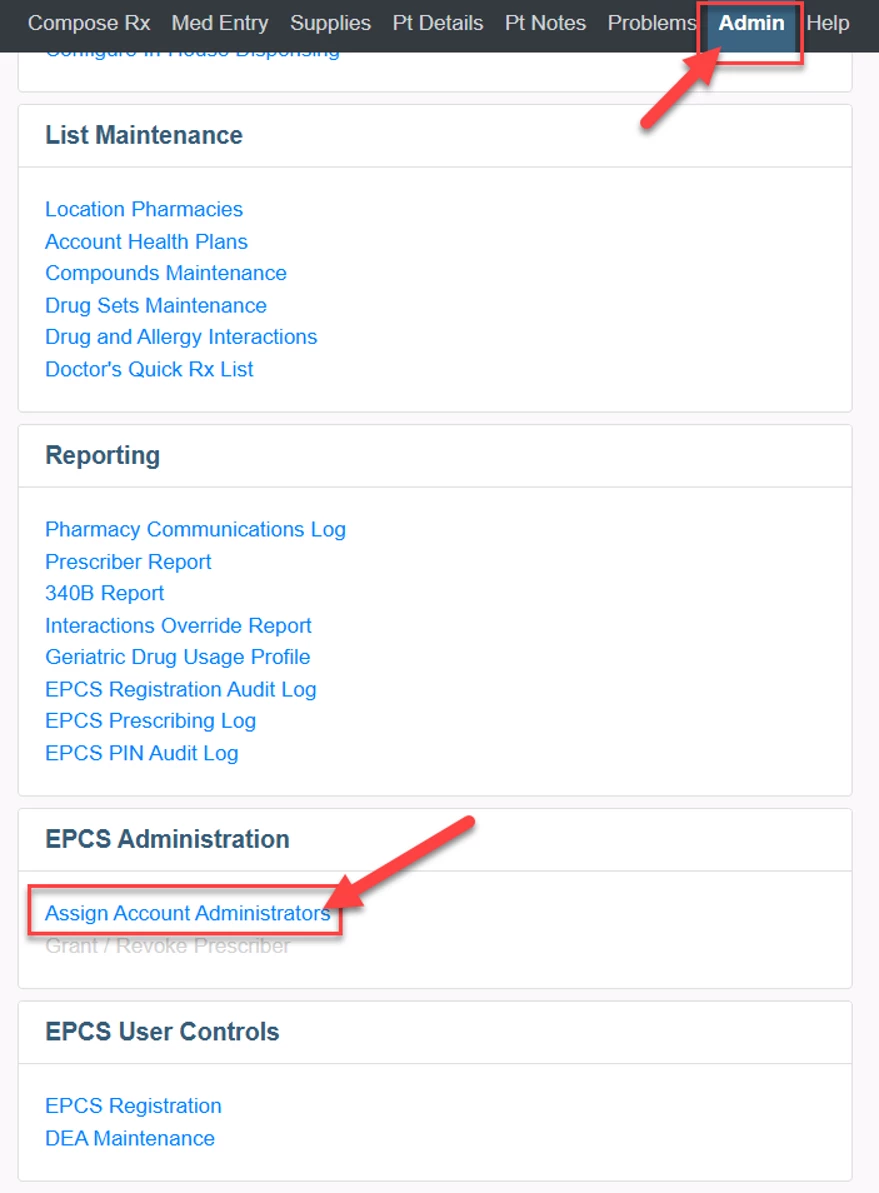
- Login and open any patient.
- Go to Admin.
- Select Assign Account Administration within EPCS Administration.
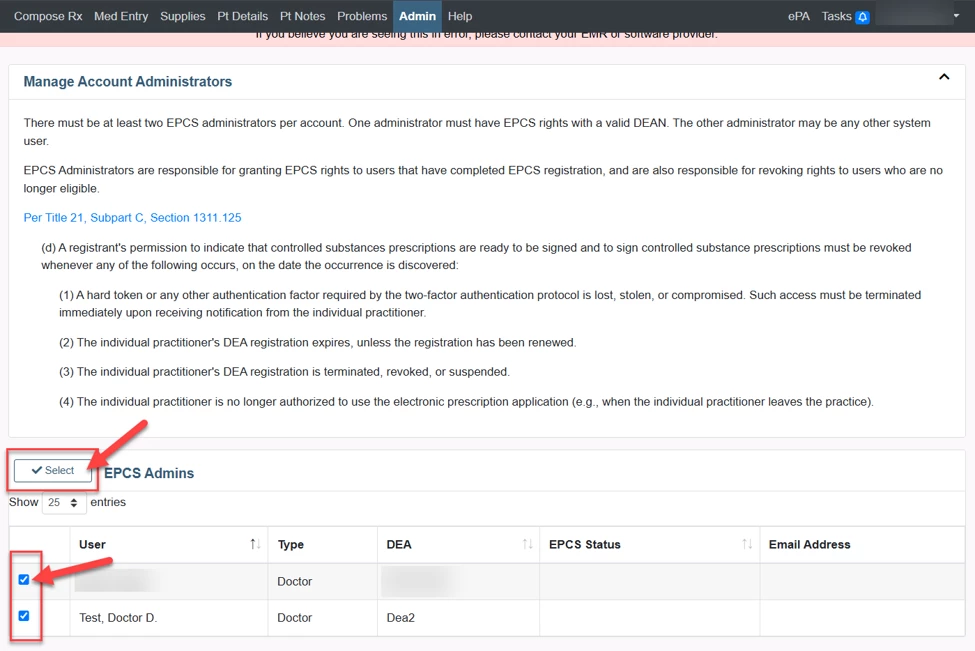
- Select the checkbox for:
- One administrator
- The provider being authorized
NOTE: At least two users must be checked.
- Click the Select button.
Step 3: Grant EPCS Access
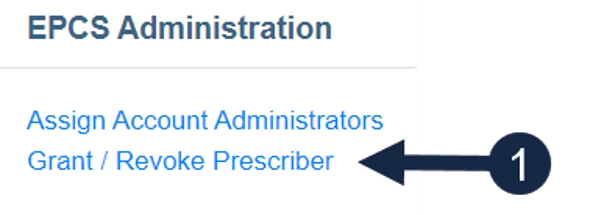
- The administrator will go to Admin.
- Click Grant/Revoke Prescriber within EPCS Administration.
- Select the checkbox for the Provider(s).
- Click the Grant button.

A confirmation message appears when access is successfully granted.

Step 4: Finalize Setup for the new Location
- The provider will log in and go to Admin.
- Click EPCS Registration within EPCS User Controls.
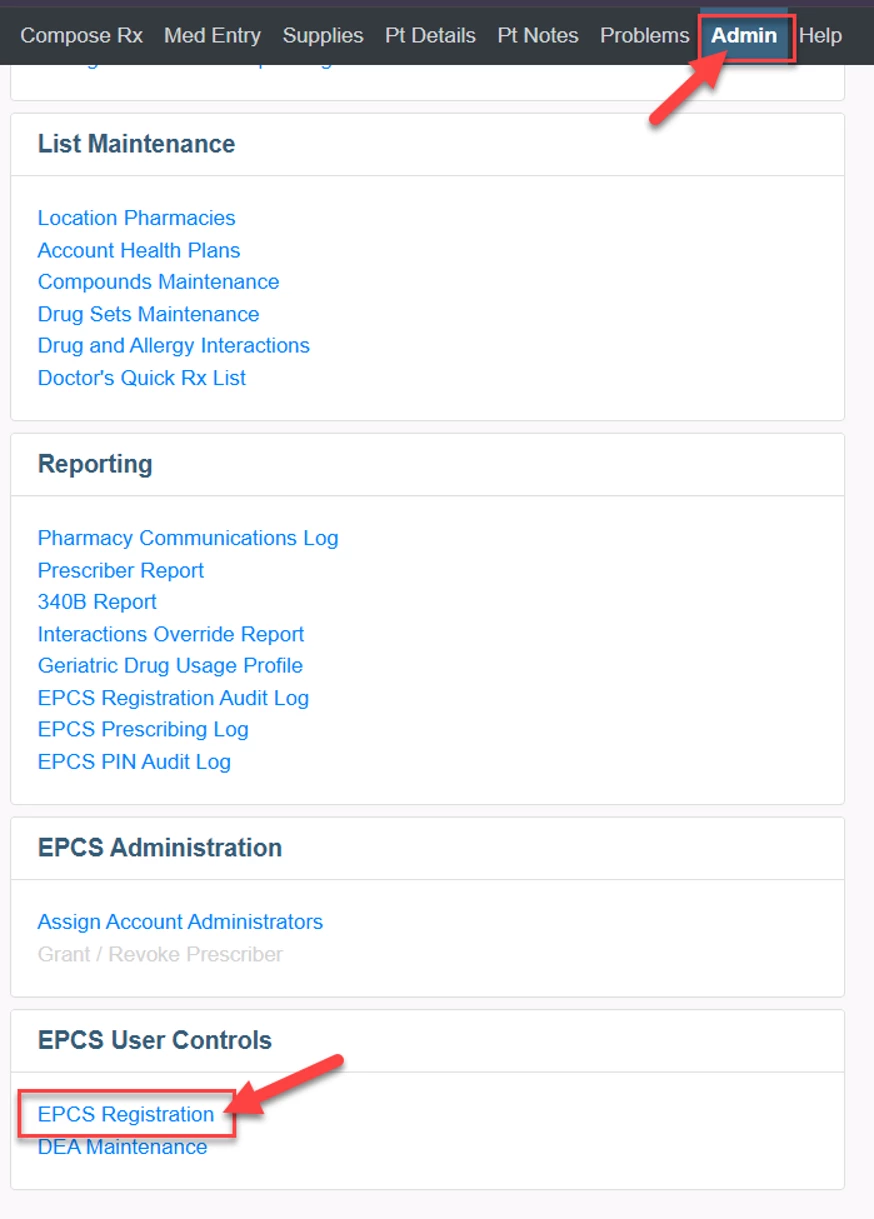
- Select an ID.me verification method from the Select Setup dropdown to configure your ID.me app setting on your device.
- Push Notification
- A notification will appear on your device, asking if you would like to sign and approve the transmitted Rx.
- One-time passcode
- Open the ID.me application on your device to retrieve a one-time passcode. This passcode is needed to sign and approve the transmitted Rx.
- Push Notification
- Click the blue Select Setup button.
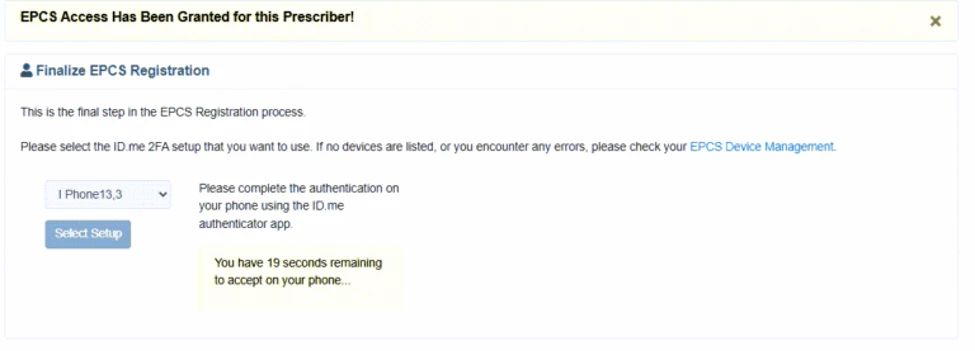
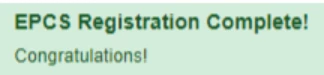
The provider can now prescribe controlled substances from this location.
NOTE: Repeat Steps 1-4 for each of the Provider(s) prescribing locations.