Use this guide for troubleshooting recommendations for Ensai Session Assistant. Contact Fusion Support if you need additional help.
Jump to Section:
Ensai Session Assistant Device & Network Requirements
It is important to have a stable internet connection when attempting to record and transcribe audio, create context, and generate notes. The tool will not run all functions as intended with intermittent or slow connectivity.
Device
- Desktop
- 11th Gen Intel i5 Processor (2.4GHz) or better
- 8 GB or more of RAM
- At least 5 GB of free hard drive space
- Device microphone (either internal or external)
- Latest version of Google Chrome or Microsoft Edge web browser
- Mobile
- Currently supported Android or iOS operating system
- Ensai Session Assistant can be accessed via www.ensorascribe.com on mobile devices.
Network
- Wi-Fi 6 or Ethernet port
- Reliable internet connection of at least 25Mbps download, 5Mbps upload
Login & Logout
My login is not working.
Enter the login email exactly as it appears in Fusion, including capitalization.
Carefully enter the one-time password sent by email. Copying and pasting may add or omit characters, such as an extra space.
Ensai Session Assistant logged me out. Why did that happen?
Best practice is to log out of Ensai Session Assistant when you are finished using it. Logging out of Fusion does not end your Ensai Session Assistant session, which remains active for 24 hours.
Registration & Setup
I completed the registration steps, but I cannot move forward.
Many times, you need to finish setting up your account by clicking My Account in the upper-right corner of Fusion, selecting Sign Up for Ensai Session Assistant, and choosing the appropriate specialty. See Ensai Session Assistant: Get Started for more information.
Documentation
My notes require a lot of editing. How can I improve the notes Ensai Session Assistant generates to match my preferences?
Use Custom Note Workshop in Ensai Session Assistant to customize clinical note types to better fit your documentation needs. You can also personalize existing primary note types and share them with colleagues in your organization. Learn more: Ensai Session Assistant: Custom Note Workshop
[Back to Top]
Context
Provide Context
When recording audio, it is recommended that you give the AI as many details as possible. For example, even if utilizing the “fly-on-the-wall” style of recording, you should still call out specific measurements, tests, and observations to improve the AI’s understanding of what is happening. The better your input, the higher quality your output will be.
Record & Submit Context
To save the context you have just recorded, you must hit Submit on the Home screen. Do not close Ensai Session Assistant, close your browser, or shut down your computer before clicking Submit, or you will lose your context.
You can pause and restart the recording any time by pressing the red pause button if needed, but pausing does not save the recording. You must hit Submit to save the recording.
Additionally, you will want to disable any device setting that automatically shuts off your screen, signs you out of your operating system, puts your device to sleep, or shuts down your device after a certain period of idle time. This will likely prevent your device from recording.
If you lose internet connectivity during audio recording, do not close anything. You can continue to record offline. Ensai Session Assistant requires stable internet connectivity when you begin recording, when you submit an encounter, and after encounter submission. If you intermittently lose connectivity while recording, you can continue uninterrupted; however, do not try to submit an encounter until your connection has resumed. Clicking Submit when you are offline could result in errors or issues with note generation.
Recording
Microphone Sensitivity (Input Volume)
- Device
- Desktop
- Most computers have a microphone sensitivity setting. This will determine how easily the microphone picks up noises in the room. Typically, a high setting means more sensitivity, while a low setting means less sensitivity. If you are trying to record an encounter context but are finding that notes are not complete or certain details are not captured, you may need to increase your sensitivity setting:
- Windows PC
Open Settings, then System, then Sound. There should be settings for both Output (speaker volume) and Input (mic sensitivity). You want to adjust the Input. - Mac
Open Settings, then Sound. There should be settings for both Output (speaker volume) and Input (mic sensitivity). You want to adjust the Input.
- Windows PC
- Most computers have a microphone sensitivity setting. This will determine how easily the microphone picks up noises in the room. Typically, a high setting means more sensitivity, while a low setting means less sensitivity. If you are trying to record an encounter context but are finding that notes are not complete or certain details are not captured, you may need to increase your sensitivity setting:
- Mobile
- Optional Bluetooth microphones, such as lapel microphones, may help improve audio capture during your session when using a mobile device in crowded or loud environments.
- Optional Bluetooth microphones, such as lapel microphones, may help improve audio capture during your session when using a mobile device in crowded or loud environments.
- Desktop
Microphone Permission Access
Ensai Session Assistant needs access to your microphone to record the audio from your visit and generate a note. When clicking the recording button for the first time you may receive a pop-up asking to allow Ensai Session Assistant access to your device's microphone. You should select “Allow while visiting the site” or “Always allow”.
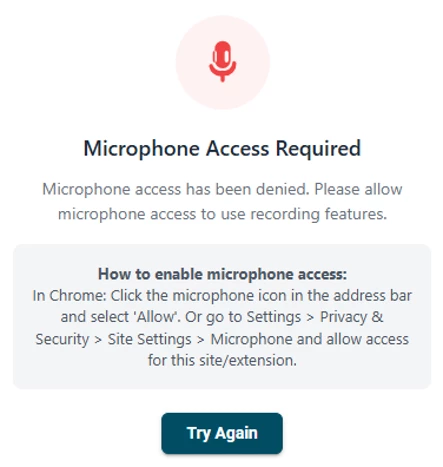
If you accidentally select Don't Allow, see the error message below when attempting to record, or otherwise suspect Ensai Session Assistant is not recording audio, here are the steps to fix it:
- Chrome Extension
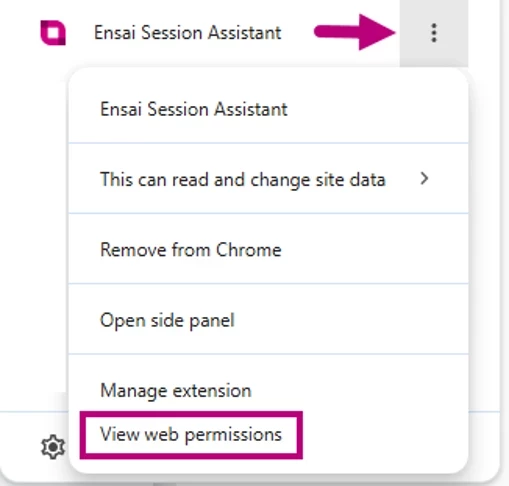
- Click the puzzle piece icon. Next to Ensai Session Assistant, click the 3 vertical dots, then click View web permissions.
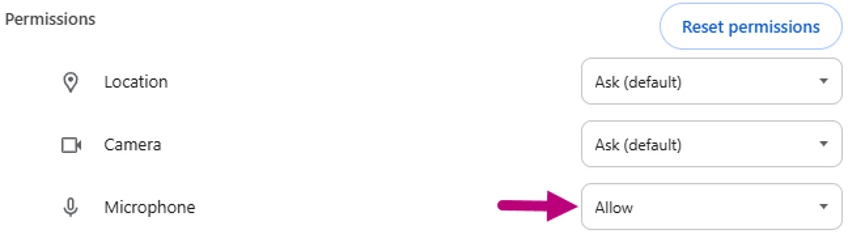
- Under Permissions, find Microphone and adjust the dropdown menu so it says Allow. You may need to close and reopen the extension for the change to take effect.
- Click the puzzle piece icon. Next to Ensai Session Assistant, click the 3 vertical dots, then click View web permissions.
- Web App
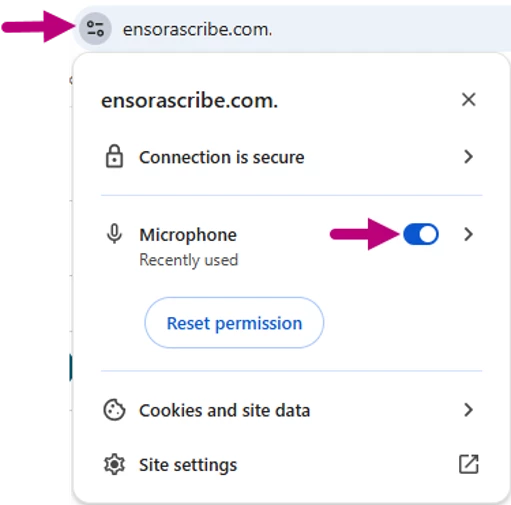
- In the browser bar, you will see either a settings symbol or microphone symbol immediately to the left of the URL. Click this, then toggle the microphone on. You can also click the chevron to view additional information, such as whether the microphone is allowed on every visit to this URL, and what microphone is selected.