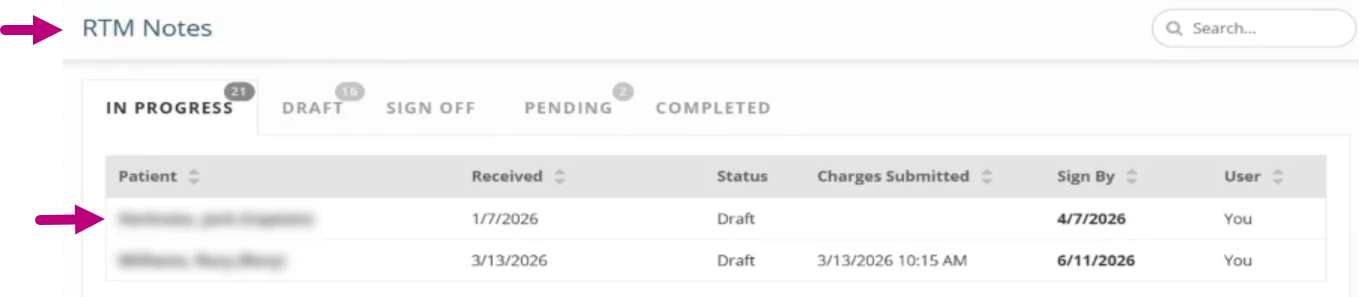
When Wibbi submits RTM billing data, Fusion automatically creates an RTM note draft for the therapist. The draft appears on the RTM Notes page under the Docs tab and is included in the incomplete document counts shown on the Docs and Schedule tabs. RTM notes include the billing codes, code descriptions, minutes or quantity, units, and supporting explanation provided by Wibbi.
Because all information is pulled directly from Wibbi, therapists do not need to edit or add any content to the note. Therapists can review the draft in Fusion and sign it to complete the documentation required for RTM billing.
Once the final signature is added, charges are automatically submitted and a claim is created, including for clinics that use centralized billing. Claims created from RTM notes follow Fusion's standard billing workflow and are processed like any other claim.
Compete an RTM Note
- Click the Docs tab.
- Click RTM Notes.
- Select the note draft from the list in on the In Progress tab.
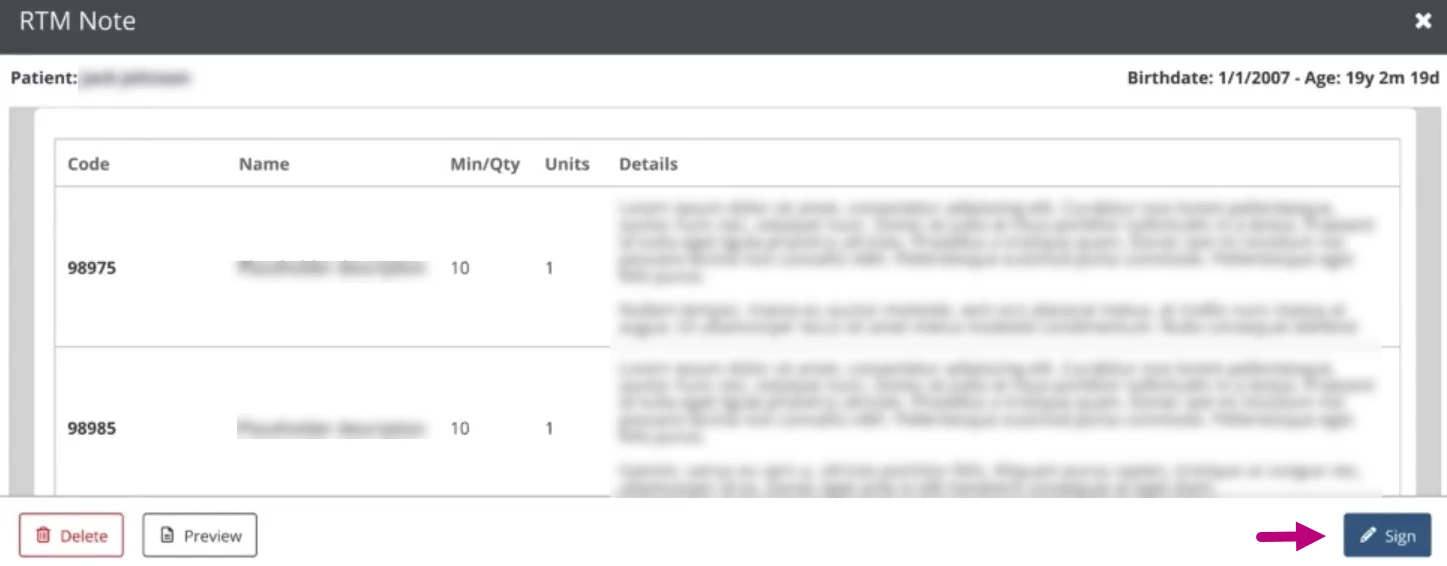
- Review the RTM Note draft, then click Sign:
- Code: The Billing code sent from Wibbi
- Name: The Billing Code Name
- Min/Qty: Number Minutes or Quantity that is being billed
- Units: Number of units
NOTE: For RTM code billing, every 20 minutes results in one unit, without rounding. The 8-minute rule does not apply to RTM billing codes.
- Details: An explanation of the code and a summary of what the therapist has completed and documented in the Wibbi platform.
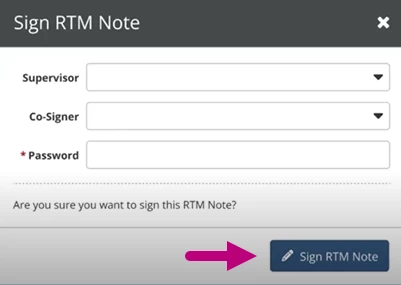
- Click Sign RTM Note.
NOTE: Cosigners & Supervisors:
- The Supervisor field is available in this section, as the note itself does not contain any editable fields.
- A Co-Signer is always required for RTM notes if the therapist does not having the sign off permission.